

Android 15 wprowadza świetne funkcje i interfejsy API dla deweloperów W kolejnych sekcjach znajdziesz podsumowanie tych funkcji, które pomoże Ci zacząć korzystać z powiązanych interfejsów API.
Szczegółową listę dodanych, zmodyfikowanych i usuniętych interfejsów API znajdziesz w raporcie o różnicach w interfejsach API. Więcej informacji o dodanych interfejsach API znajdziesz w dokumentacji interfejsu Android API – w przypadku Androida 15 poszukaj interfejsów API dodanych na poziomie 35. Aby dowiedzieć się, w jakich obszarach zmiany platformy mogą wpłynąć na Twoje aplikacje, zapoznaj się ze zmianami w działaniu Androida 15 w przypadku aplikacji, które są kierowane na Androida 15 oraz wszystkich aplikacji.
Aparat i multimedia
Android 15 zawiera wiele funkcji, które poprawiają jakość zdjęć i multimediów oraz zapewniają dostęp do narzędzi i sprzętu, które pomagają twórcom realizować swoje pomysły na Androidzie.
Więcej informacji o najnowszych funkcjach i rozwiązaniach dla deweloperów w zakresie multimediów i aparatu na Androidzie znajdziesz w prezentacji Building modern Android media and camera experiences (Tworzenie nowoczesnych rozwiązań multimedialnych i fotograficznych na Androidzie) z Google I/O.
Słabe oświetlenie
Android 15 introduces Low Light Boost, an auto-exposure mode available to both Camera 2 and the night mode camera extension. Low Light Boost adjusts the exposure of the Preview stream in low-light conditions. This is different from how the night mode camera extension creates still images, because night mode combines a burst of photos to create a single, enhanced image. While night mode works very well for creating a still image, it can't create a continuous stream of frames, but Low Light Boost can. Thus, Low Light Boost enables camera capabilities, such as:
- Providing an enhanced image preview, so users are better able to frame their low-light pictures
- Scanning QR codes in low light
If you enable Low Light Boost, it automatically turns on when there's a low light level, and turns off when there's more light.
Apps can record off the Preview stream in low-light conditions to save a brightened video.
For more information, see Low Light Boost.
Sterowanie aparatem w aplikacji
Android 15 adds an extension for more control over the camera hardware and its algorithms on supported devices:
- Advanced flash strength adjustments enabling precise control of flash
intensity in both
SINGLEandTORCHmodes while capturing images.
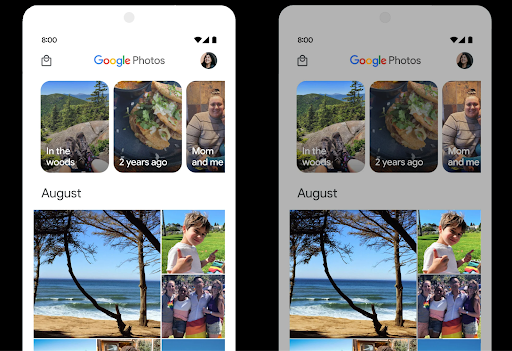
Kontrola zakresu dynamicznego HDR
Android 15 chooses HDR headroom that is appropriate for the underlying device
capabilities and bit-depth of the panel. For pages that have lots of SDR
content, such as a messaging app displaying a single HDR thumbnail, this
behavior can end up adversely influencing the perceived brightness of the SDR
content. Android 15 lets you control the HDR headroom with
setDesiredHdrHeadroom to strike a balance between SDR
and HDR content.
Sterowanie głośnością

Android 15 introduces support for the CTA-2075 loudness standard to help you avoid audio loudness inconsistencies and ensure users don't have to constantly adjust volume when switching between content. The system leverages known characteristics of the output devices (headphones and speaker) along with loudness metadata available in AAC audio content to intelligently adjust the audio loudness and dynamic range compression levels.
To enable this feature, you need to ensure loudness metadata is available in
your AAC content and enable the platform feature in your app. For this, you
instantiate a LoudnessCodecController object by
calling its create factory method with the audio
session ID from the associated AudioTrack; this
automatically starts applying audio updates. You can pass an
OnLoudnessCodecUpdateListener to modify or filter
loudness parameters before they are applied on the
MediaCodec.
// Media contains metadata of type MPEG_4 OR MPEG_D
val mediaCodec = …
val audioTrack = AudioTrack.Builder()
                                .setSessionId(sessionId)
                                .build()
...
// Create new loudness controller that applies the parameters to the MediaCodec
try {
   val lcController = LoudnessCodecController.create(mSessionId)
   // Starts applying audio updates for each added MediaCodec
}
AndroidX media3 ExoPlayer will also be updated to use the
LoudnessCodecController APIs for a seamless app integration.
Wirtualne urządzenia MIDI 2.0
Android 13 added support for connecting to MIDI 2.0 devices using USB, which communicate using Universal MIDI Packets (UMP). Android 15 extends UMP support to virtual MIDI apps, enabling composition apps to control synthesizer apps as a virtual MIDI 2.0 device just like they would with an USB MIDI 2.0 device.
Wydajniejsze dekodowanie oprogramowania AV1

dav1d, the popular AV1 software decoder from VideoLAN is available for Android devices that don't support AV1 decode in hardware. dav1d is up to 3x more performant than the legacy AV1 software decoder, enabling HD AV1 playback for more users, including some low and mid tier devices.
Your app needs to opt-in to using dav1d by invoking it by name
"c2.android.av1-dav1d.decoder". dav1d will be made the default AV1 software
decoder in a subsequent update. This support is standardized and backported to
Android 11 devices that receive Google Play system updates.
Wydajność i narzędzia dla deweloperów
Większość naszych działań mających na celu zwiększenie Twojej produktywności koncentruje się na narzędziach takich jak Android Studio, Jetpack Compose i biblioteki Android Jetpack . Zawsze jednak szukamy sposobów, aby ułatwić Ci realizację Twojej wizji na platformie.
Aktualizacje OpenJDK 17
Android 15 continues the work of refreshing Android's core libraries to align with the features in the latest OpenJDK LTS releases.
The following key features and improvements are included:
- Quality-of-life improvements around NIO buffers
- Streams
- Additional
mathandstrictmathmethods utilpackage updates including sequencedcollection,map, andsetByteBuffersupport inDeflater- Security updates such as
X500PrivateCredentialand security key updates
These APIs are updated on over a billion devices running Android 12 (API level 31) and higher through Google Play System updates, so you can target the latest programming features.
Ulepszenia dotyczące plików PDF
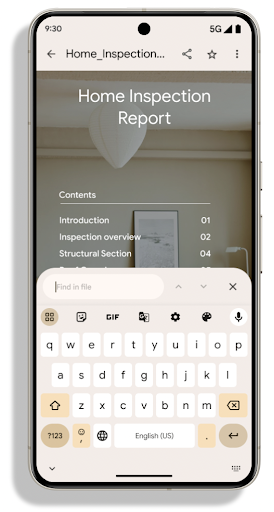
Android 15 includes substantial improvements to the PdfRenderer
APIs. Apps can incorporate advanced features such as rendering
password-protected files, annotations, form editing,
searching, and selection with copy. Linearized PDF
optimizations are supported to speed local PDF viewing and reduce resource use.
The Jetpack PDF library uses these APIs to simplify adding PDF
viewing capabilities to your app.
The PdfRenderer has been moved to a module that can be updated using Google
Play system updates independent of the platform release, and we're supporting
these changes back to Android 11 (API level 30) by creating a compatible
pre-Android 15 version of the API surface, called
PdfRendererPreV.
Ulepszenia automatycznego przełączania języka
Android 14 dodał na urządzeniu rozpoznawanie wielu języków w dźwięku z automatycznym przełączaniem się między językami, ale może to powodować pomijanie słów, zwłaszcza gdy języki przełączają się z mniejszą przerwą między dwoma wypowiedziami. Android 15 wprowadza dodatkowe opcje, które pomagają aplikacjom dostosować przełączanie do ich przypadku użycia.
EXTRA_LANGUAGE_SWITCH_INITIAL_ACTIVE_DURATION_TIME_MILLISogranicza automatyczne przełączanie do początku sesji audio, podczas gdy EXTRA_LANGUAGE_SWITCH_MATCH_SWITCHESdezaktywuje przełączanie języka po określonej liczbie przełączeń. Te opcje są szczególnie przydatne, jeśli spodziewasz się, że w trakcie sesji będzie używany tylko jeden język, który powinien być automatycznie wykrywany.
Ulepszony interfejs OpenType Variable Font API
Android 15 improves the usability of the OpenType variable font. You can create
a FontFamily instance from a variable font without specifying weight axes
with the buildVariableFamily API. The text renderer overrides the value
of wght axis to match the displaying text.
Using the API simplifies the code for creating a Typeface considerably:
Kotlin
val newTypeface = Typeface.CustomFallbackBuilder(
            FontFamily.Builder(
                Font.Builder(assets, "RobotoFlex.ttf").build())
                    .buildVariableFamily())
    .build()
Java
Typeface newTypeface = Typeface.CustomFallbackBuilder(
            new FontFamily.Builder(
                new Font.Builder(assets, "RobotoFlex.ttf").build())
                    .buildVariableFamily())
    .build();
Previously, to create the same Typeface, you would need much more code:
Kotlin
val oldTypeface = Typeface.CustomFallbackBuilder(
            FontFamily.Builder(
                Font.Builder(assets, "RobotoFlex.ttf")
                    .setFontVariationSettings("'wght' 400")
                    .setWeight(400)
                    .build())
                .addFont(
                    Font.Builder(assets, "RobotoFlex.ttf")
                        .setFontVariationSettings("'wght' 100")
                        .setWeight(100)
                        .build()
                )
                .addFont(
                    Font.Builder(assets, "RobotoFlex.ttf")
                        .setFontVariationSettings("'wght' 200")
                        .setWeight(200)
                        .build()
                )
                .addFont(
                    Font.Builder(assets, "RobotoFlex.ttf")
                        .setFontVariationSettings("'wght' 300")
                        .setWeight(300)
                        .build()
                )
                .addFont(
                    Font.Builder(assets, "RobotoFlex.ttf")
                        .setFontVariationSettings("'wght' 500")
                        .setWeight(500)
                        .build()
                )
                .addFont(
                    Font.Builder(assets, "RobotoFlex.ttf")
                        .setFontVariationSettings("'wght' 600")
                        .setWeight(600)
                        .build()
                )
                .addFont(
                    Font.Builder(assets, "RobotoFlex.ttf")
                        .setFontVariationSettings("'wght' 700")
                        .setWeight(700)
                        .build()
                )
                .addFont(
                    Font.Builder(assets, "RobotoFlex.ttf")
                        .setFontVariationSettings("'wght' 800")
                        .setWeight(800)
                        .build()
                )
                .addFont(
                    Font.Builder(assets, "RobotoFlex.ttf")
                        .setFontVariationSettings("'wght' 900")
                        .setWeight(900)
                        .build()
                ).build()
        ).build()
Java
Typeface oldTypeface = new Typeface.CustomFallbackBuilder(
    new FontFamily.Builder(
        new Font.Builder(assets, "RobotoFlex.ttf")
            .setFontVariationSettings("'wght' 400")
            .setWeight(400)
            .build()
    )
    .addFont(
        new Font.Builder(assets, "RobotoFlex.ttf")
            .setFontVariationSettings("'wght' 100")
            .setWeight(100)
            .build()
    )
    .addFont(
        new Font.Builder(assets, "RobotoFlex.ttf")
            .setFontVariationSettings("'wght' 200")
            .setWeight(200)
            .build()
    )
    .addFont(
        new Font.Builder(assets, "RobotoFlex.ttf")
            .setFontVariationSettings("'wght' 300")
            .setWeight(300)
            .build()
    )
    .addFont(
        new Font.Builder(assets, "RobotoFlex.ttf")
            .setFontVariationSettings("'wght' 500")
            .setWeight(500)
            .build()
    )
    .addFont(
        new Font.Builder(assets, "RobotoFlex.ttf")
            .setFontVariationSettings("'wght' 600")
            .setWeight(600)
            .build()
    )
    .addFont(
        new Font.Builder(assets, "RobotoFlex.ttf")
            .setFontVariationSettings("'wght' 700")
            .setWeight(700)
            .build()
    )
    .addFont(
        new Font.Builder(assets, "RobotoFlex.ttf")
            .setFontVariationSettings("'wght' 800")
            .setWeight(800)
            .build()
    )
    .addFont(
        new Font.Builder(assets, "RobotoFlex.ttf")
            .setFontVariationSettings("'wght' 900")
            .setWeight(900)
            .build()
    )
    .build()
).build();
Here's an example of how a Typeface created with both the old and new APIs
renders:
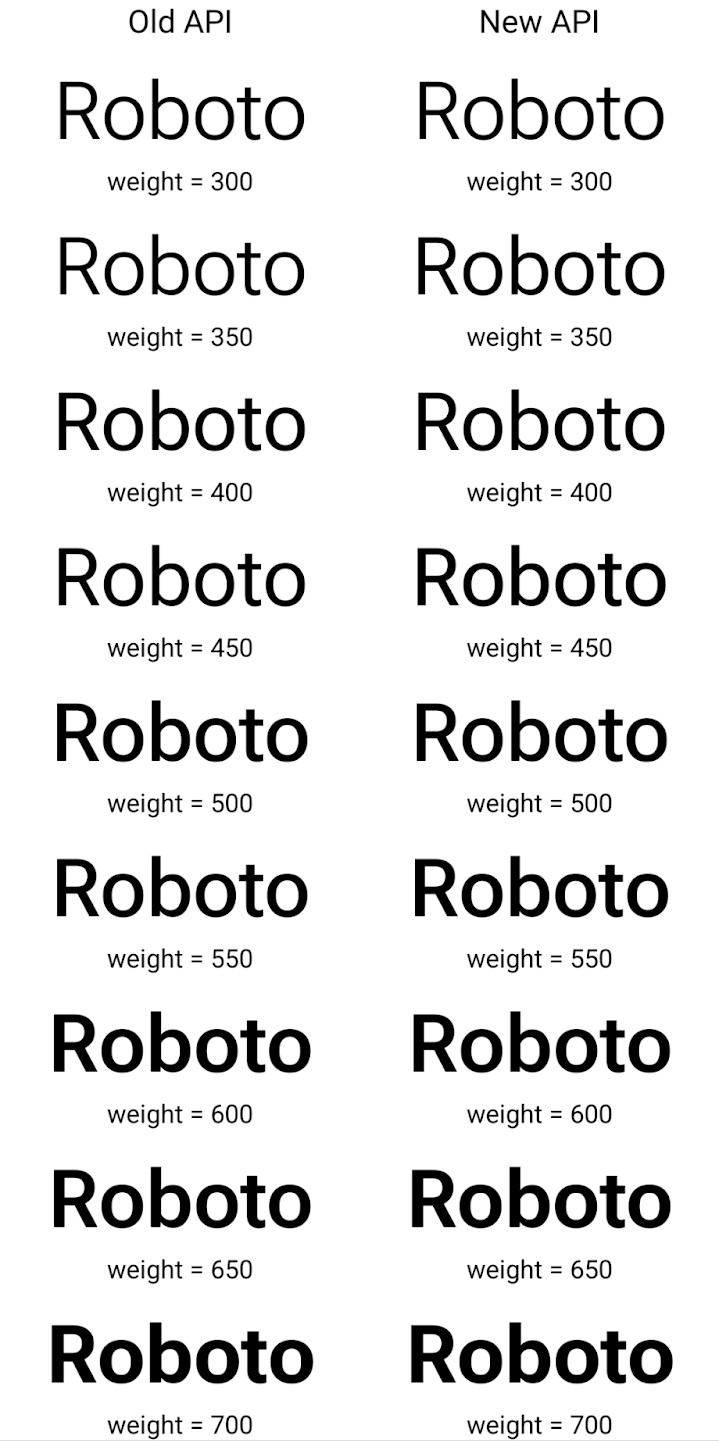
In this example, the Typeface created with the old API doesn't have the
capability to create accurate font weights for the 350, 450, 550 and 650
Font instances, so the renderer falls back to the closest weight. So in
this case, 300 is rendered instead of 350, 400 is rendered instead of 450, and
so on. By contrast, the Typeface created with the new APIs dynamically creates
a Font instance for a given weight, so accurate weights are rendered for 350,
450, 550, and 650 as well.
Szczegółowe ustawienia podziału wiersza
Począwszy od Androida 15 TextView i powiązany z nimi podział wiersza mogą zachować daną część tekstu w tym samym wierszu, aby zwiększyć czytelność. Możesz skorzystać z tej opcji dostosowywania znaku końca wiersza, używając tagu <nobreak> w zasobach napisów lub w pliku createNoBreakSpan. Podobnie możesz zachować słowa przed dzieleniem na sylaby, używając tagu <nohyphen> lub createNoHyphenationSpan.
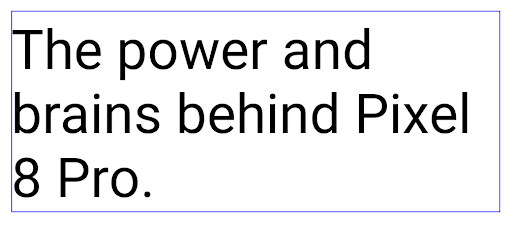
Na przykład ten zasób z ciągiem znaków nie zawiera podziału wiersza i renderuje się z tekstem „Pixel 8 Pro” w nieodpowiednim miejscu:
<resources>
    <string name="pixel8pro">The power and brains behind Pixel 8 Pro.</string>
</resources>
Ten zasób ciągu znaków zawiera natomiast tag <nobreak>, który otacza wyrażenie „Pixel 8 Pro” i zapobiega podziałom wiersza:
<resources>
    <string name="pixel8pro">The power and brains behind <nobreak>Pixel 8 Pro.</nobreak></string>
</resources>
Różnica w sposobie renderowania tych ciągów znaków jest widoczna na tych obrazach:
<nobreak>.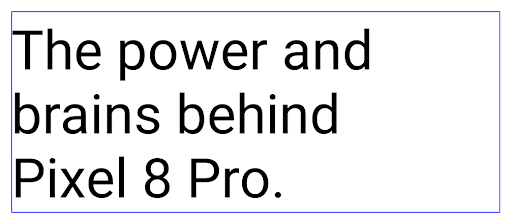
<nobreak>.Archiwizacja aplikacji
Android and Google Play announced support for app archiving last year, allowing users to free up space by partially removing infrequently used apps from the device that were published using Android App Bundle on Google Play. Android 15 includes OS level support for app archiving and unarchiving, making it easier for all app stores to implement it.
Apps with the REQUEST_DELETE_PACKAGES permission can call the
PackageInstaller requestArchive method to request archiving an
installed app package, which removes the APK and any cached files, but persists
user data. Archived apps are returned as displayable apps through the
LauncherApps APIs; users will see a UI treatment to highlight that those
apps are archived. If a user taps on an archived app, the responsible installer
will get a request to unarchive it, and the restoration process can be
monitored by the ACTION_PACKAGE_ADDED broadcast.
Włączanie trybu 16 KB na urządzeniu za pomocą opcji programisty
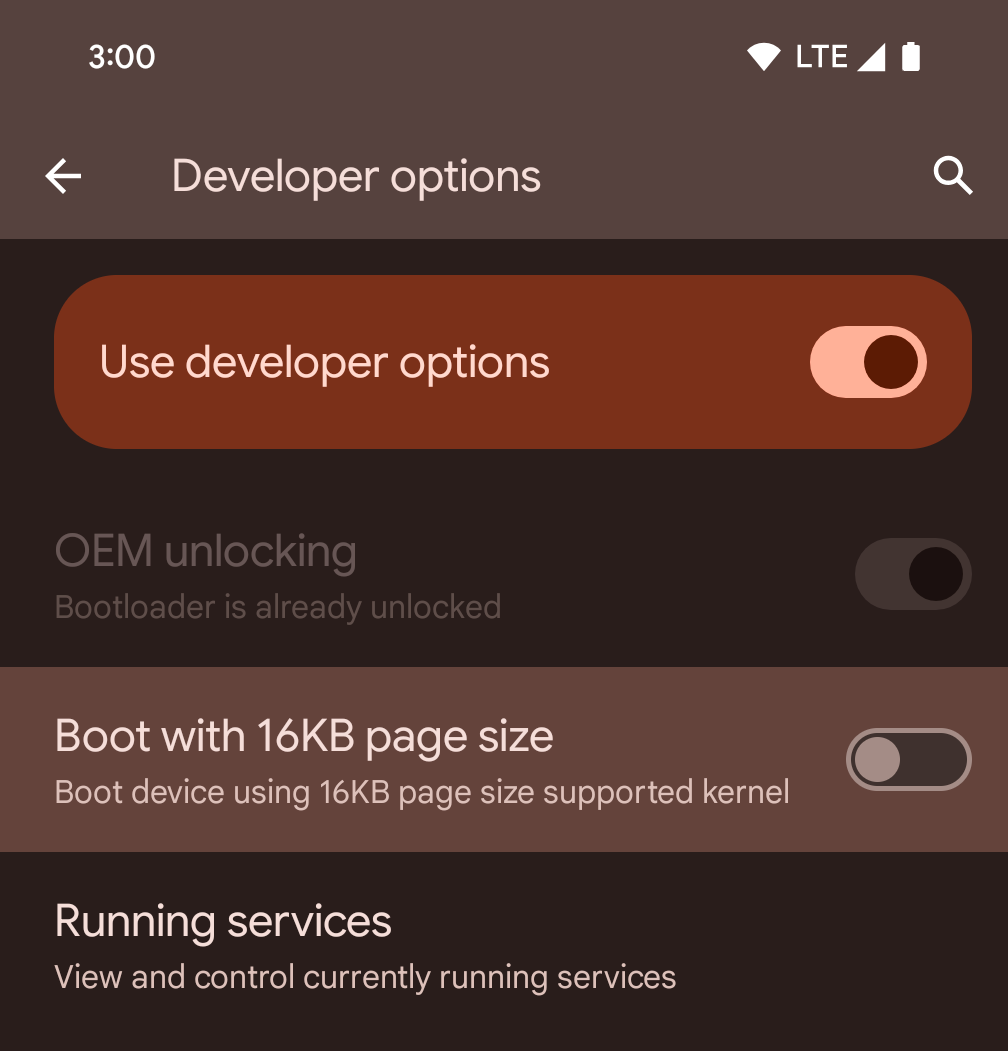
Włącz opcję programisty Uruchom ze stroną 16 KB, aby uruchomić urządzenie w trybie 16 KB.
W wersjach QPR Androida 15 możesz skorzystać z opcji dla programistów dostępnej na niektórych urządzeniach, aby uruchomić urządzenie w trybie 16 KB i przeprowadzić testowanie na urządzeniu. Zanim skorzystasz z opcji programisty, otwórz Ustawienia > System > Aktualizacje oprogramowania i zastosuj wszystkie dostępne aktualizacje.
Ta opcja dla programistów jest dostępna na tych urządzeniach:
Pixel 8 i 8 Pro (z Androidem 15 QPR1 lub nowszym)
Pixel 8a (z Androidem 15 QPR1 lub nowszym)
Pixel 9, 9 Pro i 9 Pro XL (z Androidem 15 QPR2 lub nowszym)
Pixel 9a (z Androidem 16 lub nowszym)
Grafika
Android 15 wprowadza najnowsze ulepszenia graficzne, w tym ANGLE i dodatki do systemu graficznego Canvas.
Modernizacja dostępu do GPU na Androidzie

Android hardware has evolved quite a bit from the early days where the core OS would run on a single CPU and GPUs were accessed using APIs based on fixed-function pipelines. The Vulkan® graphics API has been available in the NDK since Android 7.0 (API level 24) with a lower-level abstraction that better reflects modern GPU hardware, scales better to support multiple CPU cores, and offers reduced CPU driver overhead — leading to improved app performance. Vulkan is supported by all modern game engines.
Vulkan is Android's preferred interface to the GPU. Therefore, Android 15 includes ANGLE as an optional layer for running OpenGL® ES on top of Vulkan. Moving to ANGLE will standardize the Android OpenGL implementation for improved compatibility, and, in some cases, improved performance. You can test out your OpenGL ES app stability and performance with ANGLE by enabling the developer option in Settings -> System -> Developer Options -> Experimental: Enable ANGLE on Android 15.
The Android ANGLE on Vulkan roadmap
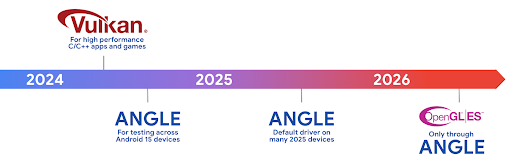
As part of streamlining our GPU stack, going forward we will be shipping ANGLE as the GL system driver on more new devices, with the future expectation that OpenGL/ES will be only available through ANGLE. That being said, we plan to continue support for OpenGL ES on all devices.
Recommended next steps
Use the developer options to select the ANGLE driver for OpenGL ES and test your app. For new projects, we strongly encourage using Vulkan for C/C++.
Ulepszenia Canvas
Android 15 continues our modernization of Android's Canvas graphics system with additional capabilities:
Matrix44provides a 4x4 matrix for transforming coordinates that should be used when you want to manipulate the canvas in 3D.clipShaderintersects the current clip with the specified shader, whileclipOutShadersets the clip to the difference of the current clip and the shader, each treating the shader as an alpha mask. This supports the drawing of complex shapes efficiently.
Wydajność i bateria
Android nadal koncentruje się na pomaganiu Ci w zwiększaniu wydajności i jakości Twoich aplikacji. Android 15 wprowadza interfejsy API, które pomagają wydajniej wykonywać zadania w aplikacji, optymalizować wydajność aplikacji i zbierać statystyki o aplikacjach.
Więcej informacji o sprawdzonych metodach oszczędzania baterii, debugowaniu zużycia sieci i energii oraz o tym, jak zwiększamy wydajność baterii w przypadku pracy w tle w Androidzie 15 i nowszych wersjach Androida, znajdziesz w prezentacji Improving battery efficiency of background work on Android (Zwiększanie wydajności baterii w przypadku pracy w tle na Androidzie) z Google I/O.
ApplicationStartInfo API
In previous versions of Android, app startup has been a bit of a mystery. It was
challenging to determine within your app whether it started from a cold, warm,
or hot state. It was also difficult to know how long your app spent during the
various launch phases: forking the process, calling onCreate, drawing the
first frame, and more. When your Application class was instantiated, you had no
way of knowing whether the app started from a broadcast, a content provider, a
job, a backup, boot complete, an alarm, or an Activity.
The ApplicationStartInfo API on Android 15 provides
all of this and more. You can even choose to add your own timestamps into the
flow to help collect timing data in one place. In addition to collecting
metrics, you can use ApplicationStartInfo to help directly optimize app
startup; for example, you can eliminate the costly instantiation of UI-related
libraries within your Application class when your app is starting up due to a
broadcast.
Szczegółowe informacje o rozmiarze aplikacji
Since Android 8.0 (API level 26), Android has included the
StorageStats.getAppBytes API that summarizes the installed
size of an app as a single number of bytes, which is a sum of the APK size, the
size of files extracted from the APK, and files that were generated on the
device such as ahead-of-time (AOT) compiled code. This number is not very
insightful in terms of how your app is using storage.
Android 15 adds the
StorageStats.getAppBytesByDataType([type]) API, which lets
you get insight into how your app is using up all that space, including APK file
splits, AOT and speedup related code, dex metadata, libraries, and guided
profiles.
Profilowanie zarządzane przez aplikację
Android 15 includes the ProfilingManager class,
which lets you collect profiling information from within your app such as heap
dumps, heap profiles, stack sampling, and more. It provides a callback to your
app with a supplied tag to identify the output file, which is delivered to your
app's files directory. The API does rate limiting to minimize the performance
impact.
To simplify constructing profiling requests in your app, we recommend using the
corresponding Profiling AndroidX API, available
in Core 1.15.0-rc01 or higher.
Ulepszenia bazy danych SQLite
Android 15 introduces SQLite APIs that expose advanced features from the underlying SQLite engine that target specific performance issues that can manifest in apps. These APIs are included with the update of SQLite to version 3.44.3.
Developers should consult best practices for SQLite performance to get the most out of their SQLite database, especially when working with large databases or when running latency-sensitive queries.
- Read-only deferred transactions: when issuing transactions that are
read-only (don't include write statements), use
beginTransactionReadOnly()andbeginTransactionWithListenerReadOnly(SQLiteTransactionListener)to issue read-onlyDEFERREDtransactions. Such transactions can run concurrently with each other, and if the database is in WAL mode, they can run concurrently withIMMEDIATEorEXCLUSIVEtransactions. - Row counts and IDs: APIs were added to retrieve the count of changed
rows or the last inserted row ID without issuing an additional query.
getLastChangedRowCount()returns the number of rows that were inserted, updated, or deleted by the most recent SQL statement within the current transaction, whilegetTotalChangedRowCount()returns the count on the current connection.getLastInsertRowId()returns therowidof the last row to be inserted on the current connection. - Raw statements: issue a raw SQlite statement, bypassing convenience wrappers and any additional processing overhead that they may incur.
Aktualizacje Android Dynamic Performance Framework
Android 15 continues our investment in the Android Dynamic Performance Framework (ADPF), a set of APIs that allow games and performance intensive apps to interact more directly with power and thermal systems of Android devices. On supported devices, Android 15 adds ADPF capabilities:
- A power-efficiency mode for hint sessions to indicate that their associated threads should prefer power saving over performance, great for long-running background workloads.
- GPU and CPU work durations can both be reported in hint sessions, allowing the system to adjust CPU and GPU frequencies together to best meet workload demands.
- Thermal headroom thresholds to interpret possible thermal throttling status based on headroom prediction.
To learn more about how to use ADPF in your apps and games, head over to the documentation.
Prywatność
Android 15 zawiera wiele funkcji, które pomagają deweloperom aplikacji chronić prywatność użytkowników.
Wykrywanie nagrywania ekranu
Android 15 obsługuje aplikacje, aby wykrywać w trakcie nagrywania. Funkcja wywołania zwrotnego jest wywoływana, gdy aplikacja przechodzi z widocznego stanu do niewidocznego w nagraniu ekranu. Aplikacja jest są uznawane za widoczne, jeśli działania należące do identyfikatora UID procesu rejestracji są nie są zapisywane. Dzięki temu, jeśli aplikacja wykonuje działanie związane z poufnymi danymi, możesz poinformować użytkownika, że jest nagrywany.
val mCallback = Consumer<Int> { state ->
  if (state == SCREEN_RECORDING_STATE_VISIBLE) {
    // We're being recorded
  } else {
    // We're not being recorded
  }
}

override fun onStart() {
   super.onStart()
   val initialState =
      windowManager.addScreenRecordingCallback(mainExecutor, mCallback)
   mCallback.accept(initialState)
}

override fun onStop() {
    super.onStop()
    windowManager.removeScreenRecordingCallback(mCallback)
}
Rozszerzone możliwości IntentFilter
Android 15 obsługuje dokładniejsze Intent dzięki UriRelativeFilterGroup, który zawiera zestaw obiektów UriRelativeFilter tworzących zestaw zasad dopasowania Intent, które muszą być spełnione, w tym parametry zapytania URL, fragmenty adresów URL oraz reguły blokowania lub wykluczania.
Te reguły można zdefiniować w pliku XML AndroidManifest za pomocą tagu <uri-relative-filter-group>, który może opcjonalnie zawierać tag android:allow. Mogą one zawierać tagi <data>, które używają istniejących atrybutów tagów danych, a także atrybutów android:query i android:fragment.
Oto przykład składni AndroidManifest:
<intent-filter android:autoVerify="true">
  <action android:name="android.intent.action.VIEW" />
  <category android:name="android.intent.category.BROWSABLE" />
  <category android:name="android.intent.category.DEFAULT" />
  <data android:scheme="http" />
  <data android:scheme="https" />
  <data android:host="astore.com" />
  <uri-relative-filter-group>
    <data android:pathPrefix="/auth" />
    <data android:query="region=na" />
  </uri-relative-filter-group>
  <uri-relative-filter-group android:allow="false">
    <data android:pathPrefix="/auth" />
    <data android:query="mobileoptout=true" />
  </uri-relative-filter-group>
  <uri-relative-filter-group android:allow="false">
    <data android:pathPrefix="/auth" />
    <data android:fragmentPrefix="faq" />
  </uri-relative-filter-group>
</intent-filter>
Przestrzeń prywatna
Private space lets users create a separate space on their device where they can keep sensitive apps away from prying eyes, under an additional layer of authentication. The private space uses a separate user profile. The user can choose to use the device lock or a separate lock factor for the private space.
Apps in the private space show up in a separate container in the launcher, and are hidden from the recents view, notifications, settings, and from other apps when the private space is locked. User-generated and downloaded content (such as media or files) and accounts are separated between the private space and the main space. The system sharesheet and the photo picker can be used to give apps access to content across spaces when the private space is unlocked.
Users can't move existing apps and their data into the private space. Instead, users select an install option in the private space to install an app using whichever app store they prefer. Apps in the private space are installed as separate copies from any apps in the main space (new copies of the same app).
When a user locks the private space, the profile is stopped. While the profile is stopped, apps in the private space are no longer active and can't perform foreground or background activities, including showing notifications.
We recommend that you test your app with private space to make sure your app works as expected, especially if your app falls into one of the following categories:
- Apps with logic for work profiles that assumes that any installed copies of their app that aren't in the main profile are in the work profile.
- Medical apps
- Launcher apps
- App store apps
Wysyłanie zapytań o najnowszy wybór użytkownika w przypadku dostępu do wybranych zdjęć
Aplikacje mogą teraz wyróżniać tylko ostatnio wybrane zdjęcia i filmy, gdy użytkownik przyzna uprawnienia do multimediów w ramach dostępu częściowego. Ta funkcja może poprawić wyniki
aplikacji, które często proszą o dostęp do zdjęć,
filmy. Aby korzystać z tej funkcji w aplikacji, włącz argument QUERY_ARG_LATEST_SELECTION_ONLY podczas wysyłania zapytania MediaStore za pomocą interfejsu ContentResolver.
Kotlin
val externalContentUri = MediaStore.Files.getContentUri("external")

val mediaColumns = arrayOf(
   FileColumns._ID,
   FileColumns.DISPLAY_NAME,
   FileColumns.MIME_TYPE,
)

val queryArgs = bundleOf(
   // Return only items from the last selection (selected photos access)
   QUERY_ARG_LATEST_SELECTION_ONLY to true,
   // Sort returned items chronologically based on when they were added to the device's storage
   QUERY_ARG_SQL_SORT_ORDER to "${FileColumns.DATE_ADDED} DESC",
   QUERY_ARG_SQL_SELECTION to "${FileColumns.MEDIA_TYPE} = ? OR ${FileColumns.MEDIA_TYPE} = ?",
   QUERY_ARG_SQL_SELECTION_ARGS to arrayOf(
       FileColumns.MEDIA_TYPE_IMAGE.toString(),
       FileColumns.MEDIA_TYPE_VIDEO.toString()
   )
)
Java
Uri externalContentUri = MediaStore.Files.getContentUri("external");

String[] mediaColumns = {
    FileColumns._ID,
    FileColumns.DISPLAY_NAME,
    FileColumns.MIME_TYPE
};

Bundle queryArgs = new Bundle();
queryArgs.putBoolean(MediaStore.QUERY_ARG_LATEST_SELECTION_ONLY, true);
queryArgs.putString(MediaStore.QUERY_ARG_SQL_SORT_ORDER, FileColumns.DATE_ADDED + " DESC");
queryArgs.putString(MediaStore.QUERY_ARG_SQL_SELECTION, FileColumns.MEDIA_TYPE + " = ? OR " + FileColumns.MEDIA_TYPE + " = ?");
queryArgs.putStringArray(MediaStore.QUERY_ARG_SQL_SELECTION_ARGS, new String[] {
    String.valueOf(FileColumns.MEDIA_TYPE_IMAGE),
    String.valueOf(FileColumns.MEDIA_TYPE_VIDEO)
});
Piaskownica prywatności na Androida
Android 15 includes the latest Android Ad Services extensions, incorporating the latest version of the Privacy Sandbox on Android. This addition is part of our work to develop technologies that improve user privacy and enable effective, personalized advertising experiences for mobile apps. Our privacy sandbox page has more information about the Privacy Sandbox on Android developer preview and beta programs to help you get started.
Health Connect
Android 15 łączy najnowsze rozszerzenia Health Connect by Android – bezpieczne i scentralizowane platforma, która pozwala zarządzać zbieranymi przez aplikacje danymi o zdrowiu i aktywności fizycznej oraz je udostępniać. Ta aktualizacja obsługa dodatkowych typów danych dotyczących fitnessu, odżywianie, temperatura skóry, plany treningów itp.
Śledzenie temperatury skóry umożliwia użytkownikom przechowywanie i udostępnianie dokładniejszych danych o temperaturze z urządzenia do noszenia lub innego urządzenia śledzącego.
Plany treningowe to usystematyzowane plany treningowe, które pomagają użytkownikom osiągnąć cele fitnessowe. Plany treningowe obejmują różne cele dotyczące ukończenia i wyników:
- Cele dotyczące ukończenia treningu związane z spalaniem kalorii, dystansem, czasem trwania, powtórzeniem i liczbą kroków.
- Docelowa skuteczność w okolicach jak najwięcej powtórzeń (AMRAP), kadencja, tętno, moc, ostrzegalne tempo wysiłku oraz prędkości.
Więcej informacji o najnowszych aktualizacjach Health Connect na Androidzie znajdziesz w prezencie Tworzenie dostosowanych usług z Androidem Health z Google I/O.
Udostępnianie ekranu aplikacji
Android 15 obsługuje udostępnianie ekranu aplikacji, dzięki czemu użytkownicy mogą udostępniać lub nagrywać tylko okno aplikacji, a nie cały ekran urządzenia. Ta funkcja, która została po raz pierwszy włączona w Androidzie 14 QPR2, obejmuje wywołania MediaProjection, które umożliwiają aplikacji dostosowywanie udostępniania ekranu. Pamiętaj, że w przypadku aplikacji kierowanych na Androida 14 (poziom API 34) lub nowszego wymagana jest zgoda użytkownika na każdą sesję rejestrowania MediaProjection.
Interfejs użytkownika i interfejs systemu
Android 15 daje deweloperom aplikacji i użytkownikom większą kontrolę i elastyczność w konfigurowaniu urządzenia pod kątem swoich potrzeb.
Więcej informacji o tym, jak wykorzystać najnowsze ulepszenia w Androidzie 15, aby poprawić wygodę użytkowania aplikacji, znajdziesz w prezentacji Improve the user experience of your Android app z Google I/O.
Bogatsze podglądy widżetów dzięki Generated Previews API
Przed Androidem 15 jedynym sposobem wyświetlania podglądów selektora widżetów było określenie statycznych zasobów obrazów lub układu. Te podglądy często znacznie różnią się od wyglądu widżetu na ekranie głównym. Ponadto za pomocą Jetpack Glance nie można tworzyć zasobów statycznych, więc deweloper Glance musiał zrobić zrzut ekranu z widżetem lub utworzyć układ XML, aby wyświetlić jego podgląd.
Android 15 obsługuje wygenerowane podglądy. Oznacza to, że dostawcy widżetów aplikacji mogą generować RemoteViews, aby używać go jako podglądu selektora zamiast zasobu statycznego.
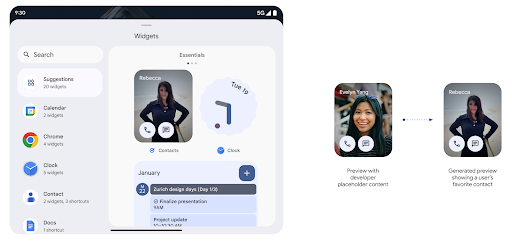
Interfejs API usługi Push
Aplikacje mogą udostępniać wygenerowane podglądy za pomocą interfejsu API push. Aplikacje mogą udostępniać podglądy w dowolnym momencie ich cyklu życia i nie muszą otrzymać wyraźnej prośby od gospodarza. Podglądy są przechowywane w AppWidgetService, a gospodarze mogą je żądać na żądanie. W tym przykładzie wczytujemy zasób układu widżetu XML i ustawiamy go jako podgląd:
AppWidgetManager.getInstance(appContext).setWidgetPreview(
   ComponentName(
       appContext,
       SociaLiteAppWidgetReceiver::class.java
   ),
   AppWidgetProviderInfo.WIDGET_CATEGORY_HOME_SCREEN,
   RemoteViews("com.example", R.layout.widget_preview)
)
Oczekiwany przebieg:
- W dowolnym momencie dostawca widżetu może wywołać funkcję
setWidgetPreview. Udostępnione podglądy są przechowywane wAppWidgetServicewraz z innymi informacjami o dostawcy. setWidgetPreviewinformuje hostów o zaktualizowanym podglądzie za pomocą wywołania zwrotnegoAppWidgetHost.onProvidersChanged. W odpowiedzi host widżetu ponownie wczytuje wszystkie informacje dostawcy.- Podczas wyświetlania podglądu widżetu host sprawdza, czy
AppWidgetProviderInfo.generatedPreviewCategoriesjest dostępna, a jeśli tak, wywołuje funkcjęAppWidgetManager.getWidgetPreview, aby zwrócić zapisany podgląd dla tego dostawcy.
Kiedy zadzwonić do: setWidgetPreview
Ponieważ nie ma wywołania zwrotnego, które umożliwia wyświetlanie podglądów, aplikacje mogą wysyłać podglądy w dowolnym momencie, gdy są uruchomione. Częstotliwość aktualizacji podglądu zależy od przypadku użycia widżetu.
Na liście poniżej znajdziesz 2 główne kategorie przypadków użycia podglądu:
- Dostawcy, którzy wyświetlają prawdziwe dane w podglądzie widżetów, np. informacje spersonalizowane lub najnowsze informacje. Ci dostawcy mogą ustawić podgląd po zalogowaniu się użytkownika lub po wykonaniu wstępnej konfiguracji w aplikacji. Następnie mogą skonfigurować zadanie okresowe, aby aktualizować podgląd w wybranym interwale. Przykładami tego typu widżetów są widżety ze zdjęciami, kalendarza, pogody lub wiadomościami.
- Dostawcy, którzy wyświetlają w podglądach informacje statyczne lub widżety szybkich działań, które nie wyświetlają żadnych danych. Ci dostawcy mogą ustawić podgląd tylko raz przy pierwszym uruchomieniu aplikacji. Przykładami tego typu widżetów są widżet Szybkie działania na Dysku lub widżet skrótów w Chrome.
Niektórzy dostawcy mogą wyświetlać podgląd statyczny w selektorze trybu centrali, ale w selektorze na ekranie głównym mogą wyświetlać prawdziwe informacje. Podczas ustawiania podglądów dostawcy ci powinni postępować zgodnie ze wskazówkami dotyczącymi obu tych przypadków użycia.
Obraz w obrazie
Android 15 introduces changes in Picture-in-Picture (PiP) ensuring an even smoother transition when entering into PiP mode. This will be beneficial for apps having UI elements overlaid on top of their main UI, which goes into PiP.
Developers use the onPictureInPictureModeChanged callback to define logic
that toggles the visibility of the overlaid UI elements. This callback is
triggered when the PiP enter or exit animation is completed. Beginning in
Android 15, the PictureInPictureUiState class includes another state.
With this UI state, apps targeting Android 15 (API level 35) will observe the
Activity#onPictureInPictureUiStateChanged callback being invoked with
isTransitioningToPip() as soon as the PiP animation starts. There are
many UI elements that are not relevant for the app when it is in PiP mode, for
example views or layout that include information such as suggestions, upcoming
video, ratings, and titles. When the app goes to PiP mode, use the
onPictureInPictureUiStateChanged callback to hide these UI elements. When the
app goes to full screen mode from the PiP window, use
onPictureInPictureModeChanged callback to unhide these elements, as shown in
the following examples:
override fun onPictureInPictureUiStateChanged(pipState: PictureInPictureUiState) {
        if (pipState.isTransitioningToPip()) {
          // Hide UI elements
        }
    }
override fun onPictureInPictureModeChanged(isInPictureInPictureMode: Boolean) {
        if (isInPictureInPictureMode) {
          // Unhide UI elements
        }
    }
This quick visibility toggle of irrelevant UI elements (for a PiP window) helps ensure a smoother and flicker-free PiP enter animation.
Ulepszone reguły trybu Nie przeszkadzać
AutomaticZenRule umożliwia aplikacjom dostosowywanie uwagi
Reguły zarządzania (Nie przeszkadzać) i określanie, kiedy mają być aktywowane lub dezaktywowane
. Android 15 znacznie ulepsza te reguły, aby poprawić komfort użytkowników. Wprowadzono te ulepszenia:
- Dodaję typy do
AutomaticZenRule, aby umożliwić systemowi zastosowanie specjalnych traktowanie pewnych zasad. - Dodaję ikonę do interfejsu
AutomaticZenRule, aby pomóc w ulepszaniu trybów i rozpoznawalna. - Dodawanie do
AutomaticZenRuleciągutriggerDescription, który opisuje warunki, po spełnieniu których reguła powinna zostać aktywowana dla użytkownika. - Dodane
ZenDeviceEffectsdoAutomaticZenRule, co umożliwia regułom wywoływanie takich funkcji jak skali szarości wyświetlacza, tryb nocny lub przyciemnienie tapety.
Ustawianie VibrationEffect dla kanałów powiadomień
Android 15 obsługuje ustawienia silnych wibracji dla przychodzących powiadomień przez
za pomocą NotificationChannel.setVibrationEffect, więc
użytkownicy mogą odróżniać
różne typy powiadomień bez
patrząc na urządzenie.
Element paska stanu rejestrowania multimediów i automatyczne zatrzymywanie
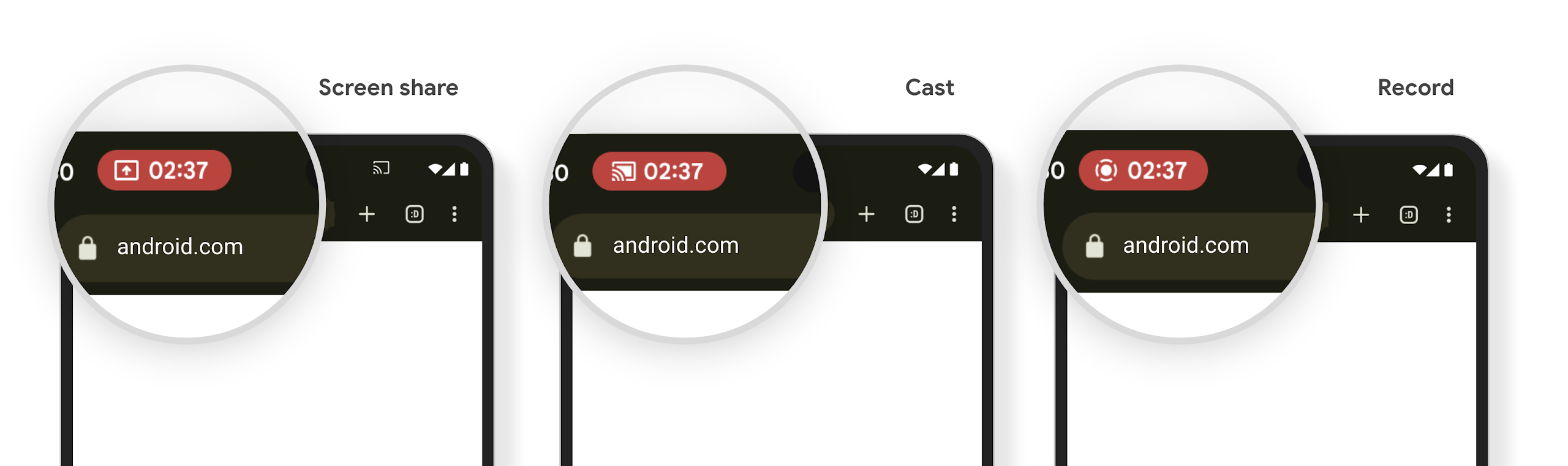
Media projection can expose private user information. A new, prominent status bar chip makes users aware of any ongoing screen projection. Users can tap the chip to stop screen casting, sharing, or recording. Also, for a more intuitive user experience, any in‑progress screen projection now automatically stops when the device screen is locked.
Duże ekrany i formaty
Android 15 zapewnia aplikacjom obsługę formatów Androida, w tym dużych ekranów, urządzeń z klapką i składanych.
Ulepszona wielozadaniowość na dużym ekranie
Android 15 daje użytkownikom więcej możliwości wykonywania wielu zadań jednocześnie na urządzeniach z dużym ekranem. Dla: Na przykład użytkownicy mogą zapisać ulubione kombinacje aplikacji podzielone na podzielony ekran, dostęp do paska aplikacji na ekranie i przypinanie go, aby szybko przełączać się między aplikacjami. Oznacza to, że że zapewnienie adaptacji aplikacji jest teraz ważniejsze niż kiedykolwiek.
W ramach Google I/O odbywają się sesje poświęcone tworzeniu adaptacyjnego Androida Apps i Building UI with the Material 3 biblioteka adaptacyjna może pomóc, a nasza dokumentacja jest pomocna w zaprojektowaniu .
Obsługa ekranu zewnętrznego
Your app can declare a property that Android 15 uses to
allow your Application or Activity to be presented on the small cover
screens of supported flippable devices. These screens are too small to be
considered as compatible targets for Android apps to run on, but your app can
opt in to supporting them, making your app available in more places.
Łączność
Android 15 aktualizuje platformę, aby zapewnić Twojej aplikacji dostęp do najnowszych osiągnięć w dziedzinie komunikacji i technologii bezprzewodowych.
Obsługa satelitarna
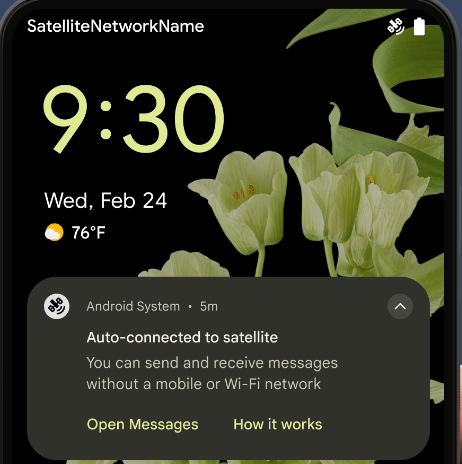
Android 15 continues to extend platform support for satellite connectivity and includes some UI elements to ensure a consistent user experience across the satellite connectivity landscape.
Apps can use ServiceState.isUsingNonTerrestrialNetwork() to
detect when a device is connected to a satellite, giving them more awareness of
why full network services might be unavailable. Additionally, Android 15
provides support for SMS and MMS apps as well as preloaded RCS apps to use
satellite connectivity for sending and receiving messages.
Płynniejsze korzystanie z NFC
Android 15 is working to make the tap to pay experience more seamless and
reliable while continuing to support Android's robust NFC app ecosystem. On
supported devices, apps can request the NfcAdapter to enter
observe mode, where the device listens but doesn't respond to NFC
readers, sending the app's NFC service PollingFrame
objects to process. The PollingFrame objects can be used to auth
ahead of the first communication to the NFC reader, allowing for a one tap
transaction in many cases.
In addition, apps can register a filter on supported devices so they can be notified of polling loop activity, which allows for smooth operation with multiple NFC-aware applications.
Rola w Portfelu
Android 15 introduces a Wallet role that allows tighter integration with the user's preferred wallet app. This role replaces the NFC default contactless payment setting. Users can manage the Wallet role holder by navigating to Settings > Apps > Default Apps.
The Wallet role is used when routing NFC taps for AIDs registered in the payment category. Taps always go to the Wallet role holder unless another app that is registered for the same AID is running in the foreground.
This role is also used to determine where the Wallet Quick Access tile should go when activated. When the role is set to "None", the Quick Access tile isn't available and payment category NFC taps are only delivered to the foreground app.
Bezpieczeństwo
Android 15 pomaga zwiększyć bezpieczeństwo aplikacji, chronić jej dane oraz zapewnia użytkownikom większą przejrzystość i kontrolę nad ich danymi. Więcej informacji o tym, co robimy, aby zwiększyć bezpieczeństwo użytkowników i chronić Twoją aplikację przed nowymi zagrożeniami, znajdziesz w prezentacji Safeguarding user security on Android (Zabezpieczanie użytkowników na Androidzie) z Google I/O.
Integracja Menedżera haseł z autouzupełnianiem
Starting with Android 15, developers can link specific views like username or password fields with Credential Manager requests, making it easier to provide a tailored user experience during the sign-in process. When the user focuses on one of these views, a corresponding request is sent to Credential Manager. The resulting credentials are aggregated across providers and displayed in autofill fallback UIs, such as inline suggestions or drop-down suggestions. The Jetpack androidx.credentials library is the preferred endpoint for developers to use and will soon be available to further enhance this feature in Android 15 and higher.
Integracja rejestracji i logowania jednym dotknięciem z prośbami o dane biometryczne
Credential Manager integrates biometric prompts into the credential creation and sign-in processes, eliminating the need for providers to manage biometric prompts. As a result, credential providers only need to focus on the results of the create and get flows, augmented with the biometric flow result. This simplified process creates a more efficient and streamlined credential creation and retrieval process.
Zarządzanie kluczami w przypadku pełnego szyfrowania
We are introducing the E2eeContactKeysManager in Android 15, which
facilitates end-to-end encryption (E2EE) in your Android apps by providing an
OS-level API for the storage of cryptographic public keys.
The E2eeContactKeysManager is designed to integrate with the platform
contacts app to give users a centralized way to manage and verify their
contacts' public keys.
Sprawdzanie uprawnień w przypadku identyfikatorów URI treści
Android 15 introduces a set of APIs that perform permission checks on content URIs:
Context.checkContentUriPermissionFull: This performs a full permission check on content URIs.Activitymanifest attributerequireContentUriPermissionFromCaller: This enforces specified permissions on the provided content URIs at activity launch.ComponentCallerclass forActivitycallers: This represents the app that launched the activity.
Ułatwienia dostępu
Android 15 dodaje funkcje, które poprawiają dostępność dla użytkowników.
Lepszy brajl
In Android 15, we've made it possible for TalkBack to support Braille displays that are using the HID standard over both USB and secure Bluetooth.
This standard, much like the one used by mice and keyboards, will help Android support a wider range of Braille displays over time.
Internacjonalizacja
Android 15 dodaje funkcje i możliwości, które uzupełniają wygodę użytkowania, gdy urządzenie jest używane w różnych językach.
Czcionka zmienna CJK
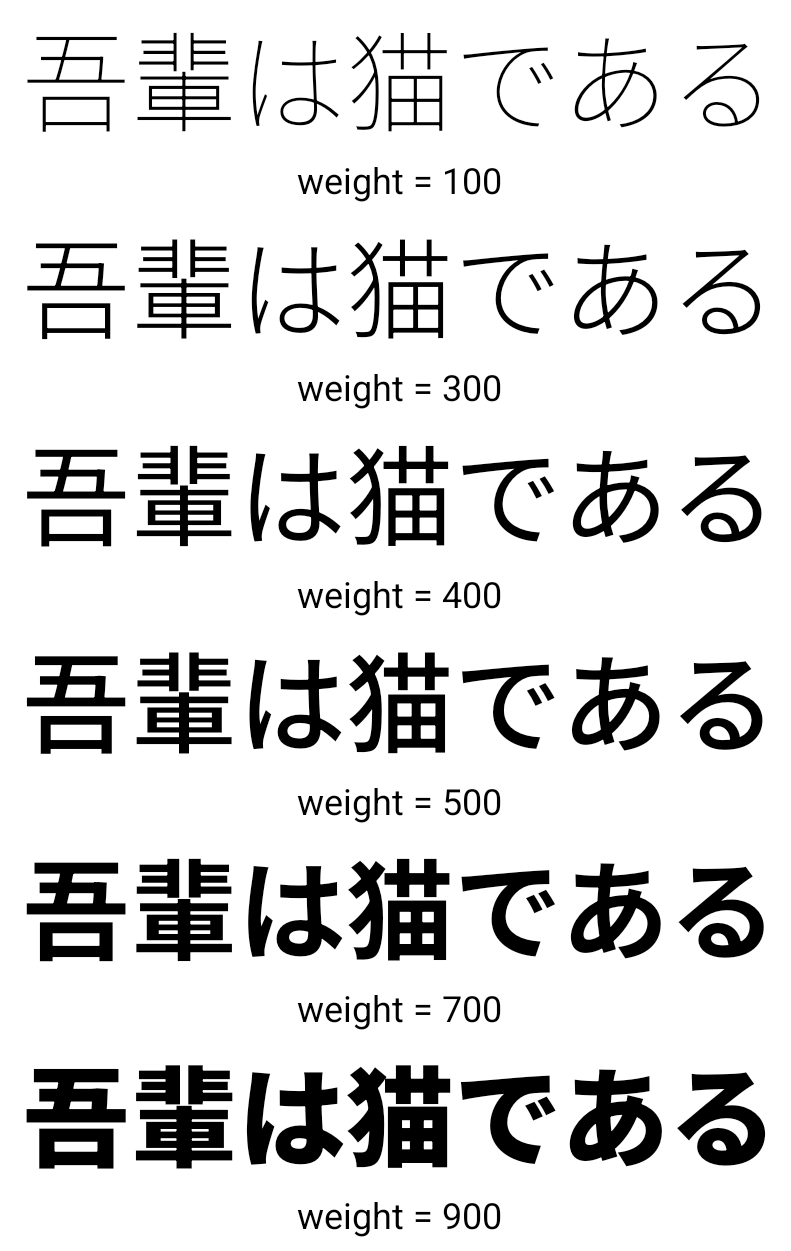
Starting with Android 15, the font file for Chinese, Japanese, and Korean (CJK) languages, NotoSansCJK, is now a variable font. Variable fonts open up possibilities for creative typography in CJK languages. Designers can explore a broader range of styles and create visually striking layouts that were previously difficult or impossible to achieve.
Wyrównywanie między znakami
Starting with Android 15, text can be justified utilizing letter spacing by
using JUSTIFICATION_MODE_INTER_CHARACTER. Inter-word justification was
first introduced in Android 8.0 (API level 26), and inter-character
justification provides similar capabilities for languages that use the
whitespace character for segmentation, such as Chinese, Japanese, and others.
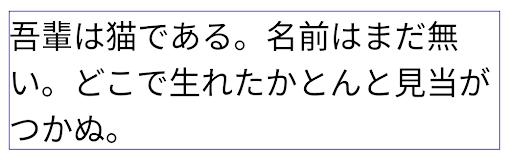
JUSTIFICATION_MODE_NONE.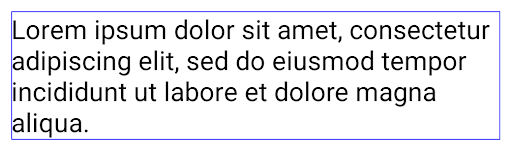
JUSTIFICATION_MODE_NONE.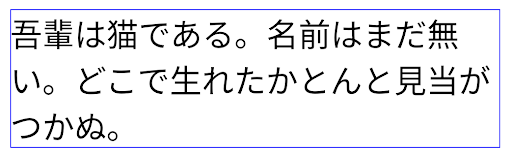
JUSTIFICATION_MODE_INTER_WORD.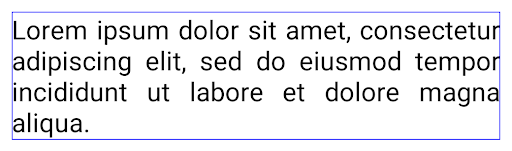
JUSTIFICATION_MODE_INTER_WORD.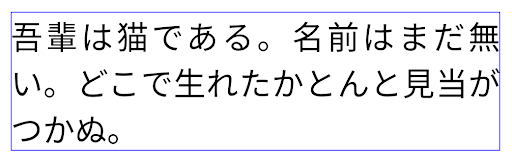
JUSTIFICATION_MODE_INTER_CHARACTER.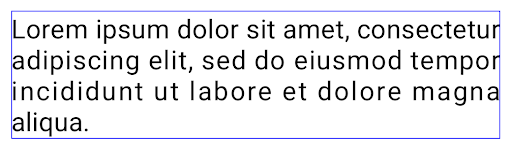
JUSTIFICATION_MODE_INTER_CHARACTER.Automatyczna konfiguracja podziału wiersza
Android started supporting phrase-based line breaks for Japanese and Korean in
Android 13 (API level 33). However, while phrase-based line breaks improve the
readability of short lines of text, they don't work well for long lines of text.
In Android 15, apps can apply phrase-based line breaks only for short lines
of text, using the LINE_BREAK_WORD_STYLE_AUTO
option. This option selects the best word style option for the text.
For short lines of text, phrase-based line breaks are used, functioning the same
as LINE_BREAK_WORD_STYLE_PHRASE, as shown in the
following image:
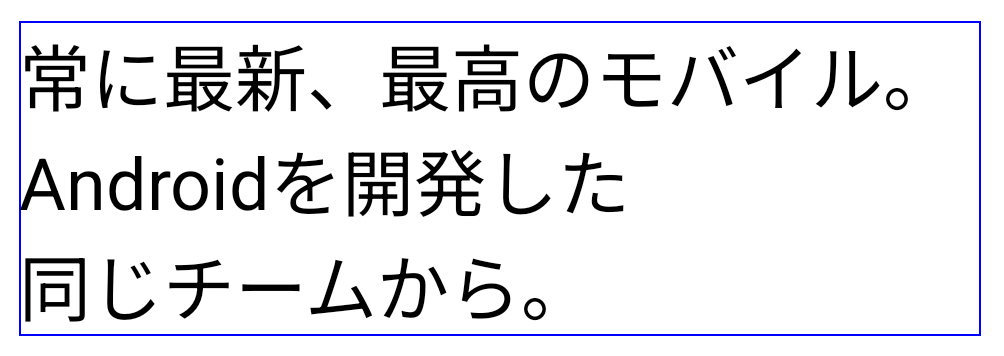
LINE_BREAK_WORD_STYLE_AUTO
applies phrase-based line breaks to improve the readability of the text.
This is the same as applying
LINE_BREAK_WORD_STYLE_PHRASE.For longer lines of text, LINE_BREAK_WORD_STYLE_AUTO uses a no
line-break word style, functioning the same as
LINE_BREAK_WORD_STYLE_NONE, as shown in the
following image:
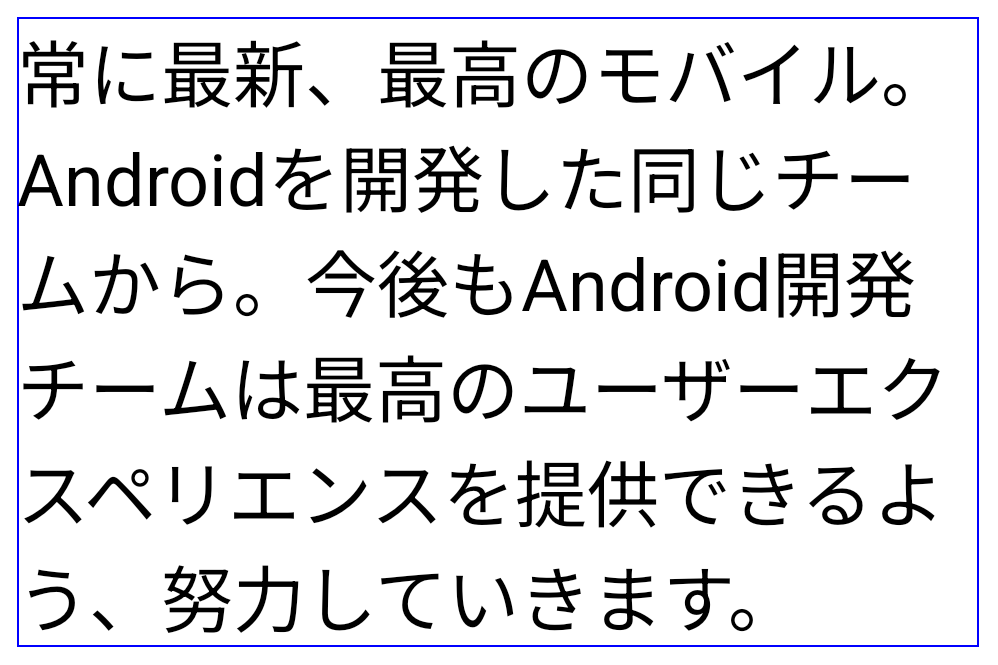
LINE_BREAK_WORD_STYLE_AUTO
applies no line-break word style to improve the readability of the text.
This is the same as applying
LINE_BREAK_WORD_STYLE_NONE.Dodatkowa japońska czcionka Hentaigana
In Android 15, a font file for old Japanese Hiragana (known as Hentaigana) is bundled by default. The unique shapes of Hentaigana characters can add a distinctive flair to artwork or design while also helping to preserve accurate transmission and understanding of ancient Japanese documents.

VideoLAN cone Copyright (c) 1996-2010 VideoLAN. This logo or a modified version may be used or modified by anyone to refer to the VideoLAN project or any product developed by the VideoLAN team, but does not indicate endorsement by the project.
Vulkan and the Vulkan logo are registered trademarks of the Khronos Group Inc.
OpenGL is a registered trademark and the OpenGL ES logo is a trademark of Hewlett Packard Enterprise used by permission by Khronos.