

كما هو الحال في الإصدارات السابقة، يتضمّن Android 15 تغييرات في السلوك قد تؤثر في تطبيقك. تنطبق تغييرات السلوك التالية حصريًا على التطبيقات التي تستهدف الإصدار 15 من نظام التشغيل Android أو الإصدارات الأحدث. إذا كان تطبيقك يستهدف الإصدار 15 من نظام التشغيل Android أو الإصدارات الأحدث، عليك تعديل تطبيقك ليتوافق مع هذه السلوكيات بشكل سليم، حيثما ينطبق ذلك.
احرص أيضًا على مراجعة قائمة التغييرات في السلوك التي تؤثر في جميع التطبيقات
التي تعمل على Android 15 بغض النظر عن targetSdkVersion لتطبيقك.
الوظيفة الأساسية
يعدّل نظام التشغيل Android 15 العديد من الإمكانات الأساسية لنظام Android أو يوسّع نطاقها.
التغييرات على الخدمات التي تعمل في المقدّمة
نحن بصدد إجراء التغييرات التالية على الخدمات التي تعمل في المقدّمة في Android 15.
- سلوك مهلة الخدمة التي تعمل في المقدّمة لمزامنة البيانات
- نوع الخدمة الجديدة التي تعمل في المقدّمة لمعالجة الوسائط
- القيود المفروضة على
BOOT_COMPLETEDمستقبلات البث التي تبدأ الخدمات التي تعمل في المقدّمة - قيود على بدء الخدمات التي تعمل في المقدّمة عندما يكون لدى التطبيق إذن
SYSTEM_ALERT_WINDOW
سلوك مهلة الخدمة التي تعمل في المقدّمة لمزامنة البيانات
يقدّم Android 15 سلوكًا جديدًا للمهلة في dataSync للتطبيقات التي تستهدف Android 15 (المستوى 35 من واجهة برمجة التطبيقات) أو الإصدارات الأحدث. ينطبق هذا السلوك أيضًا على
نوع "mediaProcessing" الجديد للخدمة التي تعمل في المقدّمة.
يسمح النظام بتشغيل خدمات dataSync للتطبيق لمدة 6 ساعات إجمالاً
خلال 24 ساعة، وبعدها يستدعي النظام طريقة
Service.onTimeout(int, int) الخاصة بالخدمة
قيد التشغيل (المتوفرة في Android
15). في هذه المرحلة، تتوفّر للخدمة بضع ثوانٍ للاتصال بالرقم
Service.stopSelf(). عند استدعاء Service.onTimeout()، لن تعود
الخدمة خدمة تعمل في المقدّمة. إذا لم تُشغِّل الخدمة Service.stopSelf()، يُرسِل النظام استثناءً داخليًا. يتم تسجيل
الاستثناء في Logcat مع الرسالة التالية:
Fatal Exception: android.app.RemoteServiceException: "A foreground service of
type dataSync did not stop within its timeout: [component name]"
لتجنُّب المشاكل المتعلّقة بهذا التغيير في السلوك، يمكنك اتّخاذ إجراء أو أكثر من الإجراءات التالية:
- يجب أن تنفِّذ خدمتك طريقة
Service.onTimeout(int, int)الجديدة. عندما يتلقّى تطبيقك المكالمة المُعاد توجيهها، احرص على الاتصال بالرقمstopSelf()في غضون بضع ثوانٍ. (إذا لم توقف التطبيق على الفور، سيُنشئ النظام حالة تعطُّل.) - تأكَّد من أنّ خدمات
dataSyncفي تطبيقك لا تعمل لأكثر من إجمالي 6 ساعات في أي فترة 24 ساعة (ما لم يتفاعل المستخدم مع التطبيق، يؤدي ذلك إلى إعادة ضبط الموقّت). - لا تبدأ
dataSyncالخدمات التي تعمل في المقدّمة إلا نتيجةً لتفاعل مباشر من العميل، لأنّ تطبيقك يكون في المقدّمة عند بدء الخدمة، ويكون لدى خدمتك ست ساعات كاملة بعد انتقال التطبيق إلى الخلفية. - بدلاً من استخدام خدمة
dataSyncتعمل في المقدّمة، استخدِم واجهة برمجة تطبيقات بديلة.
إذا استمر تشغيل خدمات dataSync التي تعمل في المقدّمة في تطبيقك لمدة 6 ساعات في آخر
24 ساعة، لا يمكنك بدء خدمة أخرى تعمل في المقدّمة dataSync ما لم ينقل المستخدم
تطبيقك إلى المقدّمة (ما يؤدي إلى إعادة ضبط الموقّت). إذا حاولت
بدء dataSync خدمة أخرى تعمل في المقدّمة، يُرسِل النظام
ForegroundServiceStartNotAllowedException
رسالة خطأ مثل "انتهت المهلة الزمنية للخدمة التي تعمل في المقدّمة
من النوع dataSync".
الاختبار
لاختبار سلوك تطبيقك، يمكنك تفعيل مهلات مزامنة البيانات حتى إذا كان تطبيقك
لا يستهدف الإصدار 15 من نظام التشغيل Android (ما دام التطبيق يعمل على جهاز
Android 15). لتفعيل المهلات، شغِّل الأمر adb التالي:
adb shell am compat enable FGS_INTRODUCE_TIME_LIMITS your-package-name
يمكنك أيضًا تعديل فترة المهلة لتسهيل اختبار سلوك
تطبيقك عند بلوغ الحدّ الأقصى. لضبط فترة مهلة جديدة، شغِّل adb الأمر التالي:
adb shell device_config put activity_manager data_sync_fgs_timeout_duration duration-in-milliseconds
نوع الخدمة الجديدة التي تعمل في المقدّمة لمعالجة الوسائط
يقدّم Android 15 نوعًا جديدًا من الخدمات التي تعمل في المقدّمة، وهو mediaProcessing. هذا نوع الخدمة مناسب لعمليات مثل تحويل ترميز ملفات الوسائط. على سبيل المثال، قد ينزِّل تطبيق وسائط ملفًا صوتيًا ويحتاج إلى تحويله إلى
تنسيق مختلف قبل تشغيله. يمكنك استخدام mediaProcessing
خدمة تعمل في المقدّمة للتأكّد من استمرار الإحالة الناجحة حتى عندما يكون التطبيق في
الخلفية.
يسمح النظام بتشغيل خدمات mediaProcessing للتطبيق لمدة إجمالية تبلغ 6
ساعات خلال فترة 24 ساعة، وبعد ذلك يستدعي النظام أسلوب
Service.onTimeout(int, int) للخدمة التي تعمل (تم تقديمه في Android
15). في هذه المرحلة، تتوفّر للخدمة بضع ثوانٍ للاتصال بالرقم
Service.stopSelf(). إذا لم تُشغِّل الخدمة Service.stopSelf()، يُرسِل النظام استثناءً داخليًا. يتم تسجيل
الاستثناء في Logcat مع الرسالة التالية:
Fatal Exception: android.app.RemoteServiceException: "A foreground service of
type mediaProcessing did not stop within its timeout: [component name]"
لتجنُّب حدوث الاستثناء، يمكنك تنفيذ أحد الإجراءات التالية:
- اطلب من مقدّم الخدمة تنفيذ طريقة
Service.onTimeout(int, int)الجديدة. عندما يتلقّى تطبيقك معاودة الاتصال، احرص على الاتصال بـstopSelf()في غضون بضع ثوانٍ. (إذا لم توقف التطبيق على الفور، سيُنشئ النظام حالة تعطُّل.) - تأكَّد من أنّ خدمات
mediaProcessingفي تطبيقك لا تعمل لأكثر من إجمالي 6 ساعات في أي فترة 24 ساعة (ما لم يتفاعل المستخدم مع التطبيق، يؤدي ذلك إلى إعادة ضبط الموقّت). - لا تبدأ
mediaProcessingالخدمات التي تعمل في المقدّمة إلا نتيجةً لتفاعل مباشر من العميل، لأنّ تطبيقك يكون في المقدّمة عند بدء الخدمة، ويكون لدى خدمتك ست ساعات كاملة بعد انتقال التطبيق إلى الخلفية. - بدلاً من استخدام خدمة
mediaProcessingتعمل في المقدّمة، استخدِم واجهة برمجة تطبيقات بديلة، مثل WorkManager.
إذا استمر تشغيل خدمات mediaProcessing التي تعمل في المقدّمة في تطبيقك لمدة 6 ساعات في
آخر 24 ساعة، لا يمكنك بدء خدمة أخرى تعمل في المقدّمة mediaProcessing ما لم
ينقل المستخدم تطبيقك إلى المقدّمة (ما يؤدي إلى إعادة ضبط الموقّت). إذا حاولت بدء خدمة "mediaProcessing" أخرى تعمل في المقدّمة، سيعرض النظام
ForegroundServiceStartNotAllowedException
رسالة خطأ مثل "تم استنفاد المهلة الزمنية لنوع الخدمة التي تعمل في المقدّمة
mediaProcessing".
لمزيد من المعلومات عن نوع الخدمة mediaProcessing، يُرجى الاطّلاع على المقالة التغييرات التي طرأت على
أنواع الخدمات التي تعمل في المقدّمة لنظام التشغيل Android 15: معالجة الوسائط.
الاختبار
لاختبار سلوك تطبيقك، يمكنك تفعيل مهلات معالجة الوسائط حتى إذا كان
تطبيقك لا يستهدف الإصدار 15 من نظام التشغيل Android (ما دام التطبيق يعمل على
جهاز يعمل بالإصدار 15 من نظام التشغيل Android). لتفعيل مهلات الانتظار، شغِّل الأمر adb التالي:
adb shell am compat enable FGS_INTRODUCE_TIME_LIMITS your-package-name
يمكنك أيضًا تعديل فترة المهلة لتسهيل اختبار سلوك
تطبيقك عند بلوغ الحدّ الأقصى. لضبط فترة مهلة جديدة، شغِّل adb الأمر التالي:
adb shell device_config put activity_manager media_processing_fgs_timeout_duration duration-in-milliseconds
القيود المفروضة على تطبيقات BOOT_COMPLETED التي تستخدم مستقبلات البث لتشغيل الخدمات التي تعمل في المقدّمة
هناك قيود جديدة على إطلاق أجهزة استقبال بث BOOT_COMPLETED.
والخدمات التي تعمل في المقدّمة. لا يُسمح لأجهزة استقبال BOOT_COMPLETED بتشغيل
الأنواع التالية من الخدمات التي تعمل في المقدّمة:
dataSynccameramediaPlaybackphoneCallmediaProjectionmicrophone(تم فرض هذا التقييد علىmicrophoneمنذ بدء استخدام الإصدار 14 من نظام التشغيل Android)
إذا حاول مستقبل BOOT_COMPLETED بدء أيّ من هذه الأنواع من الخدمات التي تعمل في
المقدّمة، يُرسِل النظام الخطأ ForegroundServiceStartNotAllowedException.
الاختبار
لاختبار سلوك تطبيقك، يمكنك تفعيل هذه القيود الجديدة حتى إذا كان
تطبيقك لا يستهدف الإصدار 15 من Android (ما دام التطبيق يعمل على جهاز يعمل بالإصدار 15 من Android). شغِّل الأمر adb التالي:
adb shell am compat enable FGS_BOOT_COMPLETED_RESTRICTIONS your-package-name
لإرسال بث BOOT_COMPLETED بدون إعادة تشغيل الجهاز، يُرجى اتّباع الخطوات التالية:
شغِّل الأمر adb التالي:
adb shell am broadcast -a android.intent.action.BOOT_COMPLETED your-package-name
القيود المفروضة على بدء الخدمات التي تعمل في المقدّمة عندما يكون لدى التطبيق إذن SYSTEM_ALERT_WINDOW
في السابق، إذا كان التطبيق يمتلك إذن SYSTEM_ALERT_WINDOW، كان بإمكانه بدء
خدمة تعمل في المقدّمة حتى إذا كان التطبيق قيد التشغيل في الخلفية (كما هو описан في الاستثناءات من القيود المفروضة على بدء التطبيقات في الخلفية).
إذا كان التطبيق يستهدف الإصدار 15 من نظام التشغيل Android، أصبح هذا الإعفاء الآن أكثر تقييدًا. يجب أن يحصل التطبيق الآن على
إذن SYSTEM_ALERT_WINDOW وأيضًا أن يتضمّن نافذة ملف شخصي مثبّت
مرئية. وهذا يعني أنّ التطبيق يجب أن يفتح أولاً نافذة
TYPE_APPLICATION_OVERLAY و يجب أن تكون النافذة
مرئية قبل بدء خدمة تعمل في المقدّمة.
إذا حاول تطبيقك بدء خدمة تعمل في المقدّمة من الخلفية بدون
استيفاء هذه المتطلبات الجديدة (وليس لديه أي استثناء آخر)، يُرسِل
النظام الخطأ ForegroundServiceStartNotAllowedException.
إذا كان تطبيقك يعلن عن إذن SYSTEM_ALERT_WINDOW ويشغّل الخدمات التي تعمل في المقدّمة من الخلفية، قد يتأثّر بالتغيير الذي تم إجراؤه. إذا حصل تطبيقك على ForegroundServiceStartNotAllowedException، تحقَّق من
ترتيب عمليات تطبيقك وتأكَّد من أنّ تطبيقك لديه
نافذة تراكب نشطة قبل أن يحاول بدء خدمة تعمل في المقدّمة من
الخلفية. يمكنك التحقّق مما إذا كانت نافذة التراكب مرئية حاليًا
من خلال استدعاء View.getWindowVisibility()، أو
يمكنك إلغاء View.onWindowVisibilityChanged()
للحصول على إشعارات عند تغيير مستوى العرض.
الاختبار
لاختبار سلوك تطبيقك، يمكنك تفعيل هذه القيود الجديدة حتى إذا كان
تطبيقك لا يستهدف الإصدار 15 من نظام التشغيل Android (ما دام التطبيق يعمل على جهاز
Android 15). لتفعيل هذه القيود الجديدة على بدء الخدمات التي تعمل في المقدّمة
من الخلفية، شغِّل الأمر adb التالي:
adb shell am compat enable FGS_SAW_RESTRICTIONS your-package-name
تغييرات على الأوقات التي يمكن فيها للتطبيقات تعديل الحالة العامة لوضع "عدم الإزعاج"
لم تعُد التطبيقات التي تستهدف الإصدار 15 من نظام التشغيل Android (المستوى 35 لواجهة برمجة التطبيقات) والإصدارات الأحدث قادرة على تغيير الحالة أو السياسة الشاملة لوضع "عدم الإزعاج" على الجهاز (إما عن طريق تعديل إعدادات المستخدم أو إيقاف وضع "عدم الإزعاج"). بدلاً من ذلك، يجب أن توفّر التطبيقات ملفًا بعنوان
AutomaticZenRule، والذي يجمعه النظام في سياسة عامة وفقًا لأسلوب
السياسة الأكثر تقييدًا هي السائدة. تؤدي طلبات البيانات من واجهات برمجة التطبيقات الحالية التي أثرت في السابق في الحالة العامة (setInterruptionFilter،
setNotificationPolicy) إلى إنشاء AutomaticZenRule ضمني أو تعديله، ويتم تفعيله أو إيقافه استنادًا إلى دورة طلبات بيانات واجهة برمجة التطبيقات.
يُرجى العِلم أنّ هذا التغيير لا يؤثر في السلوك الملحوظ إلا إذا كان التطبيق يتصل
setInterruptionFilter(INTERRUPTION_FILTER_ALL) ويتوقع أن يؤدي هذا الاتصال إلى
إيقاف AutomaticZenRule الذي فعّله مالكو التطبيق سابقًا.
التغييرات في واجهة برمجة التطبيقات OpenJDK
يواصل نظام التشغيل Android 15 عملية تحديث المكتبات الأساسية في Android لتتوافق مع الميزات المتوفّرة في أحدث إصدارات OpenJDK LTS.
يمكن أن تؤثّر بعض هذه التغييرات في توافق التطبيقات التي تستهدف الإصدار 15 من نظام التشغيل Android (المستوى 35 لواجهة برمجة التطبيقات):
تغييرات على واجهات برمجة التطبيقات الخاصة بتنسيق السلاسل: أصبح التحقّق من صحة فهرس الوسيطات والعلامات والعرض والدقة أكثر صرامة عند استخدام واجهتَي برمجة التطبيقات
String.format()وFormatter.format()التاليتَين:String.format(String, Object[])String.format(Locale, String, Object[])Formatter.format(String, Object[])Formatter.format(Locale, String, Object[])
على سبيل المثال، يتم طرح الاستثناء التالي عند استخدام فهرس وسيطة بقيمة 0 (
%0في سلسلة التنسيق):IllegalFormatArgumentIndexException: Illegal format argument index = 0في هذه الحالة، يمكن حلّ المشكلة باستخدام فهرس وسيطة بقيمة 1 (
%1في سلسلة التنسيق).تغييرات على نوع المكوّن في
Arrays.asList(...).toArray(): عند استخدامArrays.asList(...).toArray()، يصبح نوع المكوّن في المصفوفة الناتجةObject، وليس نوع عناصر المصفوفة الأساسية. لذلك، يعرض الرمز التالي الخطأClassCastException:String[] elements = (String[]) Arrays.asList("one", "two").toArray();في هذه الحالة، للحفاظ على
Stringكنوع المكوّن في المصفوفة الناتجة، يمكنك استخدامCollection.toArray(Object[])بدلاً من ذلك:String[] elements = Arrays.asList("two", "one").toArray(new String[0]);تغييرات على طريقة التعامل مع رموز اللغات: عند استخدام واجهة برمجة التطبيقات
Locale، لن يتم بعد الآن تحويل رموز اللغات العبرية واليديشية والإندونيسية إلى أشكالها القديمة (العبرية:iw، واليديشية:ji، والإندونيسية:in). عند تحديد رمز اللغة لإحدى هذه اللغات، استخدِم الرموز من معيار ISO 639-1 بدلاً من ذلك (العبرية:he، واليديشية:yi، والإندونيسية:id).التغييرات على تسلسلات الأعداد الصحيحة العشوائية: بعد التغييرات التي تم إجراؤها في https://bugs.openjdk.org/browse/JDK-8301574، أصبحت طرق
Random.ints()التالية تعرض تسلسلاً مختلفًا من الأرقام عن طرقRandom.nextInt():بشكل عام، من المفترض ألا يؤدي هذا التغيير إلى حدوث مشاكل في التطبيق، ولكن يجب ألا يتوقّع الرمز البرمجي أن يتطابق التسلسل الذي تم إنشاؤه من خلال طرق
Random.ints()معRandom.nextInt().
يمكن أن تؤثّر واجهة برمجة التطبيقات الجديدة SequencedCollection في توافق تطبيقك
بعد تعديل compileSdk في إعدادات التصميم في تطبيقك لاستخدام
الإصدار 15 من نظام التشغيل Android (المستوى 35 لواجهة برمجة التطبيقات):
تعارض مع وظائف الإضافات
MutableList.removeFirst()وMutableList.removeLast()فيkotlin-stdlibيتم ربط النوع
Listفي Java بالنوعMutableListفي Kotlin. بما أنّه تم طرح واجهتَي برمجة التطبيقاتList.removeFirst()وList.removeLast()في نظام التشغيل Android 15 (مستوى واجهة برمجة التطبيقات 35)، يحلّل برنامج التجميع في Kotlin استدعاءات الدوال، مثلlist.removeFirst()، بشكل ثابت إلى واجهات برمجة التطبيقات الجديدةListبدلاً من دوال الإضافة فيkotlin-stdlib.إذا تمت إعادة تجميع تطبيق مع ضبط
compileSdkعلى35وضبطminSdkعلى34أو إصدار أقدم، ثم تم تشغيل التطبيق على الإصدار 14 من نظام التشغيل Android أو إصدار أقدم، سيتم عرض خطأ وقت التشغيل:java.lang.NoSuchMethodError: No virtual method removeFirst()Ljava/lang/Object; in class Ljava/util/ArrayList;يمكن لخيار
NewApilint الحالي في المكوّن الإضافي لنظام Gradle المتوافق مع Android رصد حالات الاستخدام الجديدة لواجهات برمجة التطبيقات../gradlew lintMainActivity.kt:41: Error: Call requires API level 35 (current min is 34): java.util.List#removeFirst [NewApi] list.removeFirst()لحلّ خطأ وقت التشغيل وأخطاء Lint، يمكن استبدال استدعاءات الدالتَين
removeFirst()وremoveLast()بالدالتَينremoveAt(0)وremoveAt(list.lastIndex)على التوالي في Kotlin. إذا كنت تستخدم الإصدار 2024.1.3 من استوديو Android Ladybug أو إصدارًا أحدث، سيتوفّر لك أيضًا خيار إصلاح سريع لهذه الأخطاء.ننصحك بإزالة
@SuppressLint("NewApi")وlintOptions { disable 'NewApi' }إذا تم إيقاف خيار Lint.التعارض مع طرق أخرى في Java
تمت إضافة طرق جديدة إلى الأنواع الحالية، مثل
ListوDeque. قد لا تكون هذه الطرق الجديدة متوافقة مع الطرق التي تحمل الاسم نفسه وأنواع الوسيطات في الواجهات والفئات الأخرى. في حال حدوث تعارض في توقيع الطريقة مع عدم التوافق، سيُخرج برنامج التجميعjavacخطأ في وقت الإصدار. على سبيل المثال:مثال على الخطأ 1:
javac MyList.javaMyList.java:135: error: removeLast() in MyList cannot implement removeLast() in List public void removeLast() { ^ return type void is not compatible with Object where E is a type-variable: E extends Object declared in interface Listمثال على الخطأ 2:
javac MyList.javaMyList.java:7: error: types Deque<Object> and List<Object> are incompatible; public class MyList implements List<Object>, Deque<Object> { both define reversed(), but with unrelated return types 1 errorمثال على الخطأ 3:
javac MyList.javaMyList.java:43: error: types List<E#1> and MyInterface<E#2> are incompatible; public static class MyList implements List<Object>, MyInterface<Object> { class MyList inherits unrelated defaults for getFirst() from types List and MyInterface where E#1,E#2 are type-variables: E#1 extends Object declared in interface List E#2 extends Object declared in interface MyInterface 1 errorلإصلاح أخطاء الإصدار هذه، يجب أن تتجاوز الفئة التي تنفّذ هذه الواجهات الطريقة بنوع إرجاع متوافق. مثلاً:
@Override
public Object getFirst() {
    return List.super.getFirst();
}
الأمان
يتضمّن نظام التشغيل Android 15 تغييرات تعزّز أمان النظام للمساعدة في حماية التطبيقات والمستخدمين من التطبيقات الضارة.
إصدارات TLS المحظورة
يفرض نظام التشغيل Android 15 قيودًا على استخدام الإصدارَين 1.0 و1.1 من بروتوكول أمان طبقة النقل. تم إيقاف هذه الإصدارات نهائيًا في Android، ولكن تم الآن حظر استخدامها في التطبيقات التي تستهدف الإصدار Android 15.
عمليات تشغيل الأنشطة الآمنة في الخلفية
يحمي Android 15 المستخدمين من التطبيقات الضارة ويمنحهم المزيد من التحكّم في أجهزتهم من خلال إضافة تغييرات تمنع التطبيقات الضارة التي تعمل في الخلفية من نقل تطبيقات أخرى إلى المقدّمة، وزيادة امتيازاتها، وإساءة استخدام تفاعل المستخدم. تم فرض قيود على عمليات تشغيل الأنشطة في الخلفية منذ الإصدار Android 10 (المستوى 29 من واجهة برمجة التطبيقات).
تغييرات أخرى
- تغيير إعدادات
PendingIntentلصنّاع المحتوى إلى حظر عمليات إطلاق نشاط الخلفية تلقائيًا ويساعد ذلك في منع التطبيقات من إنشاءPendingIntentعن طريق الخطأ، ما قد يؤدي إلى إساءة استخدامها من قِبل الجهات المسيئة. - لا تعرض تطبيقًا في المقدّمة ما لم يسمح بذلك مرسل
PendingIntent. يهدف هذا التغيير إلى منع التطبيقات الضارة من إساءة استخدام إمكانية بدء الأنشطة في الخلفية. بشكلٍ تلقائي، لا يُسمح للتطبيقات بنقل حزمة المهام إلى المقدّمة إلا إذا سمح المنشئ بأذونات تشغيل الأنشطة في الخلفية أو إذا كان لدى المرسِل أذونات تشغيل الأنشطة في الخلفية. - التحكّم في كيفية إنهاء النشاط الأعلى في حزمة المهام إذا أنهى النشاط العلوي مهمة، سيعود نظام التشغيل Android إلى المهمة التي كانت نشطة آخر مرة. بالإضافة إلى ذلك، إذا أنهى نشاط غير نشط في المقدّمة مهمته، سيعود نظام التشغيل Android إلى الشاشة الرئيسية، ولن يحظر إنهاء هذا النشاط.
- منع تشغيل أنشطة عشوائية من تطبيقات أخرى في مهمتك يمنع هذا التغيير التطبيقات الضارة من خداع المستخدمين من خلال إنشاء أنشطة تبدو وكأنّها من تطبيقات أخرى.
- حظر النوافذ غير المرئية من أن يتم أخذها في الاعتبار عند تشغيل التطبيقات في الخلفية يساعد ذلك في منع التطبيقات الضارة من إساءة استخدام عمليات تشغيل الأنشطة في الخلفية لعرض محتوى غير مرغوب فيه أو ضار للمستخدمين.
نوايا أكثر أمانًا
يقدّم نظام التشغيل Android 15 StrictMode للأهداف.
للاطّلاع على سجلّات تفصيلية حول انتهاكات استخدام Intent، استخدِم الطريقة التالية:
Kotlin
fun onCreate() {
    StrictMode.setVmPolicy(VmPolicy.Builder()
        .detectUnsafeIntentLaunch()
        .build()
    )
}
Java
public void onCreate() {
    StrictMode.setVmPolicy(new VmPolicy.Builder()
            .detectUnsafeIntentLaunch()
            .build());
}
تجربة المستخدم وواجهة مستخدم النظام
يتضمّن Android 15 بعض التغييرات التي تهدف إلى توفير تجربة مستخدم أكثر اتساقًا وسهولة.
تغييرات في المساحة الداخلية للنافذة
هناك تغييران مرتبطان بزوايا النافذة في Android 15: يتم تطبيق التمويه من الحافة إلى الحافة تلقائيًا، وهناك أيضًا تغييرات في الإعدادات، مثل الإعدادات التلقائية لأشرطة النظام.
التنفيذ الشامل
تكون ميزة "العرض حتى حافة الشاشة" مفعّلة تلقائيًا في التطبيقات على الأجهزة التي تعمل بنظام التشغيل Android 15 إذا كان التطبيق يستهدف الإصدار 15 من نظام التشغيل Android (المستوى 35 لواجهة برمجة التطبيقات).
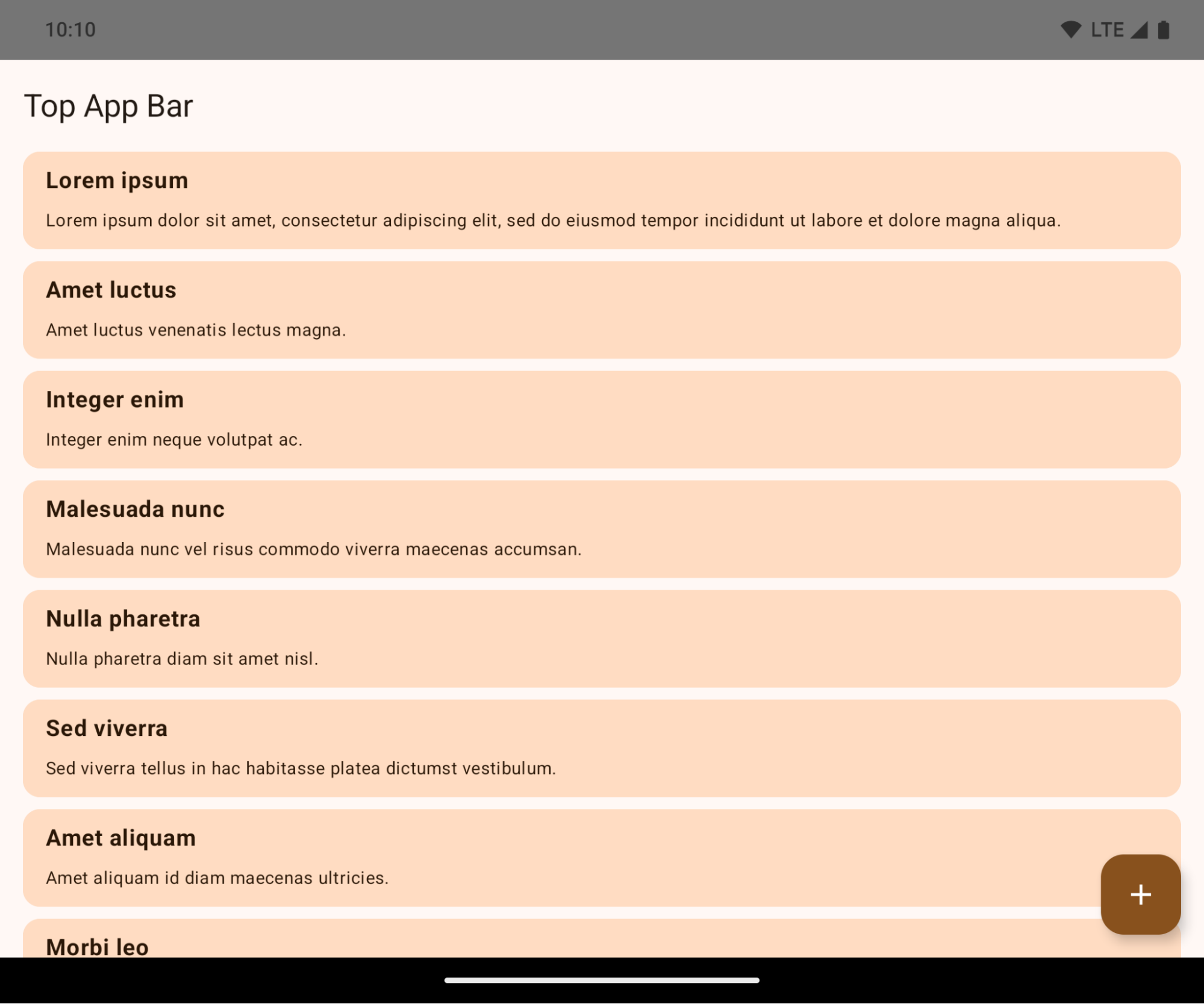
هذا تغيير غير متوافق قد يؤثر سلبًا في واجهة مستخدم تطبيقك. تؤثّر التغييرات في أقسام واجهة المستخدم التالية:
- شريط التنقّل باستخدام مقبض الإيماءات
- تكون شفافة تلقائيًا.
- تم إيقاف الإزاحة السفلية كي يتم عرض المحتوى خلف شريط التنقّل في النظام ما لم يتم تطبيق هوامش داخلية.
- تم إيقاف
setNavigationBarColorوR.attr#navigationBarColorنهائيًا، ولا يؤثران في التنقّل بالإيماءات. - لن يكون
setNavigationBarContrastEnforcedوR.attr#navigationBarContrastEnforcedأي تأثير على التنقّل بالإيماءات.
- التنقّل باستخدام ثلاثة أزرار
- يتم ضبط مستوى الشفافية على% 80 تلقائيًا، وقد يتطابق اللون مع لون خلفية النافذة.
- تم إيقاف الإزاحة السفلية كي يتم عرض المحتوى خلف شريط التنقّل في النظام ما لم يتم تطبيق الحواف الداخلية.
- يتم ضبط
setNavigationBarColorوR.attr#navigationBarColorتلقائيًا ليتطابقا مع خلفية النافذة. يجب أن تكون خلفية النافذة قابلة للرسم بلون حتى يتم تطبيق هذا الإعداد التلقائي. تم إيقاف هذه الواجهة نهائيًا، ولكنها لا تزال تؤثر في التنقّل باستخدام ثلاثة أزرار. - تكون قيمة
setNavigationBarContrastEnforcedوR.attr#navigationBarContrastEnforcedصحيحة تلقائيًا، ما يؤدي إلى إضافة خلفية غير شفافة بنسبة% 80 في وضع "التنقّل باستخدام ثلاثة أزرار".
- شريط الحالة
- تكون شفافة تلقائيًا.
- يتم إيقاف الإزاحة العلوية، وبالتالي يتم عرض المحتوى خلف شريط الحالة ما لم يتم تطبيق هوامش داخلية.
- تم إيقاف
setStatusBarColorوR.attr#statusBarColorنهائيًا، ولن يكون لهما أي تأثير في الإصدار Android 15. - تم إيقاف
setStatusBarContrastEnforcedوR.attr#statusBarContrastEnforcedنهائيًا، ولكن سيظل لهما تأثير على Android 15.
- صورة مقطوعة للشاشة
- يجب أن تكون قيمة
layoutInDisplayCutoutModeللنوافذ غير العائمة هيLAYOUT_IN_DISPLAY_CUTOUT_MODE_ALWAYS. يتم تفسيرSHORT_EDGESوNEVERوDEFAULTعلى أنّهاALWAYSكي لا يظهر للمستخدمين شريط أسود بسبب صورة مقطوعة للشاشة، بل يظهر المحتوى من الحافة إلى الحافة.
- يجب أن تكون قيمة
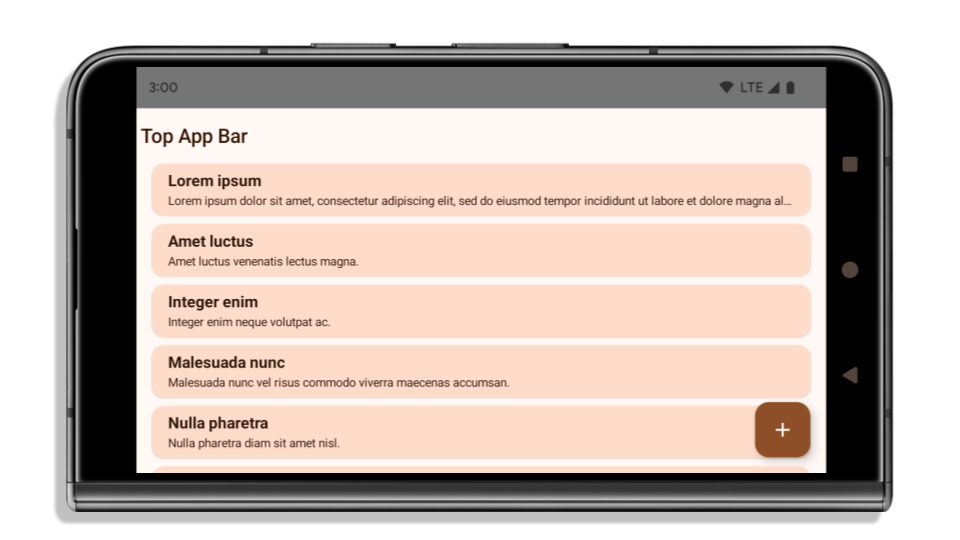
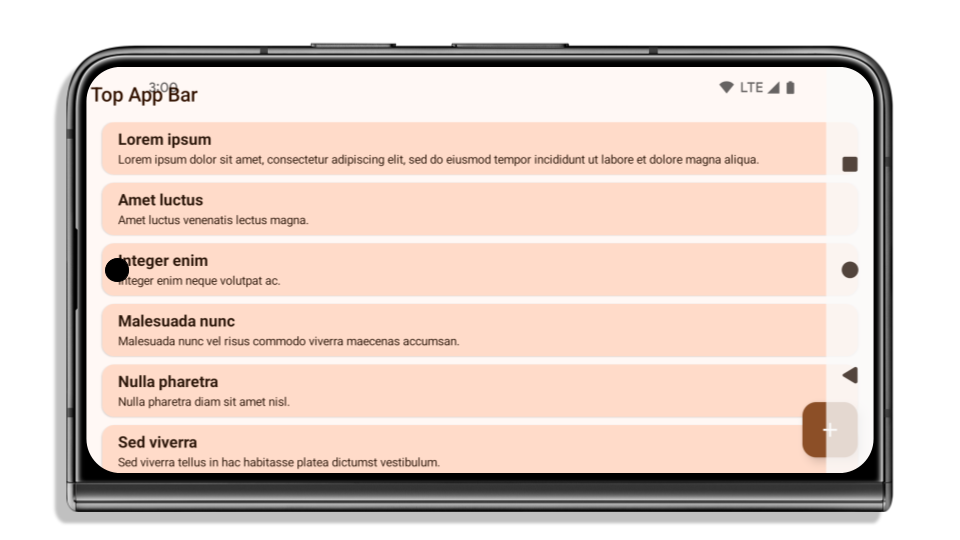
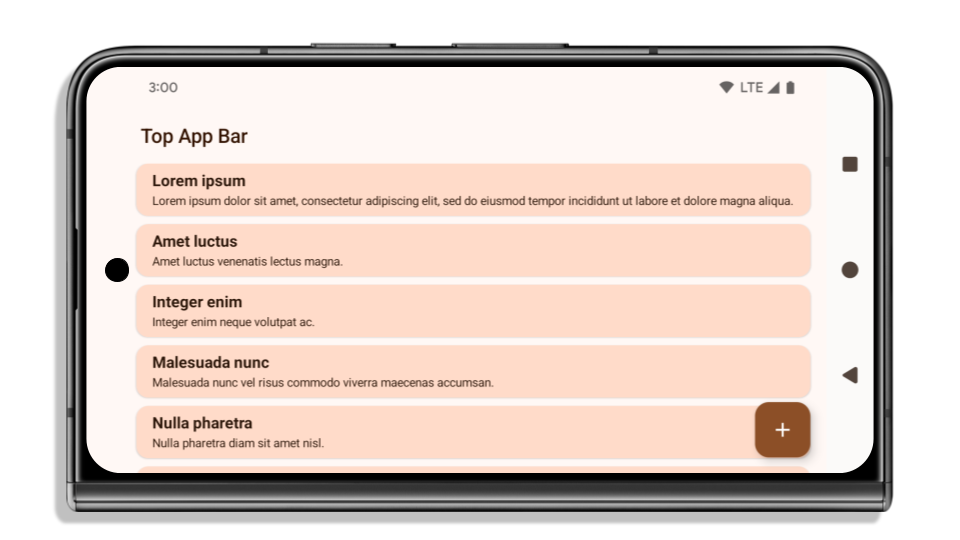
يوضّح المثال التالي تطبيقًا قبل وبعد استهداف Android 15 (مستوى واجهة برمجة التطبيقات 35)، وقبل وبعد تطبيق المساحات الداخلية. هذا المثال ليس شاملاً، وقد يظهر بشكل مختلف على Android Auto.
ما يجب التحقّق منه إذا كان تطبيقك معروضًا من الحافة إلى الحافة
إذا كان تطبيقك يعرض المحتوى من الحافة إلى الحافة ويطبّق هوامش داخلية، لن تتأثر في معظم الحالات، باستثناء السيناريوهات التالية. ومع ذلك، حتى إذا كنت تعتقد أنّك لن تتأثر بهذا التغيير، ننصحك باختبار تطبيقك.
- لديك نافذة غير عائمة، مثل
ActivityتستخدمSHORT_EDGESأوNEVERأوDEFAULTبدلاً منLAYOUT_IN_DISPLAY_CUTOUT_MODE_ALWAYS. إذا كان تطبيقك يتعطّل عند تشغيله، قد يكون ذلك بسبب شاشة البداية. يمكنك إما ترقية تبعية شاشة البداية الأساسية إلى الإصدار 1.2.0-alpha01 أو إصدار أحدث، أو ضبطwindow.attributes.layoutInDisplayCutoutMode = WindowManager.LayoutInDisplayCutoutMode.always. - قد تكون هناك شاشات ذات عدد زيارات أقل مع واجهة مستخدم محجوبة. تأكَّد من أنّ الشاشات الأقل زيارة لا تتضمّن واجهة مستخدم محجوبة. تشمل الشاشات التي تسجّل عددًا أقل من الزيارات ما يلي:
- شاشات الإعداد أو تسجيل الدخول
- صفحات الإعدادات
الإجراءات التي يجب اتّخاذها إذا لم يكن تطبيقك معروضًا من الحافة إلى الحافة
إذا لم يكن تطبيقك معروضًا من الحافة إلى الحافة، من المرجّح أن تتأثّر بذلك. بالإضافة إلى سيناريوهات التطبيقات التي تعرض المحتوى من الحافة إلى الحافة، يجب مراعاة ما يلي:
- إذا كان تطبيقك يستخدم "مكوّنات Material 3" (
androidx.compose.material3) في Compose، مثلTopAppBarوBottomAppBarوNavigationBar، من المحتمل ألا تتأثر هذه المكوّنات لأنّها تتعامل تلقائيًا مع الهوامش الداخلية. - إذا كان تطبيقك يستخدم مكوّنات Material 2 (
androidx.compose.material) في Compose، لن تتعامل هذه المكوّنات تلقائيًا مع الحواف الداخلية. ومع ذلك، يمكنك الوصول إلى الحواف الداخلية وتطبيقها يدويًا. في androidx.compose.material الإصدار 1.6.0 والإصدارات الأحدث، استخدِم المَعلمةwindowInsetsلتطبيق الهوامش الداخلية يدويًا علىBottomAppBarوTopAppBarوBottomNavigationوNavigationRail. وبالمثل، استخدِم المَعلمةcontentWindowInsetsمعScaffold. - إذا كان تطبيقك يستخدم طرق العرض ومكوّنات Material
(
com.google.android.material)، فإنّ معظم مكوّنات Material المستندة إلى طرق العرض، مثلBottomNavigationViewأوBottomAppBarأوNavigationRailViewأوNavigationView، تتعامل مع الحواف الداخلية ولا تتطلّب أي عمل إضافي. ومع ذلك، عليك إضافةandroid:fitsSystemWindows="true"إذا كنت تستخدمAppBarLayout. - بالنسبة إلى العناصر القابلة للإنشاء المخصّصة، طبِّق عمليات الإزاحة يدويًا كمسافة بادئة. إذا كان المحتوى الخاص بك ضمن
Scaffold، يمكنك استخدام الحواف الداخلية باستخدام قيم المساحة المتروكةScaffold. بخلاف ذلك، طبِّق الحشو باستخدام أحدWindowInsets. - إذا كان تطبيقك يستخدم طرق العرض و
BottomSheetأوSideSheetأو حاويات مخصّصة، طبِّق مساحة متروكة باستخدامViewCompat.setOnApplyWindowInsetsListener. بالنسبة إلىRecyclerView، طبِّق المساحة المتروكة باستخدام أداة معالجة الأحداث هذه، وأضِف أيضًاclipToPadding="false".
ما يجب التحقّق منه إذا كان تطبيقك يجب أن يوفّر حماية مخصّصة تعمل في الخلفية
إذا كان تطبيقك يوفّر حماية مخصّصة في الخلفية للتنقُّل باستخدام ثلاثة أزرار أو شريط الحالة، يجب أن يضع تطبيقك عنصرًا قابلاً للإنشاء أو عرضًا خلف شريط النظام باستخدام WindowInsets.Type#tappableElement() للحصول على ارتفاع شريط التنقّل الذي يتضمّن 3 أزرار أو WindowInsets.Type#statusBars.
مراجع إضافية حول ميزة "من الحافة إلى الحافة"
راجِع الدليلَين طرق العرض من الحافة إلى الحافة وCompose من الحافة إلى الحافة للاطّلاع على اعتبارات إضافية بشأن تطبيق الحواف الداخلية.
واجهات برمجة التطبيقات المتوقّفة نهائيًا
تم إيقاف واجهات برمجة التطبيقات التالية نهائيًا ولكن لم يتم إيقافها:
R.attr#enforceStatusBarContrastR.attr#navigationBarColor(للتنقّل باستخدام ثلاثة أزرار، مع 80% قيمة ألفا)Window#isStatusBarContrastEnforcedWindow#setNavigationBarColor(للتنقّل باستخدام ثلاثة أزرار، مع قيمة ألفا بنسبة% 80)Window#setStatusBarContrastEnforced
تم إيقاف واجهات برمجة التطبيقات التالية:
R.attr#navigationBarColor(للتنقّل بالإيماءات)R.attr#navigationBarDividerColorR.attr#statusBarColorWindow#setDecorFitsSystemWindowsWindow#getNavigationBarColorWindow#getNavigationBarDividerColorWindow#getStatusBarColorWindow#setNavigationBarColor(للتنقّل بالإيماءات)Window#setNavigationBarDividerColorWindow#setStatusBarColor
الإعدادات الثابتة
إذا كان تطبيقك يستهدف Android 15 (المستوى 35 لواجهة برمجة التطبيقات) أو الإصدارات الأحدث، لن يستبعد Configuration بعد الآن أشرطة النظام. إذا كنت تستخدم حجم الشاشة في فئة Configuration لاحتساب التنسيق، عليك استبداله ببدائل أفضل، مثل ViewGroup أو WindowInsets أو WindowMetricsCalculator مناسبة، حسب حاجتك.
تتوفّر فئة Configuration منذ المستوى 1 لواجهة برمجة التطبيقات. ويتم الحصول عليها عادةً من Activity.onConfigurationChanged. وتقدّم معلومات مثل كثافة النافذة واتجاهها وأحجامها. من الخصائص المهمة لأحجام النوافذ التي يتم عرضها من Configuration أنّها كانت تستبعد في السابق أشرطة النظام.
يُستخدَم حجم الإعدادات عادةً لاختيار الموارد، مثل /res/layout-h500dp، ولا تزال هذه حالة استخدام صالحة. ومع ذلك، لم ننصح أبدًا باستخدامه لاحتساب التنسيق. إذا كنت تستخدمه، عليك التوقّف عن ذلك الآن. عليك استبدال استخدام Configuration بشيء أكثر ملاءمةً حسب حالة الاستخدام.
إذا كنت تستخدمه لاحتساب التنسيق، استخدِم ViewGroup مناسبًا، مثل CoordinatorLayout أو ConstraintLayout. إذا كنت تستخدمه لتحديد ارتفاع شريط التنقّل في النظام، استخدِم WindowInsets. إذا أردت معرفة الحجم الحالي لنافذة تطبيقك، استخدِم computeCurrentWindowMetrics.
توضّح القائمة التالية الحقول المتأثّرة بهذا التغيير:
- لم يعُد حجمَا
Configuration.screenWidthDpوscreenHeightDpيستبعدان أشرطة النظام. Configuration.smallestScreenWidthDpيتأثّر بشكل غير مباشر بالتغييرات التي تطرأ علىscreenWidthDpوscreenHeightDp.Configuration.orientationيتأثّر بشكل غير مباشر بالتغييرات التي تطرأ علىscreenWidthDpوscreenHeightDpعلى الأجهزة القريبة من المربّع.Display.getSize(Point)يتأثّر بشكل غير مباشر بالتغييرات فيConfiguration. تم إيقاف هذه الطريقة نهائيًا بدءًا من المستوى 30 لواجهة برمجة التطبيقات.- تعمل
Display.getMetrics()بهذه الطريقة منذ المستوى 33 لواجهة برمجة التطبيقات.
تكون القيمة التلقائية لسمة elegantTextHeight هي true
بالنسبة إلى التطبيقات التي تستهدف الإصدار 15 من نظام التشغيل Android (المستوى 35 لواجهة برمجة التطبيقات)، تصبح سمة
elegantTextHeight TextView
true تلقائيًا، ما يؤدي إلى استبدال الخط المكثّف المستخدَم تلقائيًا ببعض
النصوص البرمجية التي تحتوي على مقاييس عمودية كبيرة بخط يسهل قراءته.
تم طرح الخط المكثّف لمنع حدوث مشاكل في التنسيقات. يمنع نظام التشغيل Android 13 (المستوى 33 من واجهة برمجة التطبيقات) حدوث العديد من هذه المشاكل من خلال السماح لتنسيق النص بشدّ الارتفاع العمودي باستخدام السمة fallbackLineSpacing
.
في Android 15، سيظل الخط المكثّف متوفّرًا في النظام، لذا يمكن لتطبيقك ضبط
elegantTextHeight على false للحصول على السلوك نفسه كما في السابق، ولكن من المرجّح عدم توفّره في الإصدارات القادمة. لذلك، إذا كان تطبيقك متوافقًا مع
النصوص البرمجية التالية: العربية أو البورمية أو التايلاندية أو التاميل أو الغوجاراتية أو الكجراتية أو الماليالامية أو
الأوديا أو التيلوغوية أو اللاوية، يمكنك اختبار تطبيقك من خلال ضبط القيمة elegantTextHeight على true.

elegantTextHeight للتطبيقات التي تستهدف الإصدار 14 من نظام التشغيل Android (المستوى 34 لواجهة برمجة التطبيقات) والإصدارات الأقدم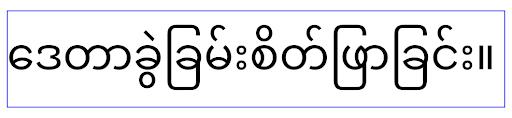
elegantTextHeight للتطبيقات التي تستهدف الإصدار Android 15تغيير عرض TextView لأشكال الحروف المعقّدة
في الإصدارات السابقة من Android، قد ترسم بعض الخطوط المكتوبة بخط اليد أو اللغات التي تتضمن
أشكالًا معقّدةً الأحرف في منطقة الحرف السابق أو التالي.
في بعض الحالات، تم اقتطاع هذه الأحرف في موضع البداية أو النهاية.
بدءًا من Android 15، يخصّص TextView عرضًا لرسم مساحة كافية
لهذه الأحرف ويسمح للتطبيقات بطلب مساحات إضافية على يمين الحرف لمنع اقتصاصه.
وبما أنّ هذا التغيير يؤثر في كيفية تحديد TextView للعرض، TextView
يحدّد عرضًا أكبر تلقائيًا إذا كان التطبيق يستهدف الإصدار 15 من نظام التشغيل Android (المستوى 35 لواجهة برمجة التطبيقات) أو
الإصدارات الأحدث. يمكنك تفعيل هذا السلوك أو إيقافه من خلال طلب بيانات من واجهة برمجة التطبيقات
setUseBoundsForWidth على TextView.
بما أنّ إضافة مساحة متروكة على يمين العنصر قد تؤدي إلى عدم محاذاة التنسيقات الحالية، لا تتم إضافة
المساحة المتروكة تلقائيًا حتى للتطبيقات التي تستهدف الإصدار 15 من نظام التشغيل Android أو الإصدارات الأحدث.
ومع ذلك، يمكنك إضافة مساحة متروكة إضافية لمنع الاقتصاص من خلال استدعاء
setShiftDrawingOffsetForStartOverhang.
توضح الأمثلة التالية كيف يمكن لهذه التغييرات تحسين تخطيط النص لبعض الخطوط واللغات.
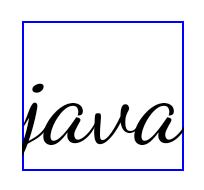
<TextView
    android:fontFamily="cursive"
    android:text="java" />
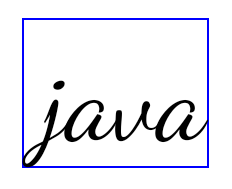
<TextView
    android:fontFamily="cursive"
    android:text="java"
    android:useBoundsForWidth="true"
    android:shiftDrawingOffsetForStartOverhang="true" />
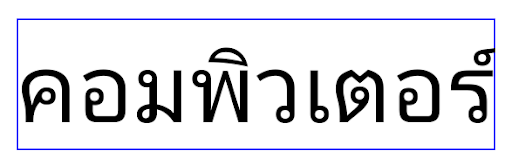
<TextView
    android:text="คอมพิวเตอร์" />
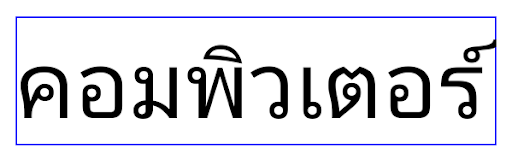
<TextView
    android:text="คอมพิวเตอร์"
    android:useBoundsForWidth="true"
    android:shiftDrawingOffsetForStartOverhang="true" />
ارتفاع السطر التلقائي المتوافق مع اللغة المحلية في EditText
في الإصدارات السابقة من Android، كان تنسيق النص يمدّد ارتفاع
النص ليتناسب مع ارتفاع سطر الخط الذي يتطابق مع اللغة الحالية. على سبيل المثال، إذا كان المحتوى باللغة اليابانية، يصبح ارتفاع النص أكبر قليلاً لأنّ ارتفاع السطر للخط الياباني
أكبر قليلاً من ارتفاع السطر للخط اللاتيني. ومع ذلك، على الرغم من هذه الاختلافات في ارتفاعات السطور، تم ضبط حجم العنصر
EditText بشكلٍ موحّد، بغض النظر عن
اللغة المستخدَمة، كما هو موضّح في الصورة التالية:

EditText عنصرًا يمكن أن يحتوي
على نص باللغة الإنجليزية (en) واليابانية (ja) والبورمية (my). يكون
ارتفاع الرمز EditText متطابقًا، على الرغم من أنّ هذه اللغات
لها ارتفاعات سطور مختلفة عن بعضها.بالنسبة إلى التطبيقات التي تستهدف الإصدار 15 من Android (المستوى 35 لواجهة برمجة التطبيقات)، تم الآن تخصيص الحد الأدنى لارتفاع السطر
لـ EditText لمطابقة الخط المرجعي للّغة المحدّدة، كما هو موضح
في الصورة التالية:

EditText عنصرًا يمكن أن يحتوي
على نص باللغة الإنجليزية (en) واليابانية (ja) والبورمية (my). يتضمّن الآن
ارتفاع الرمز EditText مساحة لاستيعاب
ارتفاع السطر التلقائي لخطوط هذه اللغات.يمكن لتطبيقك استعادة السلوك السابق إذا لزم الأمر من خلال تحديد سمة
useLocalePreferredLineHeightForMinimum
على false، ويمكن لتطبيقك ضبط الحد الأدنى المخصّص للمقاييس العمودية باستخدام واجهة برمجة التطبيقات
setMinimumFontMetrics في Kotlin وJava.
الكاميرا والوسائط
يُجري الإصدار 15 من نظام التشغيل Android التغييرات التالية على سلوك الكاميرا والوسائط في التطبيقات التي تستهدف الإصدار 15 من نظام التشغيل Android أو الإصدارات الأحدث.
القيود المفروضة على طلب أولويّة الصوت
يجب أن تكون التطبيقات التي تستهدف الإصدار 15 من نظام التشغيل Android (المستوى 35 لواجهة برمجة التطبيقات) هي التطبيق الأهم أو أن تعمل
بخدمة في المقدّمة من أجل طلب تركيز الصوت. إذا حاول أحد التطبيقات طلب التركيز عندما لا يستوفي أحد هذه المتطلبات، يعرض الإجراء AUDIOFOCUS_REQUEST_FAILED.
يمكنك الاطّلاع على مزيد من المعلومات حول ميزة "تركيز الصوت" في مقالة إدارة ميزة "تركيز الصوت".
تعديل القيود المفروضة على حِزم تطوير البرامج (SDK) غير التابعة لجهات خارجية
يتضمّن Android 15 قوائم معدَّلة لواجهات برمجة التطبيقات غير المتوفّرة في حزمة SDK والمقيّدة، استنادًا إلى التعاون مع مطوّري Android وأحدث الاختبارات الداخلية. نحرص قدر الإمكان على توفير بدائل عامة قبل تقييد واجهات برمجة التطبيقات غير المتوفّرة في حزمة SDK.
إذا كان تطبيقك لا يستهدف Android 15، قد لا تؤثّر بعض هذه التغييرات فيك على الفور. ومع ذلك، على الرغم من إمكانية وصول تطبيقك إلى بعض واجهات برمجة التطبيقات غير المتوفّرة في حزمة SDK استنادًا إلى مستوى واجهة برمجة التطبيقات المستهدَف في تطبيقك، فإنّ استخدام أي طريقة أو حقل غير متوفّر في حزمة SDK يحمل دائمًا خطرًا كبيرًا بتعطُّل تطبيقك.
إذا لم تكن متأكدًا مما إذا كان تطبيقك يستخدم واجهات برمجة تطبيقات غير متوفّرة في حزمة SDK، يمكنك اختباره لمعرفة ذلك. إذا كان تطبيقك يعتمد على واجهات برمجة تطبيقات غير متوفّرة في حزمة SDK، عليك البدء في التخطيط لنقل البيانات إلى بدائل حزمة SDK. ومع ذلك، ندرك أنّ بعض التطبيقات لديها حالات استخدام صالحة لاستخدام واجهات برمجة تطبيقات غير متوفّرة في حزمة SDK. إذا لم تتمكّن من العثور على بديل لاستخدام واجهة برمجة تطبيقات غير متوفّرة في حزمة SDK لميزة في تطبيقك، عليك طلب واجهة برمجة تطبيقات عامة جديدة.
لمزيد من المعلومات عن التغييرات في هذا الإصدار من Android، اطّلِع على التعديلات على قيود واجهات غير حزمة SDK في Android 15. للاطّلاع على مزيد من المعلومات حول الواجهات غير المتوفّرة في حزمة SDK بشكل عام، اطّلِع على مقالة القيود المفروضة على الواجهات غير المتوفّرة في حزمة SDK.