

পূর্ববর্তী রিলিজগুলোর মতোই, অ্যান্ড্রয়েড ১৫-এ এমন কিছু আচরণগত পরিবর্তন রয়েছে যা আপনার অ্যাপকে প্রভাবিত করতে পারে। নিম্নলিখিত আচরণগত পরিবর্তনগুলো শুধুমাত্র সেইসব অ্যাপের জন্য প্রযোজ্য যেগুলো অ্যান্ড্রয়েড ১৫ বা তার উচ্চতর সংস্করণকে টার্গেট করছে। যদি আপনার অ্যাপটি অ্যান্ড্রয়েড ১৫ বা তার উচ্চতর সংস্করণকে টার্গেট করে থাকে, তবে প্রযোজ্য ক্ষেত্রে এই আচরণগুলোকে সঠিকভাবে সমর্থন করার জন্য আপনার অ্যাপটি পরিবর্তন করা উচিত।
আপনার অ্যাপের targetSdkVersion নির্বিশেষে Android 15-এ চালিত সমস্ত অ্যাপকে প্রভাবিত করে এমন আচরণগত পরিবর্তনের তালিকাটিও পর্যালোচনা করতে ভুলবেন না।
মূল কার্যকারিতা
অ্যান্ড্রয়েড ১৫ অ্যান্ড্রয়েড সিস্টেমের বিভিন্ন মূল সক্ষমতাকে পরিবর্তন বা প্রসারিত করে।
ফোরগ্রাউন্ড পরিষেবাগুলিতে পরিবর্তন
আমরা Android 15 এর সাথে ফোরগ্রাউন্ড পরিষেবাগুলিতে নিম্নলিখিত পরিবর্তনগুলি করছি৷
- ডেটা সিঙ্ক ফোরগ্রাউন্ড পরিষেবা সময় শেষ আচরণ
- নতুন মিডিয়া প্রক্রিয়াকরণ ফোরগ্রাউন্ড পরিষেবার ধরন
-
BOOT_COMPLETEDসম্প্রচার রিসিভার ফোরগ্রাউন্ড পরিষেবা চালু করার উপর নিষেধাজ্ঞা - একটি অ্যাপের
SYSTEM_ALERT_WINDOWঅনুমতি থাকাকালীন ফোরগ্রাউন্ড পরিষেবাগুলি শুরু করার উপর বিধিনিষেধ
ডেটা সিঙ্ক ফোরগ্রাউন্ড পরিষেবা সময় শেষ আচরণ
Android 15 Android 15 (API স্তর 35) বা উচ্চতরকে লক্ষ্য করে এমন অ্যাপগুলির জন্য dataSync একটি নতুন টাইমআউট আচরণ প্রবর্তন করে৷ এই আচরণটি নতুন mediaProcessing ফোরগ্রাউন্ড পরিষেবা প্রকারের ক্ষেত্রেও প্রযোজ্য।
সিস্টেমটি একটি অ্যাপের dataSync পরিষেবাগুলিকে 24-ঘন্টা সময়ের মধ্যে মোট 6 ঘন্টা চালানোর অনুমতি দেয়, তারপরে সিস্টেমটি চলমান পরিষেবাটির Service.onTimeout(int, int) পদ্ধতিতে কল করে (Android 15 এ চালু করা হয়েছে)৷ এই সময়ে, পরিষেবাটিতে Service.stopSelf() কল করার জন্য কয়েক সেকেন্ড সময় আছে। যখন Service.onTimeout() কল করা হয়, তখন পরিষেবাটিকে আর অগ্রভাগের পরিষেবা হিসাবে বিবেচনা করা হয় না। যদি পরিষেবাটি Service.stopSelf() কল না করে, তবে সিস্টেমটি একটি অভ্যন্তরীণ ব্যতিক্রম নিক্ষেপ করে৷ ব্যতিক্রমটি নিম্নলিখিত বার্তার সাথে লগক্যাটে লগ ইন করা হয়েছে:
Fatal Exception: android.app.RemoteServiceException: "A foreground service of
type dataSync did not stop within its timeout: [component name]"
এই আচরণ পরিবর্তনের সমস্যাগুলি এড়াতে, আপনি নিম্নলিখিতগুলির মধ্যে এক বা একাধিক করতে পারেন:
- আপনার পরিষেবাকে নতুন
Service.onTimeout(int, int)পদ্ধতি প্রয়োগ করতে দিন। আপনার অ্যাপ কলব্যাক গ্রহণ করলে, কয়েক সেকেন্ডের মধ্যেstopSelf()কল করতে ভুলবেন না। (যদি আপনি এখনই অ্যাপটি বন্ধ না করেন তবে সিস্টেমটি একটি ব্যর্থতা তৈরি করে।) - নিশ্চিত করুন যে আপনার অ্যাপের
dataSyncপরিষেবাগুলি যে কোনও 24-ঘণ্টার সময়ের মধ্যে মোট 6 ঘন্টার বেশি চলবে না (যদি না ব্যবহারকারী অ্যাপটির সাথে ইন্টারঅ্যাক্ট করে, টাইমার রিসেট করে)। - শুধুমাত্র
dataSyncফোরগ্রাউন্ড পরিষেবাগুলি সরাসরি ব্যবহারকারীর ইন্টারঅ্যাকশনের ফলে শুরু করুন; যেহেতু পরিষেবাটি শুরু হওয়ার সময় আপনার অ্যাপটি ফোরগ্রাউন্ডে থাকে, তাই অ্যাপটি ব্যাকগ্রাউন্ডে যাওয়ার পরে আপনার পরিষেবার পুরো ছয় ঘন্টা থাকে। - একটি
dataSyncফোরগ্রাউন্ড পরিষেবা ব্যবহার করার পরিবর্তে, একটি বিকল্প API ব্যবহার করুন৷
যদি আপনার অ্যাপের dataSync ফোরগ্রাউন্ড পরিষেবাগুলি গত 24-এর মধ্যে 6 ঘন্টা ধরে চলে থাকে, তবে ব্যবহারকারী আপনার অ্যাপটিকে ফোরগ্রাউন্ডে না আনলে আপনি অন্য dataSync ফোরগ্রাউন্ড পরিষেবা শুরু করতে পারবেন না (যা টাইমার রিসেট করে)। আপনি যদি অন্য একটি dataSync ফোরগ্রাউন্ড পরিষেবা শুরু করার চেষ্টা করেন, তাহলে সিস্টেমটি "ফোরগ্রাউন্ড সার্ভিস টাইপ ডেটাসিঙ্কের জন্য সময়সীমা ইতিমধ্যেই শেষ" এর মতো একটি ত্রুটি বার্তা সহ ForegroundServiceStartNotAllowedException ছুড়ে দেয়৷
টেস্টিং
আপনার অ্যাপের আচরণ পরীক্ষা করার জন্য, আপনি ডেটা সিঙ্ক টাইমআউট সক্ষম করতে পারেন এমনকি যদি আপনার অ্যাপ অ্যান্ড্রয়েড 15 টার্গেট না করে (যতক্ষণ অ্যাপটি একটি Android 15 ডিভাইসে চলছে)। টাইমআউট সক্ষম করতে, নিম্নলিখিত adb কমান্ডটি চালান:
adb shell am compat enable FGS_INTRODUCE_TIME_LIMITS your-package-name
আপনি টাইমআউট পিরিয়ড সামঞ্জস্য করতে পারেন, সীমা পৌঁছে গেলে আপনার অ্যাপ কীভাবে আচরণ করে তা পরীক্ষা করা সহজ করতে। একটি নতুন টাইমআউট পিরিয়ড সেট করতে, নিম্নলিখিত adb কমান্ডটি চালান:
adb shell device_config put activity_manager data_sync_fgs_timeout_duration duration-in-milliseconds
নতুন মিডিয়া প্রক্রিয়াকরণ ফোরগ্রাউন্ড পরিষেবার ধরন
Android 15 একটি নতুন ফোরগ্রাউন্ড পরিষেবার ধরণ প্রবর্তন করেছে, mediaProcessing । এই পরিষেবার ধরন মিডিয়া ফাইল ট্রান্সকোড করার মত অপারেশনের জন্য উপযুক্ত। উদাহরণস্বরূপ, একটি মিডিয়া অ্যাপ একটি অডিও ফাইল ডাউনলোড করতে পারে এবং এটি চালানোর আগে এটিকে একটি ভিন্ন বিন্যাসে রূপান্তর করতে হবে। আপনি একটি mediaProcessing ফোরগ্রাউন্ড পরিষেবা ব্যবহার করতে পারেন যাতে অ্যাপটি ব্যাকগ্রাউন্ডে থাকা সত্ত্বেও রূপান্তর অব্যাহত থাকে।
সিস্টেমটি একটি অ্যাপের mediaProcessing পরিষেবাগুলিকে 24-ঘণ্টার মধ্যে মোট 6 ঘন্টা চালানোর অনুমতি দেয়, তারপরে সিস্টেমটি চলমান পরিষেবাটির Service.onTimeout(int, int) পদ্ধতিকে কল করে (অ্যান্ড্রয়েড 15 এ প্রবর্তিত)৷ এই সময়ে, পরিষেবাটিতে Service.stopSelf() কল করার জন্য কয়েক সেকেন্ড সময় আছে। যদি পরিষেবাটি Service.stopSelf() কল না করে, তবে সিস্টেমটি একটি অভ্যন্তরীণ ব্যতিক্রম নিক্ষেপ করে৷ ব্যতিক্রম নিম্নলিখিত বার্তার সাথে Logcat লগ ইন করা হয়েছে:
Fatal Exception: android.app.RemoteServiceException: "A foreground service of
type mediaProcessing did not stop within its timeout: [component name]"
ব্যতিক্রম এড়াতে, আপনি নিম্নলিখিতগুলির মধ্যে একটি করতে পারেন:
- আপনার পরিষেবাকে নতুন
Service.onTimeout(int, int)পদ্ধতি প্রয়োগ করতে দিন। আপনার অ্যাপ কলব্যাক গ্রহণ করলে, কয়েক সেকেন্ডের মধ্যেstopSelf()কল করতে ভুলবেন না। (যদি আপনি এখনই অ্যাপটি বন্ধ না করেন তবে সিস্টেমটি একটি ব্যর্থতা তৈরি করে।) - নিশ্চিত করুন যে আপনার অ্যাপের
mediaProcessingপরিষেবাগুলি যে কোনও 24-ঘন্টা সময়ের মধ্যে মোট 6 ঘন্টার বেশি চলবে না (যদি না ব্যবহারকারী অ্যাপের সাথে ইন্টারঅ্যাক্ট করে, টাইমার রিসেট করে)। - শুধুমাত্র সরাসরি ব্যবহারকারীর মিথস্ক্রিয়ার ফলে
mediaProcessingফোরগ্রাউন্ড পরিষেবা শুরু করুন; যেহেতু পরিষেবাটি শুরু হওয়ার সময় আপনার অ্যাপটি ফোরগ্রাউন্ডে থাকে, তাই অ্যাপটি ব্যাকগ্রাউন্ডে যাওয়ার পরে আপনার পরিষেবার পুরো ছয় ঘন্টা থাকে। -
mediaProcessingফোরগ্রাউন্ড পরিষেবা ব্যবহার করার পরিবর্তে, একটি বিকল্প API ব্যবহার করুন, যেমন WorkManager।
যদি আপনার অ্যাপের mediaProcessing ফোরগ্রাউন্ড পরিষেবাগুলি গত 24-এর মধ্যে 6 ঘন্টা ধরে চলে থাকে, তবে ব্যবহারকারী আপনার অ্যাপটিকে ফোরগ্রাউন্ডে না আনলে আপনি অন্য mediaProcessing ফোরগ্রাউন্ড পরিষেবা শুরু করতে পারবেন না (যা টাইমার রিসেট করে)। আপনি যদি অন্য mediaProcessing ফোরগ্রাউন্ড পরিষেবা শুরু করার চেষ্টা করেন, তাহলে সিস্টেমটি "ফোরগ্রাউন্ড সার্ভিস টাইপ মিডিয়াপ্রসেসিং এর জন্য ইতিমধ্যেই শেষ হয়ে গেছে" এর মতো একটি ত্রুটি বার্তা সহ ForegroundServiceStartNotAllowedException ছুড়ে দেয়।
mediaProcessing পরিষেবার ধরন সম্পর্কে আরও তথ্যের জন্য, Android 15: মিডিয়া প্রসেসিং-এর জন্য অগ্রভাগের পরিষেবার প্রকারগুলিতে পরিবর্তনগুলি দেখুন৷
টেস্টিং
আপনার অ্যাপের আচরণ পরীক্ষা করার জন্য, আপনি মিডিয়া প্রসেসিং টাইমআউট সক্ষম করতে পারেন এমনকি যদি আপনার অ্যাপ অ্যান্ড্রয়েড 15 টার্গেট না করে (যতক্ষণ অ্যাপটি অ্যান্ড্রয়েড 15 ডিভাইসে চলছে)। টাইমআউট সক্ষম করতে, নিম্নলিখিত adb কমান্ডটি চালান:
adb shell am compat enable FGS_INTRODUCE_TIME_LIMITS your-package-name
আপনি টাইমআউট পিরিয়ড সামঞ্জস্য করতে পারেন, সীমা পৌঁছে গেলে আপনার অ্যাপ কীভাবে আচরণ করে তা পরীক্ষা করা সহজ করতে। একটি নতুন টাইমআউট পিরিয়ড সেট করতে, নিম্নলিখিত adb কমান্ডটি চালান:
adb shell device_config put activity_manager media_processing_fgs_timeout_duration duration-in-milliseconds
BOOT_COMPLETED সম্প্রচার রিসিভার ফোরগ্রাউন্ড পরিষেবা চালু করার উপর নিষেধাজ্ঞা
BOOT_COMPLETED সম্প্রচার রিসিভার ফোরগ্রাউন্ড পরিষেবা চালু করার জন্য নতুন বিধিনিষেধ রয়েছে৷ BOOT_COMPLETED রিসিভারদের নিম্নলিখিত ধরনের অগ্রভাগের পরিষেবা চালু করার অনুমতি নেই :
-
dataSync -
camera -
mediaPlayback -
phoneCall -
mediaProjection -
microphone(অ্যান্ড্রয়েড 14 সাল থেকেmicrophoneজন্য এই সীমাবদ্ধতা রয়েছে)
যদি একটি BOOT_COMPLETED রিসিভার এই ধরনের ফোরগ্রাউন্ড পরিষেবাগুলির মধ্যে যেকোনো একটি চালু করার চেষ্টা করে, তাহলে সিস্টেমটি ForegroundServiceStartNotAllowedException থ্রো করে।
টেস্টিং
আপনার অ্যাপ্লিকেশানের আচরণ পরীক্ষা করার জন্য, আপনি এই নতুন বিধিনিষেধগুলি সক্ষম করতে পারেন এমনকি যদি আপনার অ্যাপটি Android 15 টার্গেট না করে (যতক্ষণ অ্যাপটি একটি Android 15 ডিভাইসে চলছে)। নিম্নলিখিত adb কমান্ড চালান:
adb shell am compat enable FGS_BOOT_COMPLETED_RESTRICTIONS your-package-name
ডিভাইসটি পুনরায় চালু না করে একটি BOOT_COMPLETED সম্প্রচার পাঠাতে, নিম্নলিখিত adb কমান্ডটি চালান:
adb shell am broadcast -a android.intent.action.BOOT_COMPLETED your-package-name
একটি অ্যাপের SYSTEM_ALERT_WINDOW অনুমতি থাকাকালীন ফোরগ্রাউন্ড পরিষেবাগুলি শুরু করার উপর বিধিনিষেধ
পূর্বে, যদি একটি অ্যাপের কাছে SYSTEM_ALERT_WINDOW অনুমতি থাকে, তবে অ্যাপটি বর্তমানে ব্যাকগ্রাউন্ডে থাকলেও এটি একটি ফোরগ্রাউন্ড পরিষেবা চালু করতে পারে (যেমন ব্যাকগ্রাউন্ড শুরু সীমাবদ্ধতা থেকে অব্যাহতি নিয়ে আলোচনা করা হয়েছে)।
যদি কোনো অ্যাপ Android 15 কে লক্ষ্য করে, তাহলে এই ছাড় এখন আরও সংকুচিত। অ্যাপটির এখন SYSTEM_ALERT_WINDOW অনুমতি থাকতে হবে এবং একটি দৃশ্যমান ওভারলে উইন্ডোও থাকতে হবে । অর্থাৎ, অ্যাপটিকে প্রথমে একটি TYPE_APPLICATION_OVERLAY উইন্ডো চালু করতে হবে এবং আপনি একটি ফোরগ্রাউন্ড পরিষেবা শুরু করার আগে উইন্ডোটি দৃশ্যমান হওয়া প্রয়োজন৷
যদি আপনার অ্যাপ এই নতুন প্রয়োজনীয়তাগুলি পূরণ না করে ব্যাকগ্রাউন্ড থেকে একটি ফোরগ্রাউন্ড পরিষেবা শুরু করার চেষ্টা করে (এবং এটিতে অন্য কিছু ছাড় নেই), সিস্টেমটি ForegroundServiceStartNotAllowedException থ্রো করে।
যদি আপনার অ্যাপটি SYSTEM_ALERT_WINDOW অনুমতি ঘোষণা করে এবং পটভূমি থেকে ফোরগ্রাউন্ড পরিষেবা চালু করে, তাহলে এটি এই পরিবর্তন দ্বারা প্রভাবিত হতে পারে। যদি আপনার অ্যাপটি একটি ForegroundServiceStartNotAllowedException পায়, তাহলে আপনার অ্যাপের ক্রিয়াকলাপের ক্রম পরীক্ষা করুন এবং নিশ্চিত করুন যে আপনার অ্যাপটি ব্যাকগ্রাউন্ড থেকে ফোরগ্রাউন্ড পরিষেবা শুরু করার চেষ্টা করার আগে ইতিমধ্যেই একটি সক্রিয় ওভারলে উইন্ডো রয়েছে৷ আপনি View.getWindowVisibility() এ কল করে আপনার ওভারলে উইন্ডোটি বর্তমানে দৃশ্যমান কিনা তা পরীক্ষা করতে পারেন, অথবা যখনই দৃশ্যমানতা পরিবর্তন হয় তখন বিজ্ঞপ্তি পেতে আপনি View.onWindowVisibilityChanged() ওভাররাইড করতে পারেন।
টেস্টিং
আপনার অ্যাপ্লিকেশানের আচরণ পরীক্ষা করার জন্য, আপনি এই নতুন বিধিনিষেধগুলি সক্ষম করতে পারেন এমনকি যদি আপনার অ্যাপটি Android 15 টার্গেট না করে (যতক্ষণ অ্যাপটি একটি Android 15 ডিভাইসে চলছে)। পটভূমি থেকে ফোরগ্রাউন্ড পরিষেবাগুলি শুরু করার জন্য এই নতুন বিধিনিষেধগুলি সক্ষম করতে, নিম্নলিখিত adb কমান্ডটি চালান:
adb shell am compat enable FGS_SAW_RESTRICTIONS your-package-name
অ্যাপগুলো কখন ডু নট ডিস্টার্ব মোডের গ্লোবাল স্টেট পরিবর্তন করতে পারবে, সেই নিয়মে পরিবর্তন আনা হয়েছে।
যে অ্যাপগুলি Android 15 (API লেভেল 35) এবং উচ্চতরকে টার্গেট করে তারা আর কোনও ডিভাইসে গ্লোবাল স্টেট বা Do Not Disturb (DND) এর নীতি পরিবর্তন করতে পারে না (হয় ব্যবহারকারী সেটিংস পরিবর্তন করে বা DND মোড বন্ধ করে)। পরিবর্তে, অ্যাপগুলিকে অবশ্যই একটি AutomaticZenRule অবদান রাখতে হবে, যা সিস্টেমটি বিদ্যমান সর্বাধিক-নিষেধমূলক-নীতি-জয় স্কিমের সাথে একটি বৈশ্বিক নীতিতে একত্রিত করে। বিদ্যমান API-এ কল যা পূর্বে গ্লোবাল স্টেটকে প্রভাবিত করেছিল ( setInterruptionFilter , setNotificationPolicy ) এর ফলে একটি অন্তর্নিহিত AutomaticZenRule তৈরি বা আপডেট হয়, যা সেই API কলগুলির কল-চক্রের উপর নির্ভর করে টগল করা এবং বন্ধ করা হয়।
মনে রাখবেন যে এই পরিবর্তনটি শুধুমাত্র পর্যবেক্ষণযোগ্য আচরণকে প্রভাবিত করে যদি অ্যাপটি setInterruptionFilter(INTERRUPTION_FILTER_ALL) কল করে এবং আশা করে যে কলটি একটি AutomaticZenRule নিষ্ক্রিয় করবে যা আগে তাদের মালিকদের দ্বারা সক্রিয় করা হয়েছিল৷
OpenJDK API পরিবর্তন
সর্বশেষ OpenJDK LTS রিলিজের ফিচারগুলোর সাথে সামঞ্জস্য রাখতে Android 15, Android-এর কোর লাইব্রেরিগুলোকে নতুন করে সাজানোর কাজ চালিয়ে যাচ্ছে।
এই পরিবর্তনগুলোর কিছু কিছু অ্যান্ড্রয়েড ১৫ (এপিআই লেভেল ৩৫) টার্গেট করা অ্যাপগুলোর সামঞ্জস্যতাকে প্রভাবিত করতে পারে:
স্ট্রিং ফরম্যাটিং এপিআই-তে পরিবর্তন : নিম্নলিখিত
String.format()এবংFormatter.format()এপিআই ব্যবহার করার সময় আর্গুমেন্ট index, flags, width, এবং precision-এর ভ্যালিডেশন এখন আরও কঠোর করা হয়েছে:-
String.format(String, Object[]) -
String.format(Locale, String, Object[]) -
Formatter.format(String, Object[]) -
Formatter.format(Locale, String, Object[])
উদাহরণস্বরূপ, যখন আর্গুমেন্ট ইনডেক্স 0 ব্যবহার করা হয় (ফরম্যাট স্ট্রিং-এ
%0), তখন নিম্নলিখিত এক্সেপশনটি থ্রো করা হয়:IllegalFormatArgumentIndexException: Illegal format argument index = 0এক্ষেত্রে, ফরম্যাট স্ট্রিং-এ আর্গুমেন্ট ইনডেক্স ১ (
%1) ব্যবহার করে সমস্যাটি সমাধান করা যেতে পারে।-
Arrays.asList(...).toArray()এর কম্পোনেন্ট টাইপের পরিবর্তন :Arrays.asList(...).toArray()ব্যবহার করার ফলে, তৈরি হওয়া অ্যারের কম্পোনেন্ট টাইপ এখন একটিObjectহয় — যা মূল অ্যারের এলিমেন্টগুলোর টাইপ নয়। তাই নিচের কোডটি একটিClassCastExceptionথ্রো করে:String[] elements = (String[]) Arrays.asList("one", "two").toArray();এই ক্ষেত্রে, ফলাফল অ্যারেতে কম্পোনেন্ট টাইপ হিসেবে
Stringবজায় রাখতে, আপনি এর পরিবর্তেCollection.toArray(Object[])ব্যবহার করতে পারেন:String[] elements = Arrays.asList("two", "one").toArray(new String[0]);ভাষা কোড পরিচালনায় পরিবর্তন : লোকেল এপিআই (
LocaleAPI) ব্যবহার করার সময়, হিব্রু, ইদ্দিশ এবং ইন্দোনেশীয় ভাষার কোডগুলিকে আর তাদের অপ্রচলিত রূপে (হিব্রু:iw, ইদ্দিশ:ji, এবং ইন্দোনেশীয়:in) রূপান্তর করা হয় না। এই লোকেলগুলির কোনো একটির জন্য ভাষা কোড নির্দিষ্ট করার সময়, এর পরিবর্তে ISO 639-1 থেকে কোডগুলি ব্যবহার করুন (হিব্রু:he, ইদ্দিশ:yi, এবং ইন্দোনেশীয়:id)।র্যান্ডম ইন্ট সিকোয়েন্সে পরিবর্তন : https://bugs.openjdk.org/browse/JDK-8301574- এ করা পরিবর্তনগুলো অনুসরণ করে, নিম্নলিখিত
Random.ints()মেথডগুলো এখনRandom.nextInt()মেথডগুলোর থেকে ভিন্ন একটি সংখ্যার সিকোয়েন্স রিটার্ন করে:সাধারণত, এই পরিবর্তনের ফলে অ্যাপে কোনো সমস্যা হওয়ার কথা নয়, কিন্তু আপনার কোডের এমনটা আশা করা উচিত নয় যে
Random.ints()মেথড থেকে তৈরি হওয়া সিকোয়েন্সটিRandom.nextInt()এর সাথে মিলবে।
আপনার অ্যাপের বিল্ড কনফিগারেশনে compileSdk আপডেট করে Android 15 (API লেভেল 35) ব্যবহার করার পর, নতুন SequencedCollection API আপনার অ্যাপের কম্প্যাটিবিলিটিকে প্রভাবিত করতে পারে।
kotlin-stdlibএMutableList.removeFirst()এবংMutableList.removeLast()এক্সটেনশন ফাংশনগুলির সাথে সংঘর্ষ।জাভার
Listটাইপটি কোটলিনেরMutableListটাইপের সাথে ম্যাপ করা হয়েছে। যেহেতু Android 15 (API লেভেল 35)-এList.removeFirst()এবংList.removeLast()API-গুলো চালু করা হয়েছে, তাই কোটলিন কম্পাইলার ফাংশন কলগুলোকে, যেমনlist.removeFirst(),kotlin-stdlibএর এক্সটেনশন ফাংশনগুলোর পরিবর্তে নতুনListAPI-গুলোতে স্ট্যাটিক্যালি রিজলভ করে।যদি কোনো অ্যাপকে
compileSdk35এবংminSdk34বা তার কম মানে সেট করে পুনরায় কম্পাইল করা হয়, এবং তারপর অ্যাপটি অ্যান্ড্রয়েড ১৪ বা তার নিচের সংস্করণে চালানো হয়, তাহলে একটি রানটাইম এরর দেখা দেয়:java.lang.NoSuchMethodError: No virtual method removeFirst()Ljava/lang/Object; in class Ljava/util/ArrayList;অ্যান্ড্রয়েড গ্রেডল প্লাগইনে বিদ্যমান
NewApiলিন্ট অপশনটি এই নতুন এপিআই ব্যবহারগুলো ধরতে পারে।./gradlew lintMainActivity.kt:41: Error: Call requires API level 35 (current min is 34): java.util.List#removeFirst [NewApi] list.removeFirst()রানটাইম এক্সেপশন এবং লিন্ট এরর ঠিক করার জন্য, কোটলিনে
removeFirst()এবংremoveLast()ফাংশন কলগুলোকে যথাক্রমেremoveAt(0)এবংremoveAt(list.lastIndex)দিয়ে প্রতিস্থাপন করা যায়। আপনি যদি অ্যান্ড্রয়েড স্টুডিও লেডিবাগ | 2024.1.3 বা তার উচ্চতর সংস্করণ ব্যবহার করেন, তবে এটি এই এররগুলোর জন্য একটি কুইক ফিক্স অপশনও প্রদান করে।যদি লিন্ট অপশনটি নিষ্ক্রিয় করা হয়ে থাকে, তাহলে
@SuppressLint("NewApi")এবংlintOptions { disable 'NewApi' }সরিয়ে ফেলার কথা বিবেচনা করুন।জাভাতে অন্যান্য পদ্ধতির সাথে সংঘর্ষ
বিদ্যমান টাইপগুলোতে, যেমন
ListএবংDeque, নতুন মেথড যোগ করা হয়েছে। এই নতুন মেথডগুলো অন্যান্য ইন্টারফেস এবং ক্লাসের একই নাম ও আর্গুমেন্ট টাইপের মেথডগুলোর সাথে সামঞ্জস্যপূর্ণ নাও হতে পারে। অসামঞ্জস্যতার কারণে মেথড সিগনেচারের সংঘর্ষের ক্ষেত্রে,javacকম্পাইলার একটি বিল্ড-টাইম এরর আউটপুট করে। উদাহরণস্বরূপ:উদাহরণ ত্রুটি ১:
javac MyList.javaMyList.java:135: error: removeLast() in MyList cannot implement removeLast() in List public void removeLast() { ^ return type void is not compatible with Object where E is a type-variable: E extends Object declared in interface Listউদাহরণ ত্রুটি ২:
javac MyList.javaMyList.java:7: error: types Deque<Object> and List<Object> are incompatible; public class MyList implements List<Object>, Deque<Object> { both define reversed(), but with unrelated return types 1 errorউদাহরণ ত্রুটি ৩:
javac MyList.javaMyList.java:43: error: types List<E#1> and MyInterface<E#2> are incompatible; public static class MyList implements List<Object>, MyInterface<Object> { class MyList inherits unrelated defaults for getFirst() from types List and MyInterface where E#1,E#2 are type-variables: E#1 extends Object declared in interface List E#2 extends Object declared in interface MyInterface 1 errorএই বিল্ড ত্রুটিগুলি সমাধান করার জন্য, এই ইন্টারফেসগুলি বাস্তবায়নকারী ক্লাসটিকে একটি সামঞ্জস্যপূর্ণ রিটার্ন টাইপ দিয়ে মেথডটি ওভাররাইড করতে হবে। উদাহরণস্বরূপ:
@Override
public Object getFirst() {
    return List.super.getFirst();
}
নিরাপত্তা
অ্যান্ড্রয়েড ১৫-এ এমন কিছু পরিবর্তন আনা হয়েছে যা সিস্টেমের নিরাপত্তা বাড়িয়ে অ্যাপ এবং ব্যবহারকারীদের ক্ষতিকর অ্যাপ থেকে সুরক্ষিত রাখতে সাহায্য করে।
সীমাবদ্ধ TLS সংস্করণ
Android 15 TLS সংস্করণ 1.0 এবং 1.1 ব্যবহার সীমাবদ্ধ করে। এই সংস্করণগুলি পূর্বে অ্যান্ড্রয়েডে অবহেলিত ছিল, কিন্তু এখন Android 15 টার্গেট করা অ্যাপগুলির জন্য অননুমোদিত।
সুরক্ষিত পটভূমি কার্যকলাপ চালু হয়
অ্যান্ড্রয়েড ১৫ ব্যবহারকারীদের ক্ষতিকারক অ্যাপ থেকে রক্ষা করে এবং তাদের ডিভাইসের উপর আরও নিয়ন্ত্রণ দেয়, এমন পরিবর্তন যোগ করে যা ক্ষতিকারক ব্যাকগ্রাউন্ড অ্যাপগুলিকে অন্যান্য অ্যাপগুলিকে সামনে আনা, তাদের সুবিধাগুলি উন্নত করা এবং ব্যবহারকারীর ইন্টারঅ্যাকশনের অপব্যবহার করা থেকে বিরত রাখে। অ্যান্ড্রয়েড ১০ (এপিআই লেভেল ২৯) থেকে ব্যাকগ্রাউন্ড অ্যাক্টিভিটি লঞ্চ সীমিত করা হয়েছে।
অন্যান্য পরিবর্তন
- ডিফল্টরূপে ব্যাকগ্রাউন্ড অ্যাক্টিভিটি লঞ্চ ব্লক করতে
PendingIntentক্রিয়েটরদের পরিবর্তন করুন । এটি অ্যাপগুলিকে দুর্ঘটনাক্রমে এমনPendingIntentতৈরি করা থেকে বিরত রাখতে সাহায্য করে যা ক্ষতিকারক ব্যক্তিদের দ্বারা অপব্যবহার করা যেতে পারে। -
PendingIntentপ্রেরক যদি অনুমতি না দেন, তাহলে কোনও অ্যাপকে ফোরগ্রাউন্ডে আনবেন না । এই পরিবর্তনের লক্ষ্য হল ক্ষতিকারক অ্যাপগুলিকে ব্যাকগ্রাউন্ডে কার্যকলাপ শুরু করার ক্ষমতার অপব্যবহার করা থেকে বিরত রাখা। ডিফল্টরূপে, অ্যাপগুলিকে টাস্ক স্ট্যাক ফোরগ্রাউন্ডে আনার অনুমতি দেওয়া হয় না যদি না স্রষ্টা ব্যাকগ্রাউন্ড অ্যাক্টিভিটি লঞ্চের সুবিধাগুলি অনুমোদন করেন অথবা প্রেরকের ব্যাকগ্রাউন্ড অ্যাক্টিভিটি লঞ্চের সুবিধা থাকে। - একটি টাস্ক স্ট্যাকের উপরের অ্যাক্টিভিটি কীভাবে তার কাজ শেষ করতে পারে তা নিয়ন্ত্রণ করুন । যদি উপরের অ্যাক্টিভিটি একটি কাজ শেষ করে, তাহলে অ্যান্ড্রয়েড যে টাস্কটি শেষ সক্রিয় ছিল সেখানে ফিরে যাবে। তাছাড়া, যদি একটি নন-টপ অ্যাক্টিভিটি তার কাজ শেষ করে, তাহলে অ্যান্ড্রয়েড হোম স্ক্রিনে ফিরে যাবে; এটি এই নন-টপ অ্যাক্টিভিটির সমাপ্তি ব্লক করবে না।
- আপনার নিজের কাজে অন্যান্য অ্যাপ থেকে ইচ্ছামত কার্যকলাপ চালু করা থেকে বিরত রাখুন । এই পরিবর্তনটি ক্ষতিকারক অ্যাপগুলিকে অন্যান্য অ্যাপ থেকে আসা কার্যকলাপ তৈরি করে ব্যবহারকারীদের ফিশিং থেকে বিরত রাখে।
- ব্যাকগ্রাউন্ড অ্যাক্টিভিটি লঞ্চের জন্য অদৃশ্যমান উইন্ডোগুলিকে বিবেচনা করা থেকে ব্লক করুন । এটি ক্ষতিকারক অ্যাপগুলিকে ব্যবহারকারীদের কাছে অবাঞ্ছিত বা ক্ষতিকারক সামগ্রী প্রদর্শনের জন্য ব্যাকগ্রাউন্ড অ্যাক্টিভিটি লঞ্চের অপব্যবহার থেকে বিরত রাখতে সহায়তা করে।
নিরাপদ উদ্দেশ্য
অ্যান্ড্রয়েড ১৫ ইনটেন্টের জন্য StrictMode চালু করেছে।
Intent ব্যবহারের লঙ্ঘন সম্পর্কে বিস্তারিত লগ দেখতে, নিম্নলিখিত পদ্ধতিটি ব্যবহার করুন:
কোটলিন
fun onCreate() {
    StrictMode.setVmPolicy(VmPolicy.Builder()
        .detectUnsafeIntentLaunch()
        .build()
    )
}
জাভা
public void onCreate() {
    StrictMode.setVmPolicy(new VmPolicy.Builder()
            .detectUnsafeIntentLaunch()
            .build());
}
ব্যবহারকারীর অভিজ্ঞতা এবং সিস্টেম UI
অ্যান্ড্রয়েড ১৫-এ এমন কিছু পরিবর্তন আনা হয়েছে, যার উদ্দেশ্য হলো আরও সামঞ্জস্যপূর্ণ ও স্বজ্ঞামূলক ব্যবহারকারীর অভিজ্ঞতা তৈরি করা।
জানালার ভেতরের পরিবর্তন
অ্যান্ড্রয়েড 15-এ উইন্ডো ইনসেটগুলির সাথে সম্পর্কিত দুটি পরিবর্তন রয়েছে: এজ-টু-এজ ডিফল্টরূপে প্রয়োগ করা হয় এবং কনফিগারেশন পরিবর্তনগুলিও রয়েছে, যেমন সিস্টেম বারের ডিফল্ট কনফিগারেশন।
প্রান্ত থেকে প্রান্ত প্রয়োগ
অ্যান্ড্রয়েড ১৫ চালিত ডিভাইসগুলিতে অ্যাপগুলি ডিফল্টরূপে এজ-টু-এজ হয়, যদি অ্যাপটি অ্যান্ড্রয়েড ১৫ (এপিআই লেভেল ৩৫) টার্গেট করে তৈরি করা হয়।
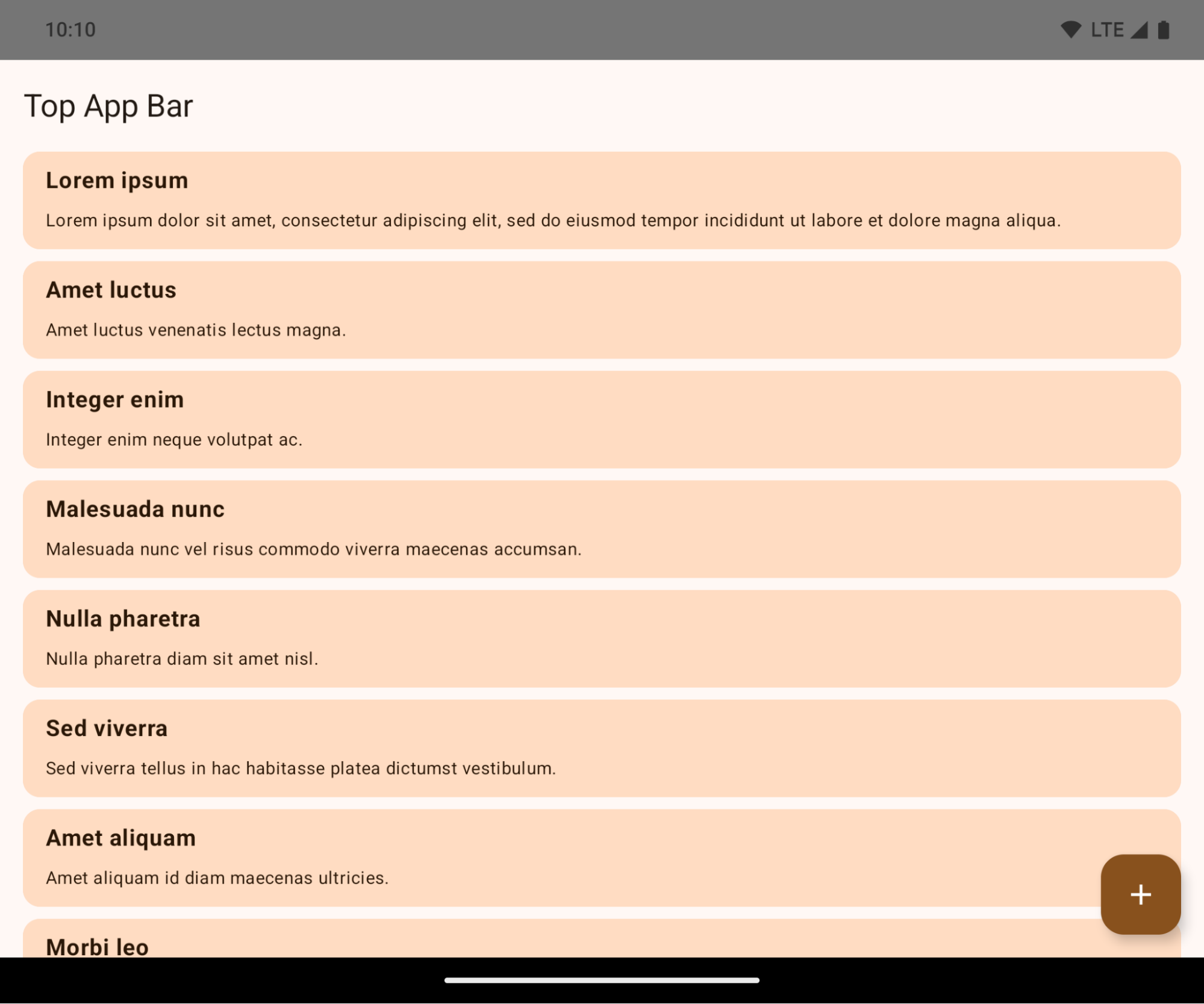
এটি একটি ব্রেকিং চেঞ্জ যা আপনার অ্যাপের UI-কে নেতিবাচকভাবে প্রভাবিত করতে পারে। এই পরিবর্তনগুলো UI-এর নিম্নলিখিত অংশগুলোকে প্রভাবিত করবে:
- অঙ্গভঙ্গি হ্যান্ডেল নেভিগেশন বার
- ডিফল্টরূপে স্বচ্ছ।
- বটম অফসেট নিষ্ক্রিয় থাকায়, ইনসেট প্রয়োগ না করা হলে কন্টেন্ট সিস্টেম নেভিগেশন বারের পিছনে প্রদর্শিত হয়।
-
setNavigationBarColorএবংR.attr#navigationBarColorঅপ্রচলিত এবং জেসচার নেভিগেশনকে প্রভাবিত করে না। -
setNavigationBarContrastEnforcedএবংR.attr#navigationBarContrastEnforcedজেসচার নেভিগেশনের উপর কোনো প্রভাব ফেলে না।
- ৩-বোতাম নেভিগেশন
- ডিফল্টরূপে অস্বচ্ছতা ৮০% এ সেট করা থাকে এবং এর রঙ উইন্ডোর ব্যাকগ্রাউন্ডের সাথে মিলে যেতে পারে।
- বটম অফসেট নিষ্ক্রিয় করা হয়েছে, তাই ইনসেট প্রয়োগ না করা হলে কন্টেন্ট সিস্টেম নেভিগেশন বারের পিছনে প্রদর্শিত হয়।
- ডিফল্টরূপে
setNavigationBarColorএবংR.attr#navigationBarColorউইন্ডোর ব্যাকগ্রাউন্ডের সাথে মেলানোর জন্য সেট করা থাকে। এই ডিফল্টটি প্রয়োগ হওয়ার জন্য উইন্ডোর ব্যাকগ্রাউন্ড অবশ্যই একটি কালার ড্রয়েবল হতে হবে। এই API-টি এখন আর ব্যবহৃত হয় না, কিন্তু এটি এখনও ৩-বাটন নেভিগেশনকে প্রভাবিত করে। -
setNavigationBarContrastEnforcedএবংR.attr#navigationBarContrastEnforcedডিফল্টরূপে true থাকে, যা ৩-বাটন নেভিগেশন জুড়ে একটি ৮০% অস্বচ্ছ ব্যাকগ্রাউন্ড যোগ করে।
- স্ট্যাটাস বার
- ডিফল্টরূপে স্বচ্ছ।
- টপ অফসেট নিষ্ক্রিয় করা আছে, তাই ইনসেট প্রয়োগ না করা হলে কন্টেন্ট স্ট্যাটাস বারের পিছনে প্রদর্শিত হয়।
-
setStatusBarColorএবংR.attr#statusBarColorঅপ্রচলিত হয়ে গেছে এবং Android 15-এ এগুলোর কোনো প্রভাব নেই। -
setStatusBarContrastEnforcedএবংR.attr#statusBarContrastEnforcedঅপ্রচলিত হলেও Android 15-এ এখনও এগুলোর প্রভাব রয়েছে।
- ডিসপ্লে কাটআউট
- নন-ফ্লোটিং উইন্ডোগুলোর
layoutInDisplayCutoutModeঅবশ্যইLAYOUT_IN_DISPLAY_CUTOUT_MODE_ALWAYSহতে হবে।SHORT_EDGES,NEVER, এবংDEFAULTALWAYSহিসেবে গণ্য করা হয়, যাতে ব্যবহারকারীরা ডিসপ্লে কাটআউটের কারণে সৃষ্ট কালো বার দেখতে না পান এবং উইন্ডোটি প্রান্ত থেকে প্রান্ত পর্যন্ত দেখা যায়।
- নন-ফ্লোটিং উইন্ডোগুলোর
নিম্নলিখিত উদাহরণটি অ্যান্ড্রয়েড ১৫ (এপিআই লেভেল ৩৫) টার্গেট করার আগে ও পরে এবং ইনসেট প্রয়োগ করার আগে ও পরের একটি অ্যাপ দেখাচ্ছে। এই উদাহরণটি সম্পূর্ণ নয়, অ্যান্ড্রয়েড অটোতে এটি ভিন্নভাবে প্রদর্শিত হতে পারে।
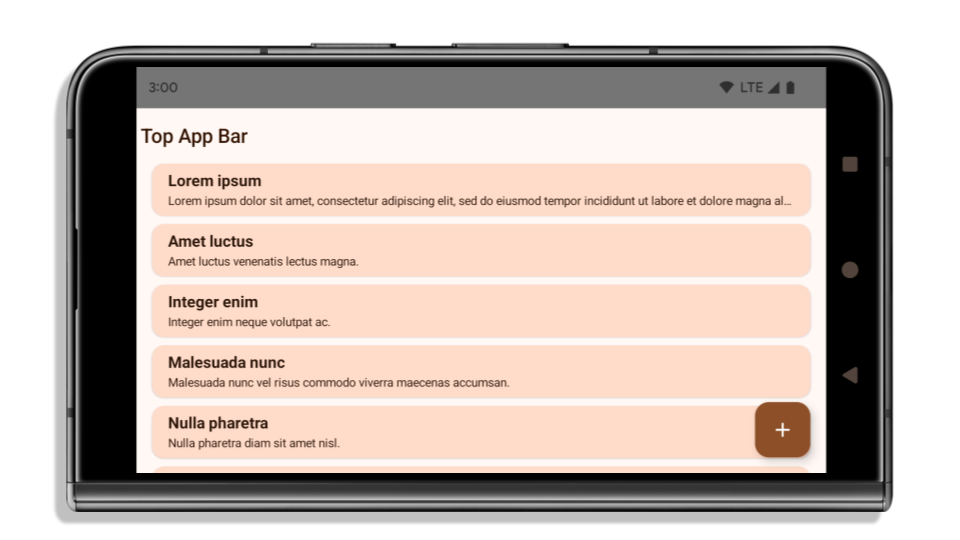
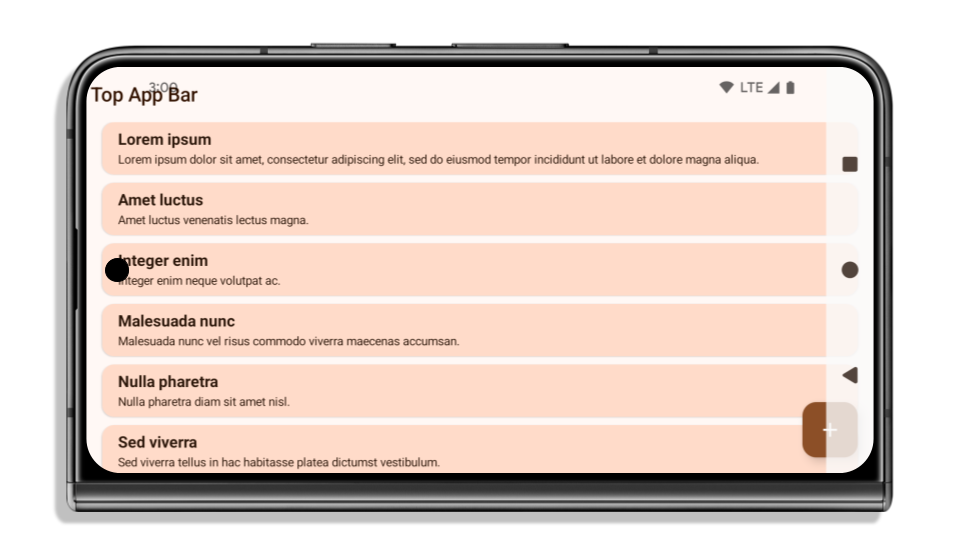
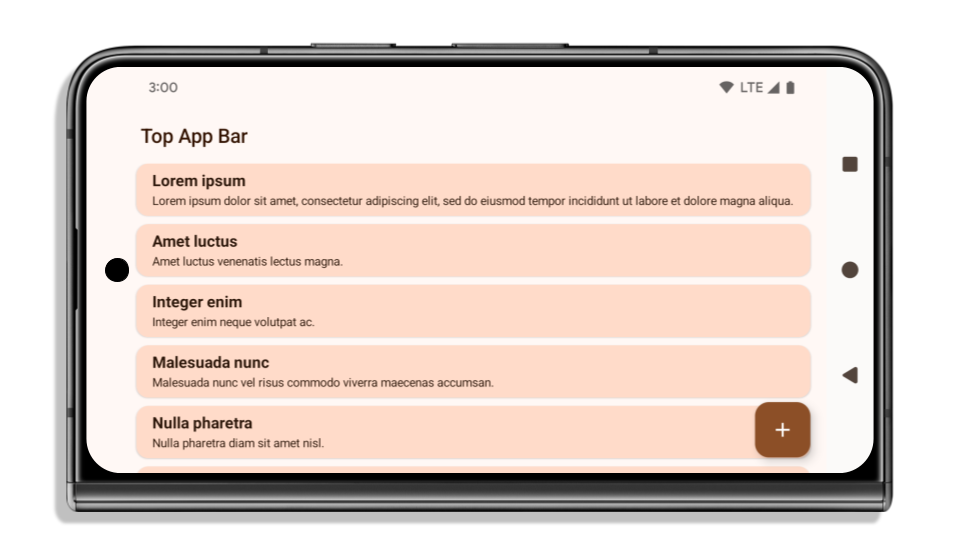
আপনার অ্যাপটি ইতিমধ্যে এজ-টু-এজ কিনা তা পরীক্ষা করতে হবে।
আপনার অ্যাপটি যদি ইতিমধ্যেই এজ-টু-এজ হয় এবং ইনসেট প্রয়োগ করে, তবে নিম্নলিখিত পরিস্থিতিগুলো ছাড়া আপনি মূলত অপ্রভাবিত থাকবেন। তবে, আপনি প্রভাবিত হচ্ছেন না বলে মনে করলেও, আমরা আপনাকে আপনার অ্যাপটি পরীক্ষা করার পরামর্শ দিচ্ছি।
- আপনার একটি নন-ফ্লোটিং উইন্ডো আছে, যেমন একটি
ActivityযাLAYOUT_IN_DISPLAY_CUTOUT_MODE_ALWAYSএর পরিবর্তেSHORT_EDGES,NEVERবাDEFAULTব্যবহার করে। যদি আপনার অ্যাপ চালু হওয়ার সময় ক্র্যাশ করে, তবে এর কারণ আপনার স্প্ল্যাশস্ক্রিন হতে পারে। আপনি হয় কোর স্প্ল্যাশস্ক্রিন ডিপেন্ডেন্সিটি 1.2.0-alpha01 বা তার পরবর্তী সংস্করণে আপগ্রেড করতে পারেন অথবাwindow.attributes.layoutInDisplayCutoutMode = WindowManager.LayoutInDisplayCutoutMode.alwaysসেট করতে পারেন। - কম ব্যবহৃত কিছু স্ক্রিনের UI আড়াল হয়ে থাকতে পারে। যাচাই করুন যে এই কম ব্যবহৃত স্ক্রিনগুলিতে UI আড়াল হয়ে নেই। কম ব্যবহৃত স্ক্রিনগুলির মধ্যে রয়েছে:
- অনবোর্ডিং বা সাইন-ইন স্ক্রিন
- সেটিংস পৃষ্ঠাগুলি
আপনার অ্যাপটি যদি আগে থেকেই এজ-টু-এজ না হয়ে থাকে, তাহলে কী পরীক্ষা করতে হবে।
আপনার অ্যাপটি যদি ইতিমধ্যে এজ-টু-এজ না হয়ে থাকে, তাহলে সম্ভবত আপনি এর দ্বারা প্রভাবিত হবেন। যেসব অ্যাপ ইতিমধ্যে এজ-টু-এজ, সেগুলোর জন্য প্রযোজ্য পরিস্থিতিগুলোর পাশাপাশি আপনার নিম্নলিখিত বিষয়গুলো বিবেচনা করা উচিত:
- আপনার অ্যাপে যদি কম্পোজে Material 3 কম্পোনেন্ট (
androidx.compose.material3) ব্যবহৃত হয়, যেমনTopAppBar,BottomAppBar, এবংNavigationBar, তাহলে এই কম্পোনেন্টগুলো সম্ভবত প্রভাবিত হবে না , কারণ এগুলো স্বয়ংক্রিয়ভাবে ইনসেট পরিচালনা করে। - আপনার অ্যাপ যদি কম্পোজে ম্যাটেরিয়াল ২ কম্পোনেন্ট (
androidx.compose.material) ব্যবহার করে, তবে এই কম্পোনেন্টগুলো স্বয়ংক্রিয়ভাবে ইনসেটগুলো পরিচালনা করে না। তবে, আপনি ইনসেটগুলো অ্যাক্সেস করতে এবং ম্যানুয়ালি প্রয়োগ করতে পারেন। androidx.compose.material 1.6.0 এবং এর পরবর্তী সংস্করণগুলোতে,BottomAppBar,TopAppBar,BottomNavigation, এবংNavigationRailজন্য ইনসেটগুলো ম্যানুয়ালি প্রয়োগ করতেwindowInsetsপ্যারামিটারটি ব্যবহার করুন। একইভাবে,Scaffoldজন্যcontentWindowInsetsপ্যারামিটারটি ব্যবহার করুন। - আপনার অ্যাপে যদি ভিউ এবং ম্যাটেরিয়াল কম্পোনেন্ট (
com.google.android.material) ব্যবহৃত হয়, তাহলেBottomNavigationView,BottomAppBar,NavigationRailViewবাNavigationViewএর মতো বেশিরভাগ ভিউ-ভিত্তিক ম্যাটেরিয়াল কম্পোনেন্ট ইনসেট (inset) পরিচালনা করতে পারে এবং এর জন্য কোনো অতিরিক্ত কাজের প্রয়োজন হয় না। তবে,AppBarLayoutব্যবহার করলে আপনাকেandroid:fitsSystemWindows="true"যোগ করতে হবে। - কাস্টম কম্পোজেবলের জন্য, ইনসেটগুলো প্যাডিং হিসেবে ম্যানুয়ালি প্রয়োগ করুন। যদি আপনার কন্টেন্ট কোনো
Scaffoldমধ্যে থাকে, তাহলে আপনিScaffoldপ্যাডিং ভ্যালু ব্যবহার করে ইনসেটগুলো ব্যবহার করতে পারেন। অন্যথায়,WindowInsets) যেকোনো একটি ব্যবহার করে প্যাডিং প্রয়োগ করুন। - আপনার অ্যাপে যদি ভিউ এবং
BottomSheet,SideSheetবা কাস্টম কন্টেইনার ব্যবহার করা হয়, তাহলেViewCompat.setOnApplyWindowInsetsListenerব্যবহার করে প্যাডিং প্রয়োগ করুন।RecyclerViewএর ক্ষেত্রে, এই লিসেনারটি ব্যবহার করে প্যাডিং প্রয়োগ করুন এবং সাথেclipToPadding="false"যোগ করুন।
আপনার অ্যাপে কাস্টম ব্যাকগ্রাউন্ড সুরক্ষা থাকা আবশ্যক কিনা তা পরীক্ষা করতে হবে।
যদি আপনার অ্যাপকে ৩-বাটন নেভিগেশন বা স্ট্যাটাস বারের জন্য কাস্টম ব্যাকগ্রাউন্ড সুরক্ষা দিতেই হয়, তবে ৩-বাটন নেভিগেশন বারের উচ্চতা পাওয়ার জন্য WindowInsets.Type#tappableElement() অথবা WindowInsets.Type#statusBars ব্যবহার করে সিস্টেম বারের পিছনে একটি কম্পোজেবল বা ভিউ স্থাপন করা উচিত।
অতিরিক্ত প্রান্ত থেকে প্রান্ত পর্যন্ত সম্পদ
ইনসেট প্রয়োগের ক্ষেত্রে অতিরিক্ত বিবেচনার জন্য ‘ এজ টু এজ ভিউ’ এবং ‘এজ টু এজ কম্পোজ’ গাইডগুলো দেখুন।
অপ্রচলিত এপিআই
নিম্নলিখিত API-গুলি অপ্রচলিত কিন্তু নিষ্ক্রিয় করা হয়নি:
-
R.attr#enforceStatusBarContrast -
R.attr#navigationBarColor(৩টি বাটন নেভিগেশনের জন্য, ৮০% আলফা সহ) -
Window#isStatusBarContrastEnforced -
Window#setNavigationBarColor(৩টি বাটন নেভিগেশনের জন্য, ৮০% আলফা সহ) -
Window#setStatusBarContrastEnforced
নিম্নলিখিত API-গুলি অপ্রচলিত এবং নিষ্ক্রিয় করা হয়েছে:
-
R.attr#navigationBarColor(জেসচার নেভিগেশনের জন্য) -
R.attr#navigationBarDividerColor -
R.attr#statusBarColor -
Window#setDecorFitsSystemWindows -
Window#getNavigationBarColor -
Window#getNavigationBarDividerColor -
Window#getStatusBarColor -
Window#setNavigationBarColor(জেসচার নেভিগেশনের জন্য) -
Window#setNavigationBarDividerColor -
Window#setStatusBarColor
স্থিতিশীল কনফিগারেশন
আপনার অ্যাপটি যদি অ্যান্ড্রয়েড ১৫ (এপিআই লেভেল ৩৫) বা তার উচ্চতর সংস্করণকে টার্গেট করে, তাহলে Configuration আর সিস্টেম বারগুলোকে বাদ দেয় না। আপনি যদি লেআউট গণনার জন্য Configuration ক্লাসে স্ক্রিন সাইজ ব্যবহার করেন, তবে আপনার প্রয়োজন অনুযায়ী এটিকে একটি উপযুক্ত ViewGroup , WindowInsets , বা WindowMetricsCalculator মতো আরও ভালো বিকল্প দিয়ে প্রতিস্থাপন করা উচিত।
এপিআই ১ থেকেই Configuration উপলব্ধ রয়েছে। এটি সাধারণত Activity.onConfigurationChanged থেকে পাওয়া যায়। এটি উইন্ডোর ঘনত্ব, অভিমুখ এবং আকারের মতো তথ্য প্রদান করে। Configuration থেকে প্রাপ্ত উইন্ডোর আকারগুলোর একটি গুরুত্বপূর্ণ বৈশিষ্ট্য হলো, এটি পূর্বে সিস্টেম বারগুলোকে বাদ দিত।
কনফিগারেশন সাইজ সাধারণত রিসোর্স নির্বাচনের জন্য ব্যবহৃত হয়, যেমন /res/layout-h500dp , এবং এটি এখনও একটি বৈধ ব্যবহার। তবে, লেআউট গণনার জন্য এর ব্যবহারকে সবসময়ই নিরুৎসাহিত করা হয়েছে। আপনি যদি তা করে থাকেন, তবে আপনার এখনই এটি থেকে সরে আসা উচিত। আপনার ব্যবহারের ধরনের ওপর নির্ভর করে Configuration ব্যবহারকে আরও উপযুক্ত কিছু দিয়ে প্রতিস্থাপন করা উচিত।
লেআউট গণনা করার জন্য যদি এটি ব্যবহার করেন, তাহলে CoordinatorLayout বা ConstraintLayout মতো একটি উপযুক্ত ViewGroup ব্যবহার করুন। সিস্টেম নেভবারের উচ্চতা নির্ধারণ করতে যদি এটি ব্যবহার করেন, তাহলে WindowInsets ব্যবহার করুন। আপনার অ্যাপ উইন্ডোর বর্তমান আকার জানতে চাইলে computeCurrentWindowMetrics ব্যবহার করুন।
নিম্নলিখিত তালিকাটি এই পরিবর্তনের দ্বারা প্রভাবিত ক্ষেত্রগুলি বর্ণনা করে:
-
Configuration.screenWidthDpএবংscreenHeightDpসাইজগুলো থেকে এখন আর সিস্টেম বার বাদ দেওয়া হয় না। -
screenWidthDpএবংscreenHeightDpএর পরিবর্তনের দ্বারাConfiguration.smallestScreenWidthDpপরোক্ষভাবে প্রভাবিত হয়। - প্রায় বর্গাকার ডিভাইসগুলিতে
screenWidthDpএবংscreenHeightDpএর পরিবর্তনের ফলেConfiguration.orientationপরোক্ষভাবে প্রভাবিত হয়। -
Display.getSize(Point)পরোক্ষভাবেConfigurationএর পরিবর্তন দ্বারা প্রভাবিত হয়। API লেভেল 30 থেকে এটি অপ্রচলিত ঘোষণা করা হয়েছে। - API লেভেল ৩৩ থেকেই
Display.getMetrics()এইভাবেই কাজ করে আসছে।
elegantTextHeight অ্যাট্রিবিউটের ডিফল্ট মান true থাকে।
অ্যান্ড্রয়েড 15 (API স্তর 35) লক্ষ্য করা অ্যাপগুলির জন্য, elegantTextHeight TextView বৈশিষ্ট্যটি ডিফল্টরূপে true হয়ে যায়, ডিফল্টরূপে ব্যবহৃত কমপ্যাক্ট ফন্টটিকে এমন কিছু স্ক্রিপ্টের সাথে প্রতিস্থাপন করে যেখানে বড় উল্লম্ব মেট্রিক্স রয়েছে যা অনেক বেশি পাঠযোগ্য। বিন্যাস ভাঙা প্রতিরোধ করার জন্য কমপ্যাক্ট ফন্ট চালু করা হয়েছিল; অ্যান্ড্রয়েড 13 (এপিআই লেভেল 33) fallbackLineSpacing অ্যাট্রিবিউট ব্যবহার করে টেক্সট লেআউটকে উল্লম্ব উচ্চতা প্রসারিত করার অনুমতি দিয়ে এই ধরনের অনেক ভাঙন প্রতিরোধ করে।
অ্যান্ড্রয়েড 15-এ, কমপ্যাক্ট ফন্টটি এখনও সিস্টেমে রয়ে গেছে, তাই আপনার অ্যাপটি আগের মতো একই আচরণ পেতে elegantTextHeight false সেট করতে পারে, তবে এটি আসন্ন রিলিজে সমর্থিত হওয়ার সম্ভাবনা কম। সুতরাং, যদি আপনার অ্যাপ নিম্নলিখিত স্ক্রিপ্টগুলিকে সমর্থন করে: আরবি, লাও, মায়ানমার, তামিল, গুজরাটি, কন্নড়, মালয়ালম, ওড়িয়া, তেলুগু বা থাই, তাহলে আপনার অ্যাপটি true elegantTextHeight সেট করে পরীক্ষা করুন।

elegantTextHeight আচরণ। 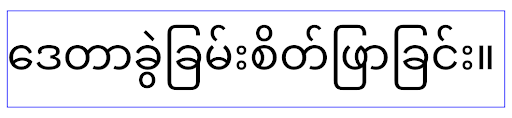
elegantTextHeight আচরণ।জটিল অক্ষরের আকারের জন্য TextView-এর প্রস্থ পরিবর্তিত হয়
অ্যান্ড্রয়েডের পূর্ববর্তী সংস্করণগুলিতে, কিছু অভিশাপযুক্ত ফন্ট বা ভাষা যা জটিল আকার ধারণ করে সেগুলি পূর্ববর্তী বা পরবর্তী অক্ষরের ক্ষেত্রে অক্ষরগুলি আঁকতে পারে। কিছু ক্ষেত্রে, এই জাতীয় অক্ষরগুলি শুরুতে বা শেষের অবস্থানে ক্লিপ করা হয়েছিল। অ্যান্ড্রয়েড 15 থেকে শুরু করে, একটি TextView এই ধরনের অক্ষরগুলির জন্য পর্যাপ্ত জায়গা আঁকার জন্য প্রস্থ বরাদ্দ করে এবং ক্লিপিং রোধ করতে অ্যাপগুলিকে বাম দিকে অতিরিক্ত প্যাডিংয়ের অনুরোধ করার অনুমতি দেয়।
যেহেতু এই পরিবর্তনটি একটি TextView কিভাবে প্রস্থ নির্ধারণ করে তা প্রভাবিত করে, তাই যদি অ্যাপটি Android 15 (API লেভেল 35) বা তার বেশি লক্ষ্য করে তাহলে TextView ডিফল্টভাবে আরও প্রস্থ বরাদ্দ করে। আপনি TextView এ setUseBoundsForWidth API-কে কল করে এই আচরণটি সক্ষম বা অক্ষম করতে পারেন।
যেহেতু বাম প্যাডিং যোগ করার ফলে বিদ্যমান লেআউটগুলির জন্য একটি মিসলাইনমেন্ট হতে পারে, প্যাডিংটি ডিফল্টরূপে যোগ করা হয় না এমনকি Android 15 বা উচ্চতরকে লক্ষ্য করে এমন অ্যাপগুলির জন্যও। যাইহোক, আপনি setShiftDrawingOffsetForStartOverhang এ কল করে ক্লিপিং প্রতিরোধে অতিরিক্ত প্যাডিং যোগ করতে পারেন।
নিম্নলিখিত উদাহরণগুলি দেখায় কিভাবে এই পরিবর্তনগুলি কিছু ফন্ট এবং ভাষার জন্য পাঠ্য বিন্যাস উন্নত করতে পারে৷
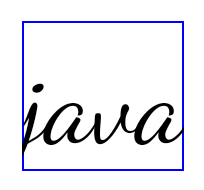
<TextView
    android:fontFamily="cursive"
    android:text="java" />
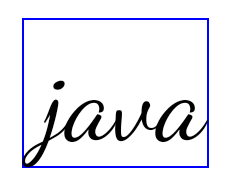
<TextView
    android:fontFamily="cursive"
    android:text="java"
    android:useBoundsForWidth="true"
    android:shiftDrawingOffsetForStartOverhang="true" />
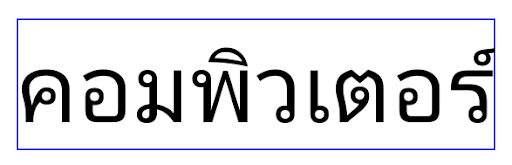
<TextView
    android:text="คอมพิวเตอร์" />
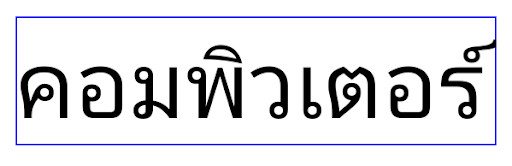
<TextView
    android:text="คอมพิวเตอร์"
    android:useBoundsForWidth="true"
    android:shiftDrawingOffsetForStartOverhang="true" />
EditText-এর জন্য লোকাল-সচেতন ডিফল্ট লাইন উচ্চতা
অ্যান্ড্রয়েডের পূর্ববর্তী সংস্করণগুলিতে, বর্তমান লোকেলের সাথে মেলে ফন্টের লাইনের উচ্চতা মেটাতে পাঠ্য বিন্যাস পাঠ্যের উচ্চতাকে প্রসারিত করে। উদাহরণস্বরূপ, যদি বিষয়বস্তু জাপানি ভাষায় হয়, কারণ জাপানি ফন্টের লাইনের উচ্চতা একটি ল্যাটিন ফন্টের চেয়ে সামান্য বড়, পাঠ্যের উচ্চতা কিছুটা বড় হয়ে গেছে। যাইহোক, লাইনের উচ্চতায় এই পার্থক্য থাকা সত্ত্বেও, EditText উপাদানটি অভিন্ন আকারের ছিল, লোকেল ব্যবহার করা নির্বিশেষে, নিম্নলিখিত ছবিতে চিত্রিত হয়েছে:

EditText উপাদানের প্রতিনিধিত্বকারী তিনটি বাক্স যা ইংরেজি (en), জাপানি (ja), এবং বার্মিজ (my) থেকে পাঠ্য ধারণ করতে পারে। EditText এর উচ্চতা একই, যদিও এই ভাষাগুলির একে অপরের থেকে আলাদা লাইন উচ্চতা রয়েছে। Android 15 (API লেভেল 35) লক্ষ্য করা অ্যাপগুলির জন্য, একটি ন্যূনতম লাইন উচ্চতা এখন EditText এর জন্য নির্দিষ্ট লোকেলের রেফারেন্স ফন্টের সাথে মেলে, যা নিম্নলিখিত ছবিতে দেখানো হয়েছে:

EditText উপাদানের প্রতিনিধিত্বকারী তিনটি বাক্স যা ইংরেজি (en), জাপানি (ja), এবং বার্মিজ (my) থেকে পাঠ্য ধারণ করতে পারে। EditText এর উচ্চতায় এখন এই ভাষার ফন্টগুলির জন্য ডিফল্ট লাইনের উচ্চতা মিটমাট করার জন্য স্থান রয়েছে। প্রয়োজনে, আপনার অ্যাপ useLocalePreferredLineHeightForMinimum অ্যাট্রিবিউটটি false নির্দিষ্ট করে পূর্ববর্তী আচরণ পুনরুদ্ধার করতে পারে এবং আপনার অ্যাপটি Kotlin এবং Java এ setMinimumFontMetrics API ব্যবহার করে কাস্টম ন্যূনতম উল্লম্ব মেট্রিক্স সেট করতে পারে।
ক্যামেরা এবং মিডিয়া
অ্যান্ড্রয়েড ১৫ বা তার উচ্চতর সংস্করণকে লক্ষ্য করে তৈরি অ্যাপগুলোর ক্যামেরা এবং মিডিয়ার আচরণে অ্যান্ড্রয়েড ১৫ নিম্নলিখিত পরিবর্তনগুলো এনেছে।
অডিও ফোকাস অনুরোধ করার উপর বিধিনিষেধ
যে অ্যাপগুলি Android 15 (API স্তর 35) টার্গেট করে সেগুলিকে অবশ্যই শীর্ষ অ্যাপ হতে হবে বা অডিও ফোকাসের অনুরোধ করার জন্য একটি ফোরগ্রাউন্ড পরিষেবা চালাতে হবে৷ যদি কোনো অ্যাপ ফোকাসের অনুরোধ করার চেষ্টা করে যখন এটি এই প্রয়োজনীয়তার একটি পূরণ না করে, তাহলে কলটি AUDIOFOCUS_REQUEST_FAILED ফেরত দেয়।
আপনি অডিও ফোকাস পরিচালনা অডিও ফোকাস সম্পর্কে আরও জানতে পারেন।
আপডেট করা নন-এসডিকে বিধিনিষেধ
অ্যান্ড্রয়েড ডেভেলপারদের সাথে সহযোগিতা এবং সর্বশেষ অভ্যন্তরীণ পরীক্ষার উপর ভিত্তি করে অ্যান্ড্রয়েড ১৫-এ সীমাবদ্ধ নন-এসডিকে ইন্টারফেসের হালনাগাদ তালিকা অন্তর্ভুক্ত করা হয়েছে। যখনই সম্ভব, আমরা নন-এসডিকে ইন্টারফেস সীমাবদ্ধ করার আগে নিশ্চিত করি যে সেগুলোর পাবলিক বিকল্প উপলব্ধ আছে।
আপনার অ্যাপটি যদি অ্যান্ড্রয়েড ১৫-কে টার্গেট না করে, তবে এই পরিবর্তনগুলোর কিছু হয়তো আপনাকে তাৎক্ষণিকভাবে প্রভাবিত করবে না। তবে, আপনার অ্যাপের টার্গেট এপিআই লেভেলের উপর নির্ভর করে কিছু নন-এসডিকে ইন্টারফেস অ্যাক্সেস করা সম্ভব হলেও, যেকোনো নন-এসডিকে মেথড বা ফিল্ড ব্যবহার করলে আপনার অ্যাপটি ভেঙে যাওয়ার ঝুঁকি সবসময়ই অনেক বেশি থাকে।
If you are unsure if your app uses non-SDK interfaces, you can test your app to find out. If your app relies on non-SDK interfaces, you should begin planning a migration to SDK alternatives. Nevertheless, we understand that some apps have valid use cases for using non-SDK interfaces. If you can't find an alternative to using a non-SDK interface for a feature in your app, you should request a new public API .
অ্যান্ড্রয়েডের এই প্রকাশের পরিবর্তনগুলি সম্পর্কে আরও জানতে, Android 15-এ নন-SDK ইন্টারফেস সীমাবদ্ধতার আপডেটগুলি দেখুন। সাধারণত নন-SDK ইন্টারফেস সম্পর্কে আরও জানতে, নন-SDK ইন্টারফেসের উপর সীমাবদ্ধতা দেখুন।