

和先前版本一樣,Android 15 也包含可能會影響應用程式的行為變更。以下行為變更僅適用於指定 Android 15 以上版本的應用程式。如果您的應用程式指定 Android 15 以上版本,建議您視情況修改應用程式,以支援這些行為。
此外,無論應用程式的 targetSdkVersion 為何,請務必查看對所有 Android 15 應用程式有影響的行為變更清單。
核心功能
Android 15 修改或擴充 Android 系統的各種核心功能。
前景服務異動
We are making the following changes to foreground services with Android 15.
- Data sync foreground service timeout behavior
- New media processing foreground service type
- Restrictions on
BOOT_COMPLETEDbroadcast receivers launching foreground services - Restrictions on starting foreground services while an app holds the
SYSTEM_ALERT_WINDOWpermission
Data sync foreground service timeout behavior
Android 15 introduces a new timeout behavior to dataSync for apps targeting
Android 15 (API level 35) or higher. This behavior also applies to the new
mediaProcessing foreground service type.
The system permits an app's dataSync services to run for a total of 6 hours
in a 24-hour period, after which the system calls the running service's
Service.onTimeout(int, int) method (introduced in Android
15). At this time, the service has a few seconds to call
Service.stopSelf(). When Service.onTimeout() is called, the
service is no longer considered a foreground service. If the service does not
call Service.stopSelf(), the system throws an internal exception. The
exception is logged in Logcat with the following message:
Fatal Exception: android.app.RemoteServiceException: "A foreground service of
type dataSync did not stop within its timeout: [component name]"
To avoid problems with this behavior change, you can do one or more of the following:
- Have your service implement the new
Service.onTimeout(int, int)method. When your app receives the callback, make sure to callstopSelf()within a few seconds. (If you don't stop the app right away, the system generates a failure.) - Make sure your app's
dataSyncservices don't run for more than a total of 6 hours in any 24-hour period (unless the user interacts with the app, resetting the timer). - Only start
dataSyncforeground services as a result of direct user interaction; since your app is in the foreground when the service starts, your service has the full six hours after the app goes to the background. - Instead of using a
dataSyncforeground service, use an alternative API.
If your app's dataSync foreground services have run for 6 hours in the last
24, you cannot start another dataSync foreground service unless the user
has brought your app to the foreground (which resets the timer). If you try to
start another dataSync foreground service, the system throws
ForegroundServiceStartNotAllowedException
with an error message like "Time limit already exhausted for foreground service
type dataSync".
Testing
To test your app's behavior, you can enable data sync timeouts even if your app
is not targeting Android 15 (as long as the app is running on an Android 15
device). To enable timeouts, run the following adb command:
adb shell am compat enable FGS_INTRODUCE_TIME_LIMITS your-package-name
You can also adjust the timeout period, to make it easier to test how your
app behaves when the limit is reached. To set a new timeout period, run the
following adb command:
adb shell device_config put activity_manager data_sync_fgs_timeout_duration duration-in-milliseconds
New media processing foreground service type
Android 15 introduces a new foreground service type, mediaProcessing. This
service type is appropriate for operations like transcoding media files. For
example, a media app might download an audio file and need to convert it to a
different format before playing it. You can use a mediaProcessing foreground
service to make sure the conversion continues even while the app is in the
background.
The system permits an app's mediaProcessing services to run for a total of 6
hours in a 24-hour period, after which the system calls the running service's
Service.onTimeout(int, int) method (introduced in Android
15). At this time, the service has a few seconds to call
Service.stopSelf(). If the service does not
call Service.stopSelf(), the system throws an internal exception. The
exception is logged in Logcat with the following message:
Fatal Exception: android.app.RemoteServiceException: "A foreground service of
type mediaProcessing did not stop within its timeout: [component name]"
To avoid having the exception, you can do one of the following:
- Have your service implement the new
Service.onTimeout(int, int)method. When your app receives the callback, make sure to callstopSelf()within a few seconds. (If you don't stop the app right away, the system generates a failure.) - Make sure your app's
mediaProcessingservices don't run for more than a total of 6 hours in any 24-hour period (unless the user interacts with the app, resetting the timer). - Only start
mediaProcessingforeground services as a result of direct user interaction; since your app is in the foreground when the service starts, your service has the full six hours after the app goes to the background. - Instead of using a
mediaProcessingforeground service, use an alternative API, like WorkManager.
If your app's mediaProcessing foreground services have run for 6 hours in the
last 24, you cannot start another mediaProcessing foreground service unless
the user has brought your app to the foreground (which resets the timer). If you
try to start another mediaProcessing foreground service, the system throws
ForegroundServiceStartNotAllowedException
with an error message like "Time limit already exhausted for foreground service
type mediaProcessing".
For more information about the mediaProcessing service type, see Changes to
foreground service types for Android 15: Media processing.
Testing
To test your app's behavior, you can enable media processing timeouts even if
your app is not targeting Android 15 (as long as the app is running on an
Android 15 device). To enable timeouts, run the following adb command:
adb shell am compat enable FGS_INTRODUCE_TIME_LIMITS your-package-name
You can also adjust the timeout period, to make it easier to test how your
app behaves when the limit is reached. To set a new timeout period, run the
following adb command:
adb shell device_config put activity_manager media_processing_fgs_timeout_duration duration-in-milliseconds
Restrictions on BOOT_COMPLETED broadcast receivers launching foreground services
There are new restrictions on BOOT_COMPLETED broadcast receivers launching
foreground services. BOOT_COMPLETED receivers are not allowed to launch the
following types of foreground services:
dataSynccameramediaPlaybackphoneCallmediaProjectionmicrophone(this restriction has been in place formicrophonesince Android 14)
If a BOOT_COMPLETED receiver tries to launch any of those types of foreground
services, the system throws ForegroundServiceStartNotAllowedException.
Testing
To test your app's behavior, you can enable these new restrictions even if your
app is not targeting Android 15 (as long as the app is running on an Android 15
device). Run the following adb command:
adb shell am compat enable FGS_BOOT_COMPLETED_RESTRICTIONS your-package-name
To send a BOOT_COMPLETED broadcast without restarting the device,
run the following adb command:
adb shell am broadcast -a android.intent.action.BOOT_COMPLETED your-package-name
Restrictions on starting foreground services while an app holds the SYSTEM_ALERT_WINDOW permission
Previously, if an app held the SYSTEM_ALERT_WINDOW permission, it could launch
a foreground service even if the app was currently in the background (as
discussed in exemptions from background start restrictions).
If an app targets Android 15, this exemption is now narrower. The app now needs
to have the SYSTEM_ALERT_WINDOW permission and also have a visible overlay
window. That is, the app needs to first launch a
TYPE_APPLICATION_OVERLAY window and the window
needs to be visible before you start a foreground service.
If your app attempts to start a foreground service from the background without
meeting these new requirements (and it does not have some other exemption), the
system throws ForegroundServiceStartNotAllowedException.
If your app declares the SYSTEM_ALERT_WINDOW permission
and launches foreground services from the background, it may be affected by this
change. If your app gets a ForegroundServiceStartNotAllowedException, check
your app's order of operations and make sure your app already has an active
overlay window before it attempts to start a foreground service from the
background. You can check if your overlay window is currently visible
by calling View.getWindowVisibility(), or you
can override View.onWindowVisibilityChanged()
to get notified whenever the visibility changes.
Testing
To test your app's behavior, you can enable these new restrictions even if your
app is not targeting Android 15 (as long as the app is running on an Android 15
device). To enable these new restrictions on starting foreground services
from the background, run the following adb command:
adb shell am compat enable FGS_SAW_RESTRICTIONS your-package-name
應用程式可修改勿擾模式全域狀態的時機有所變更
指定 Android 15 (API 級別 35) 以上版本的應用程式,將無法再變更裝置上的勿擾模式 (DND) 全域狀態或政策 (透過修改使用者設定或關閉勿擾模式)。相反地,應用程式必須提供 AutomaticZenRule,系統會將其與現有的最嚴格政策優先方案結合為全域政策。呼叫先前影響全域狀態的現有 API (setInterruptionFilter、setNotificationPolicy) 會導致建立或更新隱含的 AutomaticZenRule,而 AutomaticZenRule 的開啟和關閉狀態會根據這些 API 呼叫的呼叫週期而定。
請注意,只有在應用程式呼叫 setInterruptionFilter(INTERRUPTION_FILTER_ALL) 且預期該呼叫會停用先前由其擁有者啟用的 AutomaticZenRule 時,這項變更才會影響可觀察的行為。
OpenJDK API 異動
Android 15 continues the work of refreshing Android's core libraries to align with the features in the latest OpenJDK LTS releases.
Some of these changes can affect app compatibility for apps targeting Android 15 (API level 35):
Changes to string formatting APIs: Validation of argument index, flags, width, and precision are now more strict when using the following
String.format()andFormatter.format()APIs:String.format(String, Object[])String.format(Locale, String, Object[])Formatter.format(String, Object[])Formatter.format(Locale, String, Object[])
For example, the following exception is thrown when an argument index of 0 is used (
%0in the format string):IllegalFormatArgumentIndexException: Illegal format argument index = 0In this case, the issue can be fixed by using an argument index of 1 (
%1in the format string).Changes to component type of
Arrays.asList(...).toArray(): When usingArrays.asList(...).toArray(), the component type of the resulting array is now anObject—not the type of the underlying array's elements. So the following code throws aClassCastException:String[] elements = (String[]) Arrays.asList("one", "two").toArray();For this case, to preserve
Stringas the component type in the resulting array, you could useCollection.toArray(Object[])instead:String[] elements = Arrays.asList("two", "one").toArray(new String[0]);Changes to language code handling: When using the
LocaleAPI, language codes for Hebrew, Yiddish, and Indonesian are no longer converted to their obsolete forms (Hebrew:iw, Yiddish:ji, and Indonesian:in). When specifying the language code for one of these locales, use the codes from ISO 639-1 instead (Hebrew:he, Yiddish:yi, and Indonesian:id).Changes to random int sequences: Following the changes made in https://bugs.openjdk.org/browse/JDK-8301574, the following
Random.ints()methods now return a different sequence of numbers than theRandom.nextInt()methods do:Generally, this change shouldn't result in app-breaking behavior, but your code shouldn't expect the sequence generated from
Random.ints()methods to matchRandom.nextInt().
The new SequencedCollection API can affect your app's compatibility
after you update compileSdk in your app's build configuration to use
Android 15 (API level 35):
Collision with
MutableList.removeFirst()andMutableList.removeLast()extension functions inkotlin-stdlibThe
Listtype in Java is mapped to theMutableListtype in Kotlin. Because theList.removeFirst()andList.removeLast()APIs have been introduced in Android 15 (API level 35), the Kotlin compiler resolves function calls, for examplelist.removeFirst(), statically to the newListAPIs instead of to the extension functions inkotlin-stdlib.If an app is re-compiled with
compileSdkset to35andminSdkset to34or lower, and then the app is run on Android 14 and lower, a runtime error is thrown:java.lang.NoSuchMethodError: No virtual method removeFirst()Ljava/lang/Object; in class Ljava/util/ArrayList;The existing
NewApilint option in Android Gradle Plugin can catch these new API usages../gradlew lintMainActivity.kt:41: Error: Call requires API level 35 (current min is 34): java.util.List#removeFirst [NewApi] list.removeFirst()To fix the runtime exception and lint errors, the
removeFirst()andremoveLast()function calls can be replaced withremoveAt(0)andremoveAt(list.lastIndex)respectively in Kotlin. If you're using Android Studio Ladybug | 2024.1.3 or higher, it also provides a quick fix option for these errors.Consider removing
@SuppressLint("NewApi")andlintOptions { disable 'NewApi' }if the lint option has been disabled.Collision with other methods in Java
New methods have been added into the existing types, for example,
ListandDeque. These new methods might not be compatible with the methods with the same name and argument types in other interfaces and classes. In the case of a method signature collision with incompatibility, thejavaccompiler outputs a build-time error. For example:Example error 1:
javac MyList.javaMyList.java:135: error: removeLast() in MyList cannot implement removeLast() in List public void removeLast() { ^ return type void is not compatible with Object where E is a type-variable: E extends Object declared in interface ListExample error 2:
javac MyList.javaMyList.java:7: error: types Deque<Object> and List<Object> are incompatible; public class MyList implements List<Object>, Deque<Object> { both define reversed(), but with unrelated return types 1 errorExample error 3:
javac MyList.javaMyList.java:43: error: types List<E#1> and MyInterface<E#2> are incompatible; public static class MyList implements List<Object>, MyInterface<Object> { class MyList inherits unrelated defaults for getFirst() from types List and MyInterface where E#1,E#2 are type-variables: E#1 extends Object declared in interface List E#2 extends Object declared in interface MyInterface 1 errorTo fix these build errors, the class implementing these interfaces should override the method with a compatible return type. For example:
@Override
public Object getFirst() {
    return List.super.getFirst();
}
安全性
Android 15 包含多項變更,可提升系統安全性,協助保護應用程式和使用者免受惡意應用程式侵害。
受限的 TLS 版本
Android 15 restricts the usage of TLS versions 1.0 and 1.1. These versions had previously been deprecated in Android, but are now disallowed for apps targeting Android 15.
安全的背景活動啟動
Android 15 protects users from malicious apps and gives them more control over their devices by adding changes that prevent malicious background apps from bringing other apps to the foreground, elevating their privileges, and abusing user interaction. Background activity launches have been restricted since Android 10 (API level 29).
Other changes
- Change
PendingIntentcreators to block background activity launches by default. This helps prevent apps from accidentally creating aPendingIntentthat could be abused by malicious actors. - Don't bring an app to the foreground unless the
PendingIntentsender allows it. This change aims to prevent malicious apps from abusing the ability to start activities in the background. By default, apps are not allowed to bring the task stack to the foreground unless the creator allows background activity launch privileges or the sender has background activity launch privileges. - Control how the top activity of a task stack can finish its task. If the top activity finishes a task, Android will go back to whichever task was last active. Moreover, if a non-top activity finishes its task, Android will go back to the home screen; it won't block the finish of this non-top activity.
- Prevent launching arbitrary activities from other apps into your own task. This change prevents malicious apps from phishing users by creating activities that appear to be from other apps.
- Block non-visible windows from being considered for background activity launches. This helps prevent malicious apps from abusing background activity launches to display unwanted or malicious content to users.
更安全的意圖
Android 15 introduces StrictMode for
intents.
In order to see detailed logs about Intent usage violations, use following
method:
Kotlin
fun onCreate() {
    StrictMode.setVmPolicy(VmPolicy.Builder()
        .detectUnsafeIntentLaunch()
        .build()
    )
}
Java
public void onCreate() {
    StrictMode.setVmPolicy(new VmPolicy.Builder()
            .detectUnsafeIntentLaunch()
            .build());
}
使用者體驗和系統 UI
Android 15 包含一些變更,旨在打造更一致、直覺的使用者體驗。
視窗插邊變更
There are two changes related to window insets in Android 15: edge-to-edge is enforced by default, and there are also configuration changes, such as the default configuration of system bars.
Edge-to-edge enforcement
如果應用程式指定 Android 15 (API 級別 35) 為目標,在搭載 Android 15 的裝置上,預設會以無邊框模式顯示。

這項破壞性變更可能會對應用程式的使用者介面造成負面影響。這些異動會影響下列 UI 區域:
- 手勢操作桿導覽列
- 預設為透明。
- 底部偏移功能已停用,因此除非套用插邊,否則內容會在系統導覽列後方繪製。
setNavigationBarColor和R.attr#navigationBarColor已淘汰,不會影響手勢操作。setNavigationBarContrastEnforced和R.attr#navigationBarContrastEnforced仍不會影響手勢操作。
- 三按鈕操作
- 不透明度預設為 80%,顏色可能與視窗背景相符。
- 底部偏移已停用,因此除非套用插邊,否則內容會在系統導覽列後方繪製。
- 根據預設,
setNavigationBarColor和R.attr#navigationBarColor會設為與視窗背景相符。視窗背景必須是可繪製的顏色,才能套用這項預設設定。這個 API 已淘汰,但仍會影響三按鈕操作模式。 setNavigationBarContrastEnforced和R.attr#navigationBarContrastEnforced預設為 true,這會在三按鈕操作列中加入 80% 不透明背景。
- 狀態列
- 預設為透明。
- 頂端偏移功能已停用,因此除非套用插邊,否則內容會在狀態列後方繪製。
setStatusBarColor和R.attr#statusBarColor已淘汰,在 Android 15 上不會生效。setStatusBarContrastEnforced和R.attr#statusBarContrastEnforced已淘汰,但在 Android 15 上仍有作用。
- 螢幕凹口
- 非浮動視窗的
layoutInDisplayCutoutMode必須是LAYOUT_IN_DISPLAY_CUTOUT_MODE_ALWAYS。SHORT_EDGES、NEVER和DEFAULT會解讀為ALWAYS,因此使用者不會看到螢幕凹口造成的黑條,而是看到無邊框畫面。
- 非浮動視窗的
以下範例顯示應用程式在指定 Android 15 (API 級別 35) 前後的差異,以及套用插邊前後的差異。這個範例並不完整,在 Android Auto 上可能會有不同的顯示方式。


如果應用程式已採用無邊框設計,請檢查以下事項
如果應用程式已採用無邊框設計並套用插邊,則基本上不會受到影響,但下列情況除外。不過,即使您認為自己不受影響,我們仍建議您測試應用程式。
- 您有一個非浮動視窗,例如使用
SHORT_EDGES、NEVER或DEFAULT而非LAYOUT_IN_DISPLAY_CUTOUT_MODE_ALWAYS的Activity。如果應用程式在啟動時當機,可能是啟動畫面所致。您可以將 core splashscreen 依附元件升級至 1.2.0-alpha01 以上版本,或設定window.attributes.layoutInDisplayCutoutMode = WindowManager.LayoutInDisplayCutoutMode.always。 - 有些畫面可能流量較低,且 UI 遭到遮蔽。確認這些較少造訪的畫面沒有遮蔽 UI。流量較低的畫面包括:
- 新手上路或登入畫面
- 設定頁面
如果應用程式尚未採用無邊框設計,請檢查以下項目
如果應用程式尚未採用無邊框設計,很可能會受到影響。除了已採用無邊框設計的應用程式情境外,您還應考量下列事項:
- 如果應用程式在 Compose 中使用 Material 3 元件 (
androidx.compose.material3),例如TopAppBar、BottomAppBar和NavigationBar,這些元件會自動處理插邊,因此可能不會受到影響。 - 如果應用程式使用 Compose 的 Material 2 元件 (
androidx.compose.material),這類元件不會自動處理插邊。不過,您可以存取插邊,然後手動套用。在 androidx.compose.material 1.6.0 以上版本,請使用windowInsets參數,為BottomAppBar、TopAppBar、BottomNavigation和NavigationRail手動套用插邊。同樣地,對Scaffold也是使用contentWindowInsets參數。 - 如果應用程式使用檢視畫面和 Material Design 元件 (
com.google.android.material),大多數以檢視畫面為基礎的 Material Design 元件 (例如BottomNavigationView、BottomAppBar、NavigationRailView或NavigationView) 都會處理插邊,因此您不需採取額外行動。不過,如果您使用AppBarLayout,就需要新增android:fitsSystemWindows="true"。 - 如果是自訂可組合項,請手動將插邊套用為邊框間距。如果內容位於
Scaffold內,您可以使用Scaffold邊框間距值來使用插邊。否則,請使用其中一個WindowInsets套用邊框間距。 - 如果應用程式使用檢視畫面和
BottomSheet、SideSheet或自訂容器,請使用ViewCompat.setOnApplyWindowInsetsListener套用邊框間距。對於RecyclerView,也請使用這個事件監聽器套用邊框間距,同時新增clipToPadding="false"。
如果應用程式必須提供自訂背景保護措施,請檢查以下事項
如果應用程式必須為三按鈕導覽列或狀態列提供自訂背景保護,則應使用 WindowInsets.Type#tappableElement() 取得三按鈕導覽列高度或 WindowInsets.Type#statusBars,在系統資訊列後方放置可組合項或檢視畫面。
其他無邊框資源
如需套用插邊的其他注意事項,請參閱「無邊框檢視畫面」和「無邊框 Compose」指南。
已淘汰的 API
下列 API 已淘汰,但未停用:
R.attr#enforceStatusBarContrastR.attr#navigationBarColor(適用於三按鈕操作,Alpha 值為 80%)Window#isStatusBarContrastEnforcedWindow#setNavigationBarColor(適用於三按鈕操作,Alpha 值為 80%)Window#setStatusBarContrastEnforced
下列 API 已淘汰並停用:
R.attr#navigationBarColor(用於手勢操作)R.attr#navigationBarDividerColorR.attr#statusBarColorWindow#setDecorFitsSystemWindowsWindow#getNavigationBarColorWindow#getNavigationBarDividerColorWindow#getStatusBarColorWindow#setNavigationBarColor(用於手勢操作)Window#setNavigationBarDividerColorWindow#setStatusBarColor
Stable configuration
If your app targets Android 15 (API level 35) or higher, Configuration no
longer excludes the system bars. If you use the screen size in the
Configuration class for layout calculation, you should replace it with better
alternatives like an appropriate ViewGroup, WindowInsets, or
WindowMetricsCalculator depending on your need.
Configuration has been available since API 1. It is typically obtained from
Activity.onConfigurationChanged. It provides information like window density,
orientation, and sizes. One important characteristic about the window sizes
returned from Configuration is that it previously excluded the system bars.
The configuration size is typically used for resource selection, such as
/res/layout-h500dp, and this is still a valid use case. However, using it for
layout calculation has always been discouraged. If you do so, you should move
away from it now. You should replace the use of Configuration with something
more suitable depending on your use case.
If you use it to calculate the layout, use an appropriate ViewGroup, such as
CoordinatorLayout or ConstraintLayout. If you use it to determine the height
of the system navbar, use WindowInsets. If you want to know the current size
of your app window, use computeCurrentWindowMetrics.
The following list describes the fields affected by this change:
Configuration.screenWidthDpandscreenHeightDpsizes no longer exclude the system bars.Configuration.smallestScreenWidthDpis indirectly affected by changes toscreenWidthDpandscreenHeightDp.Configuration.orientationis indirectly affected by changes toscreenWidthDpandscreenHeightDpon close-to-square devices.Display.getSize(Point)is indirectly affected by the changes inConfiguration. This was deprecated beginning in API level 30.Display.getMetrics()has already worked like this since API level 33.
elegantTextHeight 屬性預設為 true
For apps targeting Android 15 (API level 35), the
elegantTextHeight TextView attribute
becomes true by default, replacing the compact font used by default with some
scripts that have large vertical metrics with one that is much more readable.
The compact font was introduced to prevent breaking layouts; Android 13 (API
level 33) prevents many of these breakages by allowing the text layout to
stretch the vertical height utilizing the fallbackLineSpacing
attribute.
In Android 15, the compact font still remains in the system, so your app can set
elegantTextHeight to false to get the same behavior as before, but it is
unlikely to be supported in upcoming releases. So, if your app supports the
following scripts: Arabic, Lao, Myanmar, Tamil, Gujarati, Kannada, Malayalam,
Odia, Telugu or Thai, test your app by setting elegantTextHeight to true.

elegantTextHeight behavior for apps targeting Android 14 (API level 34) and lower.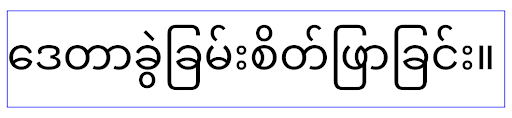
elegantTextHeight behavior for apps targeting Android 15.複雜字母形狀的 TextView 寬度變更
In previous versions of Android, some cursive fonts or languages that have
complex shaping might draw the letters in the previous or next character's area.
In some cases, such letters were clipped at the beginning or ending position.
Starting in Android 15, a TextView allocates width for drawing enough space
for such letters and allows apps to request extra paddings to the left to
prevent clipping.
Because this change affects how a TextView decides the width, TextView
allocates more width by default if the app targets Android 15 (API level 35) or
higher. You can enable or disable this behavior by calling the
setUseBoundsForWidth API on TextView.
Because adding left padding might cause a misalignment for existing layouts, the
padding is not added by default even for apps that target Android 15 or higher.
However, you can add extra padding to preventing clipping by calling
setShiftDrawingOffsetForStartOverhang.
The following examples show how these changes can improve text layout for some fonts and languages.

<TextView
    android:fontFamily="cursive"
    android:text="java" />

<TextView
    android:fontFamily="cursive"
    android:text="java"
    android:useBoundsForWidth="true"
    android:shiftDrawingOffsetForStartOverhang="true" />
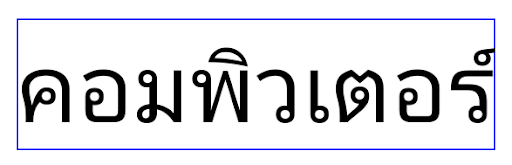
<TextView
    android:text="คอมพิวเตอร์" />

<TextView
    android:text="คอมพิวเตอร์"
    android:useBoundsForWidth="true"
    android:shiftDrawingOffsetForStartOverhang="true" />
EditText 的預設行高會根據語言代碼調整
In previous versions of Android, the text layout stretched the height of the
text to meet the line height of the font that matched the current locale. For
example, if the content was in Japanese, because the line height of the Japanese
font is slightly larger than the one of a Latin font, the height of the text
became slightly larger. However, despite these differences in line heights, the
EditText element was sized uniformly, regardless
of the locale being used, as illustrated in the following image:

EditText elements that
can contain text from English (en), Japanese (ja), and Burmese (my). The
height of the EditText is the same, even though these languages
have different line heights from each other.For apps targeting Android 15 (API level 35), a minimum line height is now
reserved for EditText to match the reference font for the specified Locale, as
shown in the following image:

EditText elements that
can contain text from English (en), Japanese (ja), and Burmese (my). The
height of the EditText now includes space to accommodate the
default line height for these languages' fonts.If needed, your app can restore the previous behavior by specifying the
useLocalePreferredLineHeightForMinimum attribute
to false, and your app can set custom minimum vertical metrics using the
setMinimumFontMetrics API in Kotlin and Java.
相機與媒體
Android 15 對指定 Android 15 以上版本的應用程式,進行下列相機和媒體行為變更。
要求音訊焦點的限制
Apps that target Android 15 (API level 35) must be the top app or running a
foreground service in order to request audio focus. If an app
attempts to request focus when it does not meet one of these requirements, the
call returns AUDIOFOCUS_REQUEST_FAILED.
You can learn more about audio focus at Manage audio focus.
更新非 SDK 限制
Android 15 includes updated lists of restricted non-SDK interfaces based on collaboration with Android developers and the latest internal testing. Whenever possible, we make sure that public alternatives are available before we restrict non-SDK interfaces.
If your app does not target Android 15, some of these changes might not immediately affect you. However, while it's possible for your app to access some non-SDK interfaces depending on your app's target API level, using any non-SDK method or field always carries a high risk of breaking your app.
If you are unsure if your app uses non-SDK interfaces, you can test your app to find out. If your app relies on non-SDK interfaces, you should begin planning a migration to SDK alternatives. Nevertheless, we understand that some apps have valid use cases for using non-SDK interfaces. If you can't find an alternative to using a non-SDK interface for a feature in your app, you should request a new public API.
如要進一步瞭解此 Android 版本中的變更,請參閱「Android 15 的非 SDK 介面限制更新內容」。如要進一步瞭解非 SDK 介面的一般資訊,請參閱「非 SDK 介面的限制」。