

本指南說明如何使用 Engage SDK,將「繼續觀看」功能整合至 Android TV 應用程式。
事前作業
完成入門指南中的事前準備指示。
整合
建立實體
SDK 定義了不同實體,用來代表各種項目類型。後續叢集支援下列實體:
指定這些實體的平台專屬 URI 和海報圖片。
此外,如果尚未為各個平台 (例如 Android TV、Android 或 iOS) 建立播放 URI,請立即建立。這樣一來,使用者在各個平台繼續觀看時,應用程式就會使用目標播放 URI 播放影片內容。
// Required. Set this when you want continue watching entities to show up on
// Google TV
val playbackUriTv = PlatformSpecificUri.Builder()
    .setPlatformType(PlatformType.TYPE_ANDROID_TV)
    .setActionUri(Uri.parse("https://www.example.com/entity_uri_for_tv"))
    .build()

// Required. Set this when you want continue watching entities to show up on
// Google TV Android app, Entertainment Space, Playstore Widget
val playbackUriAndroid = PlatformSpecificUri.Builder()
    .setPlatformType(PlatformType.TYPE_ANDROID_MOBILE)
    .setActionUri(Uri.parse("https://www.example.com/entity_uri_for_android"))
    .build()

// Optional. Set this when you want continue watching entities to show up on
// Google TV iOS app
val playbackUriIos = PlatformSpecificUri.Builder()
    .setPlatformType(PlatformType.TYPE_IOS)
    .setActionUri(Uri.parse("https://www.example.com/entity_uri_for_ios"))
    .build()

val platformSpecificPlaybackUris =
    Arrays.asList(playbackUriTv, playbackUriAndroid, playbackUriIos)
海報圖片需要 URI 和像素尺寸 (高度和寬度)。提供多張代表圖片,針對不同板型規格,但請確認所有圖片都維持 16:9 的顯示比例,且高度至少為 200 像素,確保「繼續觀看」實體能正確顯示,尤其是在 Google 的Entertainment Space中。圖片高度小於 200 像素時,可能不會顯示。
val images = Arrays.asList(
    Image.Builder()
        .setImageUri(Uri.parse("http://www.example.com/entity_image1.png"))
        .setImageHeightInPixel(300)
        .setImageWidthInPixel(169)
        .build(),
    Image.Builder()
        .setImageUri(Uri.parse("http://www.example.com/entity_image2.png"))
        .setImageHeightInPixel(640)
        .setImageWidthInPixel(360)
        .build()
    // Consider adding other images for different form factors
)
MovieEntity
以下範例說明如何建立包含所有必要欄位的 MovieEntity:
val movieEntity = MovieEntity.Builder()
   .setWatchNextType(WatchNextType.TYPE_CONTINUE)
   .setName("Movie name")
   .addPlatformSpecificPlaybackUri(platformSpecificPlaybackUris)
   .addPosterImages(images)
   // Timestamp in millis for sample last engagement time 12/1/2023 00:00:00
   .setLastEngagementTimeMillis(1701388800000)
   // Suppose the duration is 2 hours, it is 72000000 in milliseconds
   .setDurationMills(72000000)
   // Suppose last playback offset is 1 hour, 36000000 in milliseconds
   .setLastPlayBackPositionTimeMillis(36000000)
   .setCallToActionText("Resume")
   .addTag("Action")
   .build()
提供類型和內容分級等詳細資料,可讓 Google TV 以更多元的方式展示內容,並將內容推薦給合適的觀眾。
val genres = Arrays.asList("Action", "Science fiction")
val rating1 = RatingSystem.Builder().setAgencyName("MPAA").setRating("PG-13").build()
val contentRatings = Arrays.asList(rating1)
val movieEntity = MovieEntity.Builder()
    ...
    .addGenres(genres)
    .addContentRatings(contentRatings)
    .build()
除非您指定較短的到期時間,否則實體會自動保留 60 天。只有在需要於預設期限前移除實體時,才設定自訂到期日。
// Set the expiration time to be now plus 30 days in milliseconds
val expirationTime = DisplayTimeWindow.Builder()
    .setEndTimestampMillis(now().toMillis()+2592000000).build()
val movieEntity = MovieEntity.Builder()
    ...
    .addAvailabilityTimeWindow(expirationTime)
    .build()
TvEpisodeEntity
以下範例說明如何建立 TvEpisodeEntity,並填入所有必要欄位:
val tvEpisodeEntity = TvEpisodeEntity.Builder()
    .setWatchNextType(WatchNextType.TYPE_CONTINUE)
    .setName("Episode name")
    .addPlatformSpecificPlaybackUri(platformSpecificPlaybackUris)
    .addPosterImages(images)
    // Timestamp in millis for sample last engagement time 12/1/2023 00:00:00
    .setLastEngagementTimeMillis(1701388800000)
    .setDurationMills(72000000) // 2 hours in milliseconds
    // 45 minutes and 15 seconds in milliseconds is 2715000
    .setLastPlayBackPositionTimeMillis(2715000)
    .setEpisodeNumber("2")
    .setSeasonNumber("1")
    .setShowTitle("Title of the show")
    .setCallToActionText("Resume")
    .addTag("Comedy")
    .build()
集數字串 (例如 "2") 和季別字串 (例如 "1") 會先擴展為適當格式,再顯示在「繼續觀看」資訊卡上。請注意,這些值應為數字字串,請勿輸入「e2」、「episode 2」、「s1」或「season 1」。
如果特定電視節目只有一季,請將季別設為 1。
為盡量提高觀眾在 Google TV 上找到你內容的機會,建議提供其他資料,例如類型、內容分級和供應時間範圍,因為這些詳細資料可改善顯示方式和篩選選項。
val genres = Arrays.asList("Action", "Science fiction")
val rating1 = RatingSystem.Builder().setAgencyName("MPAA").setRating("PG-13").build()
val contentRatings = Arrays.asList(rating1)
val tvEpisodeEntity = TvEpisodeEntity.Builder()
    ...
    .addGenres(genres)
    .addContentRatings(contentRatings)
    .setSeasonTitle("Season Title")
    .setShowTitle("Show Title")
    .build()
VideoClipEntity
以下範例說明如何建立 VideoClipEntity,並填入所有必填欄位。
VideoClipEntity 代表使用者生成的短片,例如 YouTube 影片。
val videoClipEntity = VideoClipEntity.Builder()
    .setPlaybackUri(Uri.parse("https://www.example.com/uri_for_current_platform"))
    .setWatchNextType(WatchNextType.TYPE_CONTINUE)
    .setName("Video clip name")
    .addPlatformSpecificPlaybackUri(platformSpecificPlaybackUris)
    .addPosterImages(images)
    // Timestamp in millis for sample last engagement time 12/1/2023 00:00:00
    .setLastEngagementTimeMillis(1701388800000)
    .setDurationMills(600000) //10 minutes in milliseconds
    .setLastPlayBackPositionTimeMillis(300000) //5 minutes in milliseconds
    .addContentRating(contentRating)
    .setCallToActionText("Resume")
    .addTag("Vlog")
    .build()
您可以選擇設定建立者、建立者圖片、建立時間 (以毫秒為單位) 或可用時間範圍。
LiveStreamingVideoEntity
以下範例說明如何建立 LiveStreamingVideoEntity,其中包含所有必要欄位。
val liveStreamingVideoEntity = LiveStreamingVideoEntity.Builder()
    .setPlaybackUri(Uri.parse("https://www.example.com/uri_for_current_platform"))
    .setWatchNextType(WatchNextType.TYPE_CONTINUE)
    .setName("Live streaming name")
    .addPlatformSpecificPlaybackUri(platformSpecificPlaybackUris)
    .addPosterImages(images)
    // Timestamp in millis for sample last engagement time 12/1/2023 00:00:00
    .setLastEngagementTimeMillis(1701388800000)
    .setDurationMills(72000000) //2 hours in milliseconds
    .setLastPlayBackPositionTimeMillis(36000000) //1 hour in milliseconds
    .addContentRating(contentRating)
    .setCallToActionText("Resume")
    .addTag("Live")
    .build()
你也可以選擇設定直播實體的開始時間、播送者、播送者圖示或播放時間範圍。
如要進一步瞭解屬性和規定,請參閱 API 參考資料。
提供接續叢集資料
AppEngagePublishClient 負責發布接續叢集。您可以使用 publishContinuationCluste 方法發布 ContinuationCluster 物件。
請務必按照入門指南所述,初始化用戶端並檢查服務可用性。
client.publishContinuationCluster(
    PublishContinuationClusterRequest
        .Builder()
        .setContinuationCluster(
            ContinuationCluster.Builder()
                .setAccountProfile(accountProfile)
                .addEntity(movieEntity1)
                .addEntity(movieEntity2)
                .addEntity(tvEpisodeEntity1)
                .addEntity(tvEpisodeEntity2)
                .setSyncAcrossDevices(true)
                .build()
        )
        .build()
)
服務收到要求後,系統會在單一交易中執行以下動作:
- 移除開發合作夥伴提供的現有
ContinuationCluster資料。 - 剖析要求所提供的資料並儲存在更新後的
ContinuationCluster。
如果發生錯誤,整個要求都會遭到拒絕,現有狀態則維持不變。
發布 API 屬於更新/插入 API,會取代現有內容。如要更新後續叢集中的特定實體,必須重新發布所有實體。
請只為成人帳戶提供續播叢集資料。只有在帳戶設定檔屬於成人時,才發布資料。
跨裝置同步
setSyncAcrossDevices 可控制使用者的 ContinuationCluster 資料是否要在電視、手機、平板電腦等裝置之間同步。跨裝置同步功能預設為停用。
值:
true:所有裝置都會共用續播叢集資料,提供流暢的觀看體驗。強烈建議您選用這個選項,以獲得最佳跨裝置體驗。false:接續叢集資料僅限目前裝置使用。
此外,您必須提供帳戶 ID (AccountProfile),才能在裝置間同步處理內容。請參閱「建立帳戶設定檔」。
取得同意聲明
媒體應用程式必須提供清楚的設定,讓使用者啟用或停用跨裝置同步功能,並向使用者說明好處,然後儲存使用者偏好設定,並在 publishContinuationCluster 中套用。
// Example to allow cross device syncing.
client.publishContinuationCluster(
    PublishContinuationClusterRequest
        .Builder()
        .setContinuationCluster(
            ContinuationCluster.Builder()
                .setAccountProfile(accountProfile)
                .setSyncAcrossDevices(true)
                .build()
        )
        .build()
)
如要充分運用跨裝置功能,請確認應用程式已取得使用者同意聲明,並啟用 SyncAcrossDevices true。這樣一來,內容就能在裝置間順暢同步,進而提升使用者體驗和參與度。舉例來說,某合作夥伴導入這項功能後,由於內容顯示在多部裝置上,「繼續觀看」的點擊次數增加了 40%。
刪除 Engage 資料
如要在標準 60 天保留期限前,從 Google TV 伺服器手動刪除使用者資料,請使用 deleteClusters 方法。服務收到要求後,會刪除帳戶商家檔案或整個帳戶的所有現有 Engage 資料。
DeleteReason 列舉會定義資料刪除原因。
以下程式碼會在登出時移除「繼續觀看」資料。
// If the user logs out from your media app, you must make the following call
// to remove continue watching data from the current google TV device,
// otherwise, the continue watching data will persist on the current
// google TV device until 60 days later.
client.deleteClusters(
    DeleteClustersRequest.Builder()
        .setAccountProfile(AccountProfile())
        .setReason(DeleteReason.DELETE_REASON_USER_LOG_OUT)
        .setSyncAcrossDevices(true)
        .build()
)
測試
使用驗證應用程式,確認 Engage SDK 整合是否正常運作。
呼叫發布 API 後,請檢查驗證應用程式,確認資料是否正確發布。應用程式介面中應會顯示獨立的續傳叢集資料列。
- 在應用程式中測試下列動作:
- 登入。
- 切換設定檔(如適用)。
- 開始播放影片、暫停播放,或返回首頁。
- 在影片播放期間關閉應用程式。
- 從「繼續觀看」列中移除項目 (如支援)。
- 完成每個動作後,請確認應用程式已叫用
publishContinuationClustersAPI,且驗證應用程式中顯示的資料正確無誤。 如果實體導入正確,驗證應用程式會顯示綠色的「一切正常」勾號。
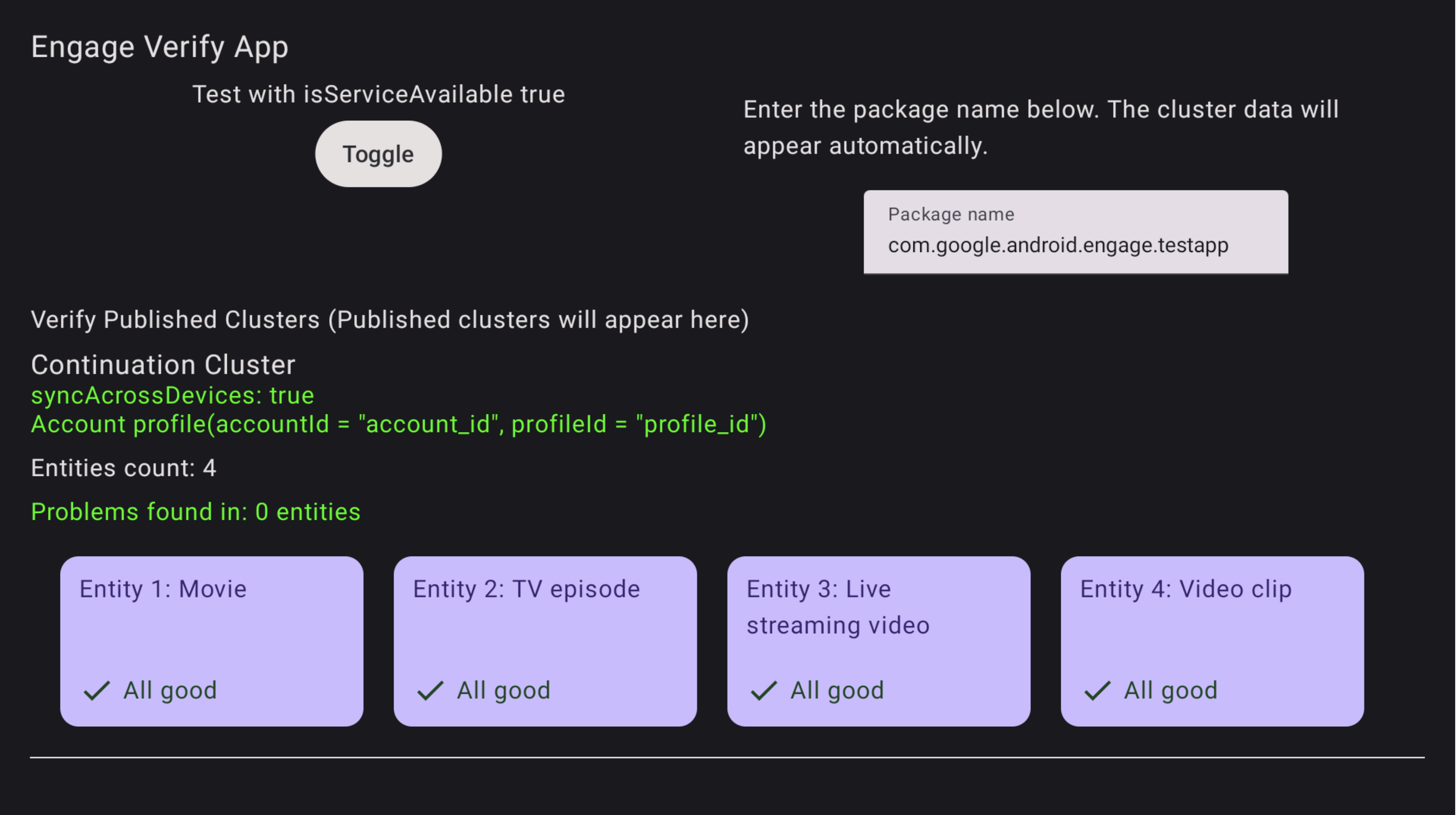
圖 1. 驗證應用程式成功 驗證應用程式會標示任何有問題的實體。
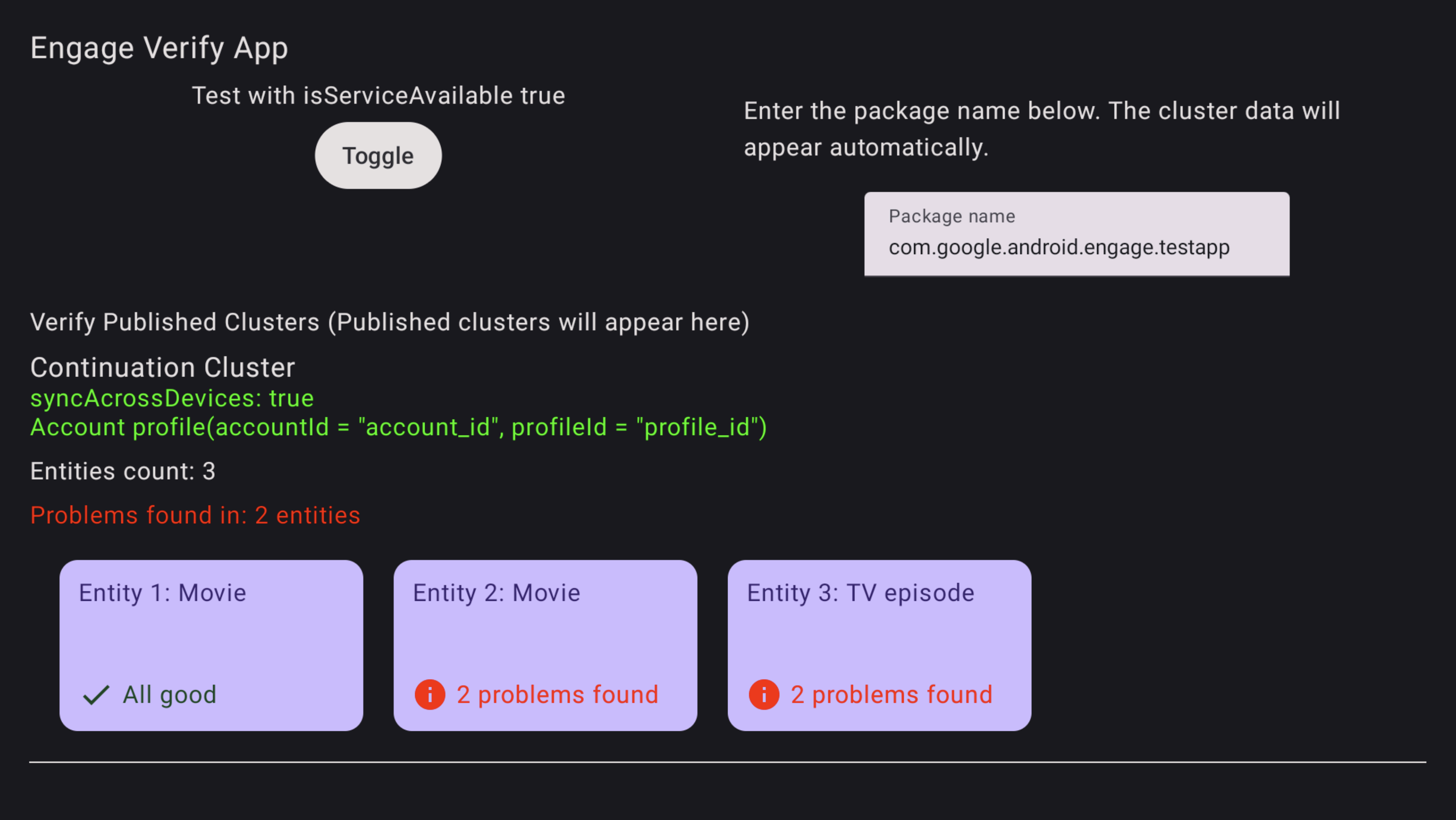
圖 2. 驗證應用程式錯誤 如要排解實體錯誤,請使用電視遙控器選取並點按驗證應用程式中的實體。系統會顯示特定問題,並以紅色醒目顯示供你查看 (請見下方範例)。
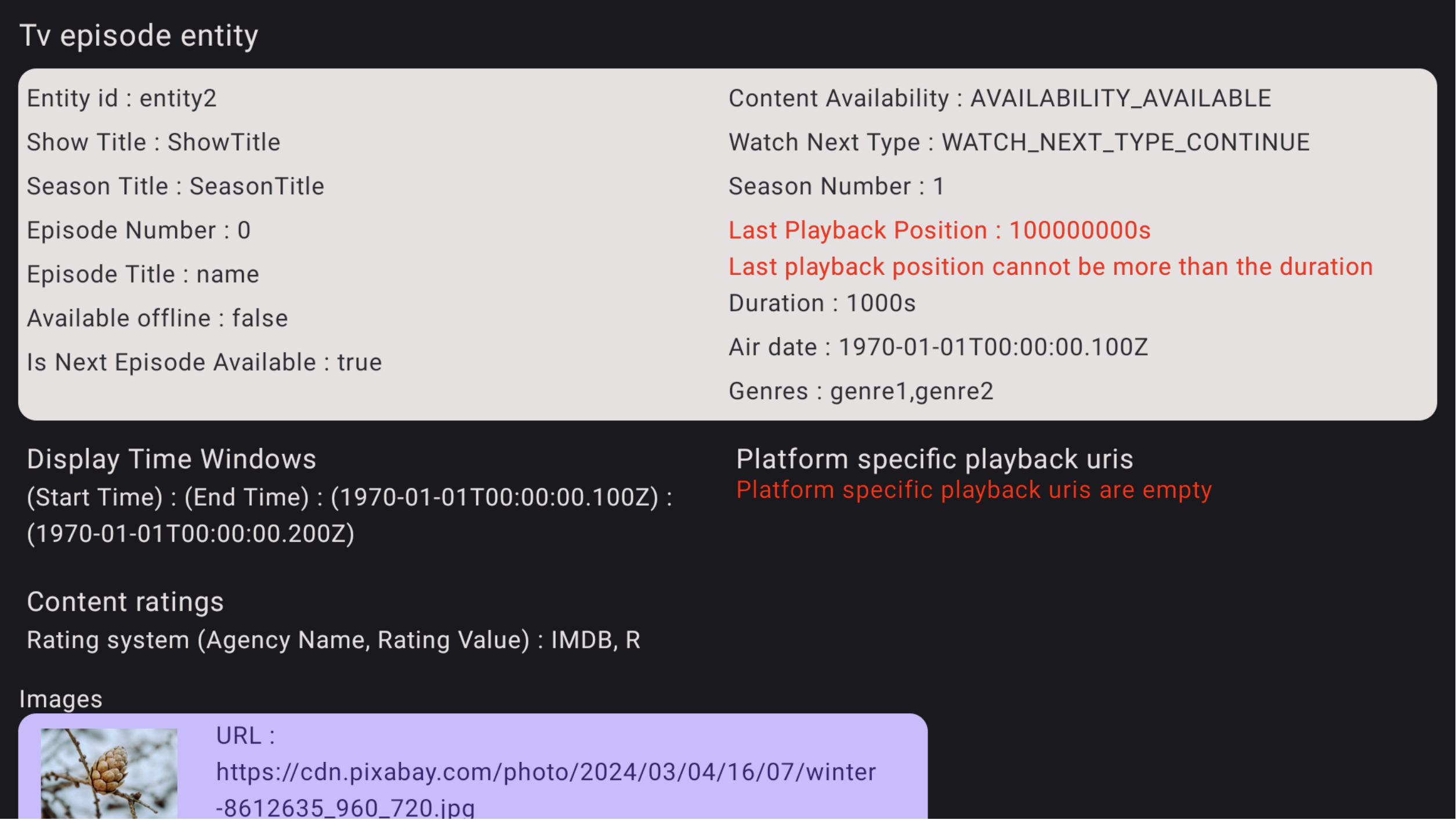
圖 3. 驗證應用程式錯誤詳細資料