
Concepts and Jetpack Compose implementation
Testing for accessibility lets you experience your app from the user's perspective and find usability issues that you might miss. Accessibility testing can reveal opportunities to make your app more powerful and versatile for all users, including those with disabilities.
This document describes the following approaches:
- Testing using analysis tools: use tools to discover opportunities to improve your app's accessibility.
- Automated testing: turn on accessibility testing in Espresso and Robolectric.
Testing using analysis tools
Analysis tools can uncover opportunities to improve accessibility that you might miss with manual testing.
Accessibility Scanner
The Accessibility Scanner app scans your screen and suggests ways to improve the accessibility of your app. Accessibility Scanner uses the Accessibility Test Framework and provides specific suggestions after looking at content labels, clickable items, contrast, and more.
The Android Accessibility Test Framework is integrated in Android Studio to help you find accessibility issues in your layouts. To launch the panel, click the error report button ! in the Layout Editor.
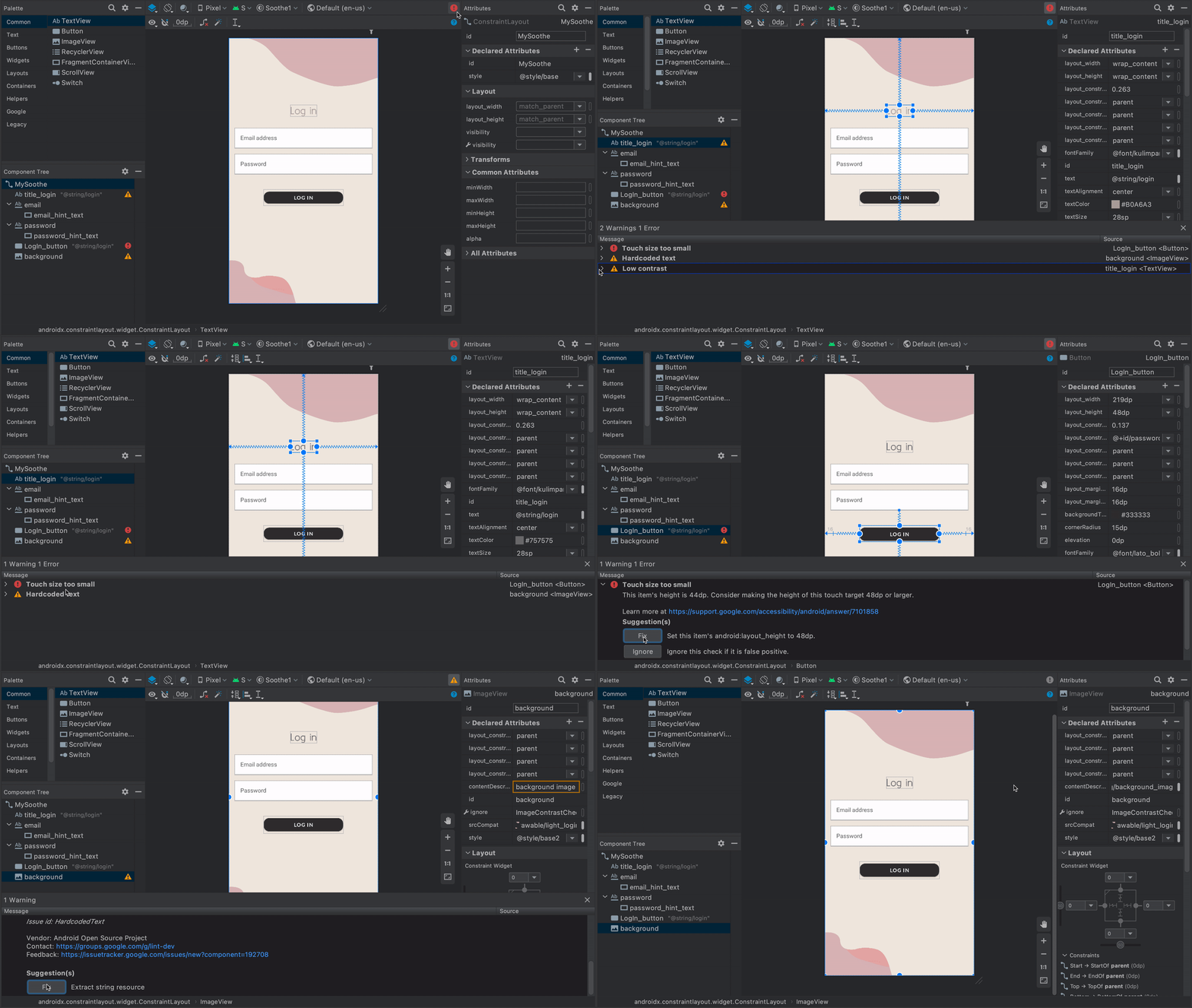 Figure 1. Demo of the Accessibility Scanner.
To learn more, refer to the following resources:
UI Automator Viewer
The uiautomatorviewer tool provides a convenient GUI to scan and analyze the
UI components currently displayed on an Android-powered device. You can use UI
Automator to inspect the layout hierarchy and view the properties of UI
components that are visible on the foreground of the device. This information
lets you create more fine-grained tests, for example by creating a UI selector
that matches a specific visible property. The tool is located in the tools
directory of the Android SDK.
In accessibility testing, this tool is useful for debugging issues found using other testing methods. For example, if manual testing reveals that a view doesn't have the speakable text it requires or a view receives focus when it must not, you can use the tool to help locate the source of the issue.
To learn more about UI Automator Viewer, see Write automated tests with UI Automator.
Lint
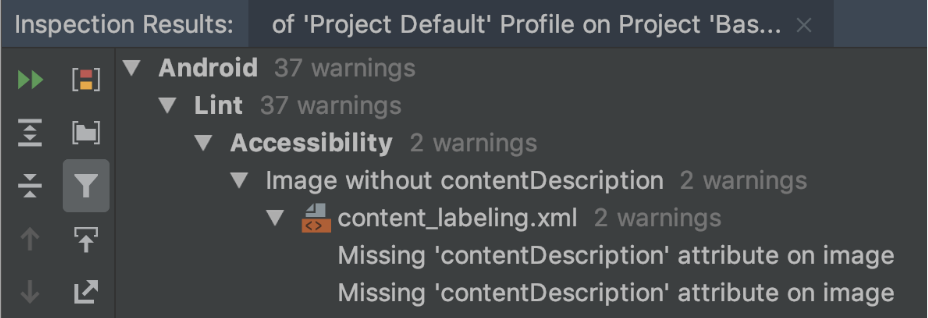
Android Studio shows lint warnings for various accessibility issues and provides
links to the relevant places in your source code. In the following example, an
image is missing a contentDescription attribute. The missing content
description results in the following message:
[Accessibility] Missing 'contentDescription' attribute on image
Figure 2 shows an example of how this message appears in Android Studio:
contentDescription attribute.Automated testing
The Android platform supports several testing frameworks, such as Espresso, which lets you create and run automated tests that evaluate the accessibility of your app.
Espresso
Espresso is an Android testing library designed to make UI testing fast and easy. It lets you interact with UI components under test in your app and assert that certain behaviors occur or that specific conditions are met.
To see a video overview of accessibility testing with Espresso, watch the following video from minute 31:54 to 34:19: Inclusive design and testing: Making your app more accessible - Google I/O 2016.
This section describes how to run accessibility checks using Espresso.
Enable checks
You can enable and configure accessibility testing using the
AccessibilityChecks
class:
Kotlin
import androidx.test.espresso.accessibility.AccessibilityChecks

@RunWith(AndroidJUnit4::class)
@LargeTest
class MyWelcomeWorkflowIntegrationTest {
    init {
        AccessibilityChecks.enable()
    }
}
Java
import androidx.test.espresso.accessibility.AccessibilityChecks;

@RunWith(AndroidJUnit4.class)
@LargeTest
public class MyWelcomeWorkflowIntegrationTest {
    @BeforeClass
    public void enableAccessibilityChecks() {
        AccessibilityChecks.enable();
    }
}
By default, the checks run when you perform any view action defined in
ViewActions. Each
check includes the view on which the action is performed as well as all
descendant views. You can evaluate the entire view hierarchy of a screen during
each check by passing true into
setRunChecksFromRootView(),
as shown in the following code snippet:
Kotlin
AccessibilityChecks.enable().setRunChecksFromRootView(true)
Java
AccessibilityChecks.enable().setRunChecksFromRootView(true);
Suppress subsets of results
After Espresso runs accessibility checks on your app, you might find several
opportunities to improve your app's accessibility that you cannot address
immediately. In order to stop Espresso tests from continually failing because
of these results, you can ignore them temporarily. The Accessibility Test
Framework (ATF) provides this functionality using the
setSuppressingResultMatcher()
method, which instructs Espresso to suppress all results that satisfy the given
matcher expression.
When you make changes to your app that address one aspect of accessibility, it's beneficial for Espresso to show results for as many other aspects of accessibility as possible. For this reason, it's best to suppress only specific known opportunities for improvement.
When you temporarily suppress accessibility test findings that you plan to address later, it's important to not accidentally suppress similar findings. For this reason, use matchers that are narrowly scoped. To do so, choose a matcher so that Espresso suppresses a given result only if it satisfies each of the following accessibility checks:
- Accessibility checks of a certain type, such as those that check for touch target size.
- Accessibility checks that evaluate a particular UI element, such as a button.
The ATF defines several matchers
to help you define which results to show in your Espresso tests. The following
example suppresses the results of checks that relate to a single TextView
element's color contrast. The element's ID is countTV.
Kotlin
AccessibilityChecks.enable().apply {
        setSuppressingResultMatcher(
                allOf(
                    matchesCheck(TextContrastCheck::class.java),
                    matchesViews(withId(R.id.countTV))
                )
        )
}
Java
AccessibilityValidator myChecksValidator =
    AccessibilityChecks.enable()
        .setSuppressingResultMatcher(
            allOf(
                matchesCheck(TextContrastCheck.class),
                matchesViews(withId(R.id.countTV))));