

이 가이드에서는 Engage SDK를 사용하여 Android TV 앱에 이어서 시청하기를 통합하는 방법을 설명합니다.
사전 작업
시작 가이드의 사전 작업 안내를 완료합니다.
통합
항목 만들기
SDK는 각 항목 유형을 나타내는 여러 항목을 정의했습니다. 연속 클러스터는 다음 항목을 지원합니다.
이러한 항목의 플랫폼별 URI와 포스터 이미지를 지정합니다.
또한 아직 만들지 않았다면 Android TV, Android, iOS와 같은 각 플랫폼의 재생 URI를 만듭니다. 따라서 사용자가 각 플랫폼에서 계속 시청하면 앱은 타겟팅된 재생 URI를 사용하여 동영상 콘텐츠를 재생합니다.
// Required. Set this when you want continue watching entities to show up on
// Google TV
val playbackUriTv = PlatformSpecificUri.Builder()
    .setPlatformType(PlatformType.TYPE_ANDROID_TV)
    .setActionUri(Uri.parse("https://www.example.com/entity_uri_for_tv"))
    .build()

// Required. Set this when you want continue watching entities to show up on
// Google TV Android app, Entertainment Space, Playstore Widget
val playbackUriAndroid = PlatformSpecificUri.Builder()
    .setPlatformType(PlatformType.TYPE_ANDROID_MOBILE)
    .setActionUri(Uri.parse("https://www.example.com/entity_uri_for_android"))
    .build()

// Optional. Set this when you want continue watching entities to show up on
// Google TV iOS app
val playbackUriIos = PlatformSpecificUri.Builder()
    .setPlatformType(PlatformType.TYPE_IOS)
    .setActionUri(Uri.parse("https://www.example.com/entity_uri_for_ios"))
    .build()

val platformSpecificPlaybackUris =
    Arrays.asList(playbackUriTv, playbackUriAndroid, playbackUriIos)
포스터 이미지에는 URI와 픽셀 크기(높이 및 너비)가 필요합니다. 여러 포스터 이미지를 제공하여 다양한 폼 팩터를 타겟팅하되, 특히 Google의 엔터테인먼트 스페이스 내에서 '이어서 시청하기' 항목이 올바르게 표시되도록 모든 이미지가 16:9 가로세로 비율과 최소 높이 200픽셀을 유지하는지 확인하세요. 높이가 200픽셀 미만인 이미지는 표시되지 않을 수 있습니다.
val images = Arrays.asList(
    Image.Builder()
        .setImageUri(Uri.parse("http://www.example.com/entity_image1.png"))
        .setImageHeightInPixel(300)
        .setImageWidthInPixel(169)
        .build(),
    Image.Builder()
        .setImageUri(Uri.parse("http://www.example.com/entity_image2.png"))
        .setImageHeightInPixel(640)
        .setImageWidthInPixel(360)
        .build()
    // Consider adding other images for different form factors
)
MovieEntity
다음 예시에서는 모든 필수 필드를 사용하여 MovieEntity를 만드는 방법을 보여줍니다.
val movieEntity = MovieEntity.Builder()
   .setWatchNextType(WatchNextType.TYPE_CONTINUE)
   .setName("Movie name")
   .addPlatformSpecificPlaybackUris(platformSpecificPlaybackUris)
   .addPosterImages(images)
   // Timestamp in millis for sample last engagement time 12/1/2023 00:00:00
   .setLastEngagementTimeMillis(1701388800000)
   // Suppose the duration is 2 hours, it is 72000000 in milliseconds
   .setDurationMillis(72000000)
   // Suppose last playback offset is 1 hour, 36000000 in milliseconds
   .setLastPlayBackPositionTimeMillis(36000000)
   .setCallToActionText("Resume")
   .addTag("Action")
   .build()
장르 및 콘텐츠 등급과 같은 세부정보를 제공하면 Google TV에서 콘텐츠를 더 동적인 방식으로 표시하고 적절한 시청자와 연결할 수 있습니다.
val genres = Arrays.asList("Action", "Science fiction")
val rating1 = RatingSystem.Builder().setAgencyName("MPAA").setRating("PG-13").build()
val contentRatings = Arrays.asList(rating1)
val movieEntity = MovieEntity.Builder()
    ...
    .addGenres(genres)
    .addContentRatings(contentRatings)
    .build()
만료 시간을 더 짧게 지정하지 않는 한 항목은 자동으로 60일 동안 사용할 수 있습니다. 이 기본 기간 전에 항목을 삭제해야 하는 경우에만 맞춤 만료를 설정하세요.
// Set the expiration time to be now plus 30 days in milliseconds
val expirationTime = DisplayTimeWindow.Builder()
    .setEndTimestampMillis(now().toMillis()+2592000000).build()
val movieEntity = MovieEntity.Builder()
    ...
    .addAvailabilityTimeWindow(expirationTime)
    .build()
TvEpisodeEntity
이 예시에서는 모든 필수 필드를 사용하여 TvEpisodeEntity를 만드는 방법을 보여줍니다.
val tvEpisodeEntity = TvEpisodeEntity.Builder()
    .setWatchNextType(WatchNextType.TYPE_CONTINUE)
    .setName("Episode name")
    .addPlatformSpecificPlaybackUris(platformSpecificPlaybackUris)
    .addPosterImages(images)
    // Timestamp in millis for sample last engagement time 12/1/2023 00:00:00
    .setLastEngagementTimeMillis(1701388800000)
    .setDurationMillis(72000000) // 2 hours in milliseconds
    // 45 minutes and 15 seconds in milliseconds is 2715000
    .setLastPlayBackPositionTimeMillis(2715000)
    .setEpisodeNumber("2")
    .setSeasonNumber("1")
    .setShowTitle("Title of the show")
    .setCallToActionText("Resume")
    .addTag("Comedy")
    .build()
에피소드 번호 문자열(예: "2")과 시즌 번호 문자열(예: "1")은 이어서 시청하기 카드에 표시되기 전에 해당하는 형식으로 확장됩니다. 숫자만 포함해야 합니다. 'e2' 또는 'episode 2', 's1' 또는 'season 1'을 입력하지 마세요.
특정 TV 프로그램에 시즌이 하나만 있는 경우 시즌 번호를 1로 설정합니다.
시청자가 Google TV에서 콘텐츠를 찾을 가능성을 극대화하려면 장르, 콘텐츠 등급, 사용 가능 기간과 같은 추가 데이터를 제공하는 것이 좋습니다. 이러한 세부정보는 디스플레이 및 필터링 옵션을 개선할 수 있기 때문입니다.
val genres = Arrays.asList("Action", "Science fiction")
val rating1 = RatingSystem.Builder().setAgencyName("MPAA").setRating("PG-13").build()
val contentRatings = Arrays.asList(rating1)
val tvEpisodeEntity = TvEpisodeEntity.Builder()
    ...
    .addGenres(genres)
    .addContentRatings(contentRatings)
    .setSeasonTitle("Season Title")
    .setShowTitle("Show Title")
    .build()
VideoClipEntity
다음은 모든 필수 필드를 사용하여 VideoClipEntity를 만드는 예입니다.
VideoClipEntity는 YouTube 동영상과 같이 사용자가 생성한 클립을 나타냅니다.
val videoClipEntity = VideoClipEntity.Builder()
    .setPlayBackUri(Uri.parse("https://www.example.com/uri_for_current_platform"))
    .setWatchNextType(WatchNextType.TYPE_CONTINUE)
    .setName("Video clip name")
    .addPlatformSpecificPlaybackUris(platformSpecificPlaybackUris)
    .addPosterImages(images)
    // Timestamp in millis for sample last engagement time 12/1/2023 00:00:00
    .setLastEngagementTimeMillis(1701388800000)
    .setDurationMillis(600000) //10 minutes in milliseconds
    .setLastPlayBackPositionTimeMillis(300000) //5 minutes in milliseconds
    .setCallToActionText("Resume")
    .addTag("Vlog")
    .build()
원하는 경우 작성자, 작성자 이미지, 생성 시간(밀리초), 사용 가능 시간대를 설정할 수 있습니다 .
LiveStreamingVideoEntity
다음은 필수 필드가 모두 포함된 LiveStreamingVideoEntity를 만드는 예입니다.
val liveStreamingVideoEntity = LiveStreamingVideoEntity.Builder()
    .setPlayBackUri(Uri.parse("https://www.example.com/uri_for_current_platform"))
    .setWatchNextType(WatchNextType.TYPE_CONTINUE)
    .setName("Live streaming name")
    .addPlatformSpecificPlaybackUris(platformSpecificPlaybackUris)
    .addPosterImages(images)
    // Timestamp in millis for sample last engagement time 12/1/2023 00:00:00
    .setLastEngagementTimeMillis(1701388800000)
    .setLastPlayBackPositionTimeMillis(36000000) //1 hour in milliseconds
    .addContentRating(contentRating)
    .setCallToActionText("Resume")
    .addTag("Live")
    .build()
원하는 경우 라이브 스트리밍 항목의 시작 시간, 브로드캐스터, 브로드캐스터 아이콘 또는 사용 가능 시간대를 설정할 수 있습니다.
속성 및 요구사항에 대한 자세한 내용은 API 참조를 확인하세요.
연속 클러스터 데이터 제공
AppEngagePublishClient는 연속 클러스터 게시를 담당합니다.
publishContinuationCluster 메서드를 사용하여 ContinuationCluster 객체를 게시합니다.
시작 가이드에 설명된 대로 클라이언트를 초기화하고 서비스 가용성을 확인해야 합니다.
client.publishContinuationCluster(
    PublishContinuationClusterRequest
        .Builder()
        .setContinuationCluster(
            ContinuationCluster.Builder()
                .setAccountProfile(accountProfile)
                .addEntity(movieEntity1)
                .addEntity(movieEntity2)
                .addEntity(tvEpisodeEntity1)
                .addEntity(tvEpisodeEntity2)
                .setSyncAcrossDevices(true)
                .build()
        )
        .build()
)
서비스가 요청을 수신하면 다음 작업이 한 트랜잭션 내에서 발생합니다.
- 개발자 파트너의 기존
ContinuationCluster데이터가 삭제됩니다. - 요청 데이터가 파싱되어, 업데이트된
ContinuationCluster에 저장됩니다.
오류가 발생하면 전체 요청이 거부되고 기존 상태가 유지됩니다.
게시 API는 upsert API입니다. 기존 콘텐츠를 대체합니다. 연속 클러스터에서 특정 항목을 업데이트해야 하는 경우 모든 항목을 다시 게시해야 합니다.
연속 클러스터 데이터는 성인 계정에만 제공해야 합니다. 계정 프로필이 성인에 속하는 경우에만 게시합니다.
교차 기기 동기화
setSyncAcrossDevices는 사용자의 ContinuationCluster 데이터가 TV, 휴대전화, 태블릿 등의 기기 간에 동기화되는지 여부를 제어합니다. 교차 기기 동기화는 기본적으로 사용 중지되어 있습니다.
값:
true: 원활한 시청 환경을 위해 연속 클러스터 데이터가 모든 사용자 기기에서 공유됩니다. 최적의 교차 기기 환경을 위해 이 옵션을 사용하는 것이 좋습니다.false: 연속 클러스터 데이터는 현재 기기로 제한됩니다.
또한 기기 간에 콘텐츠를 동기화하려면 계정 ID가 있는 AccountProfile를 제공해야 합니다. 계정 프로필 만들기를 참조하세요.
동의 얻기
미디어 애플리케이션은 교차 기기 동기화를 사용 설정하거나 중지하는 명확한 설정을 제공해야 합니다. 사용자에게 이점을 설명하고 사용자의 환경설정을 한 번 저장한 후 publishContinuationCluster에 적절히 적용합니다.
// Example to allow cross device syncing.
client.publishContinuationCluster(
    PublishContinuationClusterRequest
        .Builder()
        .setContinuationCluster(
            ContinuationCluster.Builder()
                .setAccountProfile(accountProfile)
                .setSyncAcrossDevices(true)
                .build()
        )
        .build()
)
교차 기기 기능을 최대한 활용하려면 앱이 사용자 동의를 얻고 SyncAcrossDevices를 true로 사용 설정해야 합니다. 이를 통해 콘텐츠가 기기 간에 원활하게 동기화되어 사용자 환경이 개선되고 참여도가 높아집니다. 예를 들어 이 기능을 구현한 파트너는 콘텐츠가 여러 기기에 표시되어 '이어서 시청하기' 클릭수가 40% 증가했습니다.
Engage 데이터 삭제
표준 60일 보관 기간 전에 Google TV 서버에서 사용자의 데이터를 수동으로 삭제하려면 deleteClusters 메서드를 사용하세요. 요청을 수신하면 서비스는 계정 프로필 또는 전체 계정의 기존 Engage 데이터를 모두 삭제합니다.
DeleteReason enum은 데이터 삭제 이유를 정의합니다.
다음 코드는 로그아웃할 때 이어서 시청하기 데이터를 삭제합니다.
// If the user logs out from your media app, you must make the following call
// to remove continue watching data from the current google TV device,
// otherwise, the continue watching data will persist on the current
// google TV device until 60 days later.
client.deleteClusters(
    DeleteClustersRequest.Builder()
        .setAccountProfile(accountProfile)
        .setDeleteReason(DeleteReason.DELETE_REASON_USER_LOG_OUT)
        .setSyncAcrossDevices(true)
        .build()
)
테스트
인증 앱을 사용하여 Engage SDK 통합이 올바르게 작동하는지 확인합니다.
게시 API를 호출한 후 인증 앱을 확인하여 데이터가 올바르게 게시되었는지 확인합니다. 연속 클러스터는 앱 인터페이스 내에 별도의 행으로 표시되어야 합니다.
- 앱에서 다음 작업을 테스트합니다.
- 로그인합니다.
- 프로필 간에 전환합니다(해당하는 경우).
- 동영상을 시작한 후 일시중지하거나 홈페이지로 돌아갑니다.
- 동영상 재생 중에 앱을 닫습니다.
- '이어서 시청하기' 행에서 항목을 삭제합니다(지원되는 경우).
- 각 작업 후 앱이
publishContinuationClustersAPI를 호출하고 데이터가 인증 앱에 올바르게 표시되는지 확인합니다. 인증 앱은 올바르게 구현된 항목에 녹색 '모두 양호' 체크표시를 표시합니다.
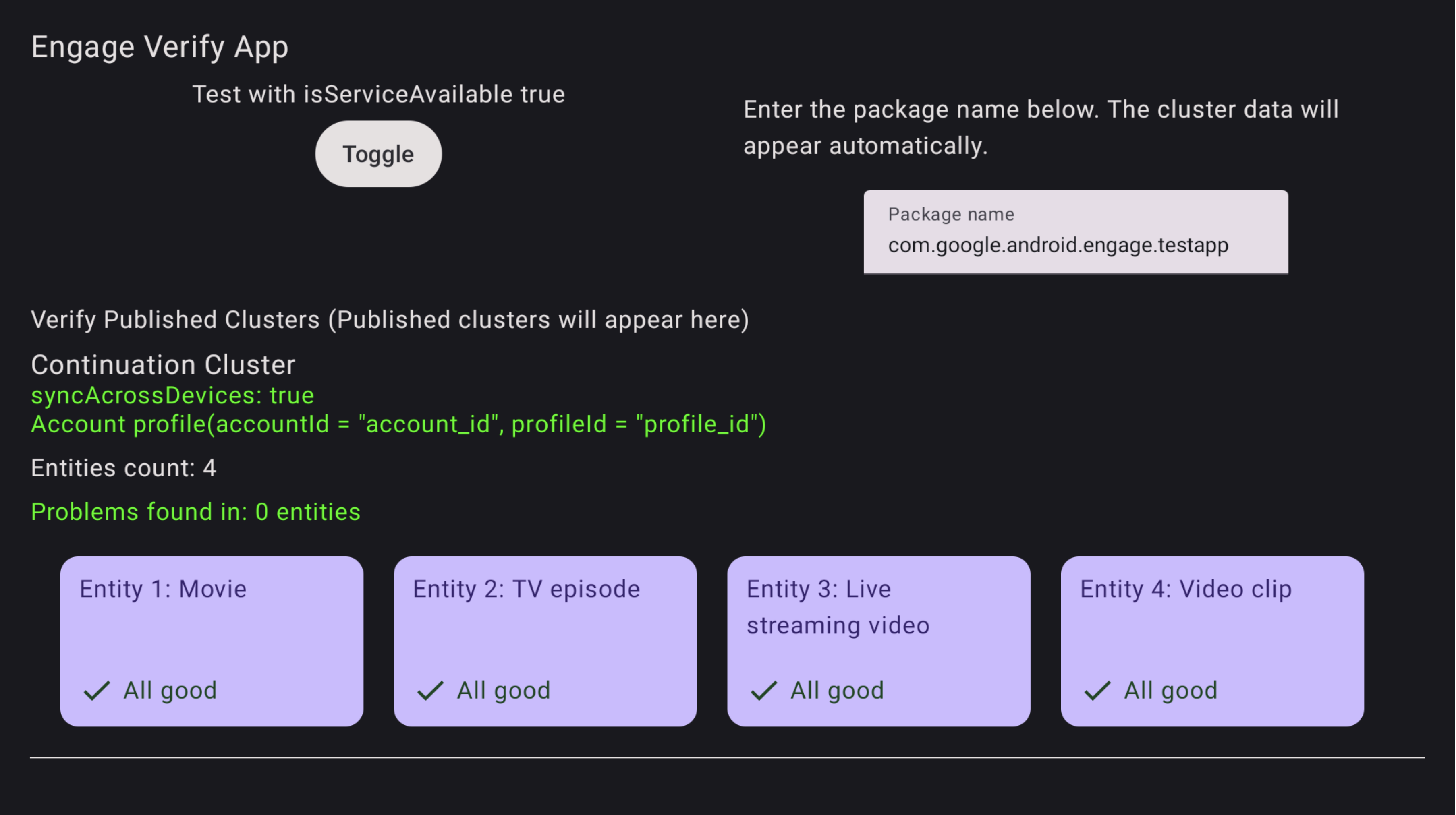
그림 1. 인증 앱 성공 인증 앱은 문제가 있는 항목을 표시합니다.
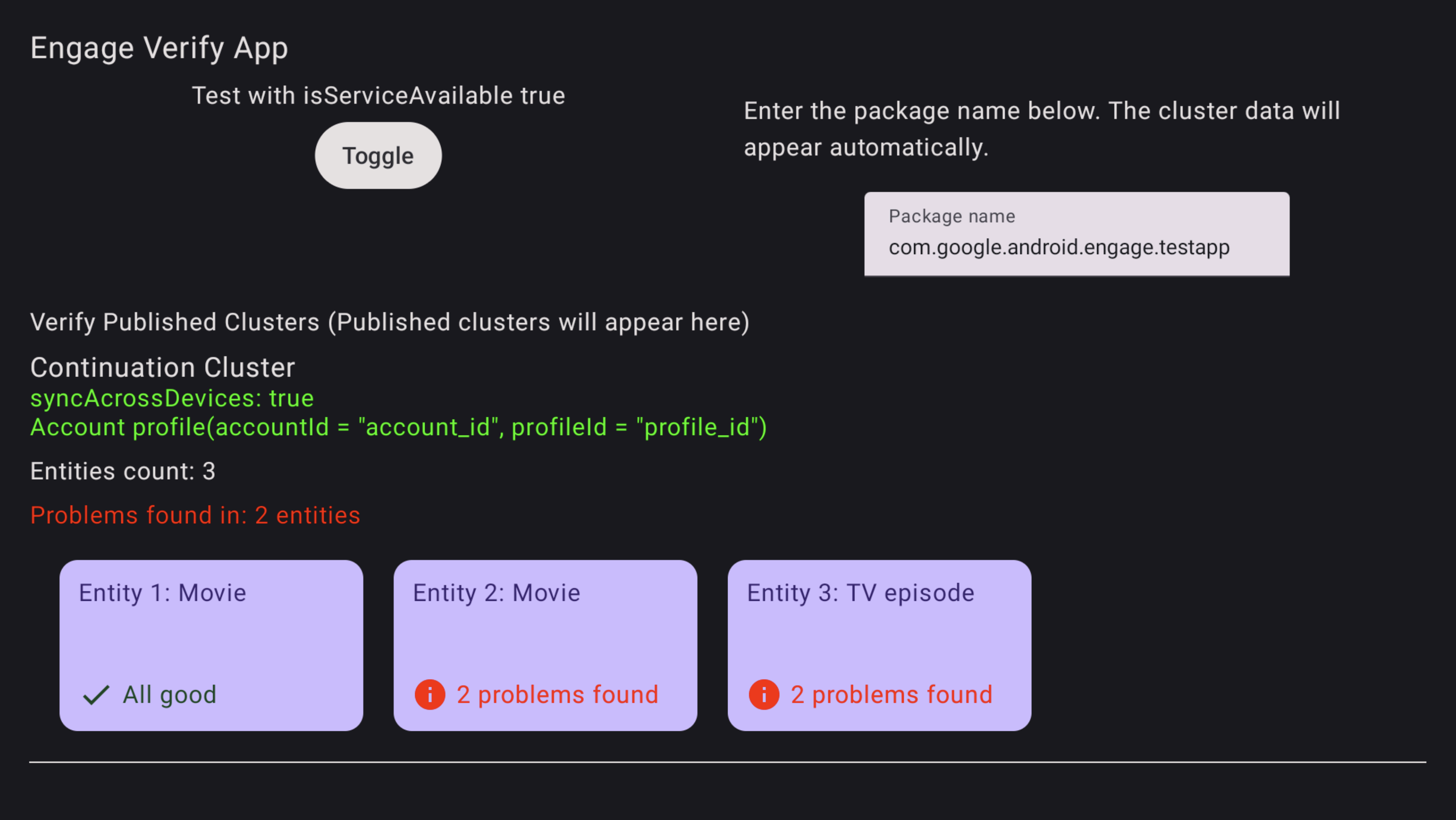
그림 2. 인증 앱 오류 오류가 있는 항목을 해결하려면 TV 리모컨을 사용하여 인증 앱에서 항목을 선택하고 클릭합니다. 특정 문제가 표시되고 검토를 위해 빨간색으로 강조 표시됩니다(아래 예 참고).
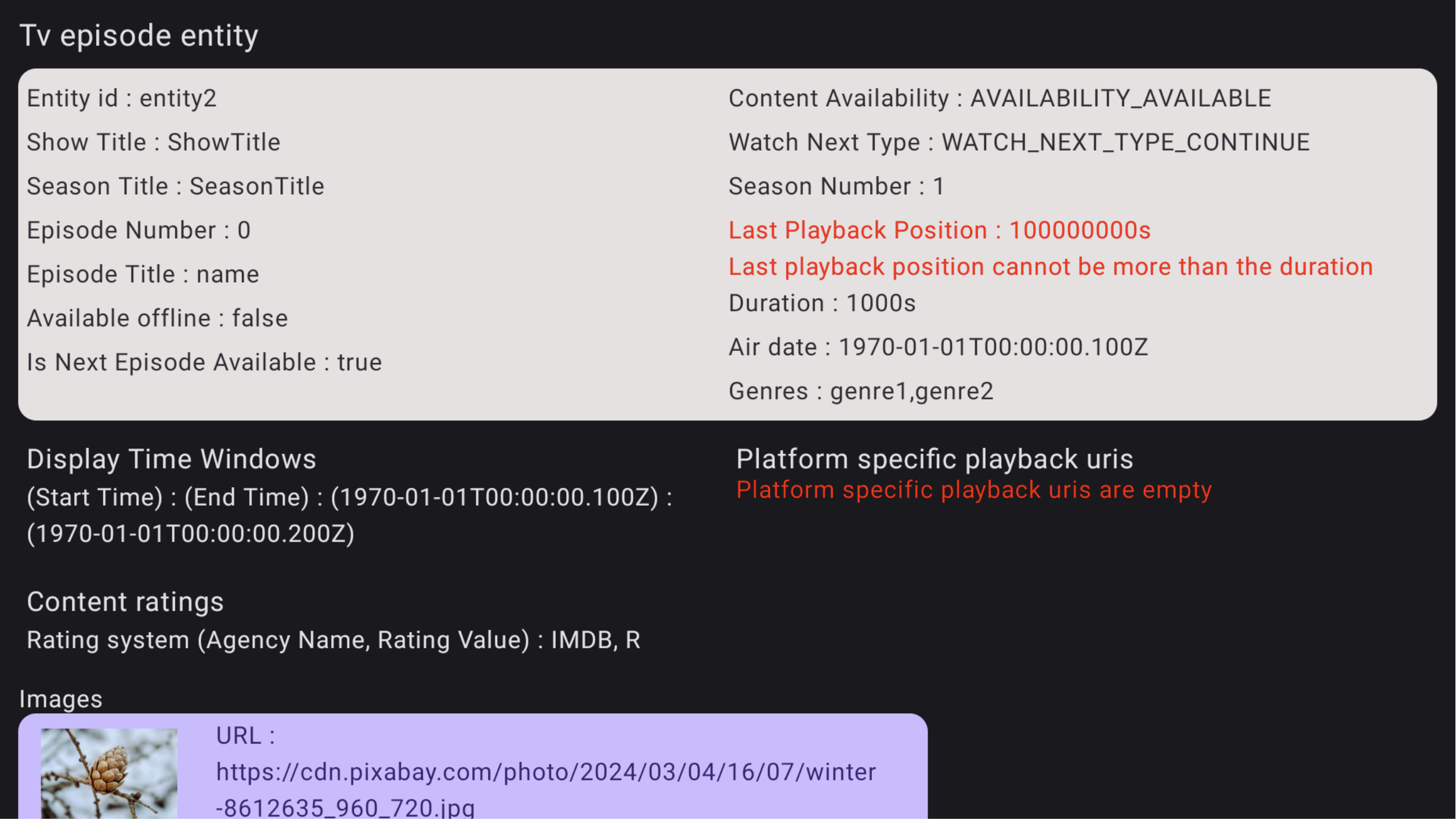
그림 3. 인증 앱 오류 세부정보