

基本通知通常包含标题、一行文字以及用户可以执行的操作。如需提供更多信息,您可以应用本文档中所述的几种通知模板之一,创建可展开的大型通知。
首先,按照创建通知中所述,构建包含所有基本内容的通知。然后,使用样式对象调用 setStyle(),并提供与每个模板对应的信息,如以下示例所示。
添加大图片
如需在通知中添加图片,请将 NotificationCompat.BigPictureStyle 的实例传递给 setStyle()。
var notification = NotificationCompat.Builder(context, CHANNEL_ID) .setSmallIcon(com.example.compose.snippets.R.drawable.ic_logo) .setContentTitle("Title") .setContentText("Content text") .setStyle( NotificationCompat.BigPictureStyle() .bigPicture(bitmapImage) ) .build()
如需让图片仅在通知收起时显示为缩略图(如下图所示),请调用 setLargeIcon() 并向其传递图片。然后,调用 BigPictureStyle.bigLargeIcon() 并向其传递 null,以便在通知展开时大图标消失:
notification = NotificationCompat.Builder(context, CHANNEL_ID) .setSmallIcon(R.drawable.ic_logo) .setContentTitle("Title") .setContentText("Content text") .setLargeIcon(Icon.createWithResource(context, R.drawable.dog)) .setStyle( NotificationCompat.BigPictureStyle() .bigPicture(bitmapImage) .bigLargeIcon(null as Bitmap?) ) .build()
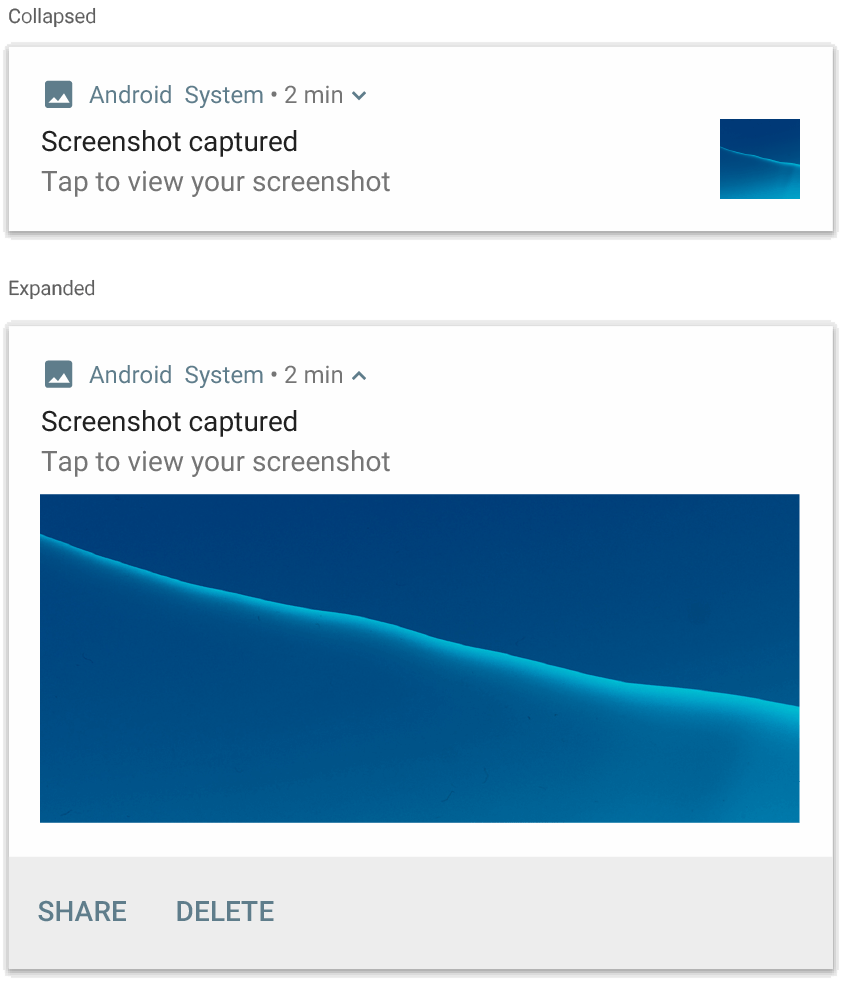
NotificationCompat.BigPictureStyle 的通知。
添加一大段文本
应用 NotificationCompat.BigTextStyle 以在通知的展开内容区域中显示文本:
notification = NotificationCompat.Builder(context, CHANNEL_ID) .setSmallIcon(R.drawable.ic_logo) .setContentTitle("Sender name") .setContentText("Email subject") .setLargeIcon(Icon.createWithResource(context, R.drawable.dog)) .setStyle( NotificationCompat.BigTextStyle() .bigText(someVeryLongMessage) ) .build()
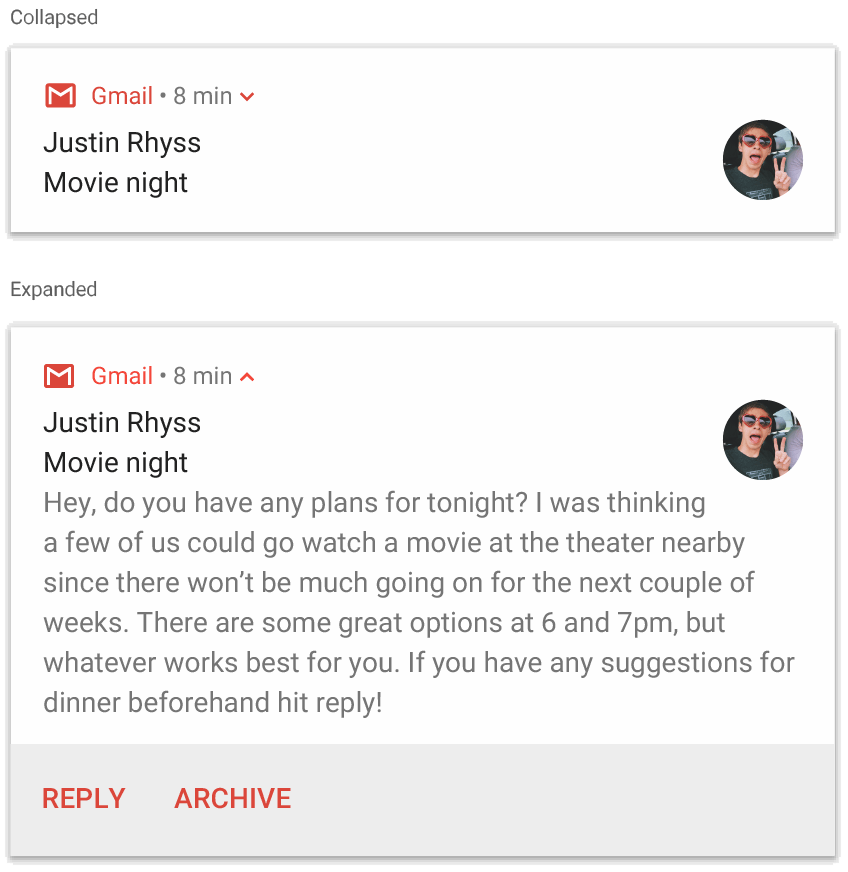
NotificationCompat.BigTextStyle 的通知。
创建收件箱样式的通知
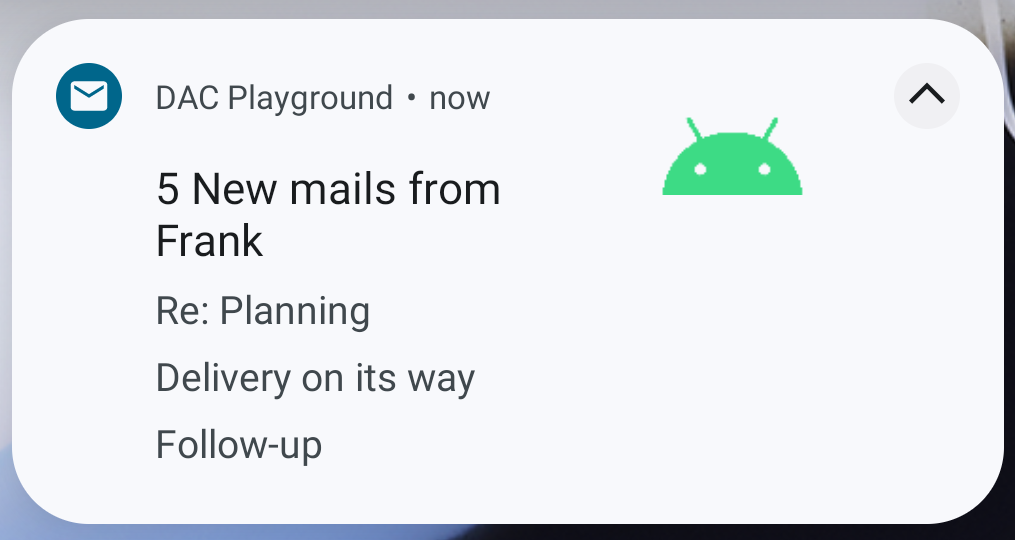
如果您想添加多行简短摘要(例如传入电子邮件中的摘要),请对通知应用 NotificationCompat.InboxStyle。这样,您就可以添加多段内容文本,每段文本都会被截断为一行,而不是像 NotificationCompat.BigTextStyle 那样提供一行连续的文本。
如需添加新行,请调用 addLine() 最多 6 次,如以下示例所示。如果您添加了超过六行,则只有前六行可见。
notification = NotificationCompat.Builder(context, CHANNEL_ID) .setSmallIcon(R.drawable.mail) .setContentTitle("5 New mails from Frank") .setContentText("Check them out") .setLargeIcon(bitmapImage) .setStyle( NotificationCompat.InboxStyle() .addLine("Re: Planning") .addLine("Delivery on its way") .addLine("Follow-up") ) .build()
结果如下图所示:
在通知中显示对话
应用 NotificationCompat.MessagingStyle 可在任意数量的用户之间显示依序消息。这非常适合即时通讯应用,因为它通过分别处理发送者姓名和消息文本,为每条消息提供一致的布局,并且每条消息可以有多行。
如需添加新消息,请调用 addMessage(),并传递消息文本、接收时间和发送者姓名。您也可以将此信息作为 NotificationCompat.MessagingStyle.Message 对象传递,如以下示例所示:
val message1 = NotificationCompat.MessagingStyle.Message( messages[0].text, messages[0].time, messages[0].sender ) val message2 = NotificationCompat.MessagingStyle.Message( messages[1].text, messages[1].time, messages[1].sender ) notification = NotificationCompat.Builder(context, CHANNEL_ID) .setSmallIcon(R.drawable.ic_logo) .setStyle( NotificationCompat.MessagingStyle(Person.Builder().setName("Me").build()) .addMessage(message1) .addMessage(message2) ) .build()
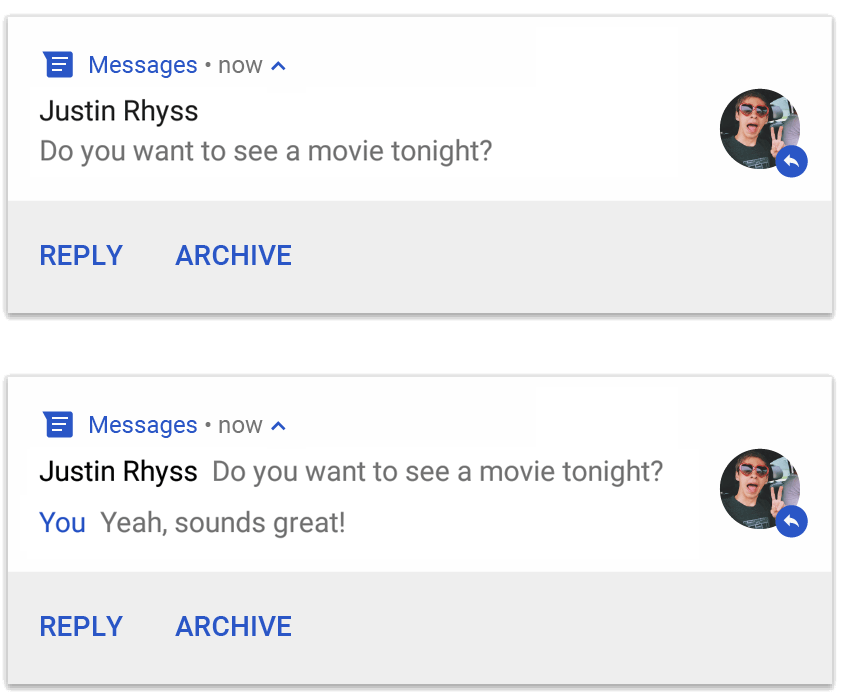
NotificationCompat.MessagingStyle 的通知。
使用 NotificationCompat.MessagingStyle 时,系统会忽略为 setContentTitle() 和 setContentText() 指定的所有值。
您可以调用 setConversationTitle() 来添加显示在对话上方的标题。这可能是用户创建的群组名称,或者如果群组没有特定名称,则可能是对话参与者列表。
请勿为一对一对话设置对话标题,因为系统会将此字段的存在视为对话是群组的提示。
此样式仅适用于搭载 Android 7.0(API 级别 24)及更高版本的设备。
如前所述,使用兼容性库 (NotificationCompat) 时,带有 MessagingStyle 的通知会自动回退到受支持的展开式通知样式。
为聊天对话构建此类通知时,请添加直接回复操作。
使用媒体控件创建通知
应用 MediaStyleNotificationHelper.MediaStyle 以显示媒体播放控件和曲目信息。
在构造函数中指定关联的 MediaSession。这样,Android 就可以显示有关媒体的正确信息。
最多可调用 addAction() 五次,以显示最多五个图标按钮。
调用 setLargeIcon() 以设置专辑封面。
与其他通知样式不同,MediaStyle 还允许您通过指定三个操作按钮来修改收起尺寸的内容视图,这些按钮也会显示在收起视图中。为此,请向 setShowActionsInCompactView() 提供操作按钮索引。
以下示例展示了如何创建包含媒体控件的通知:
notification = NotificationCompat.Builder(context, CHANNEL_ID) // Show controls on lock screen even when user hides sensitive content. .setVisibility(NotificationCompat.VISIBILITY_PUBLIC) .setSmallIcon(com.example.compose.snippets.R.drawable.play) // Add media control buttons that invoke intents in your media service .addAction(R.drawable.previous, "Previous", null /* Add valid intent */) // #0 .addAction(R.drawable.pause, "Pause", null /* Add valid intent */) // #1 .addAction(R.drawable.next, "Next", null /* Add valid intent */) // #2 // Apply the media style template. .setStyle(MediaStyleNotificationHelper.MediaStyle(mediaSession) .setShowActionsInCompactView(1 /* #1: pause button */)) .setContentTitle("Wonderful music") .setContentText("My Awesome Band") .setLargeIcon(bitmapImage) .build()
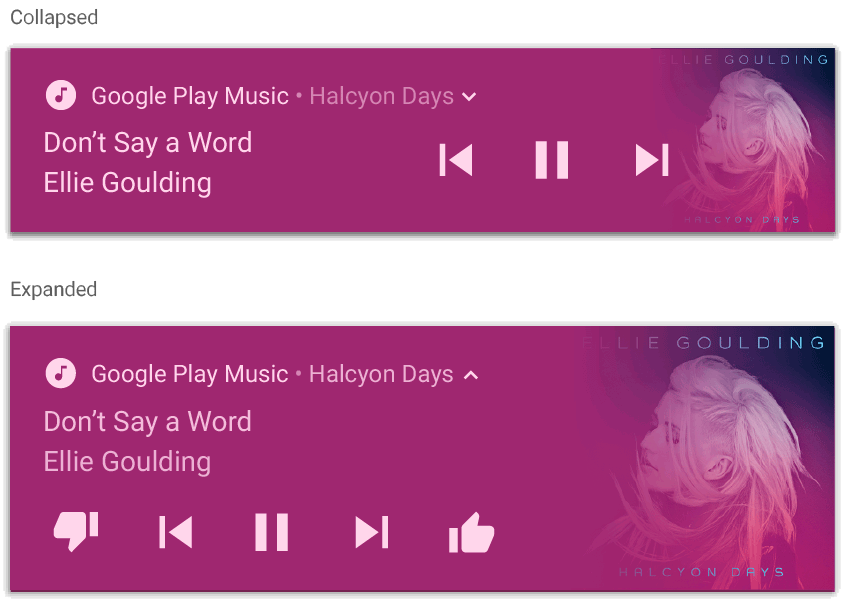
MediaStyleNotificationHelper.MediaStyle 的通知。
其他资源
如需详细了解 MediaStyle 和可展开的通知,请参阅以下参考文档。