Wear OS devices are often used for long-running experiences, such as tracking a
workout. These experiences may also provide important information that the user
cares about and needs quick access to.
This presents a user experience challenge: if a user starts a task and then
navigates away to the watch face, they should still be able to do each of the
following:
- Continue to receive important updates.
- Navigate back to the task in one tap.
Returning to the app using the launcher can be difficult, especially while on
the move, creating unnecessary friction.
As of Wear OS 7, the solution is to pair an ongoing notification with an
[`OngoingActivity`](https://developer.android.com/reference/androidx/wear/ongoing/OngoingActivity.md.txt), or a [Live Update notification](https://developer.android.com/training/wearables/notifications/live-updates.md.txt). This lets the
device display information about the long-running activity across the user
interface, enabling features like the tappable icon at the bottom of the watch
face. This indicator keeps users aware of the background task, and it provides a
one-tap way to return to the app.
An ongoing activity or Live Update also keeps your app visible for longer,
preventing the system from returning to the watch face after a period of
inactivity. For more information, see [Keep your app visible on Wear](https://developer.android.com/training/wearables/always-on.md.txt#background).
Use an ongoing activity or [Live Update](https://developer.android.com/training/wearables/notifications/live-updates.md.txt) notification for experiences that
are likely to last longer than one minute, or in cases where the user is likely
to navigate away from your app before the task is complete.
**Appropriate uses:** tracked workouts; timers; active rideshare tracking;
longer voice recording, such as a meeting; and shopping lists that need to be
available while user is in a store
**Inappropriate uses:** recording short voice messages, promotions, the status
of an updating app, and upcoming calendar events.
> **Important:** Using an [`OngoingActivity`](https://developer.android.com/reference/androidx/wear/ongoing/OngoingActivity.md.txt) or [Live Update](https://developer.android.com/training/wearables/notifications/live-updates.md.txt) in these
> scenarios is a requirement under [Wear OS App Quality guidelines WO-V4](https://developer.android.com/docs/quality-guidelines/wear-app-quality.md.txt#ongoing-activity).
For example, in this workout app, the information can appear on the user's watch
face as a tappable running icon:
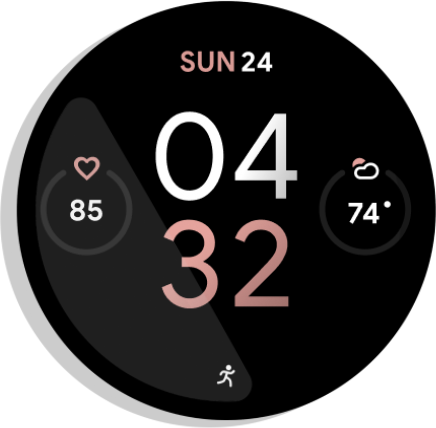
**Figure 1.** Activity indicator.
An ongoing notification also surfaces information in the **Recents** section of
the global app launcher. This provides another convenient place for users to see
the status of their task and re-engage with the app:
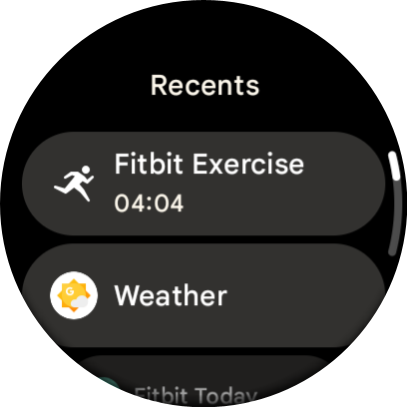
**Figure 2.** Global launcher.
The following are good situations to use an ongoing notification tied to an
Ongoing Activity:
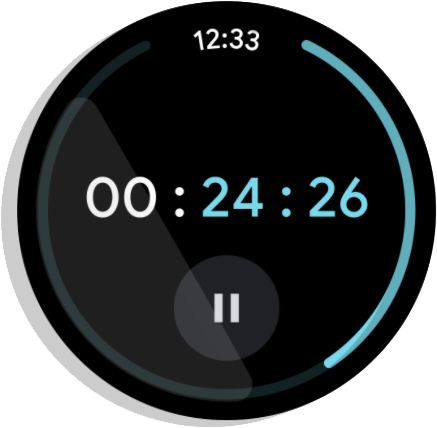
**Figure 3.** **Timer:** Actively counts down time and ends when the timer is
paused or stopped.
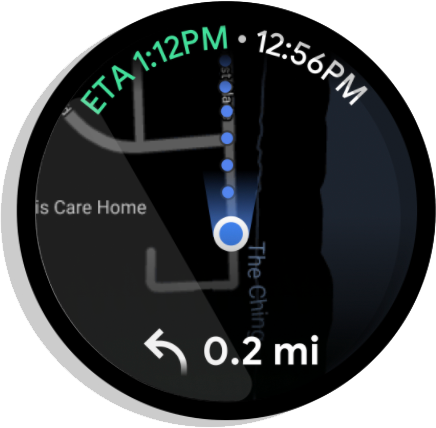
**Figure 4.** **Turn by turn navigation:** Announces directions to a
destination. Ends when the user reaches the destination or stops
navigation.
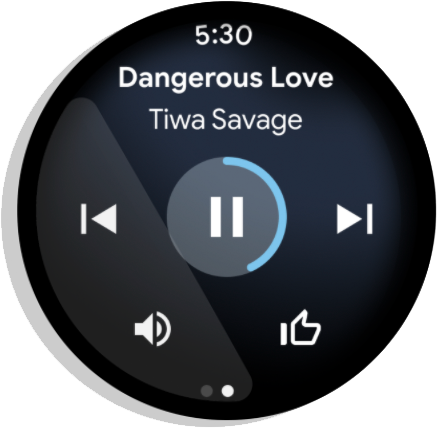
**Figure 5.** **Media:** Plays music throughout a session. Ends immediately
after the user pauses the session.
Wear creates Ongoing Activities automatically for media apps.
See the [Ongoing Activity codelab](https://developer.android.com/codelabs/ongoing-activity) for an in-depth example of creating
Ongoing Activities for other kinds of apps.
## Setup
To start using the Ongoing Activity API in your app, add the following
dependencies to your app's `build.gradle` file:
dependencies {
implementation "androidx.wear:wear-ongoing:1.1.0"
implementation "androidx.core:core:1.19.1"
}
## Create an Ongoing Activity
The process involves three steps:
1. Create a standard [`NotificationCompat.Builder`](https://developer.android.com/reference/androidx/core/app/NotificationCompat.Builder.md.txt) and configure it as ongoing.
2. Create and configure an [`OngoingActivity`](https://developer.android.com/reference/androidx/wear/ongoing/OngoingActivity.md.txt) object, passing the notification builder to it.
3. Apply the Ongoing Activity to the notification builder and post the resulting notification.
### Create and configure the notification
Start by creating a **`NotificationCompat.Builder`** . The key step is to call
[`setOngoing(true)`](https://developer.android.com/reference/android/app/Notification.Builder.md.txt#setOngoing(boolean)) to mark it as an ongoing notification. You can also set
other notification properties at this stage, like the small icon and category.
```kotlin
// Create a PendingIntent to pass to the notification builder
val pendingIntent =
PendingIntent.getActivity(
this,
0,
Intent(this, AlwaysOnActivity::class.java).apply {
flags = Intent.FLAG_ACTIVITY_SINGLE_TOP
},
PendingIntent.FLAG_UPDATE_CURRENT or PendingIntent.FLAG_IMMUTABLE,
)
val notificationBuilder = NotificationCompat.Builder(this, CHANNEL_ID)
.setContentTitle("Always On Service")
.setContentText("Service is running in background")
.setSmallIcon(R.drawable.animated_walk)
// Category helps the system prioritize the ongoing activity
.setCategory(NotificationCompat.CATEGORY_WORKOUT)
.setContentIntent(pendingIntent)
.setVisibility(NotificationCompat.VISIBILITY_PUBLIC)
.setOngoing(true) // Important!
```
### Create the OngoingActivity
Next, create an instance of `OngoingActivity` using its builder. The
`OngoingActivity.Builder` requires a `Context`, a notification ID, and the
`NotificationCompat.Builder` you created in the previous step.
Configure the key properties that will be displayed on the new UI surfaces:
- **Animated and static icons**: Provide icons that are displayed on the watch face in active and ambient modes.
- **Touch intent** : A `PendingIntent` that brings the user back to your app when they tap the Ongoing Activity icon. You can reuse the `pendingIndent` created in the previous step.
```kotlin
val ongoingActivity =
OngoingActivity.Builder(applicationContext, NOTIFICATION_ID, notificationBuilder)
// Sets the icon that appears on the watch face in active mode.
.setAnimatedIcon(R.drawable.animated_walk)
// Sets the icon that appears on the watch face in ambient mode.
.setStaticIcon(R.drawable.ic_walk)
// Sets the tap target to bring the user back to the app.
.setTouchIntent(pendingIntent)
.build()
```
### Apply to the notification and post
The final step is to link the `OngoingActivity` with the notification and then
post it. The [`ongoingActivity.apply()`](https://developer.android.com/reference/androidx/wear/ongoing/OngoingActivity.md.txt#apply(android.content.Context)) method modifies the original
notification builder, adding the necessary data so the system can display it on
the extra surfaces. After applying it, you can build and post the notification
as usual.
```kotlin
// This call modifies notificationBuilder to include the ongoing activity data.
ongoingActivity.apply(applicationContext)
// Post the notification.
startForeground(NOTIFICATION_ID, notificationBuilder.build())
```
## Add dynamic status text to the launcher
The preceding code adds the tappable icon to the watch face. To provide even
richer, real-time updates in the launcher's **Recents** section, create a
[`Status`](https://developer.android.com/reference/androidx/wear/ongoing/Status.md.txt) object and attach it to your `OngoingActivity`. If you don't
provide a custom `Status`, the system defaults to using the notification's
content text (set using [`setContentText()`](https://developer.android.com/reference/android/app/Notification.Builder.md.txt#setContentText(java.lang.CharSequence))). To display dynamic text, use a
`Status.Builder`. You can define a template string with placeholders and provide
`Status.Part` objects to fill those placeholders. The `Status.Part` can be
dynamic, such as a stopwatch or timer.
The following example shows how to create a status that displays "Run for \[a
stopwatch timer\]":
```kotlin
// Define a template with placeholders for the activity type and the timer.
val statusTemplate = "#type# for #time#"
// Set the start time for a stopwatch.
// Use SystemClock.elapsedRealtime() for time-based parts.
val runStartTime = SystemClock.elapsedRealtime()
val ongoingActivityStatus = Status.Builder()
// Sets the template string.
.addTemplate(statusTemplate)
// Fills the #type# placeholder with a static text part.
.addPart("type", Status.TextPart("Run"))
// Fills the #time# placeholder with a stopwatch part.
.addPart("time", Status.StopwatchPart(runStartTime))
.build()
```
Finally, link this `Status` to your `OngoingActivity` by calling `setStatus()`
on the `OngoingActivity.Builder`.
```kotlin
val ongoingActivity =
OngoingActivity.Builder(applicationContext, NOTIFICATION_ID, notificationBuilder)
// ...
// Add the status to the OngoingActivity.
.setStatus(ongoingActivityStatus)
.build()
```
## Additional customizations
Beyond `Status`, you can customize your Ongoing Activity or notifications in the
following ways. However, these customizations might not be used, based on the
OEM's implementation.
**Ongoing Notification**
- The **category** set determines the priority of the Ongoing Activity.
- **`CATEGORY_CALL`:** an incoming voice or video call or a similar synchronous communication request
- **`CATEGORY_NAVIGATION`:** a map or turn-by-turn navigation
- **`CATEGORY_TRANSPORT`:** media transport control for playback
- **`CATEGORY_ALARM`:** an alarm or timer
- **`CATEGORY_WORKOUT`:** a workout
- **`CATEGORY_LOCATION_SHARING`**: temporary location sharing category
- **`CATEGORY_STOPWATCH`:** stopwatch
**Ongoing Activity**
- **Animated icon:** a black and white vector, preferably with a transparent
background. Displays on the watch face in active mode. If the animated icon
is not provided, the default notification icon is used. The default
notification icon is different for every application.
- **Static icon:** a vector icon with transparent background. Displays on the
watch face in ambient mode. If the animated icon isn't set, the static icon
is used on the watch face in active mode. If this is not provided, the
notification icon is used. If neither is set, an exception is thrown. (The
app launcher still uses the app icon.)
- **OngoingActivityStatus:** plain text or a `Chronometer`. Displays in the
**Recents** section of the app launcher. If not provided, the notification
*"context text"* is used.
- **Touch Intent:** a `PendingIntent` used to switch back to the app if the
user taps on the Ongoing Activity icon. Displays on the watch face or on the
launcher item. It can be different from the original intent used to launch
the app. If not provided, the notification's content intent is used. If
neither is set, an exception is thrown.
- **[`LocusId`](https://developer.android.com/reference/android/content/LocusId.md.txt):** ID that assigns the launcher shortcut that the ongoing
activity corresponds to. Displays on the launcher in the **Recents** section
while the activity is ongoing. If not provided, the launcher hides all app
items in the **Recents** section from the same package and only shows the
Ongoing Activity.
- **Ongoing Activity ID:** ID used to disambiguate calls to
[`fromExistingOngoingActivity()`](https://developer.android.com/reference/androidx/wear/ongoing/OngoingActivity.md.txt#fromExistingOngoingActivity(android.content.Context)) when an application has more than one
Ongoing Activity.
## Update an Ongoing Activity
You should update the Ongoing Activity for the existing notification when you
need to change the status, instead of creating a new notification and Ongoing
Activity. To update the Ongoing Activity and the posted notification, use the
object you created before and call `update()`, as shown in the following
example:
```kotlin
ongoingActivity.update(context, newStatus)
```
In the cases where it is not possible to store a reference to the Ongoing
Activity, there is a static method to recover the Ongoing Activity. However,
this is less preferred:
```kotlin
OngoingActivity.recoverOngoingActivity(context)
?.update(context, newStatus)
```
## Stop an Ongoing Activity
When the app is finished running as an Ongoing Activity, it only needs to cancel
the ongoing notification.
You can also choose to cancel the notification or Ongoing Activity when it comes
to the foreground, then recreate them when going back into the background, but
this is not required.
### Pause an Ongoing Activity
If your app has an explicit stop action, continue the Ongoing Activity after it
is unpaused. For an app without an explicit stop action, end the activity when
it is paused.
## Key considerations
Remember the following things when working with the Ongoing Activity API:
- Set a static icon for your Ongoing Activity, either [explicitly](https://developer.android.com/reference/androidx/wear/ongoing/OngoingActivity.Builder.md.txt#setStaticIcon(android.graphics.drawable.Icon)) or as a
fallback using the [notification](https://developer.android.com/reference/androidx/core/app/NotificationCompat.Builder.md.txt#setSmallIcon(int)). If you don't, you get an
`IllegalArgumentException`.
- Use black and white vector icons with transparent backgrounds.
- Set a touch intent for your Ongoing Activity, either [explicitly](https://developer.android.com/reference/androidx/wear/ongoing/OngoingActivity.Builder.md.txt#setTouchIntent(android.app.PendingIntent)) or as
a fallback using the [notification](https://developer.android.com/reference/androidx/core/app/NotificationCompat.Builder.md.txt#setContentIntent(android.app.PendingIntent)). If you don't, you get an
`IllegalArgumentException`.
- If your app has more than one `MAIN LAUNCHER` activity declared in the
manifest, publish a [dynamic shortcut](https://developer.android.com/guide/topics/ui/shortcuts/creating-shortcuts#dynamic) and associate it with your
Ongoing Activity using `LocusId`.
## Publish media notifications when playing media on Wear OS devices
If media content is playing on a Wear OS device, [publish a media
notification](https://developer.android.com/reference/android/app/Notification.MediaStyle). This lets the system create the corresponding ongoing
activity.
> [!NOTE]
> **Note:** If media content is playing on a handheld device and not on a Wear OS device, don't post a media notification on the Wear OS device.
If you are using Media3, the notification is published automatically. If you
create your notification manually, it should use the
[`MediaStyleNotificationHelper.MediaStyle`](https://developer.android.com/reference/androidx/media3/session/MediaStyleNotificationHelper.MediaStyle.md.txt), and the corresponding
`MediaSession` should have its [session activity](https://developer.android.com/reference/androidx/media3/session/MediaSession.Builder.md.txt#setSessionActivity(android.app.PendingIntent)) populated.
## Recommended for you
- Note: link text is displayed when JavaScript is off
- [Create a notification {:#notification}](https://developer.android.com/develop/ui/views/notifications/build-notification)
- [Engage Wear OS users in new ways with the Ongoing Activity API](https://developer.android.com/codelabs/ongoing-activity)
- [Create an expandable notification {:#expandable-notification}](https://developer.android.com/develop/ui/views/notifications/expanded)