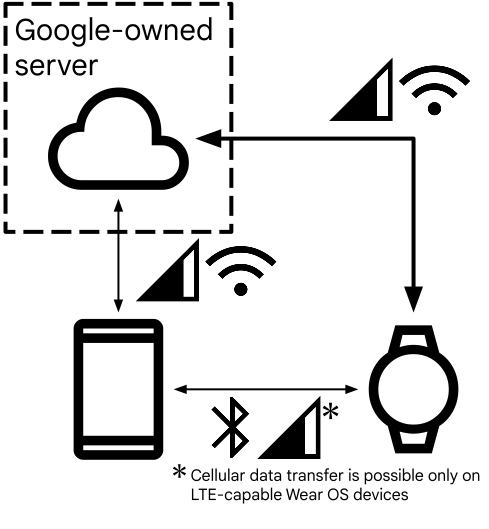
 **Figure 1.** A sample of network of nodes with handheld and Wear OS devices.
The Wearable Data Layer API, which is part of Google Play services, provides a
communication channel between wearable devices (like smart watches) and
connected handheld devices (usually smartphones). It is a way to synchronize and
transfer data between the devices.
**Note:** This API is only available on Wear OS watches and
paired Android devices. For Wear OS watches paired with iOS phones, apps can
query other cloud-based APIs if internet connectivity is available. For more
information on these other APIs, visit
[Network access and sync on
Wear OS](https://developer.android.com/training/wearables/data/network-access).
**Caution:** Because the data layer APIs are designed for
communication between handhelds and wearables, these are the only APIs you can
use to set up communication between these devices. For example, don't try to
open low-level sockets to create a communication channel.
## Common use cases
Use the Data Layer API when the interaction is strictly between the
watch and phone. For example:
- **Remote Control**: The watch acts as a remote for the phone (e.g., controlling a music player running on the phone, sliding a presentation, acting as a camera shutter).
- **Handheld App Launching**: The "Open on Phone" button feature.
- **Authentication Bridging**: Sending a session token from the phone to the watch during initial setup.
Many common scenarios should instead use your existing cloud infrastructure, for
example:
- **Saving Data**: Workouts, notes.
- **Fetching Content**: Loading a list of past workouts, downloading music, fetching weather.
- **Syncing State**: If the user changes their profile photo on the web, the watch updates using the cloud, not by querying the phone.
For these scenarios, use your own existing endpoints and infrastructure, instead
of the Data Layer API.
## Options for communication
Data is transferred in one of the following ways:
1. **Directly**, when there is an established Bluetooth connection between the Wear OS device and another device.
2. **Over an available network**, such as LTE or Wi-Fi, using a network node on Google's servers as an intermediary.
All Data Layer clients may exchange data either using Bluetooth or using the
cloud, depending on connections available to the devices. Assume that data
transmitted using Data Layer may at some point use Google-owned servers.
### Bluetooth
When devices are connected using Bluetooth, Data Layer uses this connection.
There is a single encrypted channel between the devices, using standard
Bluetooth encryption, managed by Google Play services.
### Cloud
Data is automatically routed through Google Cloud when Bluetooth is unavailable.
All data transferred through Google Cloud is end-to-end encrypted.
## Security of communications
Google Play services enforces the following restrictions to provide more secure
communication between the app installed on a Wear OS device and the same app
installed on a nearby handheld device:
- The package name must match across devices.
- The signature of the package must match across devices.
No other apps have access to the data regardless of connection type.
## Setup
The Wearable Data Layer API has the following dependencies:
- The latest version of [Google Play services](https://developers.google.com/android).
- A Wear OS device or Wear OS emulator.
Include the following dependency in the build.gradle file of your Wear module:
```kotlin
dependencies {
...
implementation("com.google.android.gms:play-services-wearable:20.0.1")
}
```
### Facilitate the initial pairing process
[Horologist](https://github.com/google/horologist) provides several helper libraries on top of platform APIs.
It includes a [data layer library](https://google.github.io/horologist/datalayer-helpers-guide/) that helps establish a connection between
a mobile device and a Wear OS device. Additionally, it provides convenient APIs
to do the following:
- Install the app on the other device.
- Launch the app on the other device.
- Launch a specific activity on the other device.
- Launch the companion app.
## Access the data layer
To call the Data Layer API, use the [`Wearable`](https://developers.google.com/android/reference/com/google/android/gms/wearable/Wearable) class to get instances of
the various client classes, such as [`DataClient`](https://developers.google.com/android/reference/com/google/android/gms/wearable/DataClient) and [`MessageClient`](https://developers.google.com/android/reference/com/google/android/gms/wearable/MessageClient).
For more information, refer to the [DataLayer sample](https://github.com/android/wear-os-samples/tree/main/DataLayer).
## Use a minimal client
To create a client, see the following example code:
```kotlin
val dataClient = Wearable.getDataClient(this)
```
> [!CAUTION]
> **Caution:** Before using the Wearable Data Layer API, check that it's available on a device; otherwise, an exception occurs. Use the [`GoogleApiAvailability`](https://developers.google.com/android/reference/com/google/android/gms/common/GoogleApiAvailability) API:
```kotlin
val available = try {
GoogleApiAvailability.getInstance()
.checkApiAvailability(client)
.await()
true
} catch (e: AvailabilityException) {
// API is not available in this device.
false
}
```
The context can be any valid Android context. If you are using the API within
the scope of an `Activity`, use the `getDataClient()` method of the `Wearable`
class. This lets certain interactions appear as dialogs rather than as
notifications, such as when the user is asked to update their version of Google
Play services.
By default, callbacks to listeners are made on the app's main UI thread. To have
callbacks made on a different thread, use a [`WearableOptions`](https://developers.google.com/android/reference/com/google/android/gms/wearable/Wearable.WearableOptions) object to
specify a custom `Looper`.
For more information, see the [`WearableOptions.Builder`](https://developers.google.com/android/reference/com/google/android/gms/wearable/Wearable.WearableOptions.Builder) reference.
## Recreate client instances as necessary
Wearable API clients, such as [`DataClient`](https://developers.google.com/android/reference/com/google/android/gms/wearable/DataClient) and [`MessageClient`](https://developers.google.com/android/reference/com/google/android/gms/wearable/MessageClient), are
inexpensive to create. So instead of holding onto the clients, recreate them as
you need them, using the style that suits your app.
The client state, such as the set of registered listeners, is shared across all
clients and is preserved if Google Play services is updated while an app is
running.