TV devices provide a limited set of navigation controls for apps. Creating an
effective navigation scheme for your TV app depends on understanding these
limited controls as well as users' limitations while operating your app.
As you build your Android app for TV, pay special attention to how the user
navigates when using remote control buttons instead of a touchscreen.
## Principles
The goal is for navigation to feel natural and familiar without dominating the
user interface or diverting attention from content. The following principles
help set a baseline for a consistent and intuitive user experience across TV
apps.
**Efficient**
Simplify getting to content. Users want to access content
quickly, using a minimal number of clicks. Organize your information in
a way that requires the fewest screens.
**Predictable**
Follow best practices and recommendations to make navigation
predictable to users. Don't reinvent navigation patterns
unnecessarily, as this leads to confusion and unpredictability.
**Intuitive**
Simplify navigation enough to seamlessly support widely adopted user
behaviors. Don't over-complicate by adding unnecessary layers of
navigation.
## Controllers
Controllers come in a variety of styles, from a minimalist remote control to
complex game controllers. All controllers include a directional pad (D-pad) plus
select, home, and back buttons. Other buttons vary by model.
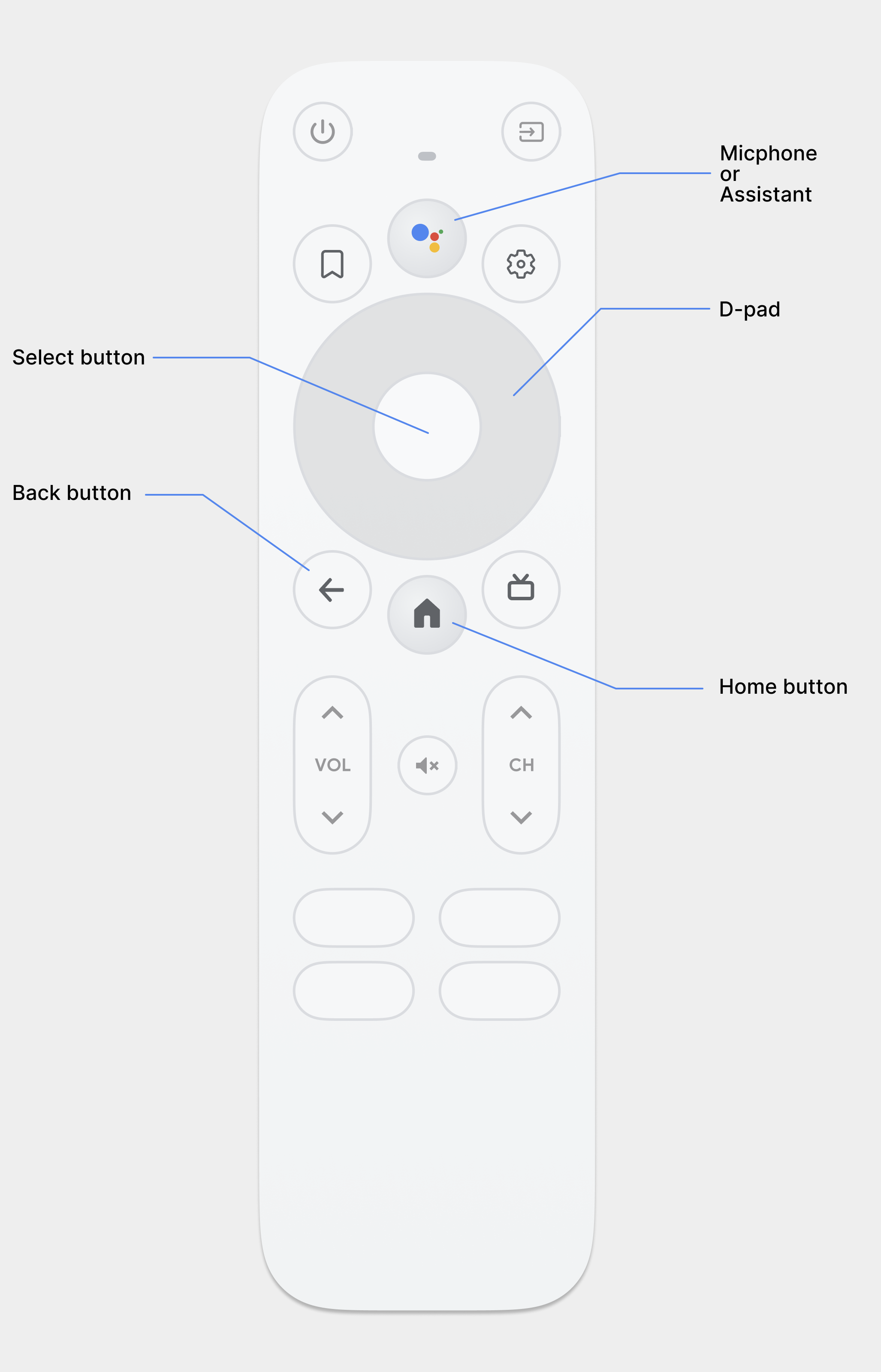 **Figure 1.** Example of a TV remote.
**D-pad**
The primary navigation method on TV is through the D-pad, which includes
up, down, left, and right directional
hardware buttons. The D-pad transfers focus from one object to the nearest
object in the direction of the button pressed.
**Select button**
Selects the on-screen item with focus.
**Home button**
Takes the user to the system Home screen.
**Back button**
Gives users a way to return to the previous view.
**Microphone button**
Invokes either Google Assistant or voice input.
> [!NOTE]
> **Note:** The remote control shown in figure 1 is for reference only. There are many layouts and styles of remotes and controllers, though all of them have the basic functionality described here. For more information, see [Manage TV controllers](https://developer.android.com/training/tv/get-started/controllers.md.txt).
## D-pad navigation
On a TV device, users navigate using either a D-pad or arrow
keys. This type of control limits movement to up, down, left, and right. To
build a great TV-optimized app, you must provide a navigation scheme where the
user can quickly learn how to navigate your app using these limited controls.
The Android framework handles directional navigation between layout elements
automatically, so you typically don't need to do anything extra for your app.
However, you should thoroughly test navigation with a D-pad controller to
discover any navigation problems.
Follow these guidelines to test that your app's navigation system works well
with a D-pad on a TV device:
- Ensure that a user with a D-pad controller can navigate to all visible controls on the screen.
- For scrolling lists with focus, make sure that the D-pad up and down buttons scroll the list and that the select button selects an item in the list. Verify that users can select an element in the list and that the list still scrolls when an element is selected.
- Ensure that switching between controls is straightforward and predictable.
### Modify directional navigation
The Android framework automatically applies a directional navigation scheme
based on the relative position of focusable elements in your layouts. Test the
generated navigation scheme in your app using a D-pad controller. After testing,
if you decide that you want users to move through your layouts in a specific
way, you can set up explicit directional navigation for your controls.
> [!NOTE]
> **Note:** Only use these attributes to modify the navigation order if the default order that the system applies does not work well.
The following code sample shows how to define the next control to receive focus
for a `TextView` layout object:
```xml
```
The following table lists all of the available navigation attributes for Android
user interface widgets:
| Attribute | Function |
|---|---|
| [`nextFocusDown`](https://developer.android.com/reference/android/R.attr.md.txt#nextFocusDown) | Defines the next view to receive focus when the user navigates down. |
| [`nextFocusLeft`](https://developer.android.com/reference/android/R.attr.md.txt#nextFocusLeft) | Defines the next view to receive focus when the user navigates left. |
| [`nextFocusRight`](https://developer.android.com/reference/android/R.attr.md.txt#nextFocusRight) | Defines the next view to receive focus when the user navigates right. |
| [`nextFocusUp`](https://developer.android.com/reference/android/R.attr.md.txt#nextFocusUp) | Defines the next view to receive focus when the user navigates up. |
To use one of these explicit navigation attributes, set the value to the
`android:id` of another widget in the layout. Be sure to set up the
navigation order as a loop, so that the last control directs focus back to the
first one.
### Provide clear focus and selection
The success of an app's navigation scheme on TV devices depends on whether
a user can quickly determine what user interface element is in focus. If
you don't provide a clear indication of the focused item, and therefore what
item a user can take action on, they can quickly become frustrated and exit your
app. For the same reason, it is important to always have an item in focus that a
user can take action on immediately after your app starts or any time it is
idle.
In your app layout and implementation, use color, size, animation, or a
combination of these attributes to help users determine what actions they
can take next. Use a uniform scheme for indicating focus across your
application.
Android provides [Drawable state list resources](https://developer.android.com/guide/topics/resources/drawable-resource.md.txt#StateList)
to implement highlights for focused and selected controls. The following code
example demonstrates how to enable visual behavior for a button to indicate that
a user has navigated to the control and then selected it:
```xml
```
The following layout XML sample code applies the previous state list drawable to
a `Button`:
```xml
```
Make sure to provide sufficient padding within the focusable and selectable
controls so that the highlights around them are clearly visible.
## Back button navigation
For consistency across apps on the platform, ensure the behavior of the back
button follows these guidelines.
### Use predictable back button behavior
To create a straightforward and predictable navigation experience, when the user
presses the remote's back button, take them to the previous destination.
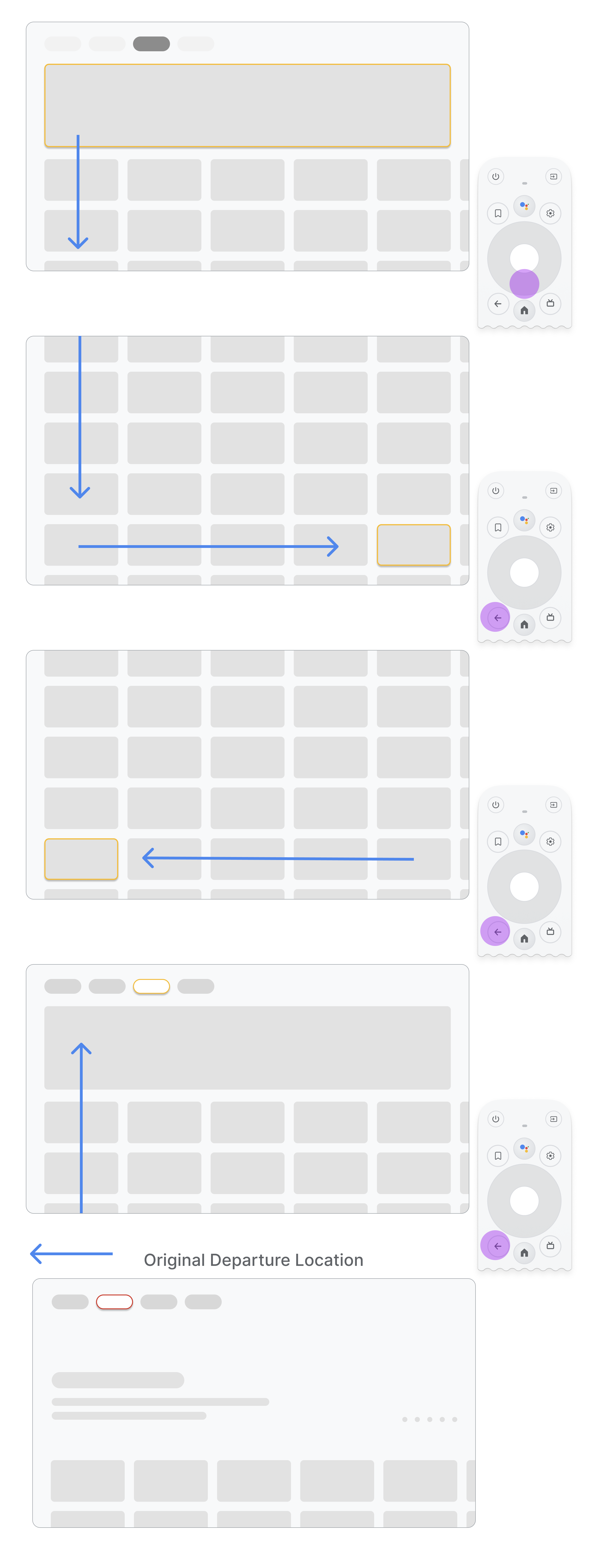 **Figure 2.** Flow using top navigation. 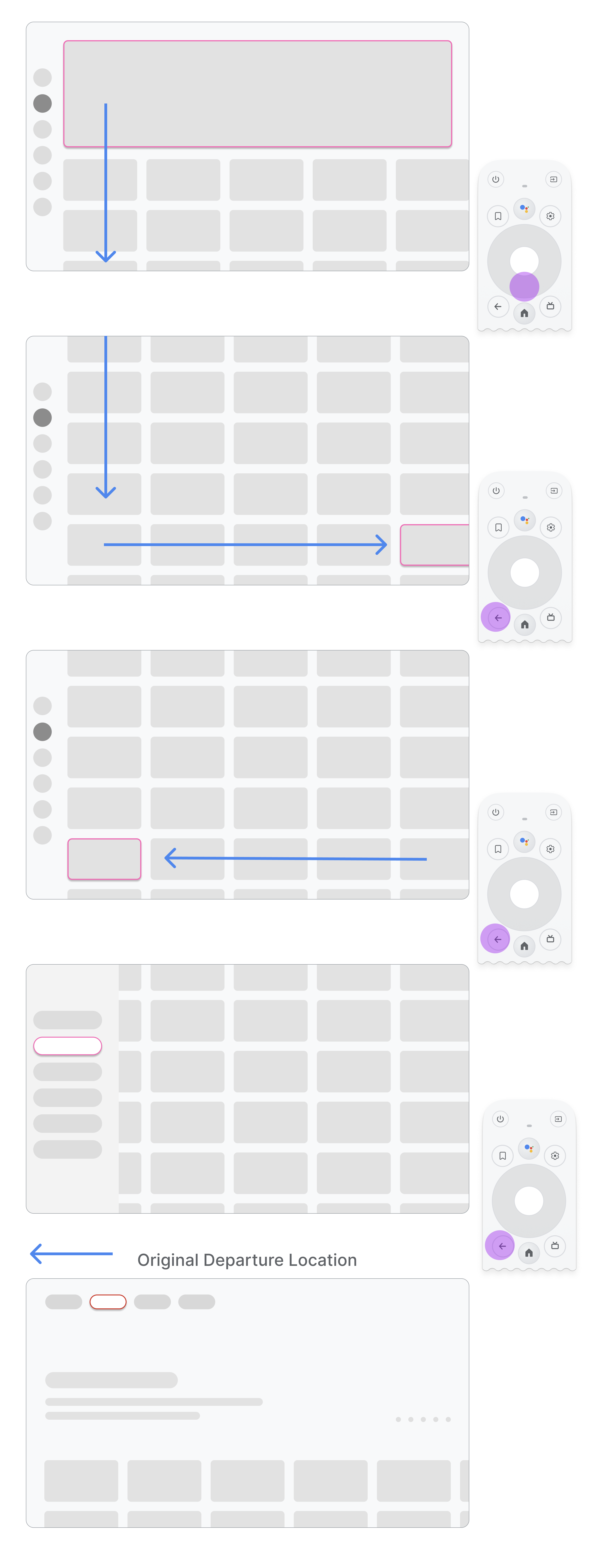 **Figure 3.** Flow using side navigation.
If the user navigates from a menu item to a card on the middle of the
page and then presses the back button, the result depends on whether the app
uses top navigation or left navigation:
- **App uses top navigation:** take the user back to the top of the page by scrolling quickly and activating focus on the menu.
- **App uses left navigation:** activate the left side menu and focus on the currently active menu item.
Ensure that the back button isn't gated by confirmation screens or part of an
infinite loop.
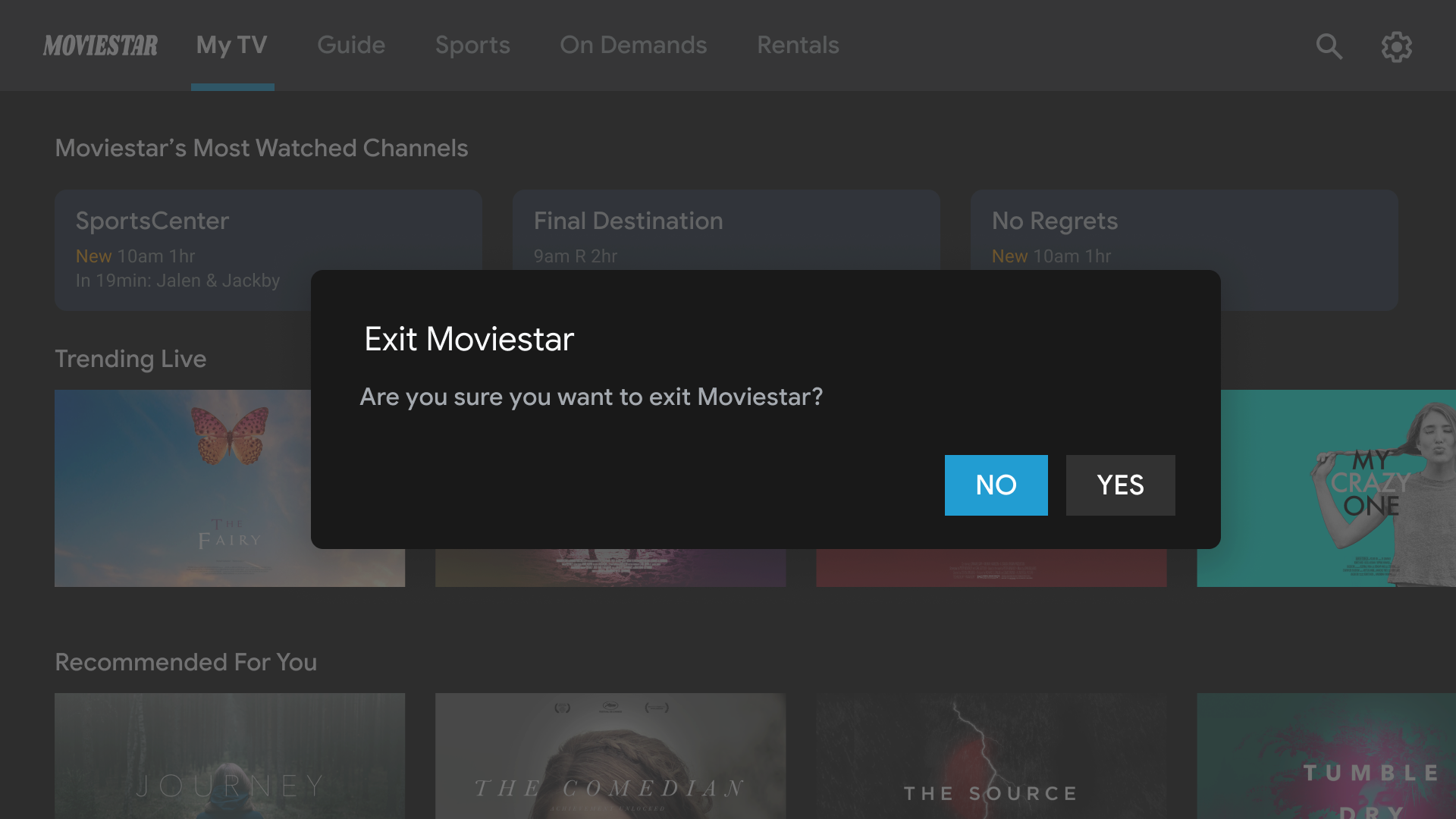 **Figure 4.** Exit gating
Don't.
Avoid exit gating. Let users exit out of the app without
confirmation.
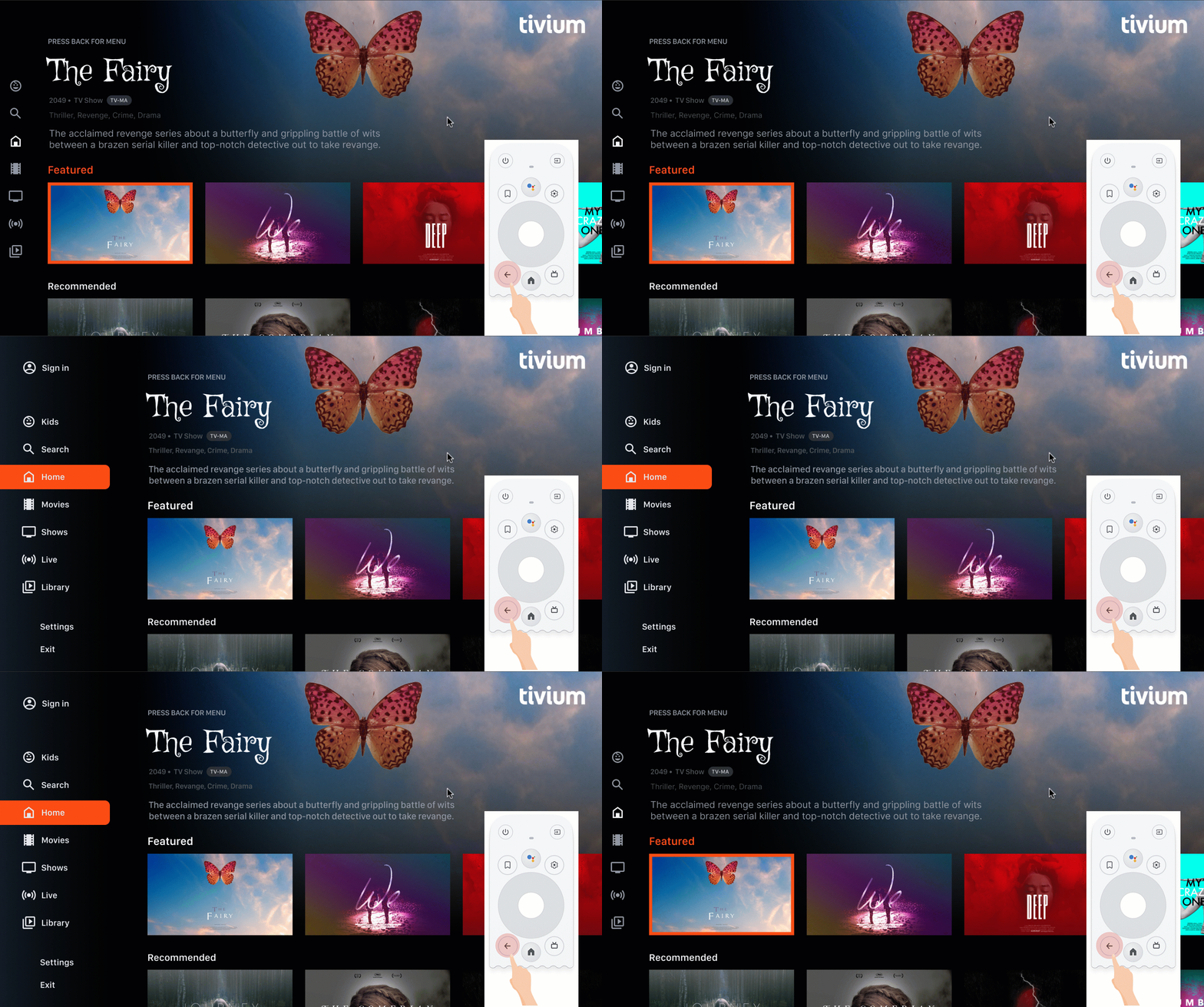 **Figure 5.** Navigation loop
Don't.
Never enter the infinite loop of closing and opening the
menu. Ideally, pressing the back button exits out of the app. Don't
show an exit button on the menu unless it's a special case, such
as a kids profile.
### Don't display an up or back button
Unlike on handheld devices, the back button on the remote is used to navigate
backward on a TV. It's not necessary to show a virtual back button on the
screen:
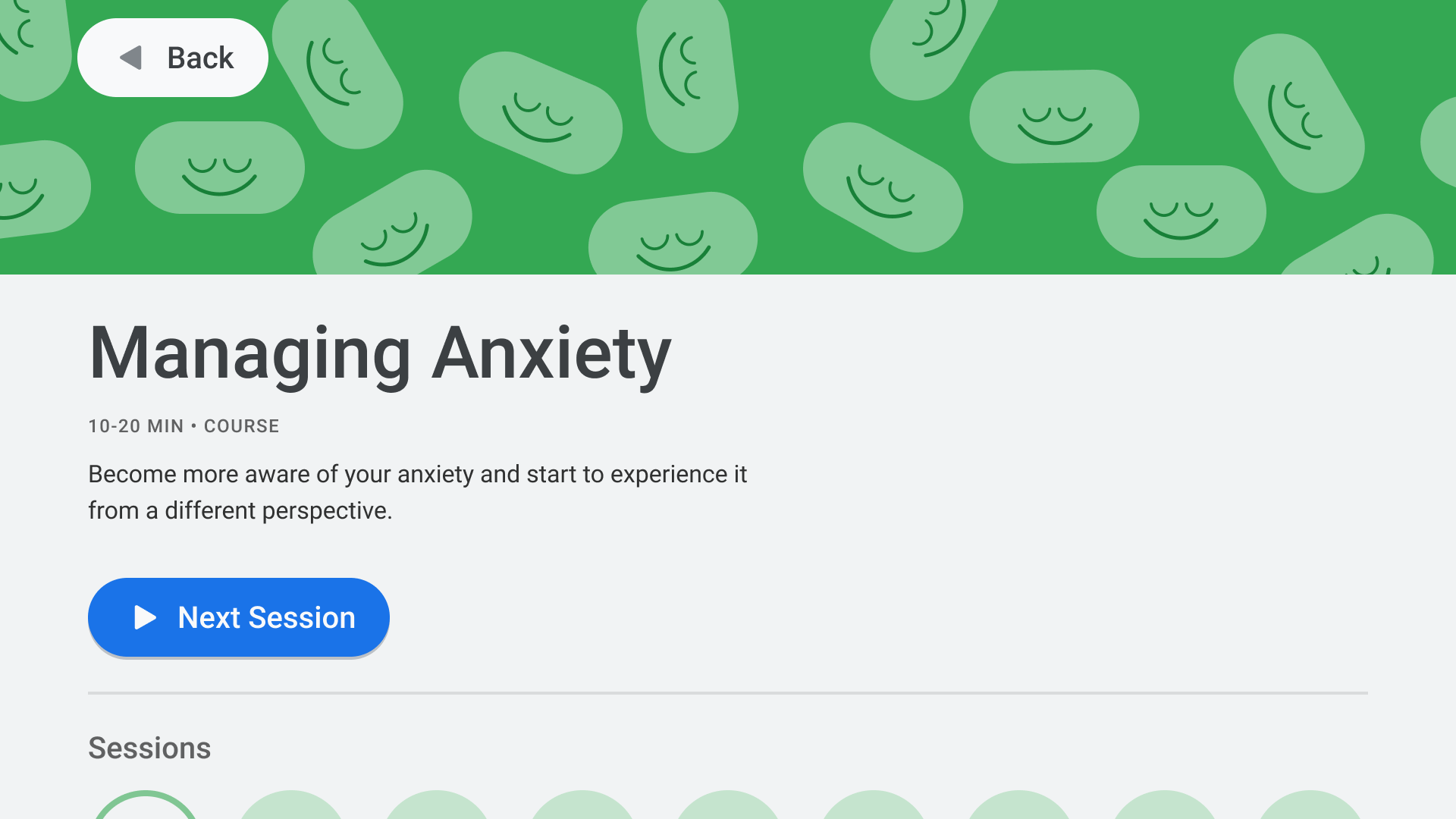 **Figure 6.** Soft back button
Don't.
### Show a cancel button if necessary
If the only visible actions are confirming, destructive, or purchase actions,
it's good practice to have a **Cancel** button that returns to the previous
destination:
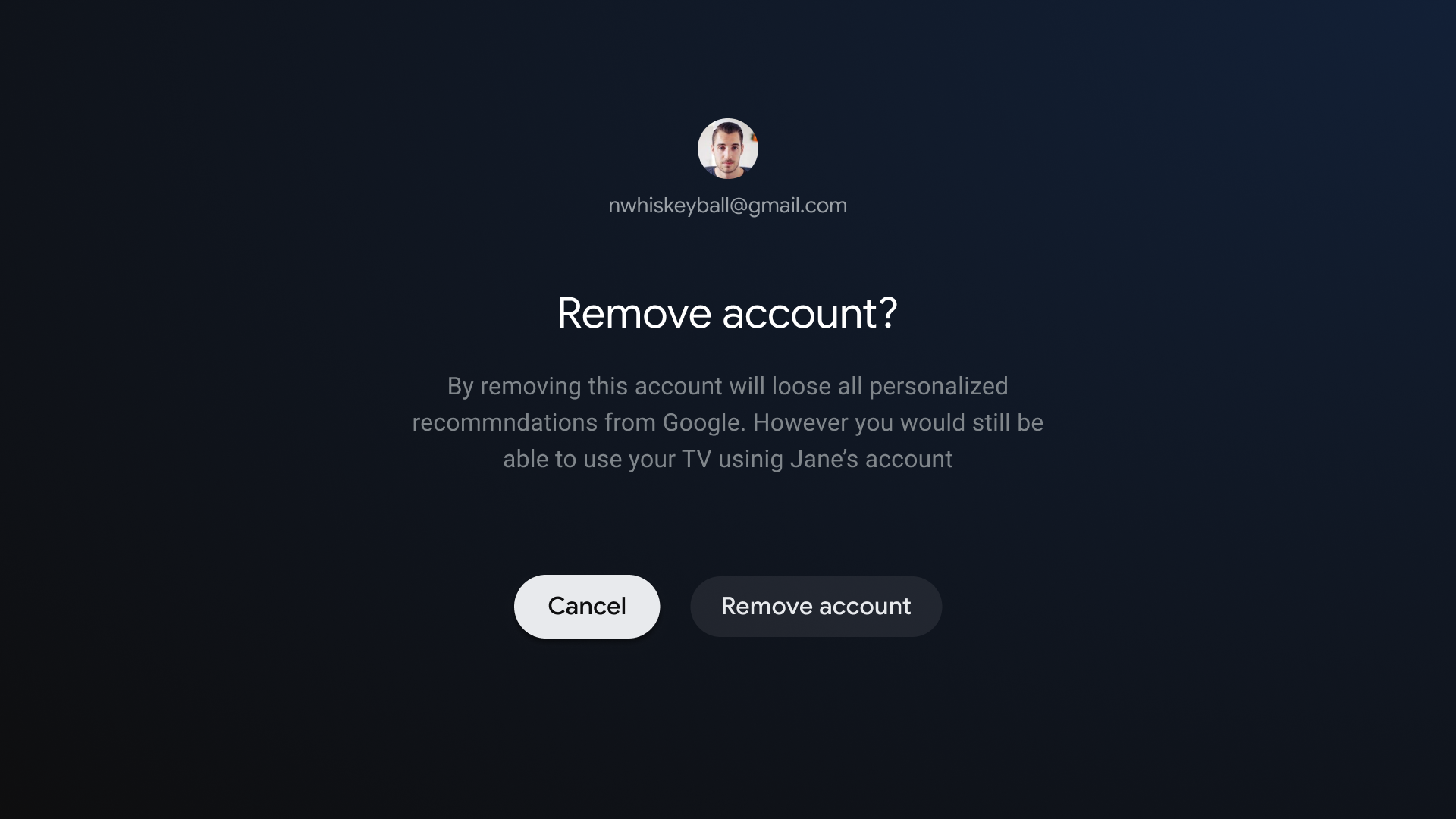 **Figure 7.** Soft cancel button.
Do.
### Implement back navigation
The Android framework generally handles back
navigation well, as it does for the D-pad. If you use the
[Navigation component](https://developer.android.com/guide/navigation.md.txt), you can support a variety of navigation graphs.
Occasionally, you might need to implement some custom behavior, such as having
the back button reset the focus to the beginning of a long list.
[`ComponentActivity`](https://developer.android.com/reference/androidx/activity/ComponentActivity.md.txt),
the base class for [`FragmentActivity`](https://developer.android.com/reference/androidx/fragment/app/FragmentActivity.md.txt)
and [`AppCompatActivity`](https://developer.android.com/reference/androidx/appcompat/app/AppCompatActivity.md.txt),
lets you control the behavior of the back button by using its
[`OnBackPressedDispatcher`](https://developer.android.com/reference/androidx/activity/OnBackPressedDispatcher.md.txt),
which you can retrieve by calling `getOnBackPressedDispatcher()`.
For more
information, see [Provide custom back navigation](https://developer.android.com/guide/navigation/navigation-custom-back.md.txt).
## Playback controls on TV
Video playback is one of the most important features on TV. It's important that
video players in apps across Android TV behave the same. Refer to the [playback
controls guidelines for TV](https://developer.android.com/training/tv/playback/controls).
### Live tab navigation
In addition to complying with the
[TV app quality requirements](https://developer.android.com/docs/quality-guidelines/tv-app-quality.md.txt), apps
with a live TV feed integrated on the Live tab must also meet frictionless
playback and direct-back requirements, as described in the following sections.
> [!NOTE]
> **Note:** These requirements will be enforced beginning in the first half of 2023 only for partners with a linear feed integrated on the Live tab. Failure to comply will result in the partner no longer being integrated on the Live tab.
#### Frictionless playback
Frictionless playback applies to in-app behavior following any Live or Linear
channel deep link from Google TV and Android TV.
When a user clicks a deep link, the following rules apply:
- **No delays:** Users must be led directly to channel playback without blocking or delaying screens, such as sign-in or sign-up flows or branding videos.
- **Cold boot exception:** If the deep link initiates the target app loading from a cold boot, the boot-up delay is permitted. App boot-up branding videos or animations are also allowed in this case.
- **Loading delay exception:** If tuning into the channel takes a few seconds, displaying branding is permitted. The duration must only be as long as it takes to load the channel.
If the user is signed out or isn't subscribed, you can block playback for a
paid channel to complete a sign-in or sign-up flow.
#### Direct-back
When users launch an app from a deep link on the Live tab, then press the
back button, they must be returned to the Live tab in a
single back press, regardless of how much time has elapsed. This direct-back
behavior is required for all Live tab deep links on Google TV and Android TV.
Live tab deep links are distinguished by an appended deep link parameter:
`?exit_on_back=[true|false]`. Apps must parse this parameter to determine
whether the app was launched from the Live tab. If `exit_on_back` is `true`,
apps must implement the direct-back behavior.
Note that if the user presses any button other than back button as the
first button press after the deep link, then the direct-back requirement doesn't
apply, and only the standard [back button
behavior](https://developer.android.com/training/tv/get-started/controllers#back-button) is required.
For example, suppose after following a deep link the user presses the D-pad's
select button, which brings up a controls overlay. The user waits for the
overlay to disappear, and then presses the back button. Since the first button
pressed after following the deep link was the D-pad select button, the
direct-back requirement does not apply. Instead, the normal app back stack
logic applies.
Repeated presses of the back button must lead the user to the app root
and then back to Google TV or Android TV, without any infinite loops. For more
information, see the [Predictable back button
behavior](https://developer.android.com/training/tv/get-started/navigation#predictable_back_button_behavior)
section.
## Navigation architecture
A well-defined navigation architecture helps users understand where they are in
your app and how to access different content. Consider the following aspects of
navigation design.
### Fixed start destination
The first screen the user sees when they launch the app from the launcher
is also the last screen the user sees when they return to the
launcher after pressing the back button.
> [!NOTE]
> **Note:** Some apps display a splash screen while preparing the main app UI. Don't include a splash screen in the back stack.
### Deep linking simulates manual navigation
Whether deep linking or manually navigating to a specific destination, users can
use the back button to navigate through destinations back to the start
destination.
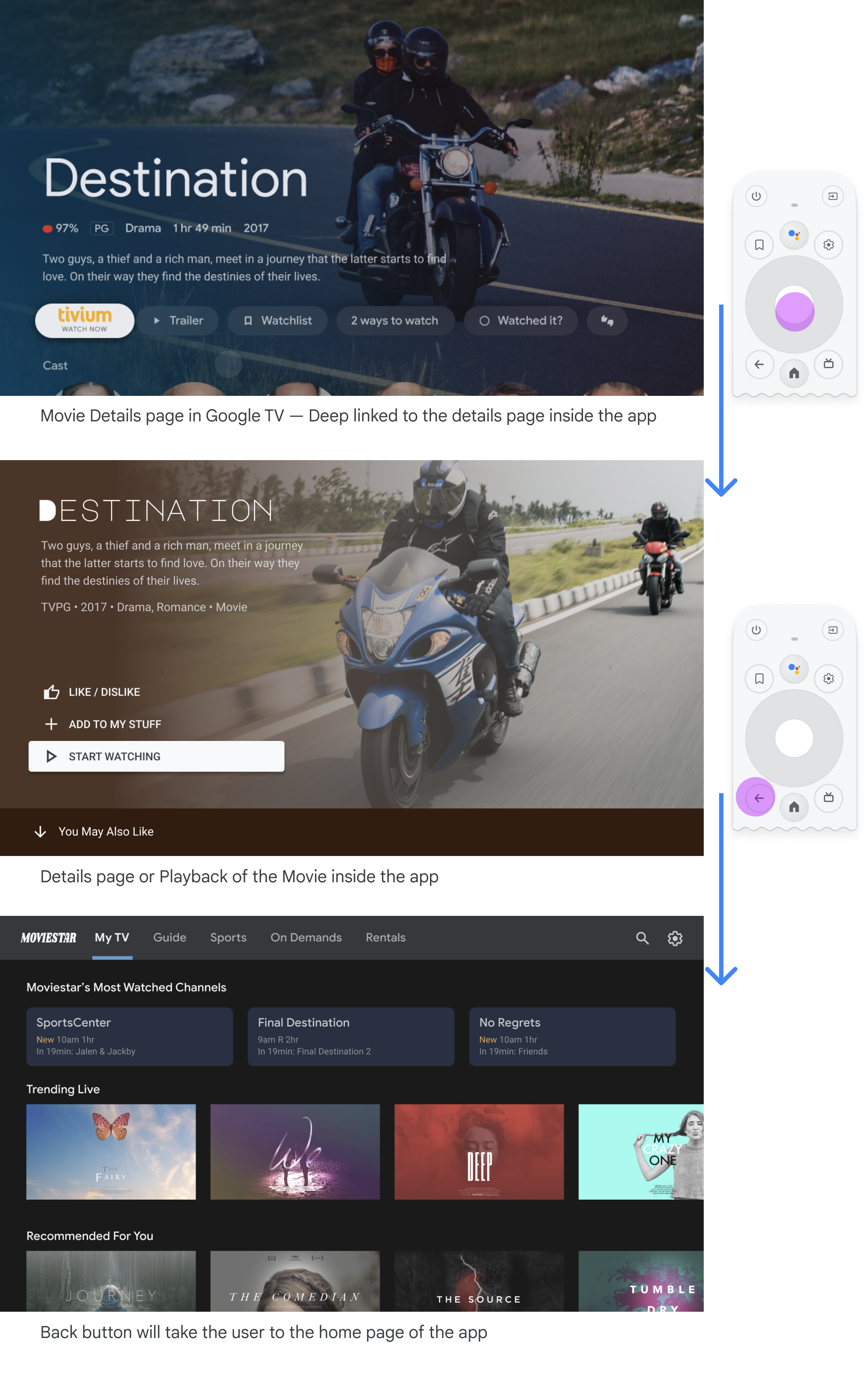 **Figure 8.** Deep linking to a details page.
Deep linking into an app from another app simulates manual navigation. For
example, if the user goes directly to a details page on the Moviestar app from
Google TV and then presses the back button, they are taken to the home page of
the Moviestar app.
> [!NOTE]
> **Note:** This does not apply when launching from the Live Tab for direct playback. See the [Live Tab navigation](https://developer.android.com/training/tv/get-started/navigation.md.txt#live-tab-navigation) section for details.
### Clear path to all focusable elements
Let users navigate your UI with clear direction. If there isn't a
straight path to get to a control, consider relocating it.
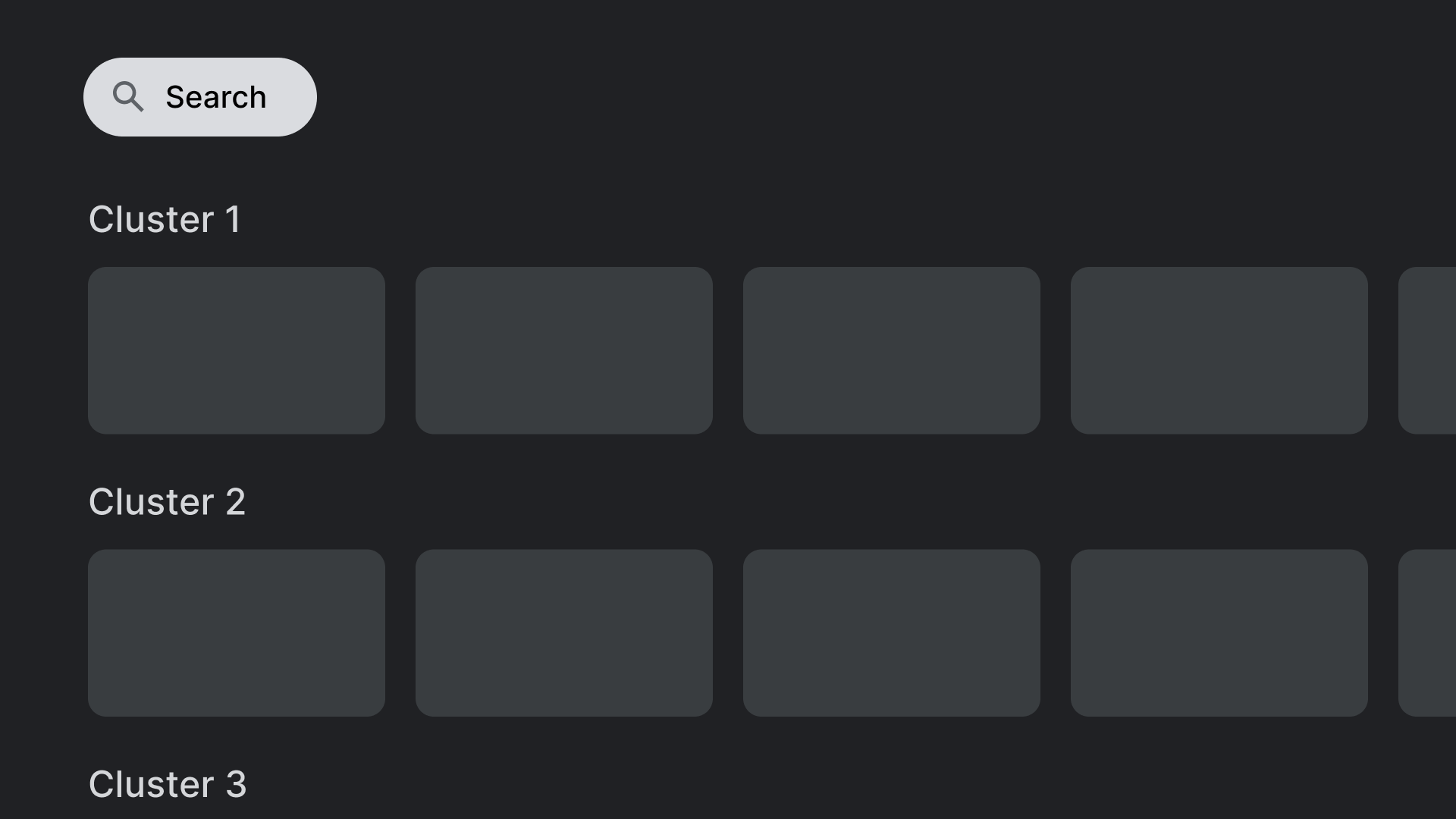 **Figure 9.** Control focusability.
Do.
Place controls, like the search action shown here, in locations that don't overlap
with other clickable elements.
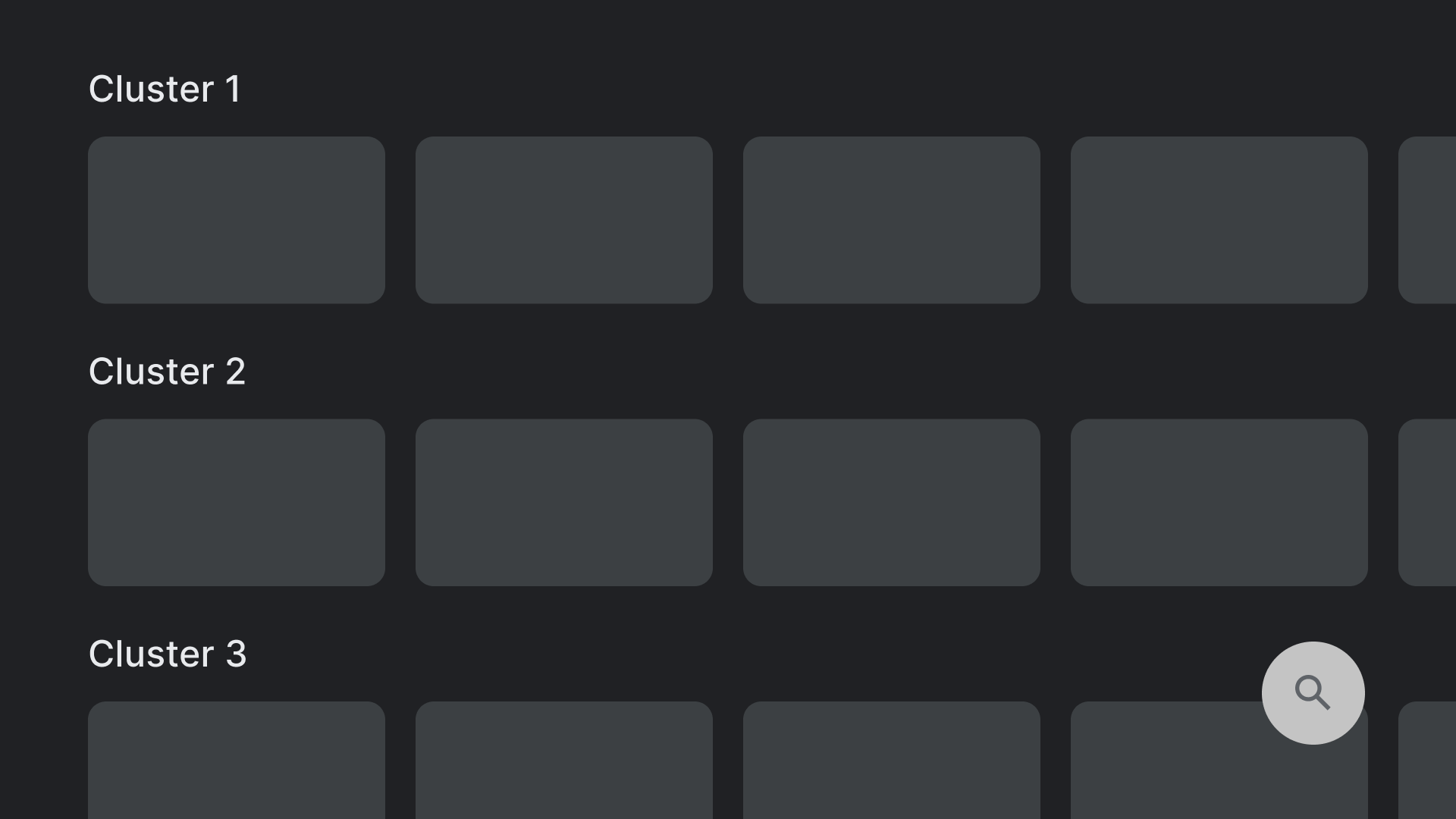 **Figure 10.** Control focusability.
Don't.
Avoid layouts that contain controls in hard-to-reach places. Reaching
the search action shown here might be difficult with the D-pad.
### Axes
Design your layout to take advantage of both horizontal and vertical axes.
Give each direction a specific function, making it fast to navigate large
hierarchies.
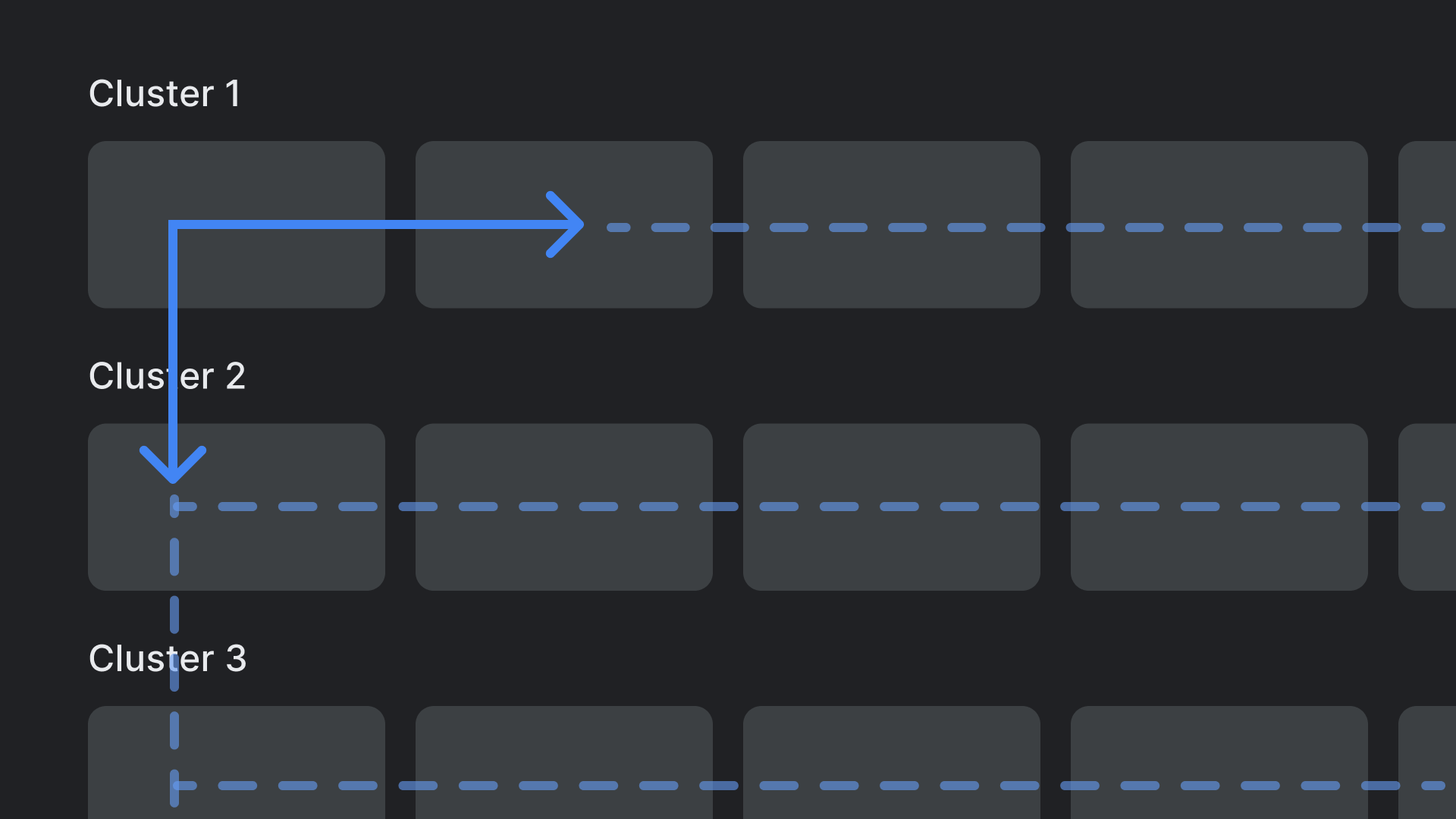 **Figure 11.** Traversal.
Do.
Categories can be traversed on the vertical axis, and items within each
category can be browsed on the horizontal axis.
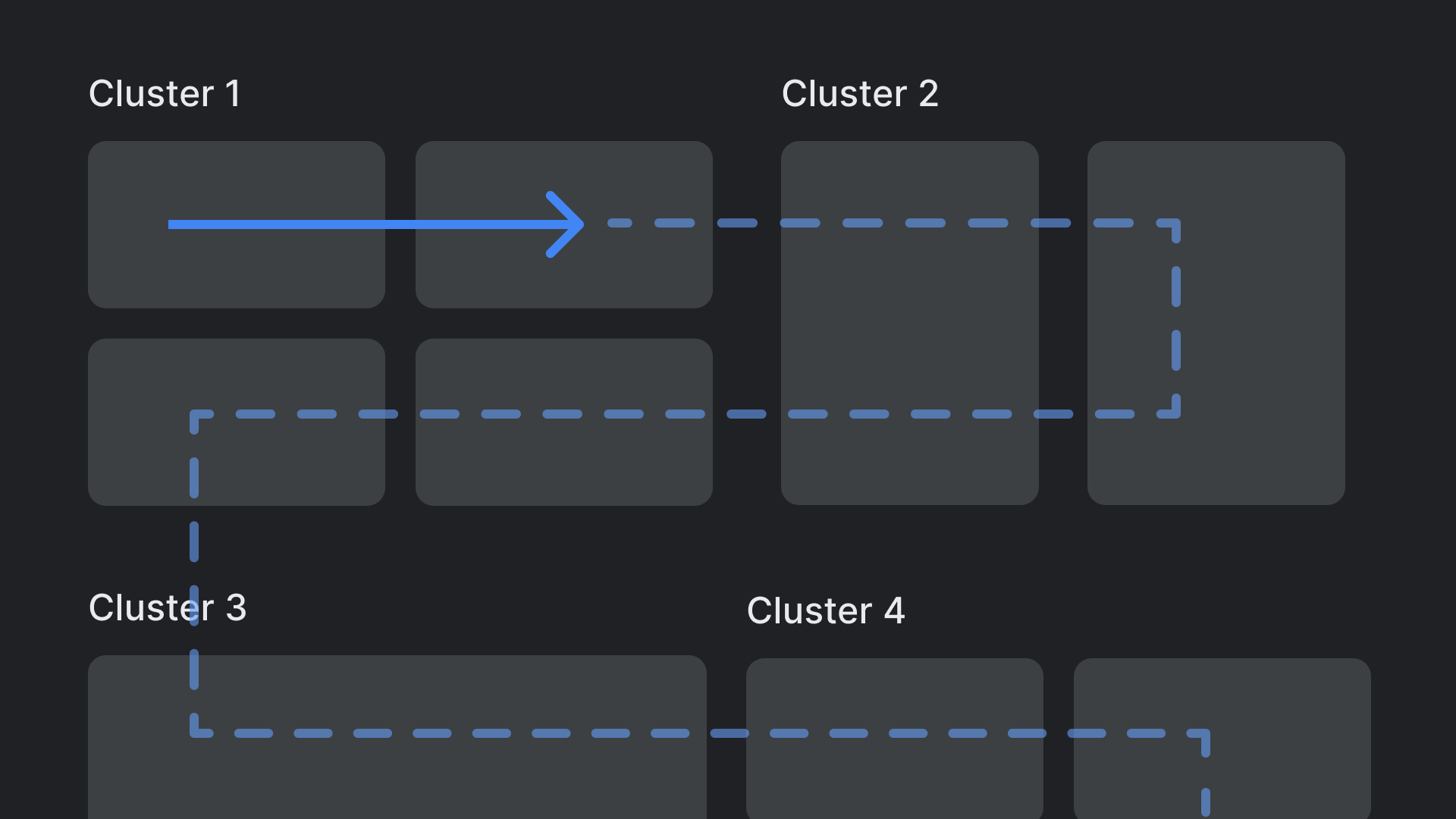 **Figure 12.** Traversal.
Don't.
Avoid complex and nested layout hierarchies.