This guide describes how to set up and run an Android Automotive instance with
Google built-in. This guide also describes how to test the third-party
Google APIs for use with navigation and voice solutions.
To learn more about these APIs, see [Implement navigation app intents](https://developer.android.com/develop/devices/assistant/intents-assistant-nav-app)
and [Google Maps for Android Automotive Intents](https://developer.android.com/training/cars/platforms/automotive-os/android-intents-automotive).
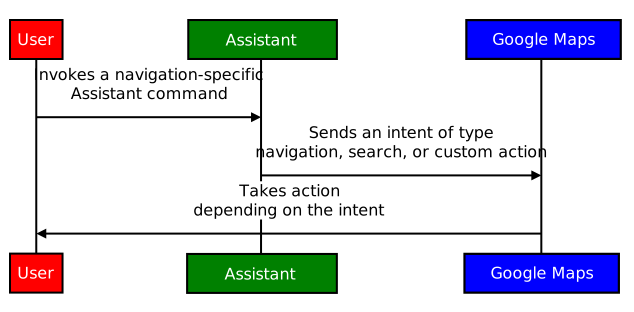
As shown, you can use three types of intents to describe the
interaction between an [assistant](https://source.android.com/docs/automotive/voice/voice_interaction_guide) application and
Google Maps: navigation, search and custom action.
Equally, these intents describe the interaction between Gemini (or Google
Assistant) and a [navigation](https://developer.android.com/training/cars/apps/navigation) application.
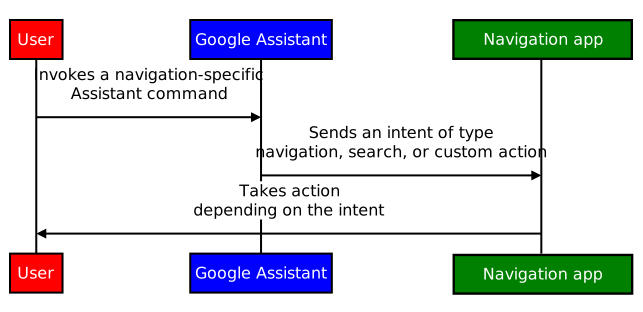
This content describes how to test the intents from an assistant
application with Google Maps.
We also describe how integrate a navigation application
to receive intents from Gemini, Google Assistant, or other assistant apps.
## Setup
To get started:
1. Download and install [Android Studio](https://developer.android.com/studio).
2. Open **Tools \> Device Manager** and add the **Automotive (1408p landscape) with Google Play** image.
3. Start the emulator image and sign in to Google Play. Search for and update Gemini or Google Assistant, depending on which you've chosen as your default assistant.
4. Extract the contents of our [demo application project](https://developer.android.com/static/training/cars/testing/gas-intents/GasIntentTests.tgz) and open the project in Android Studio (**File \> Open...**).
5. Select **Run \> Run automotive** to install and start the demo application in the emulator.
## Demo
[Implement navigation app intents](https://developer.android.com/develop/devices/assistant/intents-assistant-nav-app) and
[Google Maps for Android Automotive Intents](https://developer.android.com/training/cars/platforms/automotive-os/android-intents-automotive) describe the three types of
intents you can execute: navigation, search, and custom action.
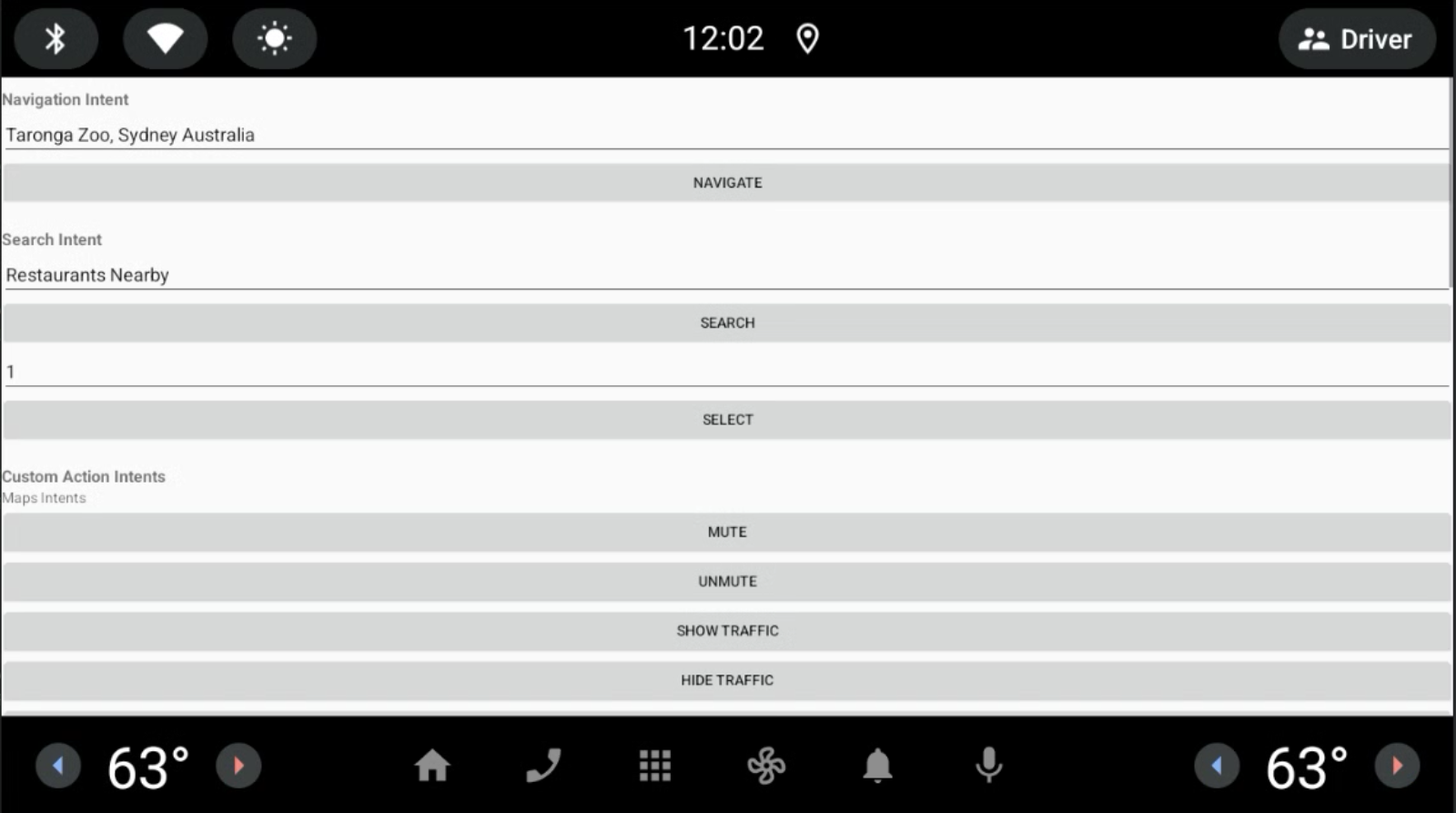 Main activity of demo application
Google Maps executes the triggered operations.
To specify the demo application as the receiver of the intents triggered
by Gemini or Google Assistant:
1. Go to **Settings \> Google \> Gemini (or Google Assistant) \> Default navigation app.**
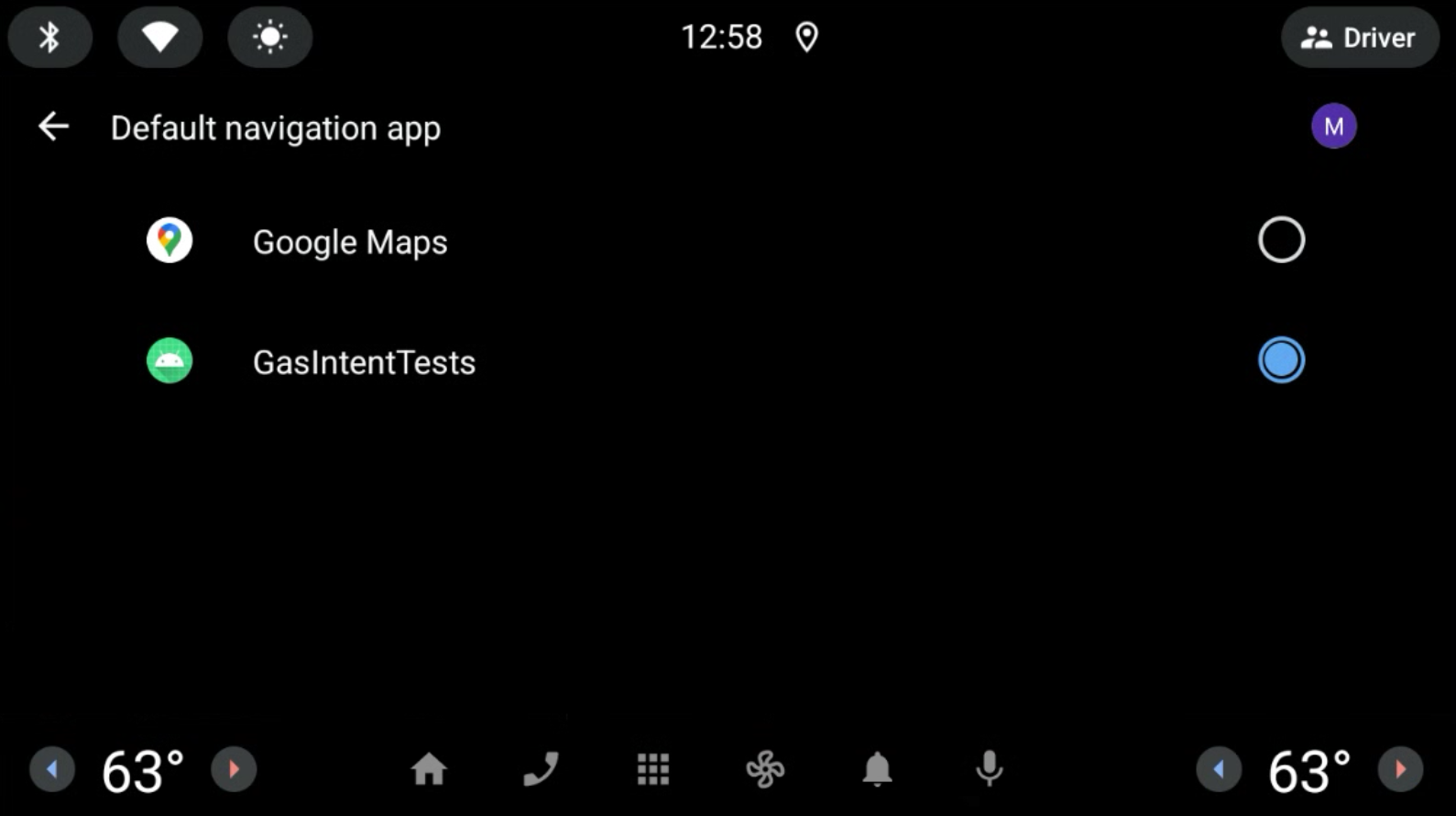 Figure 1. Select the default navigation App.
2. Click the **Microphone** icon and speak a query. For example "Nearby
restaurants.". See [Extended controls, settings, and help](https://developer.android.com/studio/run/emulator-extended-controls#microphone) if the microphone
does not work as expected.
The intent URI is sent by Gemini or Google Assistant to the navigation app to
process further.
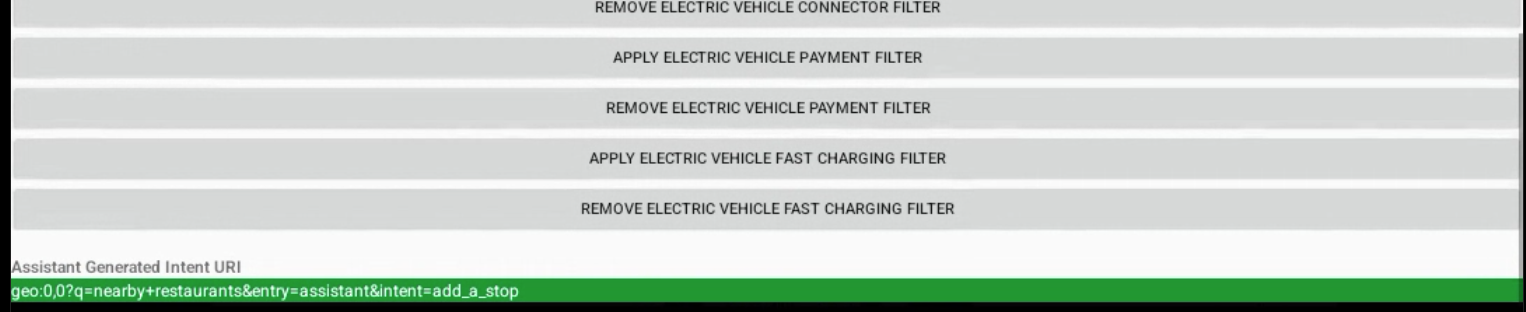 Figure 2. Output of Gemini or Google Assistant generated Intent.
### Technical Details
You can use the Android Debug Bridge (adb) to trigger intents from the console.
To learn more, see [gas-intents-console-tests.txt](https://developer.android.com/static/training/cars/testing/gas-intents/gas-intents-console-tests.txt).
To designate that an application can receive intents from Gemini or Google
Assistant, include this code in the `AndroidManifest.xml` file of the navigation
application:
To add the app to
**Settings \> Google \> Gemini (or Google Assistant) \> Default navigation app**
so that it can be seen and selected, add: