When `android:autoVerify="true"` is present in at least one of your app's intent
filters, installing your app on a device that runs Android 6.0 (API level 23) or
higher causes the system to automatically verify the hosts associated with the
URLs in your app's intent filters. On Android 12 and higher, you
can also [invoke the verification process manually](https://developer.android.com/training/app-links/verify-applinks#manual-verification) to
test the verification logic.
## Auto verification
The system's auto-verification involves the following:
1. The system inspects all intent filters that include any of the following:
- Action: `android.intent.action.VIEW`
- Categories: `android.intent.category.BROWSABLE` and `android.intent.category.DEFAULT`
- Data scheme: `http` or `https`
2. For each unique hostname found in the intent filters, Android queries the corresponding websites for the Digital Asset Links file at https://hostname/.well-known/assetlinks.json.
> [!NOTE]
> **Note:** On Android 11 (API level 30) and lower, the system establishes your app as the default handler for the specified URL patterns only if it finds a matching Digital Asset Links file for *all* hosts in the manifest.
After you have confirmed the list of websites to associate with your app, and
you have confirmed that the hosted JSON file is valid, install the app on your
device. Wait at least 20 seconds for the asynchronous verification process to
complete. Use the following command to check whether the system verified your
app and set the correct link handling policies:
```
adb shell am start -a android.intent.action.VIEW \
-c android.intent.category.BROWSABLE \
-d "http://domain.name:optional_port"
```
### Manual verification
Starting in Android 12, you can manually invoke domain
verification for an app that's installed on a device. You can perform this
process regardless of whether your app targets Android 12.
#### Establish an internet connection
To perform domain verification, your test device must be connected to the
internet.
#### Support the updated domain verification process
If your app targets Android 12 or higher, the system uses the
updated domain verification process automatically.
Otherwise, you can manually enable the updated verification process. To do so,
run the following command in a terminal window:
```
adb shell am compat enable 175408749 PACKAGE_NAME
```
#### Reset the state of Android App Links on a device
Before you manually invoke domain verification on a device, you must reset the
state of Android App Links on the test device. To do so, run the following
command in a terminal window:
```
adb shell pm set-app-links --package PACKAGE_NAME 0 all
```
This command puts the device in the same state that it's in before the user
chooses default apps for any domains.
#### Invoke the domain verification process
After you reset the state of Android App Links on a device, you can perform the
verification itself. To do so, run the following command in a terminal window:
```
adb shell pm verify-app-links --re-verify PACKAGE_NAME
```
> [!NOTE]
> **Note:** Before you review the results of this command, wait a few minutes for the verification agent to finish the requests related to domain verification.
#### Review the verification results
After allowing some time for the verification agent to finish its requests,
review the verification results. To do so, run the following command:
```
adb shell pm get-app-links PACKAGE_NAME
```
The output of this command is similar to the following:
```
com.example.pkg:
ID: 01234567-89ab-cdef-0123-456789abcdef
Signatures: [***]
Domain verification state:
example.com: verified
sub.example.com: legacy_failure
example.net: verified
example.org: 1026
```
The domains that successfully pass verification have a domain verification state
of `verified`. Any other state indicates that the domain verification couldn't
be performed. In particular, a state of `none` indicates that the verification
agent might not have completed the verification process yet.
The following list shows the possible return values that domain verification can
return for a given domain:
`none`
: Nothing has been recorded for this domain. Wait a few more minutes for the
verification agent to finish the requests related to domain verification, and
then [invoke the domain verification process](https://developer.android.com/training/app-links/verify-applinks#invoke-domain-verification) again.
`verified`
: The domain is successfully verified for the declaring app.
`approved`
: The domain was force-approved, usually by executing a shell command.
`denied`
: The domain was force-denied, usually by executing a shell command.
`migrated`
: The system preserved the result of a previous process that used legacy domain
verification.
`restored`
: The domain was approved after the user performed a data restore. It's assumed
that the domain was previously verified.
`legacy_failure`
: The domain was rejected by a legacy verifier. The specific failure reason is
unknown.
`system_configured`
: The domain was approved automatically by the device configuration.
Error code of `1024` or greater
: Custom error code that's specific to the device's verifier.
Double-check that you have [established a network
connection](https://developer.android.com/training/app-links/verify-applinks#establish-internet-connection), and [invoke the domain
verification process](https://developer.android.com/training/app-links/verify-applinks#invoke-domain-verification) again.
## Request the user to associate your app with a domain
Another way for your app to get approved for a domain is to ask the user to
associate your app with that domain.
> [!NOTE]
> **Note:** On a given device, only one app at a time can be associated with a particular domain. If another app is already verified for the domain, the user must first disassociate that other app with the domain before they can associate your app with the domain.
### Check whether your app is already approved for the domain
Before you prompt the user, check whether your app is the default handler for
the domains that you define in your `` elements. You can query
the approval state using one of the following methods:
- The [`DomainVerificationManager`](https://developer.android.com/reference/android/content/pm/verify/domain/DomainVerificationManager) API (at runtime).
- A command-line program (during testing).
#### DomainVerificationManager
The following code snippet demonstrates how to use the
`DomainVerificationManager` API:
### Kotlin
val context: Context = TODO("Your activity or fragment's Context")
val manager = context.getSystemService(DomainVerificationManager::class.java)
val userState = manager.getDomainVerificationUserState(context.packageName)
// Domains that have passed Android App Links verification.
val verifiedDomains = userState?.hostToStateMap
?.filterValues { it == DomainVerificationUserState.DOMAIN_STATE_VERIFIED }
// Domains that haven't passed Android App Links verification but that the
// user has associated with an app.
val selectedDomains = userState?.hostToStateMap
?.filterValues { it == DomainVerificationUserState.DOMAIN_STATE_SELECTED }
// All other domains.
val unapprovedDomains = userState?.hostToStateMap
?.filterValues { it == DomainVerificationUserState.DOMAIN_STATE_NONE }
### Java
Context context = TODO("Your activity or fragment's Context");
DomainVerificationManager manager =
context.getSystemService(DomainVerificationManager.class);
DomainVerificationUserState userState =
manager.getDomainVerificationUserState(context.getPackageName());
Map hostToStateMap = userState.getHostToStateMap();
List verifiedDomains = new ArrayList<>();
List selectedDomains = new ArrayList<>();
List unapprovedDomains = new ArrayList<>();
for (String key : hostToStateMap.keySet()) {
Integer stateValue = hostToStateMap.get(key);
if (stateValue == DomainVerificationUserState.DOMAIN_STATE_VERIFIED) {
// Domain has passed Android App Links verification.
verifiedDomains.add(key);
} else if (stateValue == DomainVerificationUserState.DOMAIN_STATE_SELECTED) {
// Domain hasn't passed Android App Links verification, but the user
// has associated it with an app.
selectedDomains.add(key);
} else {
// All other domains.
unapprovedDomains.add(key);
}
}
#### Command-line program
When testing your app during development, you can run the following command to
query the verification state of the domains that your organization owns:
```
adb shell pm get-app-links --user cur PACKAGE_NAME
```
In the following example output, even though the app failed verification for the
"example.org" domain, user 0 has manually approved the app in system settings,
and no other package is verified for that domain.
```
com.example.pkg:
ID: ***
Signatures: [***]
Domain verification state:
example.com: verified
example.net: verified
example.org: 1026
User 0:
Verification link handling allowed: true
Selection state:
Enabled:
example.org
Disabled:
example.com
example.net
```
You can also use shell commands to simulate the process where the user selects
which app is associated with a given domain. A full explanation of these
commands is available from the output of `adb shell pm`.
> [!NOTE]
> **Note:** The system can only associate one app at a time with a domain, even when you use shell commands. Some special cases, such as [installing two app variants
> simultaneously](https://developer.android.com/training/app-links/add-applinks#check-multiple), require special handling to open a given web link in the intended app.
### Provide context for the request
Before you make this request for domain approval, provide some context for the
user. For example, you might show them a splash screen, a dialog, or a similar
UI element that explains to the user why your app should be the default handler
for a particular domain.
### Make the request
After the user understands what your app is asking them to do, make the request.
To do so, invoke an intent that includes the
[`ACTION_APP_OPEN_BY_DEFAULT_SETTINGS`](https://developer.android.com/reference/android/provider/Settings#ACTION_APP_OPEN_BY_DEFAULT_SETTINGS)
intent action, and a data string matching
`package:com.example.pkg` for the target app, as shown in
the following code snippet:
### Kotlin
val context: Context = TODO("Your activity or fragment's Context")
val intent = Intent(Settings.ACTION_APP_OPEN_BY_DEFAULT_SETTINGS,
Uri.parse("package:${context.packageName}"))
context.startActivity(intent)
### Java
Context context = TODO("Your activity or fragment's Context");
Intent intent = new Intent(Settings.ACTION_APP_OPEN_BY_DEFAULT_SETTINGS,
Uri.parse("package:" + context.getPackageName()));
context.startActivity(intent);
When the intent is invoked, users see a settings screen called **Open by
default** . This screen contains a radio button called **Open supported links**,
as shown in figure 1.
When the user turns on **Open supported links** , a set of checkboxes appear
under a section called **Links to open in this app** . From here, users can
select the domains that they want to associate with your app. They can also
select **Add link** to add domains, as shown in figure 2. When users later
select any link within the domains that they add, the link opens in your app
automatically.
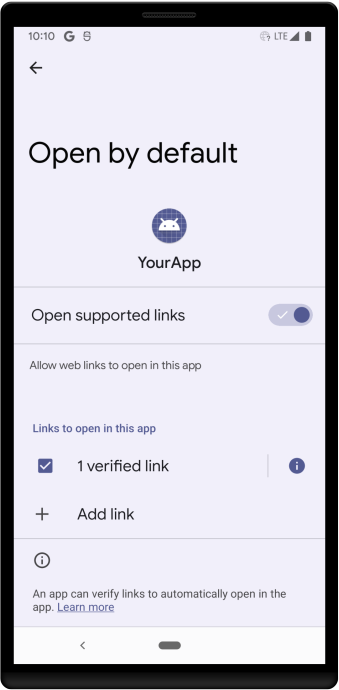 **Figure 1.** System settings screen where users can choose which links open in your app by default. 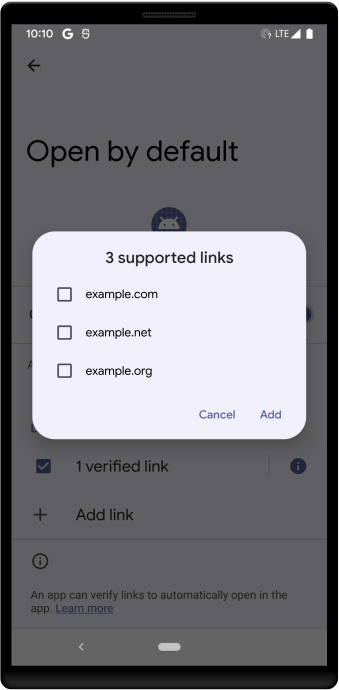 **Figure 2.** Dialog where users can choose additional domains to associate with your app.
## Open domains in your app that your app cannot verify
Your app's main function might be to open links as a third party, without the
ability to verify its handled domains. If this is the case, explain to users
that, at that time when they select a web link, they cannot choose between a
first-party app and your (third-party) app. Users need to manually associate the
domains with your third-party app.
In addition, consider introducing a dialog or trampoline activity that allows
the user to open the link in the first-party app if the user prefers to do so,
acting as a proxy. Before setting up such a dialog or trampoline activity, set
up your app so that it has [package visibility](https://developer.android.com/training/package-visibility)
into the first-party apps that match your app's web intent filter.
## Digital Asset Links update latency
When you update the `assetlinks.json` file on your web server, the time it takes
for these changes to be reflected on end-user devices depends on the OS version:
- **Android 15 (API level 35) and higher:** The system periodically re-verifies domains in the background. Changes can take up to seven days to propagate to all end-user devices due to the system's caching and scheduled re-verification.
- **Android 14 (API level 34) and lower:** The system does not perform periodic background re-verification. Updates to the file are typically only picked up when the app is installed or updated.
**Testing updates**
To force a re-verification on a specific device during testing, you can
uninstall and reinstall the app. However, be aware that server-side caches might
still delay the delivery of the updated `assetlinks.json` file to the device,
even after reinstalling. Because the cache is time-based, the delay typically
resolves automatically if you try again after a few hours.