## Android skills
[View on GitHub](https://github.com/android/skills/tree/main/performance/r8-analyzer)
### R8 Configuration Analyzer
Use an Android skill to analyze the R8 Configuration in your app To install the skill from the Android CLI, run:
android skills add r8-analyzer
To activate the skill, try the following prompt:
Analyze the R8 configuration
R8 Configuration Analyzer is a tool designed to help you maximize R8's
performance benefits by providing detailed insights into your app's
configuration quality. It lets you track and improve R8 optimization by
monitoring key metrics---specifically shrinking, optimization, and obfuscation
scores---which indicate the percentage of your codebase available for
optimization. By identifying broad or unnecessary keep rules, including those
introduced by third-party libraries, the analyzer helps you refine your
configuration to ensure R8 can effectively optimize as many of your classes,
fields, and methods as possible.
> [!NOTE]
> **Note:** To use the R8 Configuration Analyzer, you need AGP version 9.3.0 or R8 version 9.3.7-dev or higher. To update your R8 version without updating AGP, follow the steps in [Replacing R8 in AGP](https://r8.googlesource.com/r8/+/refs/heads/main/README.md#replacing-r8-in-agp).
## Generate the report
With AGP 9.3.0 and higher, you can generate the R8 Configuration Analyzer report
using a dedicated standalone Gradle task or automatically during an R8 build.
### Run the standalone Gradle task (Recommended for local use)
When actively iterating on keep rules, use the standalone Gradle task to quickly
evaluate the impact of your changes without fully building the APK or Bundle:
./gradlew :app:analyzeReleaseR8Config
Because this task skips APK or Bundle generation, it provides a much shorter
feedback loop. This lets you rapidly analyze how your keep rules affect
shrinking, optimization, and obfuscation scores and immediately refine them. The
HTML report is generated at
`app/build/reports/r8/r8-config-analyzer-release.html`.
### Generate automatically during regular builds
When running a full R8 release build (such as `assembleRelease`), the report is
automatically generated at `build/outputs/mapping/release/configanalyzer.html`.
To disable the automatic generation of the outputs during regular builds, set
the following Gradle property:
android.experimental.r8.enableR8ConfigurationAnalyzer=false
### For AGP 9.2 and earlier
For **AGP 9.2 and earlier** , update your local copy of R8 to the latest version
by adding it as a classpath dependency to your project's `settings.gradle` or
`settings.gradle.kts` file:
pluginManagement {
repositories {
google()
mavenCentral()
}
buildscript {
dependencies {
// Update to a more recent R8 version.
classpath("com.android.tools:r8:9.4.14")
}
}
}
This uses the latest version of R8 including the latest configuration
analyzer, and can just be done temporarily when analyzing your R8
configuration.
Now you can set the
`com.android.tools.r8.dumpkeepradiushtmltodirectory` system property when
running a Gradle task with a build enabled with R8.
./gradlew assembleRelease \
-Dcom.android.tools.r8.dumpkeepradiushtmltodirectory=
For example, use the following command to generate the HTML report in the
`/tmp/r8analysis` directory:
# To create the /tmp/r8analysis folder.
mkdir -p /tmp/r8analysis
# To generate the report in the /tmp/r8analysis folder.
./gradlew assembleRelease \
-Dcom.android.tools.r8.dumpkeepradiushtmltodirectory=/tmp/r8analysis
## Understand the report
R8 Configuration Analyzer provides insights into your app's R8 configuration and
the impact of each keep rule on your app. This helps you attain the maximum
optimization from R8, improving your app performance. Use the following scores
to understand how much of your codebase is available for optimization by R8.
 **Figure 1.**An example of the report summary section.
**Shrinking score**
When R8 shrinks your app, it reduces the overall size of your app by identifying
and eliminating code and resources that are unused, ensuring your final build is
as lean as possible. The shrinking score tracks the percentage of classes,
fields, and methods that are subject to shrinking. For example, a shrinking
score of 66% means that R8 can perform shrinking in 66% of your codebase.
**Optimization score**
R8 performs optimizations such as method inlining and class merging which
results in startup and memory improvements for your app. The optimization score
tracks the percentage of classes, fields, and methods that are subject to R8
optimizations. For example, if the optimization score is 66%, it means that R8
can only perform optimization in 66% of your codebase.
**Obfuscation score**
By obfuscating classes, fields and methods into shorter names R8 reduces the
app's metadata footprint to save memory. The obfuscation score measures the
percentage of code available for obfuscation within your codebase.
## Refine keep rules
In order to improve the scores and to unlock better R8 optimization, you should
refine your keep rules so that they doesn't unnecessarily prevent R8 from
optimizing your app. You should only keep classes, methods or fields that are
accessed using reflection.
To achieve this, use the **Keep Rule Analysis**.
 **Figure 2.**An example of the keep rule analysis.
To see the detailed analysis of a rule, click it to open the details screen.
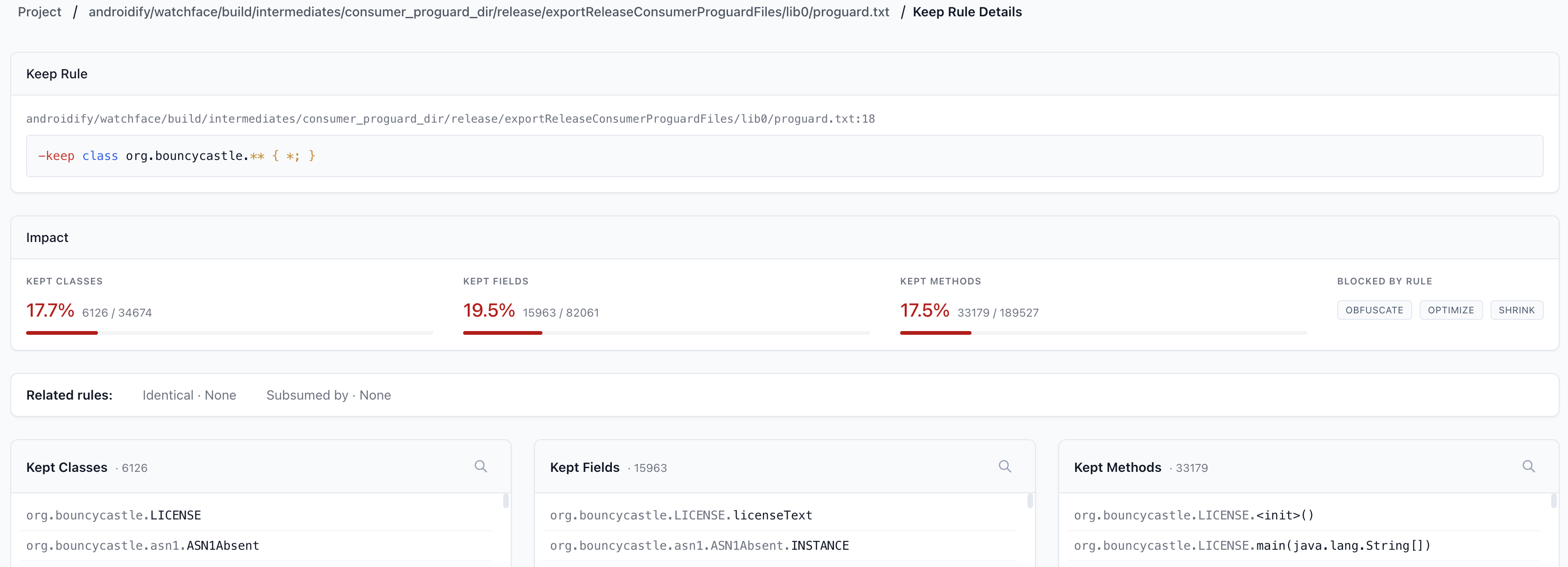 **Figure 3.**An example of the keep rule analysis.
## How to refine keep rules
To refine your keep rules and unlock the full potential of R8 optimizations for
your app, do the following:
1. For each keep rule, see the percentage of classes, fields, and methods that cannot be optimized by R8 in Configuration Analyzer. Use this to identify the keep rules preventing optimization in a large number of classes, fields, or methods. The optimization properties prevented by each keep rule is also listed.
2. If you see a keep rule that is preventing optimization of a large number of classes, you should make sure to check which classes, fields and methods are prevented from optimization by the keep rule to see if this rule is keeping items that are not invoked dynamically using reflection.
3. Reduce the optimization blocked by keep rules by targeting only necessary classes, fields, or methods by [choosing the right keep option](https://developer.android.com/topic/performance/app-optimization/add-keep-rules#choose-keep) and [following the best practices](https://developer.android.com/topic/performance/app-optimization/keep-rules-best-practices).
4. Investigate and run tests that cover the affected classes, fields and methods of the keep rule and refine the keep rules.
## Inspect optimization of libraries
When you integrate third-party libraries, they often include their own consumer
keep rules to work with R8. Because the library author cannot predict your
specific implementation, they sometimes write conservative, wide-reaching rules
that prevent optimization in more classes, fields, and methods than necessary.
This may prevent R8 from optimizing parts of your app that have nothing to do
with the library's actual runtime execution. You can use R8 Configuration
Analyzer to identify libraries introducing rules that negatively impact the
optimization of your app.
Use the configuration analyzer to inspect the combined effect of all merged
consumer keep rules. By analyzing the impact of each keep rule coming from a
third-party library, you can identify and trace the specific third-party
libraries that prevent a high amount of optimization in your app.
### How to optimize libraries
To address keep rules introduced by third-party libraries, do the following:
- If a library includes an overly broad rule, we recommend contacting the maintainer of the library with the data from your report to demonstrate how their current rules impact your app's optimization scores. If it's an external library, look for existing bugs in the library before filing issues.
- If necessary, you can test potential improvements [by filtering out rules
from a specific library](https://developer.android.com/topic/performance/app-optimization/choose-libraries-wisely#filter-rules). You can import the library's rules into your project, exclude the broad ones, and re-run the configuration analyzer to measure the potential gains in size and performance.
> [!IMPORTANT]
> **Important:** While some libraries may run optimizations at build time, this is not a substitute for the optimization in an R8 enabled app build. R8 delivers its maximum size and performance benefits only when it can see your entire app graph.
> [!NOTE]
> **Note:** In addition to app and consumer rules, the configuration analyzer also reports the default AGP keep rules. You can identify these rules by checking the source file of the keep rules. You shouldn't change these rules as these default AGP rules are written to ensure maximum optimization.
## Subsumed rules
There might be cases where multiple keep rules are overlapping and one of the
rules might be preventing more optimization than necessary. If there are two
keep rules in your codebase.
# Prevents optimization in the entire package
# Remove this to improve optimization
-keep class com.example.package.** { *; }
# Prevents optimization to the class inside the package
-keep class com.example.package.Myclass
The first keep rule which prevents optimization in the entire package is
subsuming the second keep rule which is targeting a class inside the package
kept by the first keep rule. When keep rules overlap, one may block more
optimizations than required. By refining these overlapping rules, you can
maximize R8 optimization and eliminate technical debt. This process involves
streamlining your configuration to ensure only essential code is kept while
unlocking the full potential of R8's optimization capabilities.
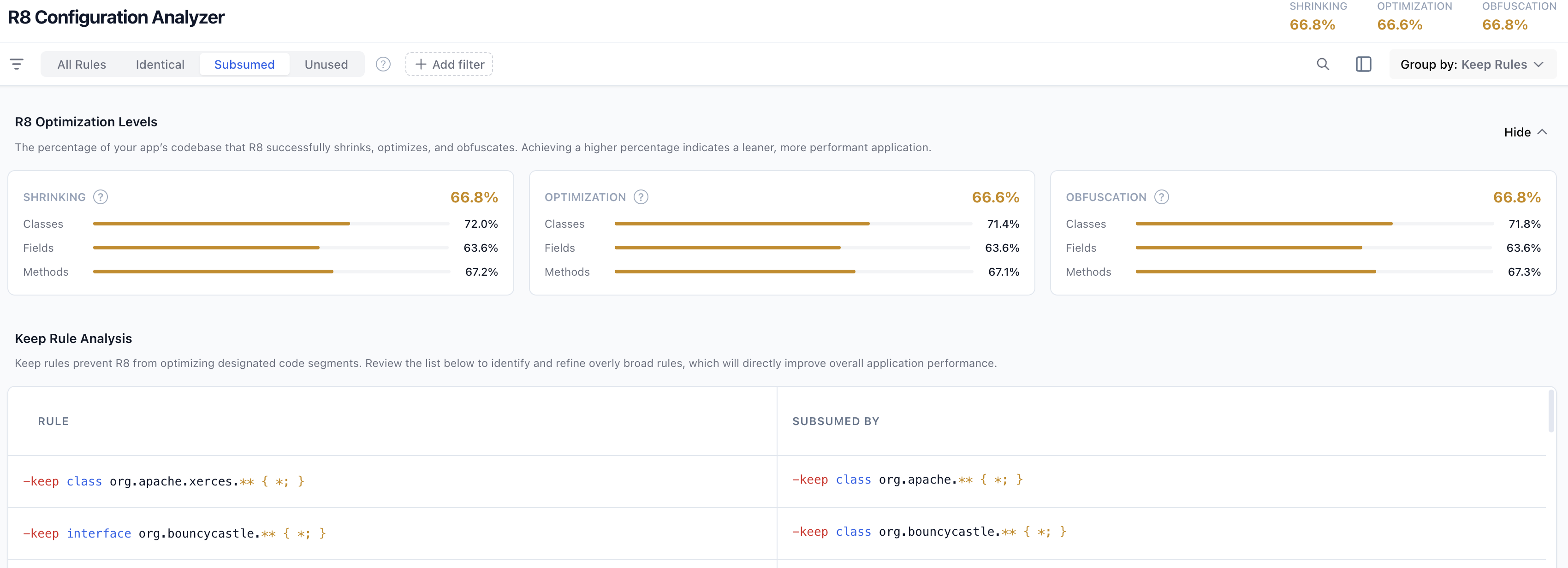 **Figure 4.**An example of subsumed rules in the report.
### Optimize subsumed rules
1. Find the subsuming keep rules using R8 Configuration Analyzer.
2. Identify the exact classes, fields, or methods in your codebase that actually rely on reflection, which needs to be kept using keep rules. Knowing this will help you refine the keep rules.
3. Using the configuration analyzer, compare the impact of each rule that is targeting the same classes, fields or methods. You could use optimization percentage prevented by each keep rule to identify which is broader and which is a narrow keep rule.
1. If the narrow rule is written precisely---only keeping the exact members or classes that are reflectively accessed-- then remove the broader keep rule. This safely unlocks R8 optimizations for the rest of your package.
2. If the broad rule is targeting the right classes, keep the broad rule and delete the narrow rule. The narrow rule is just redundant clutter. Make sure to refine the broad rule to target only classes, fields or methods that you have identified.
**Verify and test your changes**: Re-run the configuration analyzer to ensure
the conflict is fixed. Then, compile a release build and test your
changes to ensure that the codebase works as expected.
## Remove unnecessary rules
Using the configuration analyzer, you can systematically audit your codebase to
identify and prune obsolete keep rules that clutter your configuration. R8
Configuration Analyzer specifically highlights two primary sources of
unnecessary rules:
- **Unused rules**: Rules that match zero classes, methods, or fields in your current build. They often persist after code refactoring, dependency removal, or from copy-paste configurations that are no longer relevant, adding unnecessary configuration complexity.
- **Identical rules**: Identical keep rules means rules that target the same classes, fields, and methods or duplicate declarations of keep rule in same or across keep rule files.
Both types of rules add clutter to your configuration, making it harder to
maintain and debug. By identifying these, you can clean up your configuration.
> [!NOTE]
> **Note:** Prioritize refining keep rules within your local configuration files because you cannot modify or selectively remove the keep rules packaged inside third-party libraries.