[Concepts and Jetpack Compose implementation](https://developer.android.com/studio/write/vector-asset-studio)
Android Studio includes a tool called Vector Asset Studio that helps you add
Material icons and import Scalable Vector Graphic (SVG) and Adobe Photoshop
Document (PSD) files into your project as vector drawable resources. Using
vector drawables instead of bitmaps reduces the size of your APK because the
same file can be resized for different screen densities without loss of image
quality. For earlier versions of Android that don't support vector drawables,
Vector Asset Studio can, at build time, turn your vector drawables into
different bitmap sizes for each screen density.
[Video](https://www.youtube.com/watch?v=8e3I-PYJNHg)
## About Vector Asset Studio
Vector Asset Studio adds a vector graphic to the project as an XML file that
describes the image. Maintaining one XML file can be easier than updating
multiple raster graphics at various resolutions.
Android 4.4 (API level 20) and lower doesn't support vector drawables. If your
minimum API level is set at one of these API levels, you have two options when
using Vector Asset Studio: generate Portable Network Graphic (PNG) files (the
default) or use the backward compatibility technique in AndroidX.
For backward compatibility, Vector Asset Studio generates raster images of the
vector drawable. The vector and raster drawables are packaged together in the
APK. You can refer to vector drawables as [`Drawable`](https://developer.android.com/reference/android/graphics/drawable/Drawable) in Java code or
`@drawable` in XML code; when your app runs, the corresponding vector
or raster image displays automatically depending on the API level.
### Backward compatibility in AndroidX
This technique requires AndroidX 1.0 or higher and Android
Plugin for Gradle 3.2 or higher, and uses vector drawables only. The
[`VectorDrawableCompat`](https://developer.android.com/reference/androidx/vectordrawable/graphics/drawable/VectorDrawableCompat) class in AndroidX lets you support
`VectorDrawable` in Android 2.1 (API level 7) and higher.
Before using Vector Asset Studio, you must add a statement to your
`build.gradle` file:
### Groovy
```groovy
android {
defaultConfig {
vectorDrawables.useSupportLibrary = true
}
}
dependencies {
implementation 'androidx.appcompat:appcompat:1.7.1'
}
```
### Kotlin
```kotlin
android {
defaultConfig {
vectorDrawables.useSupportLibrary = true
}
}
dependencies {
implementation("androidx.appcompat:appcompat:1.7.1")
}
```
You must also use AndroidX coding techniques for backward compatibility, such
as using the `app:srcCompat` attribute instead of the `android:src` attribute
for vector drawables. For more information, see [AndroidX](https://developer.android.com/jetpack/androidx).
## Adding a vector drawable to a layout
In a layout file, you can set any icon-related widget, such as
[`ImageButton`](https://developer.android.com/reference/android/widget/ImageButton), [`ImageView`](https://developer.android.com/reference/android/widget/ImageView), and so on, to point to a vector drawable.
For example, the following layout shows a vector drawable displayed on a button:
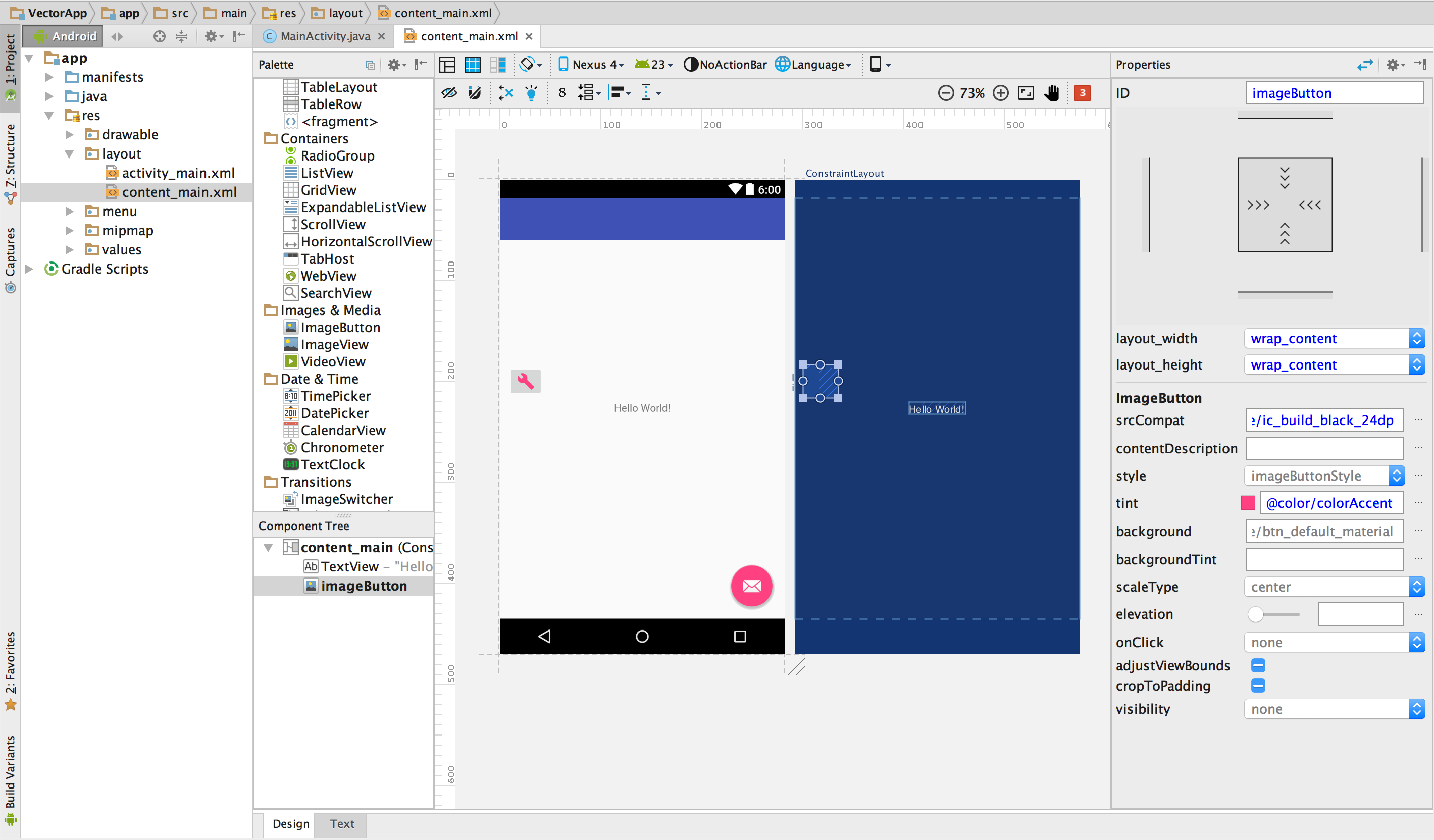
**Figure 1**. A vector drawable displayed on a button in a
layout.
To display a vector drawable on a widget, as shown in the figure:
1. Open a project and [import a vector drawable](https://developer.android.com/studio/write/vector-asset-studio#running).
This example uses a Phone/Tablet project generated with the New Project
Wizard.
2. In the [Android view](https://developer.android.com/studio/projects#ProjectFiles) of the *Project* window, double-click a layout XML
file, such as `content_main.xml`.
3. Click the **Design** tab to display the [Layout Editor](https://developer.android.com/studio/views/layout-editor).
4. Drag the [`ImageButton`](https://developer.android.com/reference/android/widget/ImageButton)
widget from the *Palette* window onto the Layout Editor.
5. In the *Resources* dialog, select **Drawable** in the left pane, and
then select the vector drawable you imported. Click **OK**.
The vector drawable appears on the `ImageButton` in the layout.
6. To change the color of the image to the accent color defined in the theme,
in the *Properties* window, locate the **tint** property and click **...** .
7. In the *Resources* dialog, select **Color** in the left pane, and then
select **colorAccent** . Click **OK**.
The color of the image changes to the accent color in the layout.
If the project uses AndroidX, the `ImageButton` code should be
similar to the following:
```xml
```
If the project doesn't use AndroidX, the vector drawable code would
instead be `android:src="@drawable/ic_build_black_24dp"`.
> [!NOTE]
> **Note:** Although vector drawables do support one or more colors, in many cases it makes sense to color icons black (`android:fillColor="#FF000000"`). Using this approach, you can add a [tint](https://developer.android.com/develop/ui/views/graphics/drawables#DrawableTint) to the vector drawable that you placed in a layout, and the icon color changes to the tint color. If the icon color isn't black, the icon color might instead blend with the tint color.
## Referring to a vector drawable in code
You can normally refer to a vector drawable resource in a generic way in your
code, and when your app runs, the corresponding vector or raster image displays
automatically depending on the API level:
- In most cases, you can refer to vector drawables as `@drawable` in XML code or
[`Drawable`](https://developer.android.com/reference/android/graphics/drawable/Drawable) in Java code.
For example, the following layout XML code applies the image to a view:
```xml
```
The following code retrieves the image as a [`Drawable`](https://developer.android.com/reference/android/graphics/drawable/Drawable):
### Kotlin
```kotlin
val drawable = resources.getDrawable(R.drawable.myimage, theme)
```
### Java
```java
Resources res = getResources();
Drawable drawable = res.getDrawable(R.drawable.myimage, getTheme());
```
The [`getResources()`](https://developer.android.com/reference/android/content/Context#getResources()) method resides in the [`Context`](https://developer.android.com/reference/android/content/Context) class, which
applies to UI objects, such as activities, fragments, layouts, views,
and so on.
- If your app uses AndroidX at all (even if you don't have a
`vectorDrawables.useSupportLibrary = true` statement in your
`build.gradle` file), you can also refer to a vector drawable with an
`app:srcCompat` statement. For example:
```xml
```
- Occasionally, you might need to typecast the drawable resource to its exact
class, such as when you need to use specific features of the
[`VectorDrawable`](https://developer.android.com/reference/android/graphics/drawable/VectorDrawable) class. To do so, you could use code such as the
following:
### Kotlin
```kotlin
if (Build.VERSION.SDK_INT >= Build.VERSION_CODES.LOLLIPOP) {
val vectorDrawable = drawable as VectorDrawable
} else {
val bitmapDrawable = drawable as BitmapDrawable
}
```
### Java
```java
if (Build.VERSION.SDK_INT >= Build.VERSION_CODES.LOLLIPOP) {
VectorDrawable vectorDrawable = (VectorDrawable) drawable;
} else {
BitmapDrawable bitmapDrawable = (BitmapDrawable) drawable;
}
```
You can access vector drawable resources from the main thread only.
For Android 5.0 (API level 21) and higher, you can use the
[`AnimatedVectorDrawable`](https://developer.android.com/reference/android/graphics/drawable/AnimatedVectorDrawable) class to animate the properties of the
[`VectorDrawable`](https://developer.android.com/reference/android/graphics/drawable/VectorDrawable) class. With AndroidX, you can use the
[`AnimatedVectorDrawableCompat`](https://developer.android.com/reference/androidx/vectordrawable/graphics/drawable/AnimatedVectorDrawableCompat) class to animate the `VectorDrawable`
class for Android 3.0 (API level 11) and higher. For more information, see
[Animate drawable graphics](https://developer.android.com/develop/ui/views/animations/drawable-animation).