Many developers use a variety of large language models like ChatGPT, Claude, and
GitHub Copilot. By integrating remote models in Android Studio, you can use the
model
of your choice and take advantage of a wide range of AI capabilities.
> [!WARNING]
> **Warning:** By using a third-party model, you agree to send your code and other input data to the provider of the model. Review the model provider's terms to understand how your data will be used. Note that some Android Studio features might not function as expected with external models.
## Configure a remote model provider
Add a new remote model provider to Android Studio as follows:
1. In Android Studio settings, expand **Tools \> AI** and select **Model
Providers**.
2. Click the **Add**  button.
3. Select **Third-Party Remote Provider** . 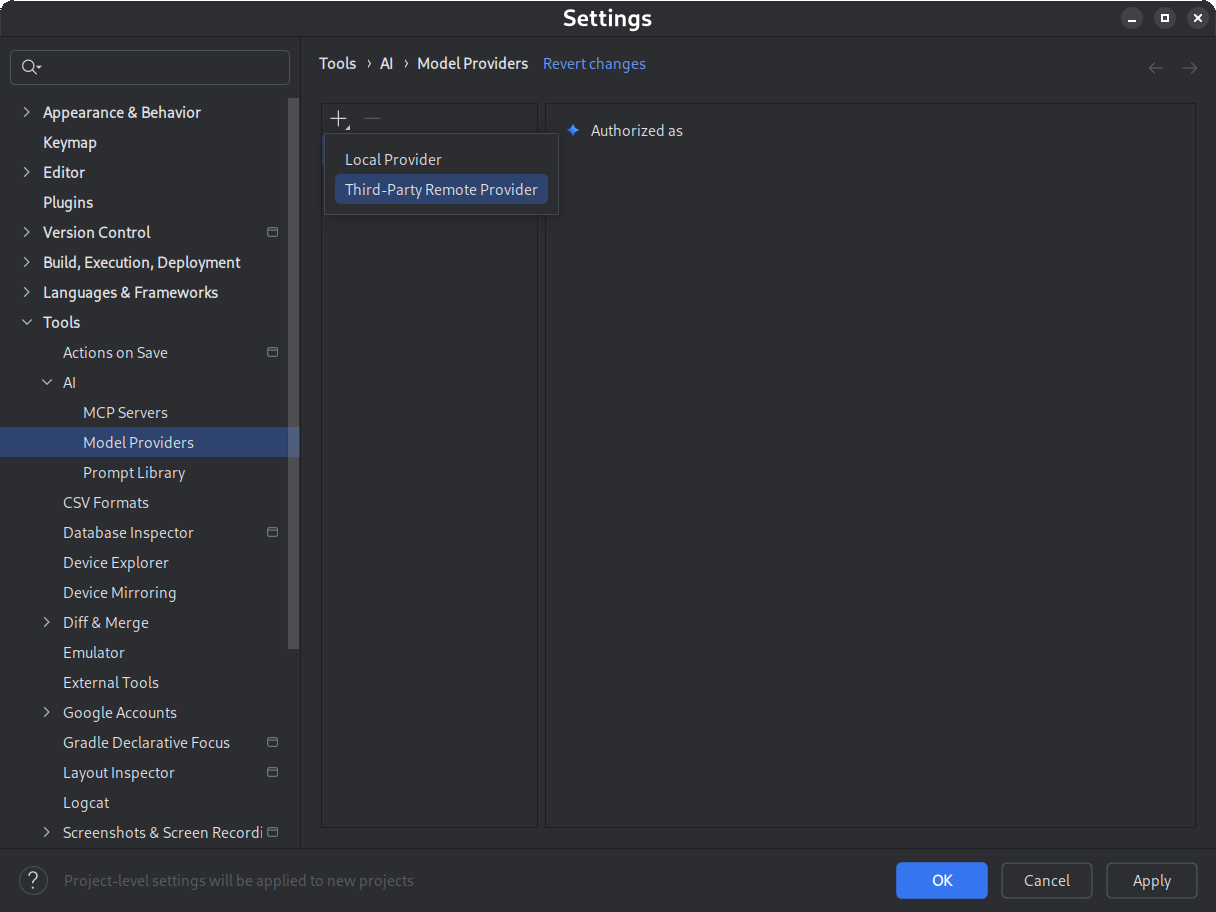 **Figure 1.** Select the remote provider option.
4. Enter provider details:
- **Description:** Provide a descriptive name for your remote model provider.
- **URL:** Enter the API endpoint URL for your remote model provider.
For example:
- OpenAI - https://api.openai.com/v1
- Claude - https://api.anthropic.com
- OpenRouter - https://openrouter.ai/api/v1
- **API key:** Enter the API key provided by your remote model provider.
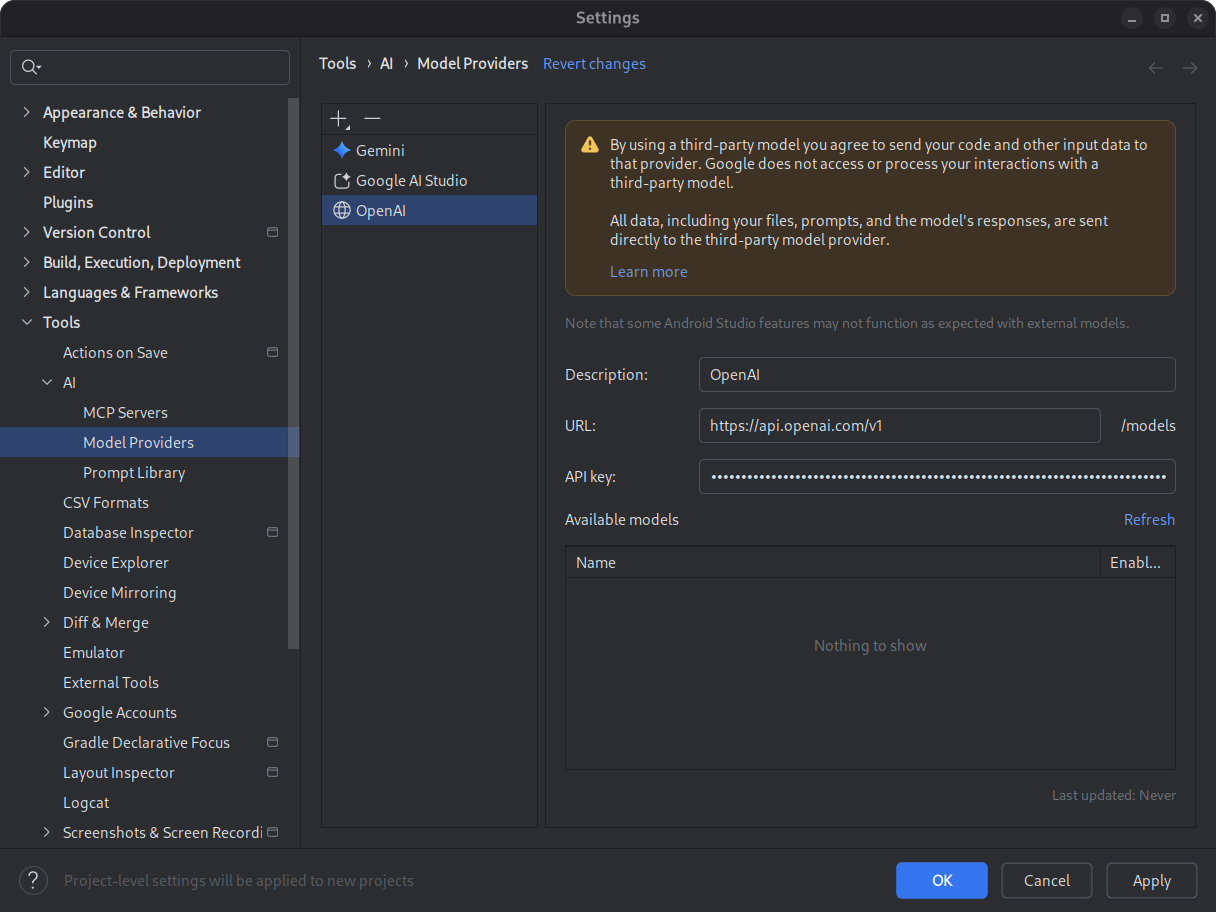 **Figure 2.** Enter the remote model provider information.
5. Click **Refresh** to retrieve the list of available models from your
configured provider.
6. Select models to use.
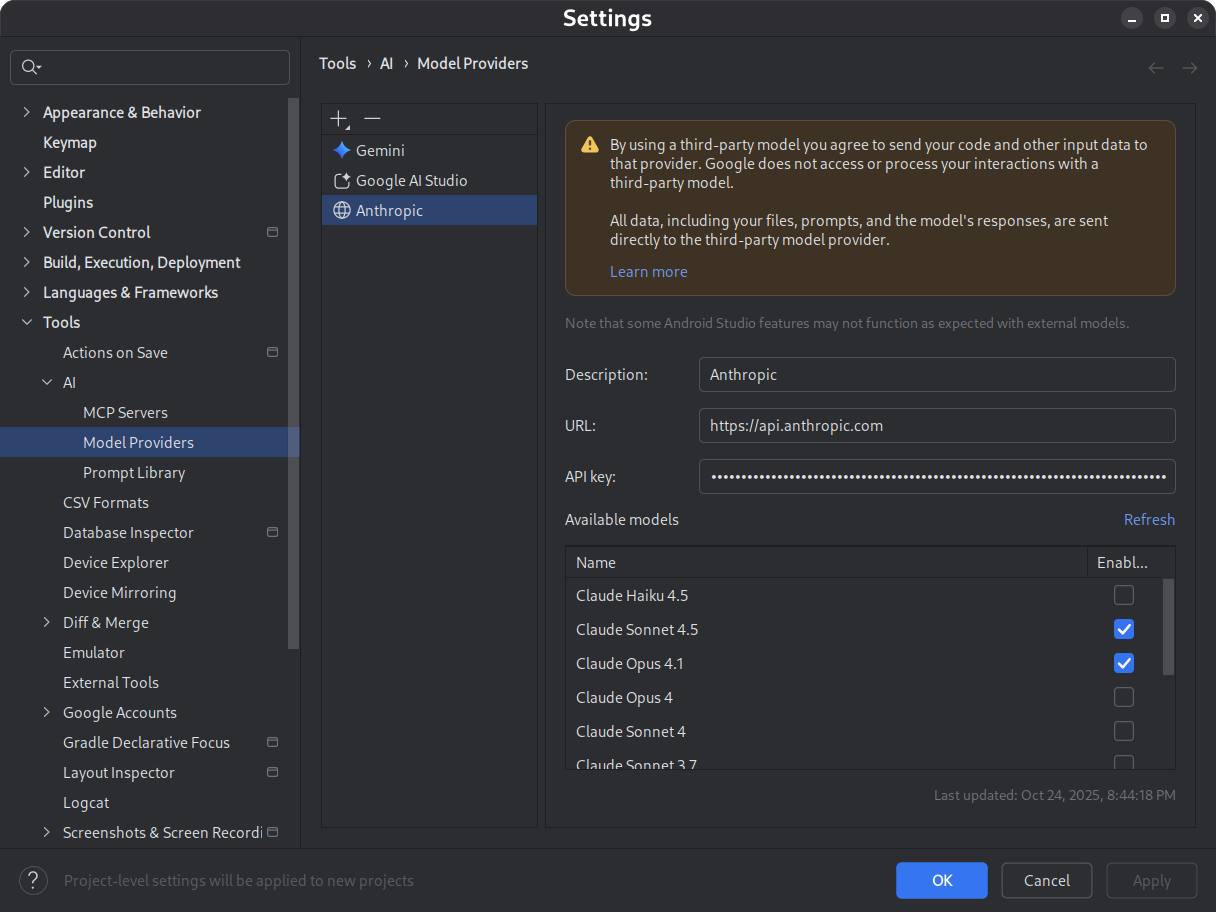 **Figure 3.** Select from a list of available models. By selecting multiple models, you can choose which model to use when you send a prompt.
7. Click **OK** to save your settings.
## Select a remote model for AI assistance
After configuring your remote model provider, select a model to use for AI
assistance features:
1. Open the AI chat window in Android Studio.
2. Use the model picker to select a remote model from the list of available
models.
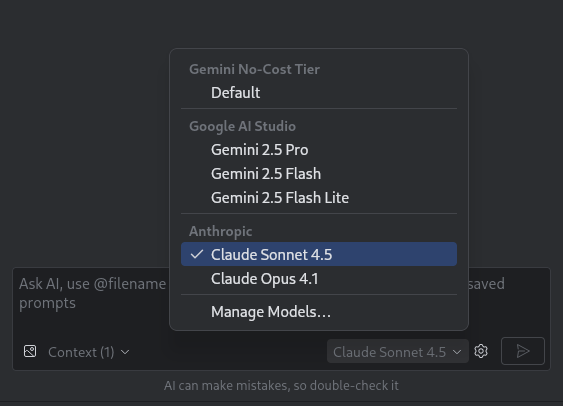 **Figure 4.** Select a model.
## Important considerations
- **Terms and conditions:** When using third-party models, you are subject to their terms and conditions.
- **Feature compatibility:** Some Android Studio AI features might not function as expected with all third-party models.
### Security risks
Connecting to any third-party model has inherent risks and responsibilities:
- **Unverified models:** Be extremely cautious when using a model that is unverified or from an unknown source. Using such a model could introduce security vulnerabilities into your development environment or expose your source code.
- **Data transmission:** Using an external model means you are sending your code, prompts, and other input data to the third-party provider's servers. You are responsible for understanding the provider's data handling and privacy policies.
### Secure API key management
Your API key is the credential that provides access to the third-party models
and services and incurs costs. Never hard-code your API key directly into your
source code, doing so exposes the key to anyone who views your repository or
reverse-engineers your application.
## FAQ
**Q: What data is shared with the third-party AI model provider?**
**A:** By connecting to an external third-party model, you agree to send your
code and other input data (such as prompts) to that provider for processing. You
are responsible for verifying your use complies with their terms of service.
Google is not responsible for and cannot guarantee the availability,
performance, or legality of any third-party services.
**Q: Can Google view the data shared with the third-party provider?**
**A:** No. Google cannot see any of the files, prompts, or responses exchanged
between you and third-party model providers. All data processing is solely
between you and your model provider.
**Q: Which Android Studio AI features are currently supported by external
third-party models?**
**A:** Chat and AI Agent features are supported when connecting to external
third-party models. However, some specialized Android Studio AI features may not
function as expected or be fully compatible when using external models instead
of the default local or Google‑provided models.