You should be testing your integration throughout development. To test during
the development phase, we recommend leveraging *license testers* and [*Play
Billing Lab*](https://play.google.com/store/apps/details?id=com.google.android.apps.play.billingtestcompanion) to run through the scenarios described in this section.
## License Testers
To configure license testers, see [Test in-app billing with application
licensing](https://support.google.com/googleplay/android-developer/answer/6062777).
Using license testers provide the following benefits:
- Ordinarily, the Google Play Billing Library is blocked for apps that aren't signed and uploaded to Google Play. License testers can bypass this check, meaning you can sideload apps for testing, even for apps using debug builds with debug signatures without the need to upload to the new version of your app. Note that the package name must match that of the app that is configured for Google Play, and the Google Account must be a license tester for the Google Play Console account.
- License testers have access to test payment methods that avoid charging the testers real money for purchases. You can also use test payment methods to simulate certain situations, such as when a payment is declined. Figure 1 shows these test forms of payment as they appear within the purchase flow.
- License testers can [rapidly test subscription features](https://developer.android.com/google/play/billing/test#subs).
 **Figure 1.** License testers have access to test payment methods.
Here are some additional details about the test purchase process:
- Test purchases use the same app purchase flow used by actual purchases.
- Taxes are not computed for test purchases.
- Google Play indicates a test purchase by displaying a notice across the center of the purchase dialog.
You can confirm the account that is making a purchase by expanding the purchase
dialog. Note the following:
- Test accounts must be on the tester's Android-powered device.
- If the device has more than one account, the purchase is made with the account that downloaded the app.
- If none of the accounts have downloaded the app, the purchase is made with the first account.
Use Google Play [test tracks](https://support.google.com/googleplay/android-developer/answer/3131213) for pre-distribution validation, such as
allowing your QA team to qualify new releases. With test tracks, license
testers can install and evaluate unreleased versions of your app
from Google Play. Regular users can make real purchases using
standard payment methods.
> [!NOTE]
> **Note:** Users incur actual charges for their test track purchases unless the user is a license tester. Draft apps and internal test track releases are subject to [spend limits](https://developer.android.com/google/play/billing/test#spend-limits).
To test your Google Play Billing Library integration using test tracks, do
the following:
1. Publish your app to a [test track](https://support.google.com/googleplay/android-developer/answer/3131213). Note that after you publish an app to a testing track, it can take a few hours for the app to be available for testers.
2. Ensure each tester [opts-in to your app's test](https://support.google.com/googleplay/android-developer/answer/3131213). On your test's opt-in URL, your testers see an explanation of what it means to be a tester along with a link to opt-in.
You can test your integration on any Android-powered hardware device running
Android 1.6 or higher. The most current version of the Google Play application
must be installed on the device. For general information about how to set up a
device for use in developing Android applications, see [Using Hardware
Devices](https://developer.android.com/tools/device).
> [!NOTE]
> **Note:**
>
> - While license testers are recommended for development and testing, ensure you also test your app using non-license tester accounts, either occasionally or when making large changes. Non-license testing helps to ensure that your app does not rely on testing specific logic such as renewal durations.
> - Users in the testing tracks can also be license testers for your app.
## Play Billing Lab
Play Billing Lab is an Android app that helps developers test their integration
with Google Play's billing system. It provides a convenient way for developers
to test billing features, integrate faster, and launch with higher confidence.
You can download and install Play Billing Lab from the [Play Store](https://play.google.com/store/apps/details?id=com.google.android.apps.play.billingtestcompanion).
Play Billing Lab lets you to do the following in your testing:
- Change [Play Country](https://support.google.com/googleplay/answer/7431675) from within Play Billing Lab and apply the settings to your test. This enables [testing custom user-experiences in different
countries/regions](https://developer.android.com/google/play/billing/test#regions) regardless of where the tester is physically testing
- [Test trial or introductory offers](https://developer.android.com/google/play/billing/test#trial-offers) repeatedly with the same account
- [Test subscription price changes](https://developer.android.com/google/play/billing/test#price-changes) without affecting other active subscribers
- [Accelerate subscription state transition](https://developer.android.com/google/play/billing/test#subscription-state-transition) to accelerate subscription renewals, or move your test subscription into grace period or account hold state with one click to speed up your testing
- [Test with real payment methods](https://developer.android.com/google/play/billing/test#real-fop-testing) to bypass certain purchase flow risk signals
- [Test out-of-app purchases](https://developer.android.com/google/play/billing/test#out-of-app) to make sure that your backend can handle them
 **Figure 2.** Play Billing Lab Dashboard.
> [!NOTE]
> **Note:**
>
> - Be sure to log into Play Billing Lab using the same account as the billing account. Be sure that the account is registered as a license tester for the app under test. Play country, testing trial or introductory offers, and testing with real payment methods configurations expire in 2 hours.
> - If you get errors when applying changes in Play Billing Lab, log into Play Billing Lab again and retry. If you notice long delay for the configuration to be applied or you are using another Android-powered device to perform the testing, clear the Play Store cache manually on the device on which the test was performed after you have made configuration changes in the Play Billing Lab.
## Test one-time products
### Test consumable products
When testing consumable products, test a variety of situations, including the
following:
- A successful purchase where the user receives an item. With a license tester, you can use the **Test instrument, always approves** payment method.
- A purchase where the payment method failed to be charged, and the user shouldn't receive the item. With a license tester you can use the **Test
instrument, always declines** payment method.
- Ensure items can be purchased multiple times.
Verify that purchases are properly acknowledged as described in [processing
purchases](https://developer.android.com/google/play/billing/integrate#process). For purchases from license testers, a purchase will be refunded
after 3 minutes if your app does not acknowledge the purchase and you will
receive an email about the cancellation. You can also check the **Orders** tab
in the Google Play Console to see if an order was refunded after 3 minutes.
### Test non-consumable products
Non-consumables should be tested the same as consumables, but you should verify
an item cannot be purchased again within your app. Be sure to verify purchase
acknowledgement for both non-consumables and consumables (when applicable) since
the logic to process each the two types of purchases vary.
> [!NOTE]
> **Note:** To perform multiple test purchases for the same non-consumable product, you can [refund and revoke purchases using Google Play Console](https://support.google.com/googleplay/android-developer/answer/2741495).
### Test pending purchases
Test a pending purchase where the item should be granted when the purchase state
becomes `PURCHASED`. License testers have access to two test instruments for
delayed forms of payment where the payment automatically completes or cancels
after a couple of minutes.
1. Make a purchase with a delayed form of payment **Slow test card, declines
after a few minutes**, as shown in figure 3. Restart the app, validate that
the purchase has not been granted.
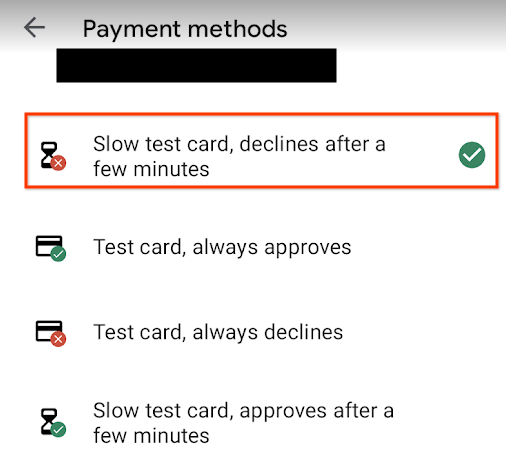 **Figure 3.** Test a purchase with a declined slow test card.
2. Make a purchase with a delayed form of payment **Slow test card, approves
after a few minutes**, as shown in figure 4. Wait a few minutes, validate
that the purchase has been granted.
 **Figure 4.** Test a purchase with an approved slow test card.
You can find more information at [Handling pending transactions](https://developer.android.com/google/play/billing/integrate#pending).
### Test user-initiated chargebacks
License testers have access to a test instrument that lets them simulate a
user-initiated chargeback.
1. Make a purchase with the test instrument **Test card, approves then charges
back** , as shown in figure 5. Soon afterwards, your system should be made
aware of the test purchase being delivered and charged back through
applicable surfaces. For example, you should receive a [PendingRefundReviewNotification](https://developer.android.com/google/play/billing/rtdn-reference#pending-refund-review) moments after making the purchase.
 **Figure 5.** Test a purchase with a test card that approves then charges back.
## Test subscription-specific features
The purchase flows for one-time products and subscriptions are similar, but
subscriptions have additional scenarios, such as successful or declined
subscription renewals. To test renewals, you can use the
**Test card, always approves** and **Test card, always declines** payment
methods that are available for license testers, as shown in figure 1. Use these
payment instruments to test scenarios beyond the successful subscription
scenario.
> [!CAUTION]
> **Caution:** The resubscribe and pause features are always enabled in license tester accounts even if they're disabled in the Play Console. Test these features in license testers, confirm that they work, and then enable them in the console for all users. To test your app's behavior when these features are disabled, you must use a non-license-tester account.
Similar to one-time products, verify that purchases are properly acknowledged as
described in [processing purchases](https://developer.android.com/google/play/billing/integrate#process). For purchases from license testers, a
purchase is refunded after 3 minutes if your app does not acknowledge the
purchase, and you receive an email about the cancellation. You can also check
the **Orders** tab in Google Play Console to see if an order was
refunded after 3 minutes.
### Renewal periods
Test subscriptions renew more quickly than actual subscriptions, and test
subscriptions can renew a maximum of six times, not counting free trials and
introductory periods.
The following table lists the testing renewal times for subscriptions of various
durations. These times are approximate. You may see small variations in the
precise time of an event. To compensate for variation, call the API to view the
current status after every subscription expiration date.
|---|---|
| **Production subscription period** | **Test subscription renewal** |
| 1 week | 5 minutes |
| 1 month | 5 minutes |
| 3 months | 10 minutes |
| 6 months | 15 minutes |
| 1 year | 30 minutes |
Time-based subscription features such as free trials are also shortened for
testing. The following table identifies the testing time periods associated with
time-based subscription features:
|---|---|
| **Feature** | **Test period** |
| Account hold | 10 minutes |
| Free trial | 3 minutes |
| Grace period | 5 minutes |
| Introductory price period | Same as subscription test period |
| Pause (1 month) | 5 minutes |
| Pause (2 months) | 10 minutes |
| Pause (3 months) | 15 minutes |
| Price step-up consent period (applicable only for the South Korea (KR) region) | 3 minutes |
| Purchase acknowledgement | 5 minutes |
### Accelerate subscription state transition
You can also use Play Billing Lab and license testers to accelerate the [test
subscriptions renewal periods](https://developer.android.com/google/play/billing/test#renewals) to speed up your subscription testing or move
the test subscription to grace period or account hold state to test [payment
decline](https://developer.android.com/google/play/billing/subscriptions#payment-declines) scenarios with the following steps:
1. Click **Manage** on the **Subscription settings** card in the **Dashboard**.
2. Choose the active subscription you want to test.
3. Click the **Subscription state** drop-down menu.
4. Click the target state to update the subscription state.
 **Figure 6.** Test subscription state transition.
Once you've selected the target subscription state in the drop-down menu, the
test subscription state will update shortly afterward.
Note that:
- Test subscriptions must be acknowledged before using the Accelerate Subscription State Transition feature.
- Your payment method will automatically decline when you move the test subscription to grace period or account hold state. When you restore the test subscription, your payment method will restore to automatic approval.
- The subscription state transition process might take a few seconds to execute.
- When the subscription state transition is in progress, the subscription price change feature is not available.
- If you renew the test subscription when a price change is in effect, Play applies the new price if the user has accepted it. However, if the new price requires user acceptance and the user hasn't agreed to it yet, Play cancels the subscription.
### Trial Offers
With the Play Billing Lab trial offer testing feature, a license tester can test
and use free trial or introductory offers an unlimited number of times by
checking the **Test free trial or introductory offer** checkbox and applying the
change. This removes the need to create multiple accounts to test a trial offer
only available to new subscribers.
 **Figure 7.** Test trial offers.
### Price changes
You can also use Play Billing Lab and license testers to test [subscription
price changes](https://developer.android.com/google/play/billing/price-changes) without affecting other active subscribers with the following
steps:
1. Click **Manage** on the **Subscription settings** card in the **Dashboard**.
2. Choose the active subscription you want to test.
3. Enter the new price.
4. Select or unselect the **User opt-out** checkbox per your test requirement.
5. Click **Apply**.
 **Figure 8.** Test subscription price change.
After applying your changes, the price is updated starting from the next renewal
only for the tester. Other active subscribers won't be affected. All the license
testers rules apply to the test subscription. The tester can then test their app
for downstream processes triggered by the price change, such as price change
notifications.
Keep the following considerations in mind when planning test periods:
- Due to a small renewal duration for license testers, it's possible that a price migration made from the console won't register for license testers. To ensure that price change notifications and emails can be tested, developers should defer billing by at least one hour after triggering a price change.
- Price decreases don't have a notification period. Users are notified of a price decrease soon after cohort migration. This is unchanged when testing.
- For price increases, test notification times are calculated the same as with actual increases:
- The user is first charged at the first billing anniversary following a mandatory notification period.
- Notification times are calculated backward from the first charge date.
- The final notification is always 1 minute before the charge, regardless of billing period.
The following table shows test billing and notification periods for several
actual billing periods:
|---|---|---|---|
| **Actual base plan billing period** | **Test billing period** | **Test notification period (opt-in and opt-out regions with 30 day notice)** | **Test notification period (opt-out regions with 60 day notice)** |
| 1 week | 5 minutes | 5 minutes | 10 minutes |
| 1 month | 5 minutes | 5 minutes | 10 minutes |
| 3 months | 10 minutes | 3 minutes | 6 minutes |
| 6 months | 15 minutes | 2 minutes | 4 minutes |
| 1 year | 30 minutes | 3 minutes | 6 minutes |
### Price step-up consent
> [!NOTE]
> **Note:** The price step-up consent feature is available only to the subscriptions in the South Korea (KR) region.
Information related to a price step-up that requires user consent will be
available to you in the [`purchases.subscriptionsv2.get`](https://developers.google.com/android-publisher/api-ref/rest/v3/purchases.subscriptionsv2/get) API.
Google Play sends two push and email price step-up notifications to the relevant
users (including license testers) before the step-up is live. The notification
period for testing is as follows:
|---|---|
| **Notification schedule** | **Test notification period** |
| First notification | 3 minutes |
| Second (final) notification | 1 minute |
### Test cases
Expand the following section by clicking **Show/Hide** to show testing scenarios
you should use to verify your subscription integration.
#### Monthly subscription
| Time | User action | System event | Expected testing outcome |
|---|---|---|---|
| 12:00 pm | Sign up for an in-app subscription using your licensed test account and the payment method of "Test instrument, always approves" | Subscription started | |
| 12:05 | | Subscription renews | |
| 12:10 | | Subscription renews | |
| 12:15 | | Subscription renews | |
| 12:20 | | Subscription renews | |
| 12:25 | | Subscription renews | |
| 12:30 | | Subscription renews | |
| 12:35 | | Subscription ends (after 6 renewals) | User should lose access to in-app subscription content |
#### Monthly subscription with free trial
| Time | User action | System event | Expected testing outcome |
|---|---|---|---|
| 12:00 pm | Sign up for an in-app subscription using your licensed test account and the payment method of "Test instrument, always approves" | Subscription starts with free trial | |
| 12:03 | | Subscription renews | |
| 12:08 | | Subscription renews | |
| 12:13 | | Subscription renews | |
| 12:18 | | Subscription renews | |
| 12:23 | | Subscription renews | |
| 12:28 | | Subscription renews | |
| 12:33 | | Subscription ends (after 6 renewals) | User should lose access to in-app subscription content |
#### Installment subscription with an initial 12-month commitment period, followed by automatic monthly renewals
| Time | User action | System event | Expected testing outcome |
|---|---|---|---|
| 12:00 pm | Sign up for an in-app payment plan subscription using your licensed test account and the payment method of "Test instrument, always approves" | Subscription starts | |
| 12:05 | | Successful installment payment | |
| 12:10 | | Successful installment payment | |
| 12:15 | | Successful installment payment | |
| 12:20 | | Successful installment payment | |
| 12:25 | | Successful installment payment | |
| 12:30 | | Successful installment payment | |
| 12:35 | | Successful installment payment | |
| 12:40 | | Successful installment payment | |
| 12:45 | | Successful installment payment | |
| 12:50 | | Successful installment payment | |
| 12:55 | | Successful installment payment | |
| 1:00 | | Subscription renews (monthly auto-renewals) | |
| 1:05 | | Successful installment payment | |
| 1:10 | | Successful installment payment | |
| 1:15 | | Successful installment payment | |
| 1:20 | | Successful installment payment | |
| 1:25 | | Successful installment payment | |
| 1:30 | | Subscription ends (after 6 renewals) | User should lose access to in-app subscription content |
#### Installment subscription with an initial 6-month commitment period, followed by automatic renewal for the same duration (6 months)
| Time | User action | System event | Expected testing outcome |
|---|---|---|---|
| 12:00 pm | Sign up for an in-app payment plan subscription using your licensed test account and the payment method of "Test instrument, always approves" | Subscription starts | |
| 12:05 | | Successful installment payment | |
| 12:10 | | Successful installment payment | |
| 12:15 | | Successful installment payment | |
| 12:20 | | Successful installment payment | |
| 12:25 | | Successful installment payment | |
| 12:30 | | Subscription renews (repeating initial commitment period) | |
| 12:35 | | Successful installment payment | |
| 12:40 | | Successful installment payment | |
| 12:45 | | Successful installment payment | |
| 12:50 | | Successful installment payment | |
| 12:55 | | Successful installment payment | |
| 1:00 | | Subscription ends (after 6 renewals) | User should lose access to in-app subscription content |
#### Yearly subscription with intro price
| Time | User action | System event | Expected testing outcome |
|---|---|---|---|
| 12:00 pm | Sign up for an in-app subscription using your licensed test account and the payment method of "Test instrument, always approves" | Subscription started at intro price | |
| 12:30 | | Subscription renews at regular price | |
| 1:00 | | Subscription renews | |
| 1:30 | | Subscription renews | |
| 2:00 | | Subscription renews | |
| 2:30 | | Subscription renews | |
| 3:00 | | Subscription renews | |
| 3:30 | | Subscription ends (after 6 renewals) | User should lose access to in-app subscription content |
#### Monthly subscription with grace period; user recovers
| Time | User action | System event |
|---|---|---|
| 12:00 pm | Sign up for an in-app subscription using your licensed test account and the payment method of "Test instrument always approves" | Subscription started |
| 12:01 | Go to the Google Play app, **Account \> Subscriptions**, click your test subscription, and change payment method to "Test instrument, always declines" | |
| 12:05 | Subscription payment declines and user enters grace period | |
| 12:08 | Go to the **Account \> Subscriptions** section of the Google Play app, click your test subscription, and change payment method to "Test instrument, always approves" | Subscription recovered and exit grace period |
| 12:10 | | Subscription renews |
| 12:15 | | Subscription renews |
| 12:20 | | Subscription renews |
| 12:25 | | Subscription renews |
| 12:30 | | Subscription renews |
| 12:35 | | Subscription renews |
| 12:40 | | Subscription ends (after 6 renewals) |
#### Monthly subscription with grace period and account hold; user involuntarily churns
| Time | User action | System event | Expected testing outcome |
|---|---|---|---|
| 12:00 pm | Sign up for an in-app subscription using your licensed test account and the payment method of "Test instrument always approves" | Subscription started | |
| 12:01 | Go to the **Account \> Subscriptions** section of the Google Play app, click your test subscription, and change payment method to "Test instrument, always declines" | | |
| 12:05 | | Payment declined; enter grace period | |
| 12:10 | | Exit grace period; enter account hold | User should lose access to in-app subscription content |
| 12:20 | | Subscription is canceled due to involuntary churn | |
#### Yearly subscription with grace period and account hold; user
recovers during account hold
| Time | User action | System event | Expected testing outcome |
|---|---|---|---|
| 12:00 pm | Sign up for an in-app subscription using your licensed test account and the payment method of "Test instrument always approves" | Subscription started | |
| 12:01 | Go to the **Account \> Subscriptions** section of the Google Play app, click your test subscription, and change payment method to "Test instrument, always declines" | | |
| 12:30 | | Payment declined; enter grace period | |
| 12:35 | | Exit grace period; enter account hold | User should lose access to in-app subscription content |
| 12:45 | Go to the **Account \> Subscriptions** section of the Google Play app, click your test subscription, and change payment method to "Test instrument, always approves" | Subscription is recovered, renews, and exits account hold | User should regain access to in-app subscription content |
| 1:15 | | Subscription renews | |
| 1:45 | | Subscription renews | |
| 2:15 | | Subscription renews | |
| 2:45 | | Subscription renews | |
| 3:15 | | Subscription renews | |
| 3:45 | | Subscription ends (after 6 renewals) | |
#### Yearly subscription with grace period and account hold; user involuntarily churns
| Time | User action | System event | Expected testing outcome |
|---|---|---|---|
| 12:00 pm | Sign up for an in-app subscription using your licensed test account and the payment method of "Test instrument always approves" | Subscription started | |
| 12:01 | Go to the **Account \> Subscriptions** section of the Google Play app, click your test subscription, and change payment method to "Test instrument, always declines" | | |
| 12:30 | | Payment declined; enter grace period | |
| 12:35 | | Exit grace period; enter account hold | User should lose access to in-app subscription content |
| 12:45 | | Subscription is canceled due to involuntary churn | |
#### Monthly subscription with account hold and no grace period; user
recovers
| Time | User action | System event | Expected testing outcome |
|---|---|---|---|
| 12:00 pm | Sign up for an in-app subscription using your licensed test account and the payment method of "Test instrument always approves" | Subscription started | |
| 12:01 | Go to the **Account \> Subscriptions** section of the Google Play app, click your test subscription, and change payment method to "Test instrument, always declines" | | |
| 12:05 | | Payment declined; enter account hold | User should lose access to in-app subscription content |
| 12:15 | Go to the **Account \> Subscriptions** section of the Google Play app, click your test subscription, and change payment method to "Test instrument, always approves" | Subscription is recovered, renews, and exits account hold | User should regain access to in-app subscription content |
| 12:20 | | Subscription renews | |
| 12:25 | | Subscription renews | |
| 12:30 | | Subscription renews | |
| 12:35 | | Subscription renews | |
| 12:40 | | Subscription renews | |
| 12:45 | | Subscription ends (after 6 renewals) | |
#### Monthly subscription with account hold and no grace period; user involuntarily churns
| Time | User action | System event | Expected testing outcome |
|---|---|---|---|
| 12:00 pm | Sign up for an in-app subscription using your licensed test account and the payment method of "Test instrument always approves" | Subscription started | |
| 12:01 | Go to the **Account \> Subscriptions** section of the Google Play app, click your test subscription, and change payment method to "Test instrument, always declines" | | |
| 12:05 | | Payment declined; enter account hold | User should lose access to in-app subscription content |
| 12:15 | | Subscription is canceled due to involuntary churn | |
## Test pending transactions
You should test pending transactions are handled correctly and entitlements are
updated accordingly when the purchase state becomes `PURCHASED`. License testers
have access to two test instruments for delayed forms of payment where the
payment automatically completes or cancels after a couple of minutes.
1. Make a purchase with a delayed form of payment **Slow test card, declines
after a few minutes**, as shown in figure 9. Restart the app, validate that
the purchase has not been granted.
 **Figure 9.** Test a purchase with a declined slow test card.
2. Make a purchase with a delayed form of payment **Slow test card, approves
after a few minutes**, as shown in figure 10. Wait a few minutes, validate
that the purchase has been granted.
 **Figure 10.** Test a purchase with an approved slow test card.
## Test promo codes
You can use the Google Play Console to [create codes for your own
testing](https://support.google.com/googleplay/android-developer/answer/6321495). Keep in mind that you may only create 500 promo codes per quarter
across all managed products in an app.
You should test the following promo code redemption scenarios:
- When the promo code is entered in the purchase dialog that was launched within your app.
- When the promo code is redeemed in the Google Play Store app.
- When the promo code is redeemed at using the **Redeem** button in the left-hand navigation.
Within these scenarios, you should test redeeming codes in as many ways as
possible. Perform the following tests at a minimum:
- Redemption before the app is installed.
- Redemption while the app is running in the foreground. Note that for this test, you need another device to test using the Google Play Store app. Be sure to test redemptions from different screens in your app.
- Redemption with [multi-window mode](https://developer.android.com/guide/topics/ui/multi-window), where both your app and the Google Play Store app are being displayed at the same time.
For each test, make sure that the item is correctly detected and that the user
is notified.
## Test the purchase experience in different regions
You can test the purchase experience in different regions with the
[Play Billing Lab](https://developer.android.com/google/play/billing/test#play-billing-lab) app. To use the Play Billing Lab, you must be a
license tester. Use the following steps to test:
1. Register the app billing user as a license tester.
2. Log into Play Billing Lab app with the same user.
3. Select the required country and apply the change in Play Billing Lab.
4. Launch the purchase flow in the app under testing.
 **Figure 11.** Test purchase experience in different regions.
[Play Billing Lab](https://developer.android.com/google/play/billing/test#play-billing-lab) lets you test offer regional eligibility and the user
experience in any region, regardless of where you are physically testing.
> [!NOTE]
> **Note:** Gmail accounts created for testing purposes shouldn't be used to make purchases using real instruments on Google Play. This includes other apps and purchases such as Google Books.
## Test the purchase experience using real payment methods
You can test the purchase experience with real payment methods with the [Play
Billing Lab](https://developer.android.com/google/play/billing/test#play-billing-lab) Android app.
> [!NOTE]
> **Note:**
>
> - You need permissions to access this feature. Contact your Google Play Business Development manager to opt in.
> - You lose all other license tester features and Play Billing Lab configurations when you enable testing for real payment methods. Request a [refund](https://support.google.com/googleplay/android-developer/answer/2741495) for each purchase, or you will be charged a [service fee](https://support.google.com/googleplay/android-developer/answer/11131145).
Use the following steps to test real payment methods:
1. Register the Google Account user as a license tester.
2. Log into the Play Billing Lab app with the same user.
3. Enable real payment methods in the Play Billing Lab app.
4. Restart and launch the purchase flow in the app under testing.
## Spend limits for unpublished apps
Apps that are in the draft stage or published to the internal test track,
are subject to spend limits.
Google Play enforces limits on the following:
- **Daily transactions:** The number of transactions a user can make per day across all unpublished apps.
- **Per-order value:** The maximum amount for an individual transaction.
- **Daily total spend:** The cumulative daily expenditure for a user across all unpublished apps.
These limits reset every 24 hours.
If a user exceeds any of these limits while testing your app, they will see
an error message in the purchase cart, and the transaction will be blocked.
> [!NOTE]
> **Note:** If your testing requires higher limits, ensure your app is published to a [closed, open, or production track](https://support.google.com/googleplay/android-developer/answer/9859751).
## Test out-of-app purchases
You can use the [Play Billing Lab](https://developer.android.com/google/play/billing/test#play-billing-lab) app to test the end-to-end experience for
entitlements acquired outside of your app. To use
Play Billing Lab, you must be a [license tester](https://developer.android.com/google/play/billing/test#license-testers) for the app you are testing.
**Step 1 - Configure test**
1. Register the app billing user as a license tester.
2. Open the Play Store and log into it with the same user.
3. Open the Play Billing Lab app and log into it with the same user.
4. Select the **Out-of-app purchases** test card.
5. Optional: Select your test country and apply the change in Play Billing Lab.
1. If you don't select a country, Play Billing Lab uses the Play Country for your licensed test account.
6. Enter the app and product (SKU) information that you want to test.
7. Select the particular purchase option, base plan, or offer that you want to test.
8. Click **Start test**.
> [!NOTE]
> **Note:** The test remains active for two hours. After this time, you must reconfigure the test.
**Step 2 - Acquire the out-of-app product**
- [Featured products](https://developer.android.com/google/play/billing/test#featured-products)
- [Purchase recommendations](https://developer.android.com/google/play/billing/test#purchase-recommendations) (after abandoning a purchase)
- [Play Games Rewards](https://developer.android.com/google/play/billing/test#play-games-rewards)
> [!NOTE]
> **Note:** This test requires that the user is eligible to purchase the item. For non-consumable items, you must not currently own the product. For consumable items, you must consume any existing purchases before you test.
**Step 3 - Handle and deliver the entitlement**
Your app should detect the out-of-app purchase, and then deliver the item to the
respective user. For the full process, see [processing purchases](https://developer.android.com/google/play/billing/integrate#process).
### Featured products
> [!NOTE]
> **Note:** Featured products are supported only for one-time products.
1. Open the Play Store and sign in with the same licensed tester account that you used to configure the test in Play Billing Lab.
1. If the Play Store was previously open, close and restart it.
2. Navigate to the app details page for your app.
3. The item is shown on this page.
4. Select the item and complete the purchase.
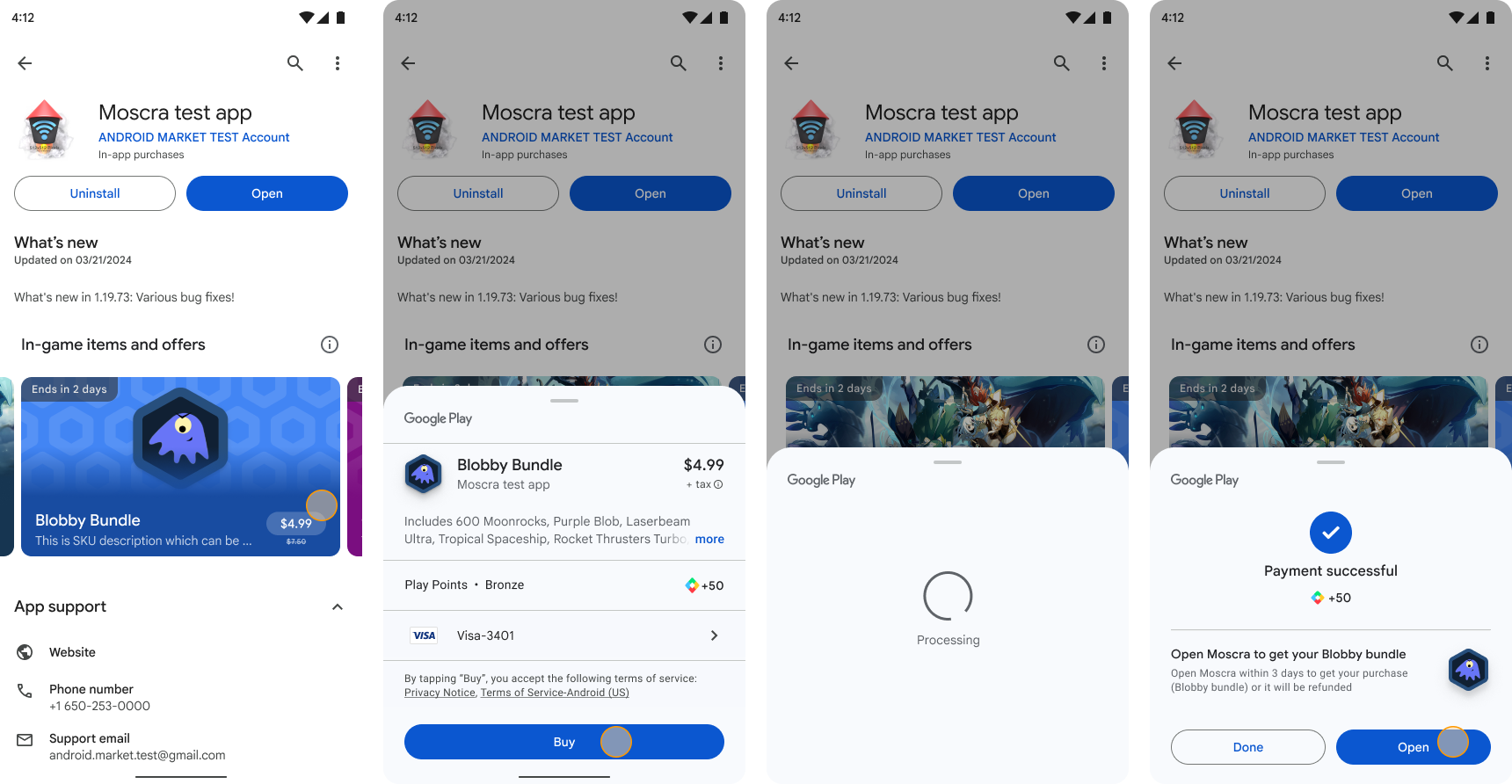 **Figure 12.** Featured product purchase flow.
### Purchase recommendations
> [!NOTE]
> **Note:** Purchase recommendations are supported only for one-time products. The purchase recommendations appear in your app in the Play Billing overlay after you initiate a purchase.
**After cart is abandoned:**
1. Restart your app.
2. Initiate a purchase flow for a one-time product in your app.
3. Dismiss or abandon the purchase cart dialog without completing the transaction.
4. Check for the abandoned cart purchase recommendation.
5. Accept the recommendation and complete the purchase.
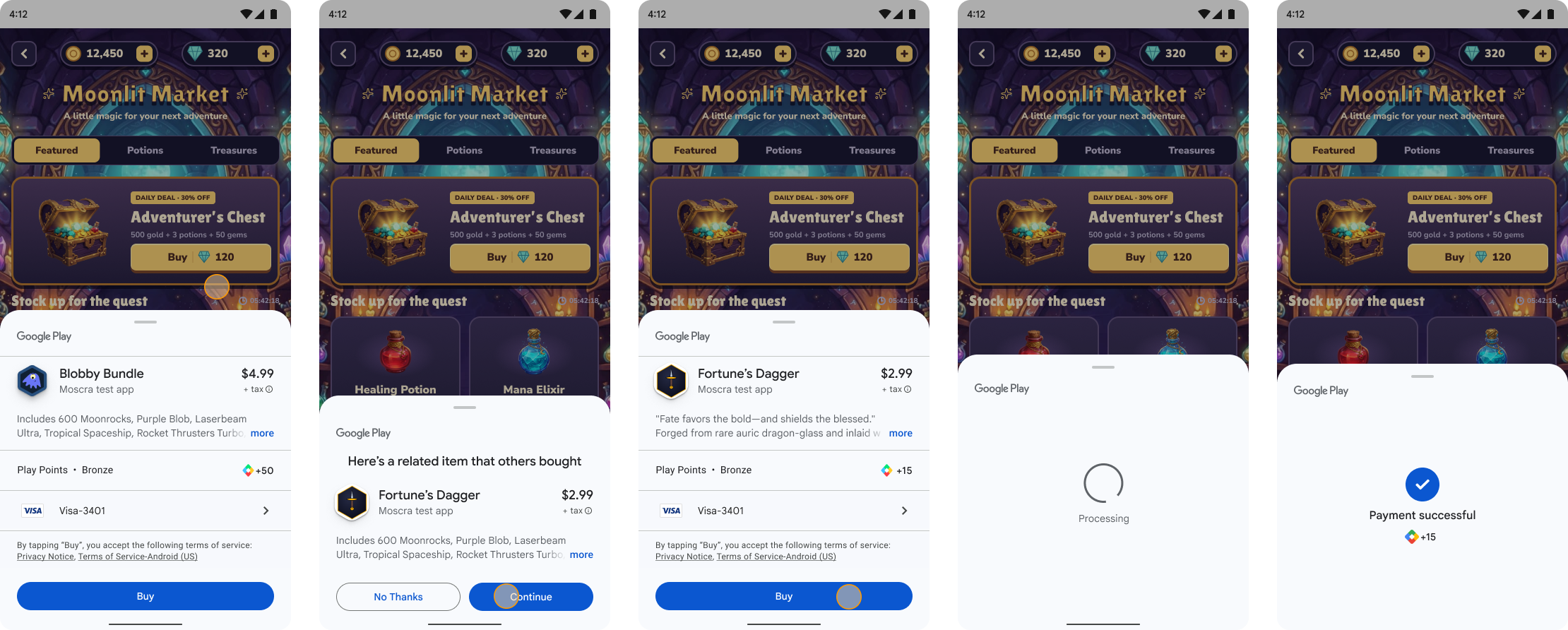 **Figure 13.** Purchase recommendation (abandoned cart) purchase flow.
### Play Games Rewards
> [!NOTE]
> **Note:** [Play Games Rewards](https://developer.android.com/games/rewards) are supported only for one-time products.
Click **Grant Reward** to simulate Play granting the reward to the user. Existing
rewards must be [processed](https://developer.android.com/google/play/billing/integrate#process) before additional rewards can be granted.
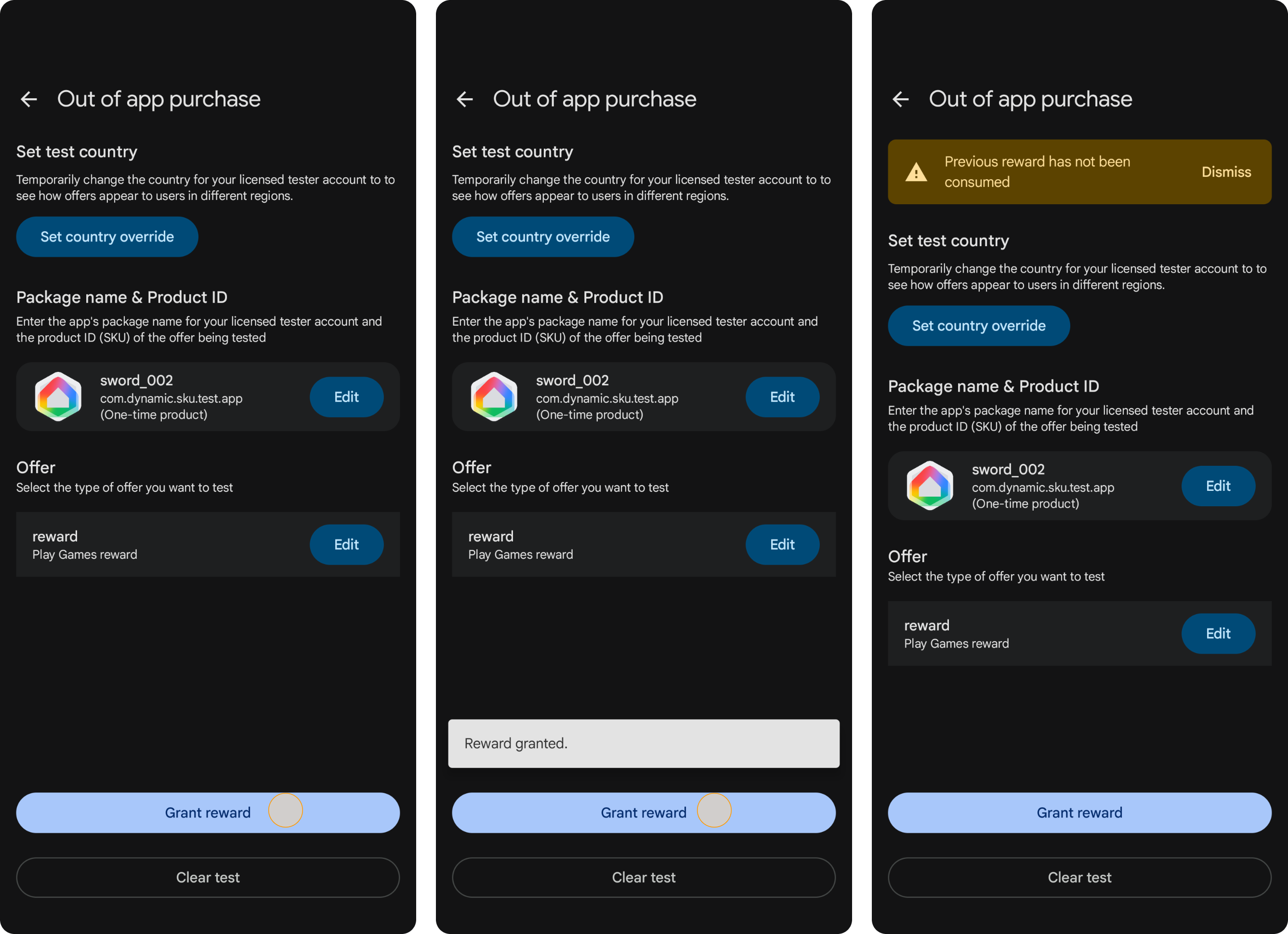 **Figure 14.** Play Games Rewards testing flow.