Applicable XR devices This guidance helps you build experiences for these types of XR devices. [Learn about XR device types →](https://developer.android.com/develop/xr/devices)  XR Headsets [](https://developer.android.com/develop/xr/devices#xr-headsets)  Wired XR Glasses [](https://developer.android.com/develop/xr/devices#xr-glasses) [Learn about XR device types →](https://developer.android.com/develop/xr/devices)
Unity provides some performance-related features in its OpenXR settings. Enable
these features to let your app communicate with the Android XR runtime, receive
performance notifications, and optimize GPU performance using foveated
rendering.
## Prerequisites
Before following this guidance, make sure you've verified and completed the
following prerequisites:
- Complete all the steps for [setting up your project in Unity](https://developer.android.com/develop/xr/unity/setup).
## Access OpenXR feature settings
Follow these steps to access Unity's OpenXR feature settings, where you can
configure the performance features that are outlined in the subsequent sections:
1. From the Unity main menu, click **Edit \> Project Settings**.
2. Expand the **XR Plug-in Management** section, and then click **OpenXR**.
3. Go to the **OpenXR Feature Groups** section.
## Enable XR Performance Settings
The [XR Performance Settings](https://docs.unity3d.com/Packages/com.unity.xr.openxr@1.15/manual/features/performance-settings.html)
in Unity enables your app to communicate performance requirements to the Android
XR runtime and to receive performance notifications.
### Benefits
- Your app receives system notifications to maintain optimal performance.
- You can provide performance hints to the OpenXR runtime.
### Enable this feature
In the **OpenXR Feature Groups** section that you [navigated to earlier](https://developer.android.com/develop/xr/unity/performance/openxr-feature-settings#access-feature-settings),
enable
**XR Performance Settings**.
## Enable foveated rendering
Foveated rendering offers both static and eye-tracking optimizations that
improve GPU performance. However, the eye tracked implementation offers a
better quality to users by rendering the area where they are looking, while
reducing the quality of their peripheral vision. This significantly reduces GPU
workload while maintaining visual quality where it matters most.
### Benefits
- Cuts GPU workload significantly by rendering less detail in peripheral vision.
- Keeps the area where the user is looking crystal clear.
- Lets you build more complex scenes without dropping frames.
### Enable this feature
1. In the **OpenXR Feature Groups** section that you [navigated to earlier](https://developer.android.com/develop/xr/unity/performance/openxr-feature-settings#access-feature-settings), enable **Foveated Rendering**.
2. Set **Foveated Rendering API** to **SRP Foveation**.
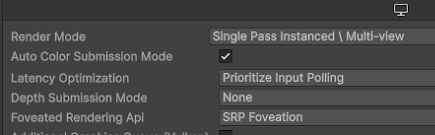
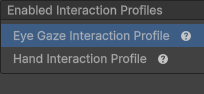
3. In the **Enabled Interaction Profiles** section, add the **Eye Gaze
Interaction Profile**.
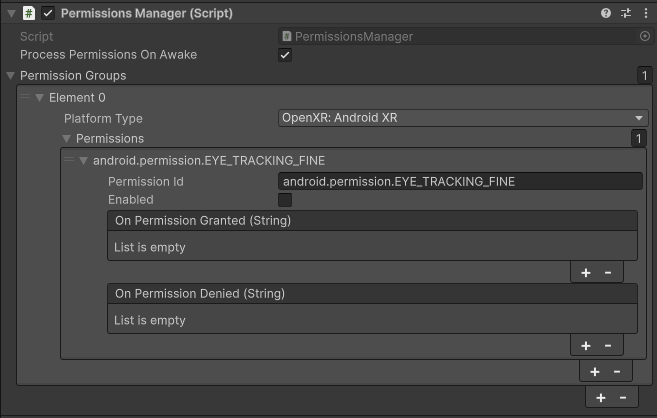
4. In the **Permissions Groups** section, specify that the
`android.permission.EYE_TRACKING_FINE` permission should be requested.
5. Turn on the feature at runtime and set the foveated render level for your
app:
using System.Collections.Generic;
using UnityEngine;
using UnityEngine.XR;
public class FoveationStarter : MonoBehaviour
{
List xrDisplays = new List();
void Start()
{
SubsystemManager.GetSubsystems(xrDisplays);
if (xrDisplays.Count == 1)
{
xrDisplays[0].foveatedRenderingLevel = 1.0f; // Full strength
xrDisplays[0].foveatedRenderingFlags
= XRDisplaySubsystem.FoveatedRenderingFlags.GazeAllowed;
}
}
}
For more information, see Unity's [documentation about foveated
rendering](https://docs.unity3d.com/Packages/com.unity.xr.openxr@1.15/manual/features/foveatedrendering.html).