Applicable XR devices This guidance helps you build experiences for these types of XR devices. [Learn about XR device types →](https://developer.android.com/develop/xr/devices)  XR Headsets [](https://developer.android.com/develop/xr/devices#xr-headsets)  Wired XR Glasses [](https://developer.android.com/develop/xr/devices#xr-glasses) [Learn about XR device types →](https://developer.android.com/develop/xr/devices)
While you're building immersive experiences for XR headsets and XR glasses with
spatial panels and orbiters, you can inspect and debug your layout with the
Layout Inspector in Android Studio.
[ See also If you're new to using the Layout Inspector, learn how to do other common tasks in the layout debugging guide.](https://developer.android.com/studio/debug/layout-inspector)
## Open the Layout Inspector
1. In Android Studio, [run your app](https://developer.android.com/studio/run).
2. After app deployment has completed, select **Tools \> Layout Inspector** from
the menu bar.
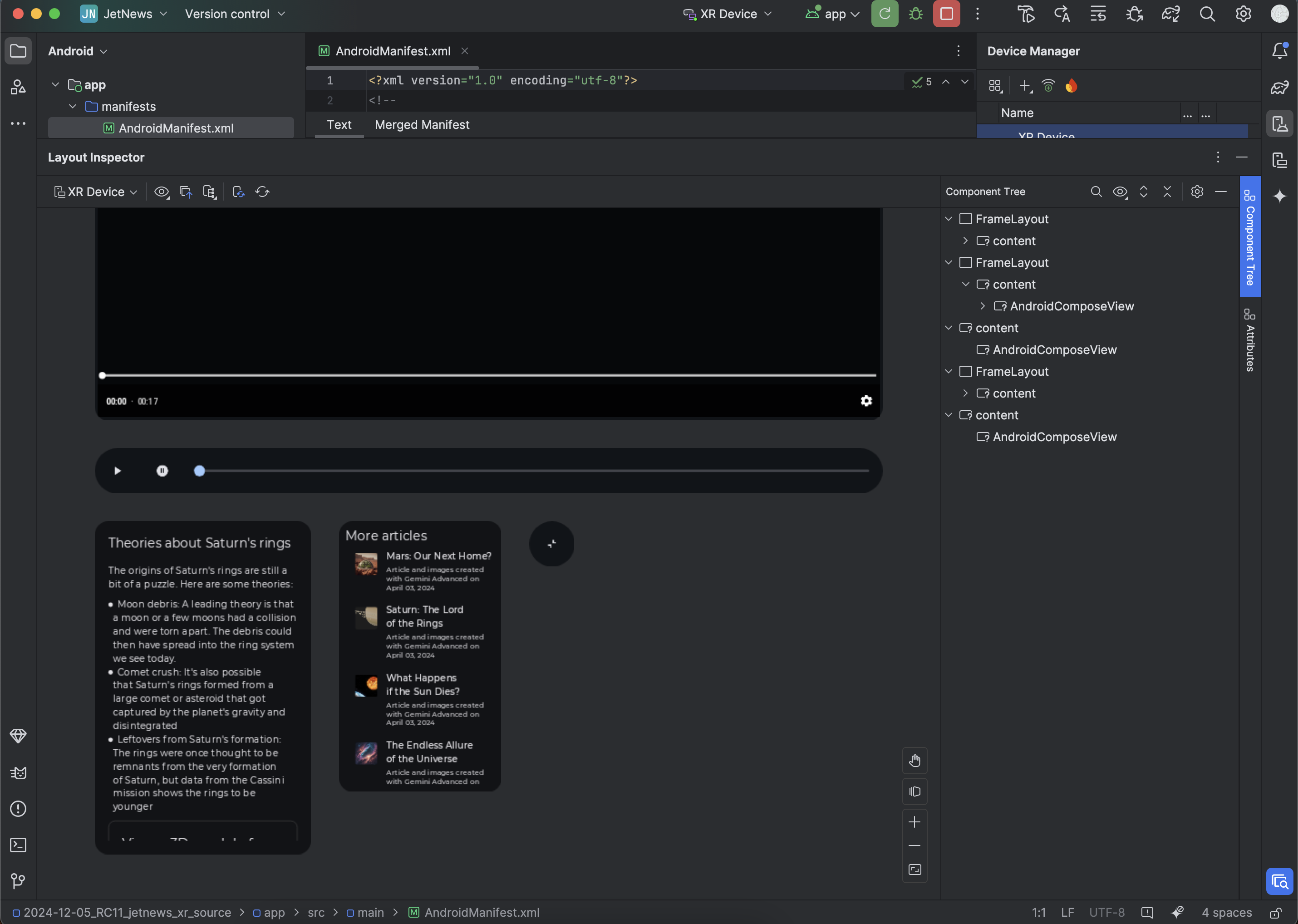
The Layout Inspector opens, with the **Layout Display** on the left and the
**Component Tree** panel on the right.
Spatial UI elements such as orbiters and panels appear as separate objects
beneath the main content.
## Inspect layout attributes
As you interact with your app, inspect a view by clicking it in the **Layout
Display** or in the **Component Tree** . All of the layout attributes for that
view appear in the **Attributes** panel. For example in the following image, the
attributes are shown for the `AndroidComposeView` spatial panel that is labeled
"More articles":
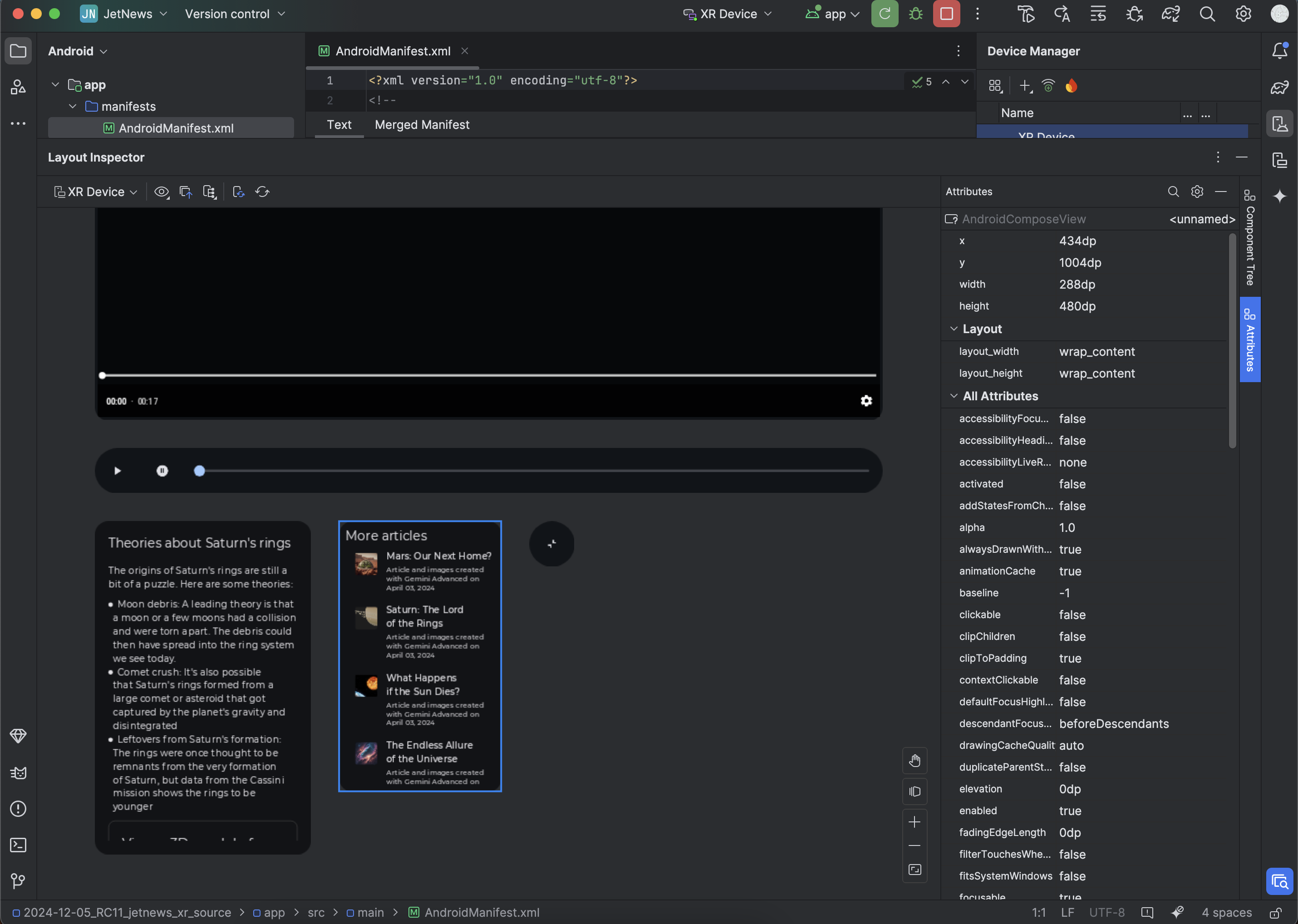 **Figure 1.** See a view's layout attributes by clicking it.