Applicable XR devices This guidance helps you build experiences for these types of XR devices. [Learn about XR device types →](https://developer.android.com/develop/xr/devices)  Display Glasses [](https://developer.android.com/develop/xr/devices#audio-display) [Learn about XR device types →](https://developer.android.com/develop/xr/devices)
As you develop your Jetpack Compose Glimmer UI, use composable previews to
visualize and iterate on your designs quickly and efficiently. Composable
previews give you a live, interactive rendering of your Jetpack Compose Glimmer
UI components directly within Android Studio. These previews eliminate the need
to continuously build and run your app on an emulator or physical device for
every small UI change, dramatically accelerating your development cycle.
[ See also If you are new to composable previews in Android development, see the general Compose documentation.](https://developer.android.com/develop/ui/compose/tooling/previews)
## Preview Jetpack Compose Glimmer UI components
1. Open your XR project in the latest Canary build of Android Studio.
2. Verify that your composable function is annotated with the `@Preview` annotation.
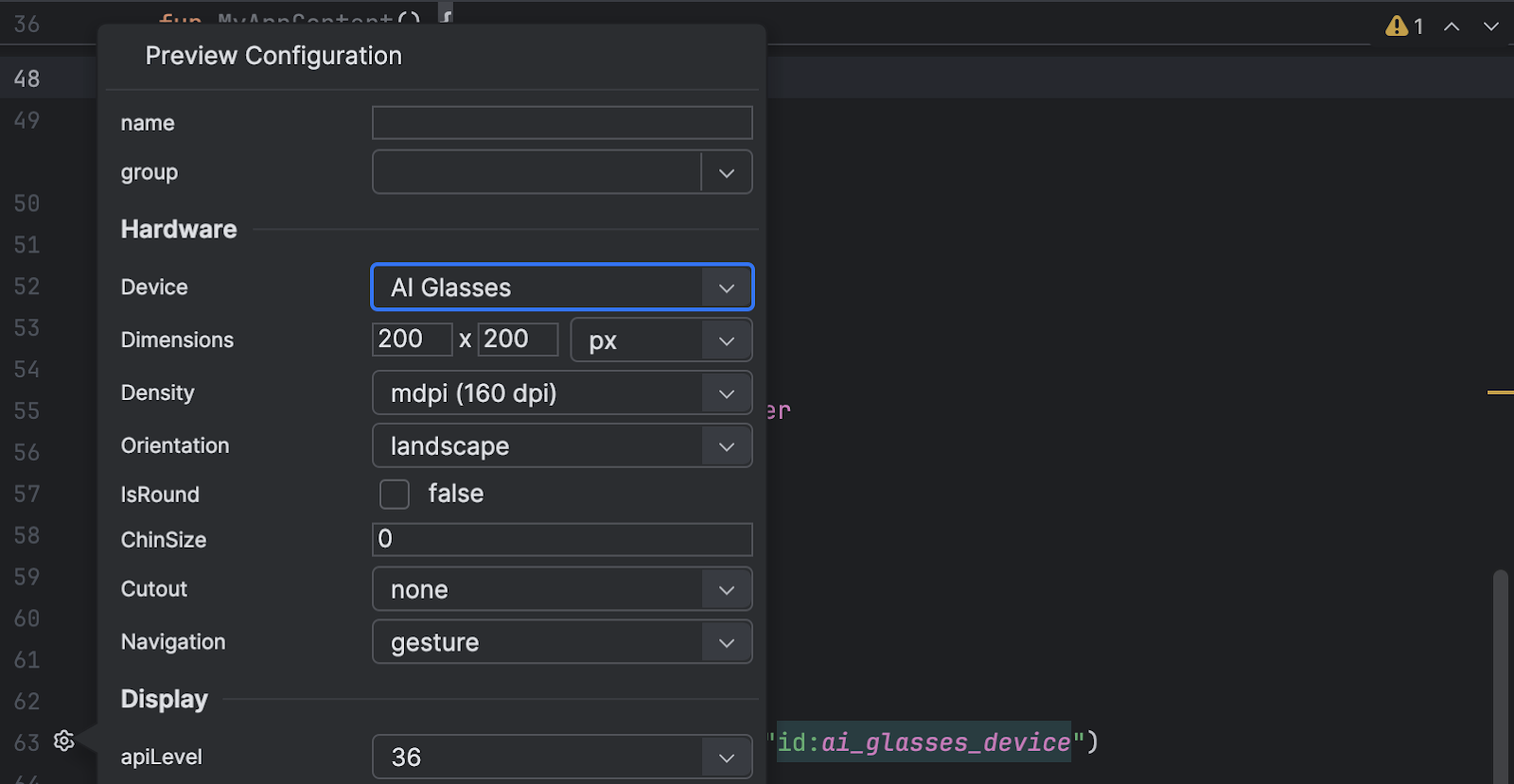
3. In **Code** view, click the
**Preview configuration picker** for the composable function.
4. From the **Device** drop-down menu, select **AI Glasses**.
This adjusts the preview surface to match the unique resolution and aspect
ratio of display glasses.
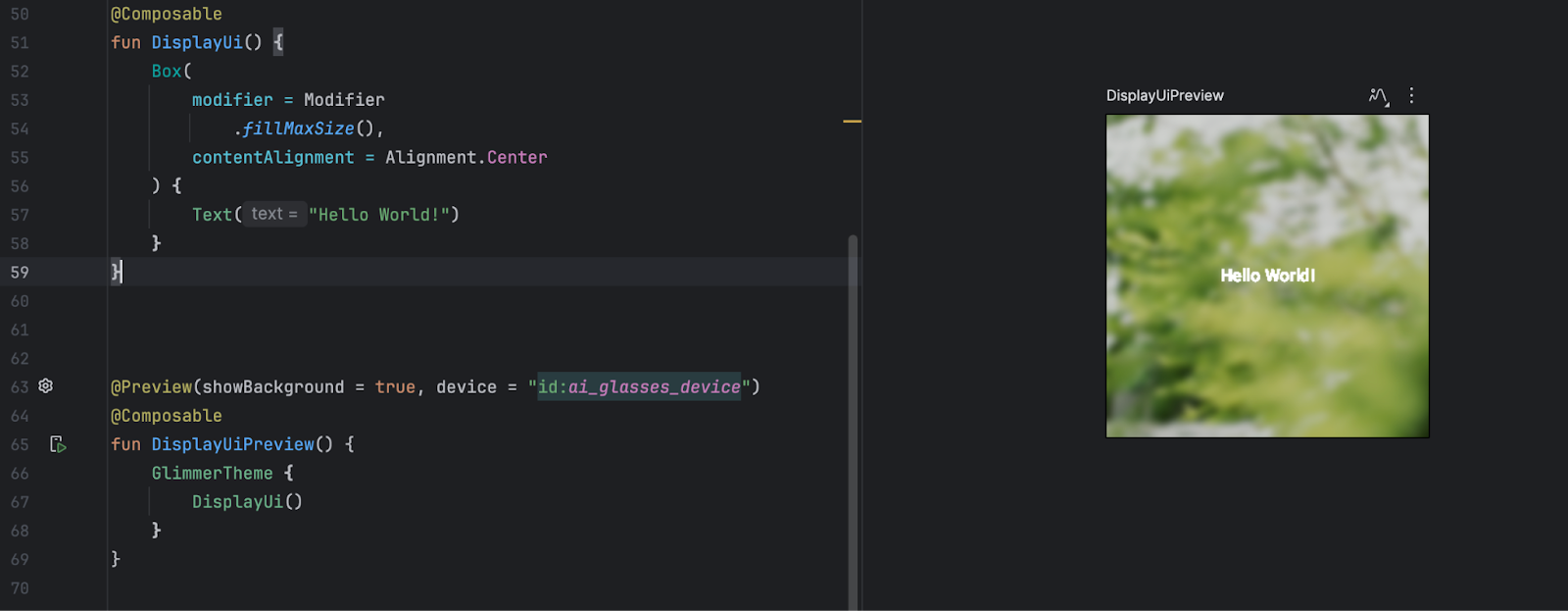
5. Select either the **Design** or **Split** view to see the preview.
## Adjust the preview environment
Glasses use an additive, transparent display. This characteristic means the
display can only add light; it can't create black. With an additive display,
black is not a color---it appears 100% transparent. The Compose preview provides
an approximation that helps you understand how the UI behaves in different
viewing conditions.
To simulate different viewing conditions, click the environment icon in the
preview pane toolbar. Try different background options (for example, Light,
Dark, or Busy) to check whether your text and components have adequate contrast
and visibility.