Applicable XR devices This guidance helps you build experiences for these types of XR devices. [Learn about XR device types →](https://developer.android.com/develop/xr/devices.md.txt)  XR Headsets [](https://developer.android.com/develop/xr/devices.md.txt#xr-headsets)  Wired XR Glasses [](https://developer.android.com/develop/xr/devices.md.txt#xr-glasses) [Learn about XR device types →](https://developer.android.com/develop/xr/devices.md.txt)
When working with 3D models, the Jetpack XR SDK supports the [glTF
2.0](https://www.khronos.org/glTF/) open standard. When Android XR renders apps built with the
Jetpack XR SDK, 3D models will be rendered with [physically based
rendering(PBR)](https://en.wikipedia.org/wiki/Physically_based_rendering) techniques specified in the glTF 2.0 standard
(along with supported [extensions](https://developer.android.com/develop/xr/jetpack-xr-sdk/add-3d-models.md.txt#gltf-extensions)). Most digital content creation (dcc)
tools, such as [Autodesk Maya](https://www.autodesk.com/products/maya/overview), [Maxon ZBrush](https://www.maxon.net/en/zbrush),
[Blender](https://www.blender.org/) and [Spline](https://spline.design/) can export 3D models into
the glTF format (`.gltf` or `.glb` files).
If a [`SpatialEnvironment`](https://developer.android.com/reference/kotlin/androidx/xr/scenecore/SpatialEnvironment.md.txt) skybox has been specified by the user or by your
app, 3D models will be lit with lighting information provided by the environment
skybox. Reflective materials and specular highlights will also reflect the
environment skybox. If passthrough has been enabled, then the lighting,
reflections and specular highlights will be based on a bright room with a single
directional light.
For a quick overview of the supported materials, refer to the [glTF PBR
Properties](https://www.khronos.org/gltf/pbr/) on the Khronos site. To learn how to customize your
3D models with these properties and others, see [Customize 3D models in your
app](https://developer.android.com/develop/xr/jetpack-xr-sdk/customize-3d-models)
## Add a glTF file to your assets folder
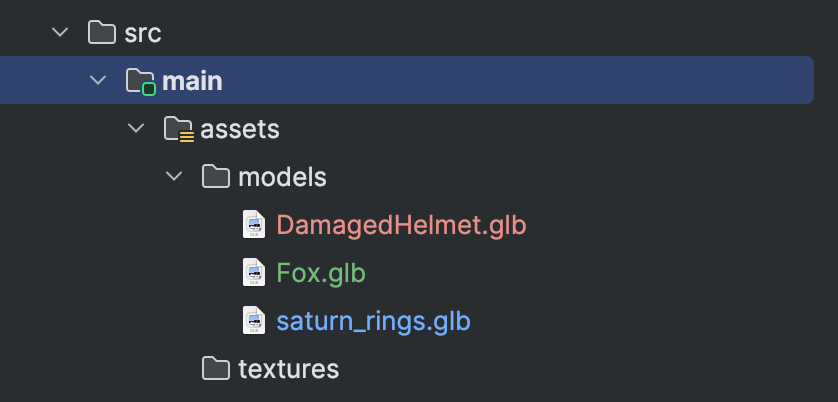
Once you have your glTF file, the next step is to add it to the assets directory
in Android Studio. We recommend creating a `models` directory to better organize
your asset types.
> [!TIP]
> **Tip:** If your app is going over [Google Play's maximum size
> limits](https://support.google.com/googleplay/android-developer/answer/9859372#size_limits) due to 3D assets and high resolution textures, you should consider using [Play Asset Delivery](https://developer.android.com/guide/playcore/asset-delivery) to optimize the delivery of your assets. For more information, see how to [package and distribute apps for
> Android XR](https://developer.android.com/develop/xr/package-and-distribute).
## Add a 3D object using SpatialGltfModel
Android XR supports the [glTF](https://www.khronos.org/gltf/) format for 3D models, typically
saved as `.glb` files. To add these objects to your layout, use
[`SpatialGltfModel`](https://developer.android.com/reference/kotlin/androidx/xr/compose/subspace/SpatialGltfModel.composable.md.txt#SpatialGltfModel(androidx.xr.compose.subspace.SpatialGltfModelState,androidx.xr.compose.subspace.layout.SubspaceModifier,kotlin.Function0)). A `SpatialGltfModel` is a [subspace composable](https://developer.android.com/develop/xr/jetpack-xr-sdk/compose/components.md.txt#subspace-composables)
that lets you add 3D models in the glTF format to your spatial layout. This API
simplifies the process of loading assets and managing their state.
To display a model, first define its source and state using
[`rememberSpatialGltfModelState`](https://developer.android.com/reference/kotlin/androidx/xr/compose/subspace/rememberSpatialGltfModelState.composable.md.txt#rememberSpatialGltfModelState(androidx.xr.compose.subspace.SpatialGltfModelSource)). You can load models from your app's
[`assets`](https://developer.android.com/reference/kotlin/androidx/xr/compose/subspace/SpatialGltfModelSource.md.txt#fromPath(java.nio.file.Path)) folder, a [`URI`](https://developer.android.com/reference/kotlin/androidx/xr/compose/subspace/SpatialGltfModelSource.md.txt#fromUri(android.net.Uri)), or [`raw data`](https://developer.android.com/reference/kotlin/androidx/xr/compose/subspace/SpatialGltfModelSource.md.txt#fromData(kotlin.ByteArray,kotlin.String)).
```kotlin
val modelState = rememberSpatialGltfModelState(
source = SpatialGltfModelSource.fromPath(
Paths.get("models/model_name.glb")
)
)
```
After the state is defined, use the `SpatialGltfModel` composable to render it
within a subspace:
```kotlin
SpatialGltfModel(state = modelState, modifier = SubspaceModifier)
```
### Key points about the code
- **Asynchronous loading**: The model is loaded asynchronously. During initial composition, its intrinsic size might be zero; the layout re-measures once the model is ready.
- **Controlling state** : Use [`SpatialGltfModelState.status`](https://developer.android.com/reference/kotlin/androidx/xr/compose/subspace/SpatialGltfModelState.md.txt#status()) to query the loading status or to control animations.
- **Sizing and scaling** : By default, the layout size matches the bounding box of the asset. You can override this with a `SubspaceModifier.size` to scale the model uniformly to fit within specified bounds.
## Place a 3D model using a Compose SceneCoreEntity
To place a 3D model using [`SceneCoreEntity`](https://developer.android.com/reference/kotlin/androidx/xr/compose/subspace/SpatialGltfModelSource.md.txt#fromUri(android.net.Uri)), you first need to load the
glTF into memory using [`GltfModel.create()`](https://developer.android.com/guide/playcore/asset-delivery). You can then place a 3D model
into a [`SceneCoreEntity`](https://developer.android.com/reference/kotlin/androidx/xr/compose/subspace/SpatialGltfModelSource.md.txt#fromUri(android.net.Uri)) to bridge SceneCore components with Compose for
XR layouts. Refer to [Use a SceneCoreEntity to place a 3D object in your
layout](https://developer.android.com/reference/kotlin/androidx/xr/compose/subspace/SpatialGltfModelSource#fromData(kotlin.ByteArray,kotlin.String)).
## Place a 3D model using Jetpack Scenecore
To load the glTF model, call [`GltfModel.create()`](https://developer.android.com/guide/playcore/asset-delivery).
```kotlin
val gltfModel = GltfModel.create(session, Paths.get("models", "saturn_rings.glb"))
```
At this point, the model is loaded into memory, but it's not being rendered yet.
If you have many 3D models to load or your model is large, it's a good idea to
load them asynchronously ahead of time. This way, users don't have to wait for
your models to be loaded into memory.
Add the glTF to the [`ActivitySpace`](https://www.khronos.org/gltf/). Call [`GltfModelEntity.create`](https://developer.android.com/reference/kotlin/androidx/xr/compose/subspace/rememberSpatialGltfModelState.composable.md.txt#rememberSpatialGltfModelState(androidx.xr.compose.subspace.SpatialGltfModelSource))
to create an entity and place it into the `ActivitySpace`. As best practice, you
should [check that the app is in a state which allows for spatial
capabilities](https://developer.android.com/reference/kotlin/androidx/xr/compose/subspace/SpatialGltfModelSource#fromPath(java.nio.file.Path)).
```kotlin
if (session.scene.spatialCapabilities.contains(SpatialCapability.SPATIAL_3D_CONTENT)) {
val gltfEntity = GltfModelEntity.create(session, gltfModel)
}
```
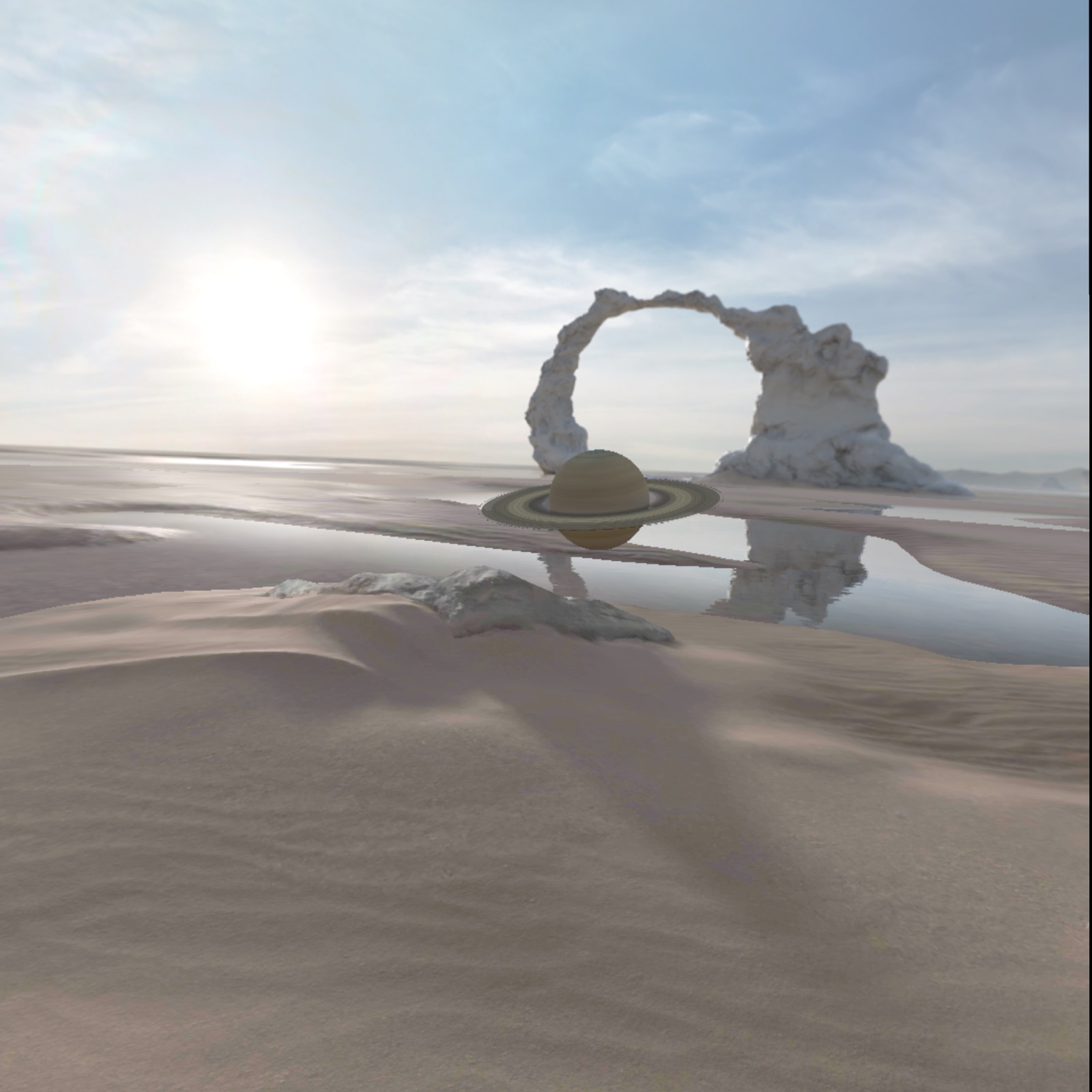
You should now see the loaded 3D model when you run your app.
> [!IMPORTANT]
> **Important:** Some 3D content, such as 3D models, will only be visible when the app is in Full Space.
## Load a 3D model using Scene Viewer
If you're looking for the simplest way to load a 3D model with basic interaction
capabilities, you may opt to [use Scene Viewer as you would on
mobile](https://developers.google.com/ar/develop/scene-viewer). A key difference between the Scene Viewer on Android XR
and on mobile is that Scene Viewer only supports the file URI parameter pointing
to the glTF file and all other parameters are ignored.
Scene Viewer is a separate app that is invoked using an intent and runs in Full
Space Mode. As a result, when you invoke it, your app will no longer be visible
and Scene Viewer will have focus. Any [environments](https://developer.android.com/develop/xr/jetpack-xr-sdk/add-environments.md.txt) you may have changed
will be reset to the user's system preferences.
Here's an example of using an [`Intent`](https://developer.android.com/reference/kotlin/android/content/Intent.md.txt) to view a glTF file in Scene Viewer
on Android XR:
```kotlin
val url =
"https://raw.githubusercontent.com/KhronosGroup/glTF-Sample-Models/master/2.0/Avocado/glTF/Avocado.gltf"
val sceneViewerIntent = Intent(Intent.ACTION_VIEW)
val intentUri =
Uri.parse("https://arvr.google.com/scene-viewer/1.2")
.buildUpon()
.appendQueryParameter("file", url)
.build()
sceneViewerIntent.setData(intentUri)
try {
startActivity(sceneViewerIntent)
} catch (e: ActivityNotFoundException) {
// There is no activity that could handle the intent.
}
```
For more information on the interactivity options for Scene Viewer, refer to our
[3D model design documentation](https://developer.android.com/design/ui/xr/guides/3d-content.md.txt).
## glTF extensions
Jetpack XR SDK supports several glTF extensions that expand the capabilities of
3D models. These capabilities are available through both the
[`GltfModelEntity`](https://developer.android.com/reference/kotlin/androidx/xr/scenecore/GltfModelEntity.md.txt) and Scene Viewer.
- [`KHR_animation_pointer`](https://developer.android.com/reference/kotlin/androidx/xr/compose/subspace/SpatialGltfModelState.md.txt#status())
- [`KHR_draco_mesh_compression`](https://github.com/KhronosGroup/glTF/blob/main/extensions/2.0/Khronos/KHR_draco_mesh_compression/README.md)
- [`KHR_lights_punctual`](https://github.com/KhronosGroup/glTF/tree/main/extensions/2.0/Khronos/KHR_lights_punctual)
- [`KHR_materials_clearcoat`](https://github.com/KhronosGroup/glTF/tree/main/extensions/2.0/Khronos/KHR_materials_clearcoat)
- [`KHR_materials_sheen`](https://github.com/KhronosGroup/glTF/tree/main/extensions/2.0/Khronos/KHR_materials_sheen)
- [`KHR_materials_unlit`](https://github.com/KhronosGroup/glTF/tree/main/extensions/2.0/Khronos/KHR_materials_unlit)
- [`KHR_materials_variants`](https://github.com/KhronosGroup/glTF/tree/main/extensions/2.0/Khronos/KHR_materials_variants)
- [`KHR_mesh_quantization`](https://github.com/KhronosGroup/glTF/tree/main/extensions/2.0/Khronos/KHR_mesh_quantization)
- [`KHR_texture_basisu`](https://github.com/KhronosGroup/glTF/tree/main/extensions/2.0/Khronos/KHR_texture_basisu)
- [`KHR_texture_transform`](https://github.com/KhronosGroup/glTF/tree/main/extensions/2.0/Khronos/KHR_texture_transform)
- [`EXT_texture_webp`](https://github.com/KhronosGroup/glTF/blob/main/extensions/2.0/Vendor/EXT_texture_webp/README.md)