Applicable XR devices This guidance helps you build experiences for these types of XR devices. [Learn about XR device types →](https://developer.android.com/develop/xr/devices)  XR Headsets [](https://developer.android.com/develop/xr/devices#xr-headsets)  Wired XR Glasses [](https://developer.android.com/develop/xr/devices#xr-glasses) [Learn about XR device types →](https://developer.android.com/develop/xr/devices)
Direct Preview lets you test and iterate on complex interactions
directly inside the Godot Editor using live data from the Android XR Device.
With Direct Preview, the host machine renders and debugs the
content, streams the visual viewport directly to your physical Android XR
device, and streams supported OpenXR extensions back to the host in real time.
Follow this guide to set up Direct Preview for your project in
Godot.
## Prerequisites
Before beginning, ensure your development environment meets the following
requirements:
- **Godot version** : [Godot
4.6.2](https://godotengine.org/download/windows/) or higher.
- **Project setup** : Complete all steps in the [Godot Engine project setup](https://developer.android.com/develop/xr/godot/setup)
guide.
Completing these steps also provides you with the required version of the
[Godot OpenXR Vendors Plugin](https://github.com/GodotVR/godot_openxr_vendors), which enables support for
Android XR specific extensions.
- **Android XR Engine Hub** : Complete all the steps in the [get started](https://developer.android.com/develop/xr/engine-hub#get-started) section of the Android XR Engine Hub guide to install and configure your host machine for Direct Preview.
- **Hardware**:
- Use a host machine running Windows 11.
- Use a modern graphics card with **Vulkan Video Encoding** support.
> [!IMPORTANT]
> **Important:** Update your GPU drivers to their latest versions before to check for all of its Vulkan capabilities.
## Configure your editor settings
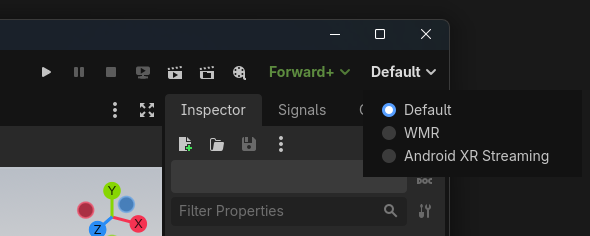
Select the active OpenXR runtime specifically for the editor session:
1. Open your project in Godot.
2. Navigate to **Editor Settings**.
3. Locate the **XR** section.
4. In the **OpenXR** drop-down (or **Runtimes** list), select **AndroidXR
Streaming Runtime**.
> [!NOTE]
> **Note:** If **AndroidXR Streaming Runtime** was already set as your system default, you can leave this set to **Default**.
## Start Direct Preview
Start Direct Preview to stream directly from Godot:
1. Connect your Android XR device to your host machine using a high-quality
USB-C cable.
> [!NOTE]
> **Note:** You must enable [developer options](https://developer.android.com/studio/debug/dev-options#enable) and [debugging](https://developer.android.com/studio/debug/dev-options#Enable-debugging) on the Android XR device so that your host machine can send ADB (Android Debug Bridge) commands.
2. If you've never used this device with Direct Preview before,
[connect and configure the device for Direct Preview](https://developer.android.com/develop/xr/engine-hub/direct-preview#connect-configure)
in the Android XR Engine Hub before you start
Direct Preview through your game engine.
3. In the Godot Editor, click **Play** or press `F5`.
The Godot Game window on your host machine mirrors the view, and the
headset displays the VR content.