Your app might need to get the user's attention urgently in certain situations,
such as an ongoing alarm or an incoming call. On devices that run
Android 9 (API level 28) or lower, you might handle this by launching an
activity while the app is in the background. This document shows how to achieve
this behavior on devices running Android 10 (API level 29) (API level 29) and
higher.
## Add the POST_NOTIFICATIONS permission
Starting in Android 13 (API level 33), declare the
`POST_NOTIFICATIONS` permission in your `AndroidManifest.xml` file:
```xml
...
```
After you declare the permission, create a notification channel.
## Create a notification channel
Create a notification channel to display notifications and let users manage
notification categories in system settings. For more information about
notification channels, see [Create and manage notification channels](https://developer.android.com/develop/ui/compose/notifications/channels.md.txt).
Create your notification channels in the [`onCreate`](https://developer.android.com/reference/android/app/Application.md.txt#onCreate()) method of your
`Application` class:
```kotlin
class MyApplication : Application() {
override fun onCreate() {
super.onCreate()
val channel = NotificationChannel(
CHANNEL_ID,
"High priority notifications",
NotificationManager.IMPORTANCE_HIGH
)
val notificationManager = getSystemService(Context.NOTIFICATION_SERVICE) as NotificationManager
notificationManager.createNotificationChannel(channel)
}
}
```
When the user runs the app for the first time, the system displays the channel
in the **App info** screen, as shown in Figure 1:
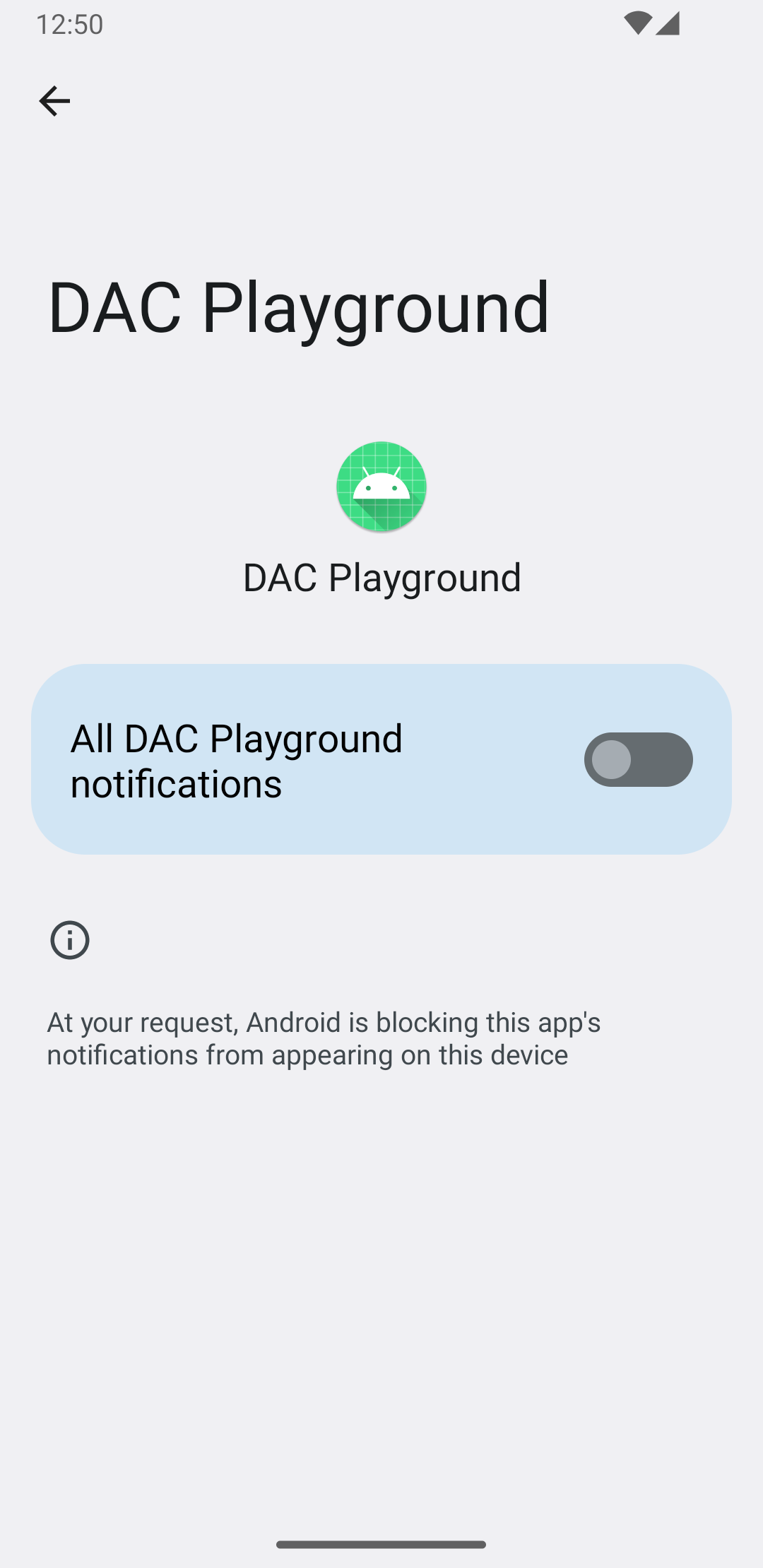 **Figure 1.** Notifications section in the **App
Info** screen of the app's system settings.
## Manage notifications permissions
Starting in Android 13, request notification permissions before
you show notifications to users.
The following code example shows how to request runtime notification
permission in Jetpack Compose:
```kotlin
val permissionLauncher = rememberLauncherForActivityResult(
contract = ActivityResultContracts.RequestPermission(),
onResult = { hasNotificationPermission = it }
)
// ...
Button(
onClick = {
if (!hasNotificationPermission) {
if (Build.VERSION.SDK_INT >= Build.VERSION_CODES.TIRAMISU) {
permissionLauncher.launch(Manifest.permission.POST_NOTIFICATIONS)
}
}
},
) {
Text(text = "Request permission")
}
```
On devices that run Android 13 and higher, tapping the
**Request permission** button displays the system dialog shown in Figure 2:
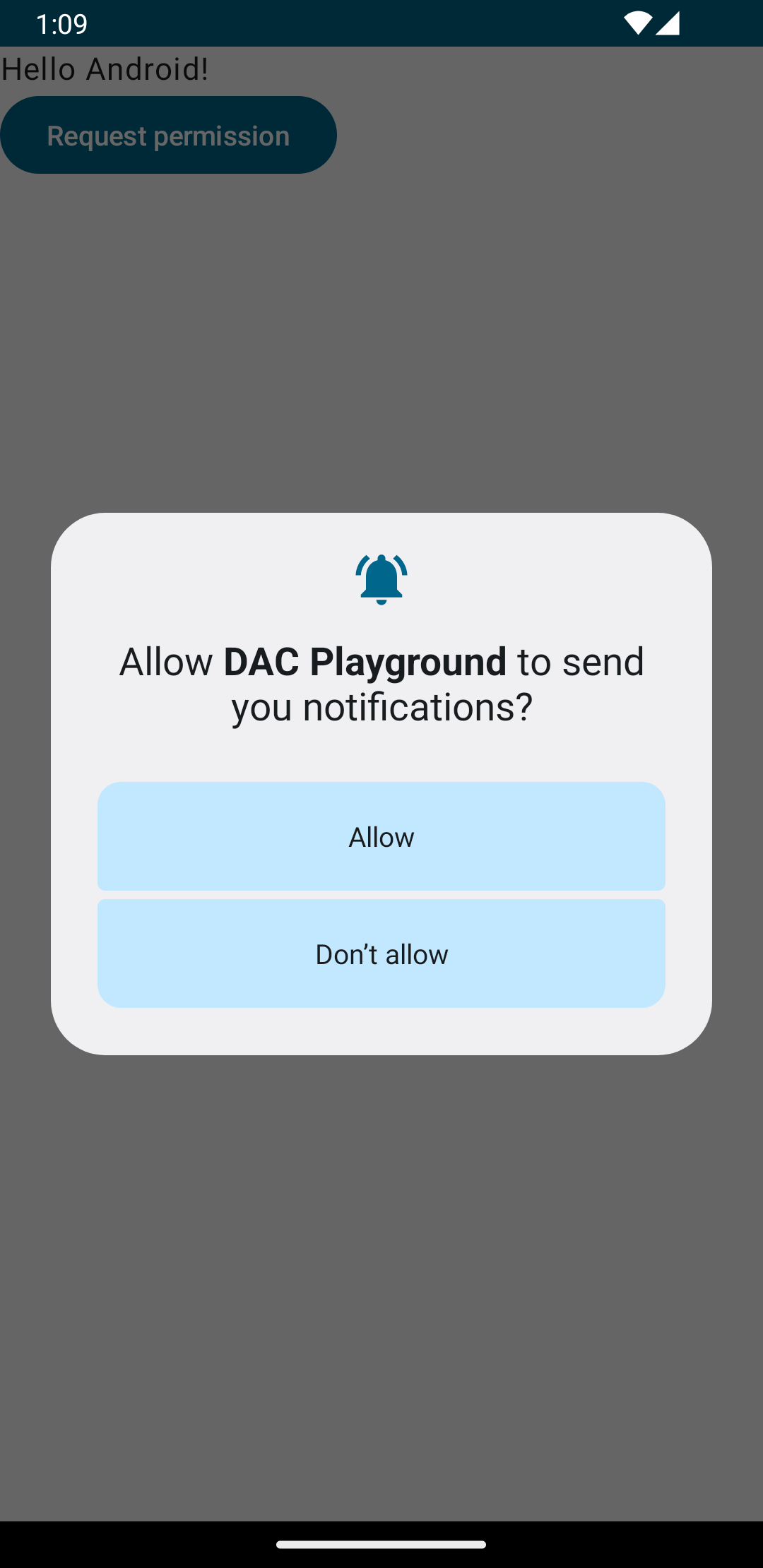 **Figure 2.** System dialog for the notification permission request.
When the user grants the permission, the system updates the **App info**
screen, as shown in Figure 3:
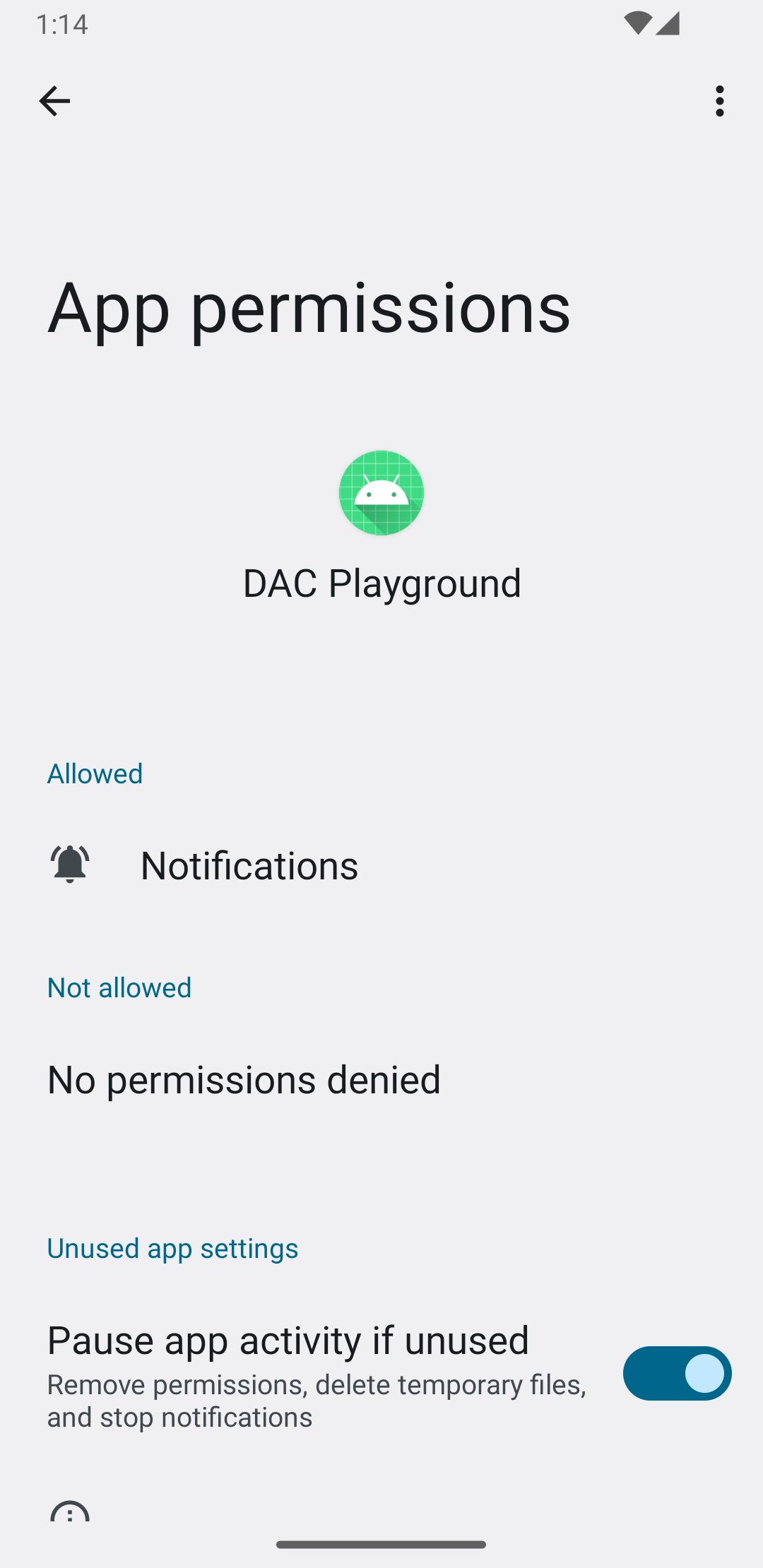 **Figure 3.** Notification permissions granted.
> [!WARNING]
> **Experimental:** See the Accompanist [Jetpack Compose
> Permissions](https://google.github.io/accompanist/permissions/) library for experimental permission management.
## Create a high-priority notification
When you build a high-priority notification, provide a clear title and message
text. Also assign a high-importance channel and priority level.
The following code example configures and builds a high-priority notification:
```kotlin
private fun showNotification() {
val notificationManager = getSystemService(Context.NOTIFICATION_SERVICE) as NotificationManager
val notificationBuilder =
NotificationCompat.Builder(this, CHANNEL_ID)
.setSmallIcon(R.drawable.baseline_auto_awesome_24)
.setContentTitle("HIGH PRIORITY")
.setContentText("Check this dog puppy video NOW!")
.setPriority(NotificationCompat.PRIORITY_HIGH)
.setCategory(NotificationCompat.CATEGORY_RECOMMENDATION)
notificationManager.notify(0, notificationBuilder.build())
}
```
## Display the notification to the user
Calling the `showNotification` function triggers the notification as follows:
```kotlin
Button(onClick = { showNotification() }) {
Text(text = "Show notification")
}
```
Figure 4 shows the high-priority notification displayed by the system:
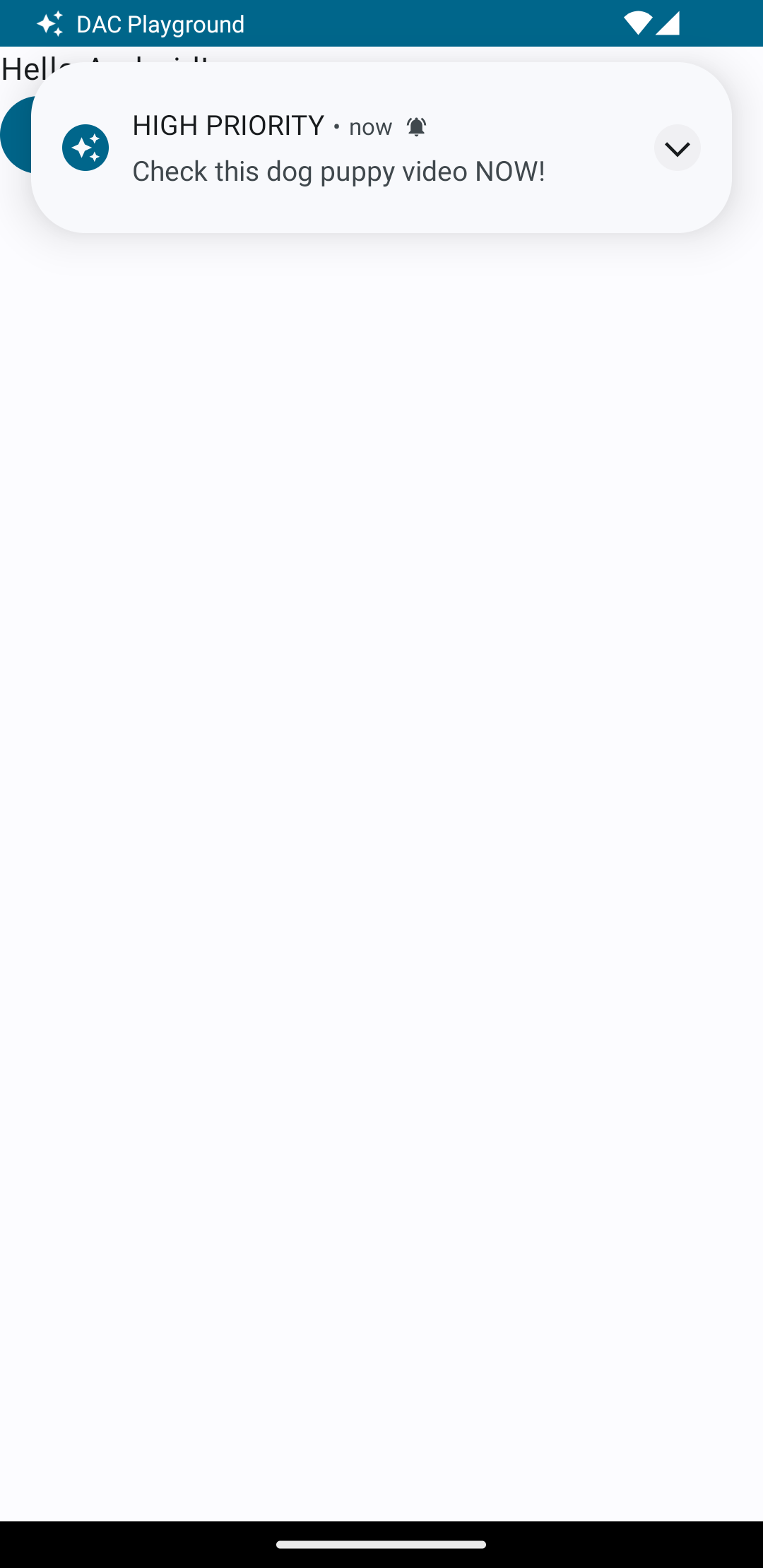 **Figure 4.** A high-priority notification.
## Ongoing notification
When you display your notification to the user, they can acknowledge or dismiss
your app's alert or reminder. For example, the user can accept or reject an
incoming phone call.
> [!NOTE]
> **Note:** If your notification includes a full-screen intent to display an activity when the device is locked, the system UI displays a heads-up notification instead while the user actively uses the device.
If your notification represents an ongoing background task, such as an active
phone call, associate the notification with a [foreground service](https://developer.android.com/develop/background-work/services/fgs.md.txt).
The following code snippet shows how to display a notification associated with
a foreground service:
```kotlin
// Provide a unique integer for the "notificationId" of each notification.
startForeground(notificationId, notification)
```
## Consider using Live Updates
Time-sensitive ongoing notifications can benefit from increased visibility.
Consider promoting ongoing notifications as [Live Updates](https://developer.android.com/develop/ui/compose/notifications/live-update.md.txt) to display status
information across system UI surfaces.