Starting in Android 7.0 (API level 24), you can display related notifications in
a group. For example, if your app shows notifications for received emails, put
all notifications for new email messages in the same group so they collapse
together.
To support lower versions, add a summary notification that appears alone to
summarize all the separate notifications. An [inbox-style notification](https://developer.android.com/develop/ui/compose/notifications/expanded.md.txt#inbox-style) is
the usual way to do that.
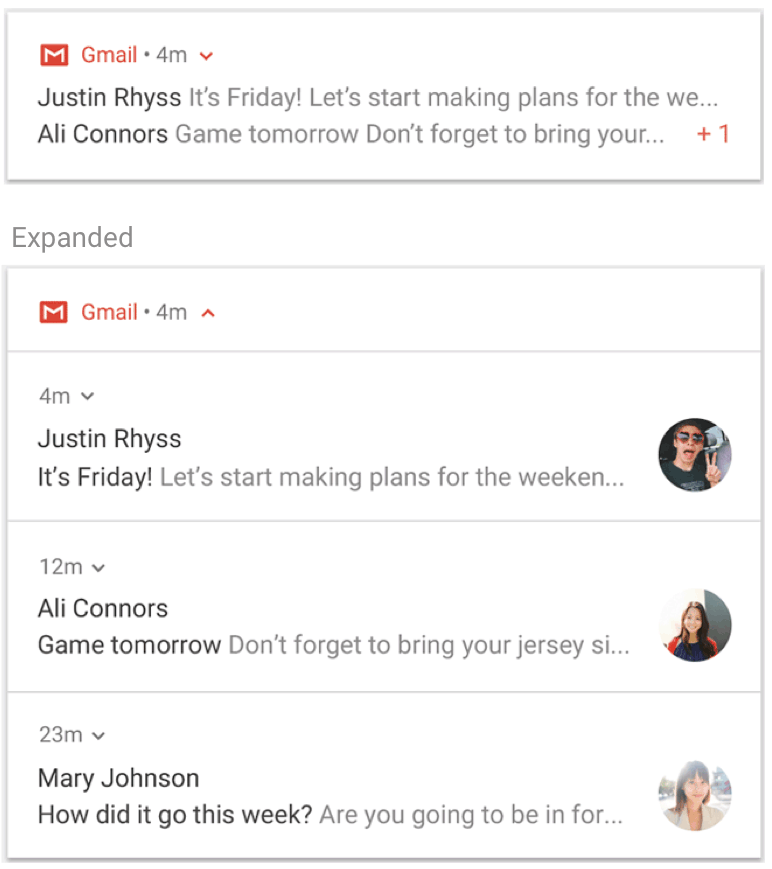 **Figure 1.** A collapsed (top) and expanded (bottom) notification group.
> [!NOTE]
> **Note:** Notification groups aren't the same as [notification channel groups](https://developer.android.com/develop/ui/compose/notifications/channels.md.txt#CreateChannelGroup).
If all of the following conditions are true for your use case, use notification
groups:
- The child notifications are complete notifications and can be displayed
individually without the need for a group summary.
- There is a benefit to showing the child notifications individually. For
example:
- They have actions specific to each notification.
- There is more information in each notification for the user to see.
If your notifications don't meet the preceding criteria, instead consider
[updating an existing notification](https://developer.android.com/develop/ui/compose/notifications/create-notification.md.txt#Updating) with new information or creating a
[message-style notification](https://developer.android.com/develop/ui/compose/notifications/expanded.md.txt#message-style) to show multiple updates in the same
conversation.
> [!NOTE]
> **Note:** If your app sends four or more notifications and doesn't specify a group, the system [automatically groups](https://developer.android.com/develop/ui/views/notifications/group.md.txt#automatic-grouping) them on Android 7.0 and higher.
## Create a group and add a notification to it
To create a notification group, define a unique identifier string for the group.
Then, for each notification you want in the group, call [`setGroup`](https://developer.android.com/reference/androidx/core/app/NotificationCompat.Builder.md.txt#setGroup(java.lang.String)),
passing the group name. For example:
```kotlin
val GROUP_KEY_WORK_EMAIL = "com.android.example.WORK_EMAIL"
val newMessageNotification = NotificationCompat.Builder(this@MainActivity, CHANNEL_ID)
.setSmallIcon(R.drawable.new_mail)
.setContentTitle(emailObject.getSenderName())
.setContentText(emailObject.getSubject())
.setLargeIcon(emailObject.getSenderAvatar())
.setGroup(GROUP_KEY_WORK_EMAIL)
.build()
```
By default, notifications are sorted according to when they're posted, but you
can change the order by calling [`setSortKey`](https://developer.android.com/reference/androidx/core/app/NotificationCompat.Builder.md.txt#setSortKey(java.lang.String)).
If alerts for a notification's group must be handled by a different
notification, call [`setGroupAlertBehavior`](https://developer.android.com/reference/androidx/core/app/NotificationCompat.Builder.md.txt#setGroupAlertBehavior(int)). For example, if you want only
the summary of your group to make noise, all children in the group must have the
group alert behavior [`GROUP_ALERT_SUMMARY`](https://developer.android.com/reference/androidx/core/app/NotificationCompat.md.txt#GROUP_ALERT_SUMMARY). The other options are
[`GROUP_ALERT_ALL`](https://developer.android.com/reference/androidx/core/app/NotificationCompat.md.txt#GROUP_ALERT_ALL) and [`GROUP_ALERT_CHILDREN`](https://developer.android.com/reference/androidx/core/app/NotificationCompat.md.txt#GROUP_ALERT_CHILDREN).
## Set a group summary
Grouped notifications must have an extra notification that acts as the group
summary. To enable grouped notifications, you must set a group summary. This
group summary must include some of the text from each of the other notifications
in the group to help the user understand what is in the group. How the group
summary is displayed depends on the Android version:
- Android versions lower than 7.0 (API level 24) can't show a nested group of
notifications, so the system only shows your group summary notification and
hides all the others. The user can tap the group summary notification to
open your app.
- On Android 7.0 and higher, the system shows your group summary notification
as a nested group of notifications, labeled with snippets of text from each
grouped notification. It doesn't display the text you set on the group
summary notification. The user can expand the nested group of notifications
to see the individual notifications in the group, as shown in Figure 1.
Even if higher versions of Android don't show the group summary text that you
design, you must set a summary manually to enable grouped notifications. The
behavior of the group summary might vary on some device
types, such as wearables. Setting rich content on your group summary helps
provide the best experience on all devices and versions.
To add a group summary, proceed as follows:
1. Create a new notification with a description of the group---often best
done with the [inbox-style notification](https://developer.android.com/develop/ui/compose/notifications/expanded.md.txt#inbox-style).
2. Add the summary notification to the group by calling `setGroup`.
3. Specify that it must be used as the group summary by calling
[`setGroupSummary(true)`](https://developer.android.com/reference/androidx/core/app/NotificationCompat.Builder.md.txt#setGroupSummary(boolean)).
The following code shows an example of creating a group summary:
```kotlin
// Use constant ID for notifications used as group summary.
val SUMMARY_ID = 0
val GROUP_KEY_WORK_EMAIL = "com.android.example.WORK_EMAIL"
val newMessageNotification1 = NotificationCompat.Builder(this@MainActivity, CHANNEL_ID)
.setSmallIcon(R.drawable.ic_notify_email_status)
.setContentTitle(emailObject1.getSummary())
.setContentText("You will not believe...")
.setGroup(GROUP_KEY_WORK_EMAIL)
.build()
val newMessageNotification2 = NotificationCompat.Builder(this@MainActivity, CHANNEL_ID)
.setSmallIcon(R.drawable.ic_notify_email_status)
.setContentTitle(emailObject2.getSummary())
.setContentText("Please join us to celebrate the...")
.setGroup(GROUP_KEY_WORK_EMAIL)
.build()
val summaryNotification = NotificationCompat.Builder(this@MainActivity, CHANNEL_ID)
.setContentTitle(emailObject.getSummary())
// Set content text to support devices running API level < 24.
.setContentText("Two new messages")
.setSmallIcon(R.drawable.ic_notify_summary_status)
// Build summary info into InboxStyle template.
.setStyle(
NotificationCompat.InboxStyle()
.addLine("Alex Faarborg Check this out")
.addLine("Jeff Chang Launch Party")
.setBigContentTitle("2 new messages")
.setSummaryText("janedoe@example.com")
)
// Specify which group this notification belongs to.
.setGroup(GROUP_KEY_WORK_EMAIL)
// Set this notification as the summary for the group.
.setGroupSummary(true)
.build()
NotificationManagerCompat.from(this).apply {
notify(emailNotificationId1, newMessageNotification1)
notify(emailNotificationId2, newMessageNotification2)
notify(SUMMARY_ID, summaryNotification)
}
```
The summary notification ID must stay the same so that it's only posted once and
so you can update it later if the summary information changes. Subsequent
additions to the group must result in updating the existing summary.
## Automatic grouping
On Android 7.0 (API level 24) and higher, if your app sends
notifications and doesn't specify a group key or group summary, the system might
automatically group them together. Notifications grouped automatically appear
with a group summary notification labeled with snippets of text from some of the
grouped notifications. The user can expand this summary notification to see each
individual notification, as with manually grouped notifications.
Automatic grouping behavior might vary on some device types. To provide the best
experience on all devices and versions, if you know notifications must be
grouped, specify a group key and group summary to make sure they're grouped.