[`PdfViewerFragment`](https://developer.android.com/reference/kotlin/androidx/pdf/viewer/fragment/PdfViewerFragment) is a specialized `Fragment` that you
can use to display PDF documents within your Android application.
`PdfViewerFragment` simplifies PDF rendering, enabling you to concentrate on
other aspects of your app's functionality.
## Results
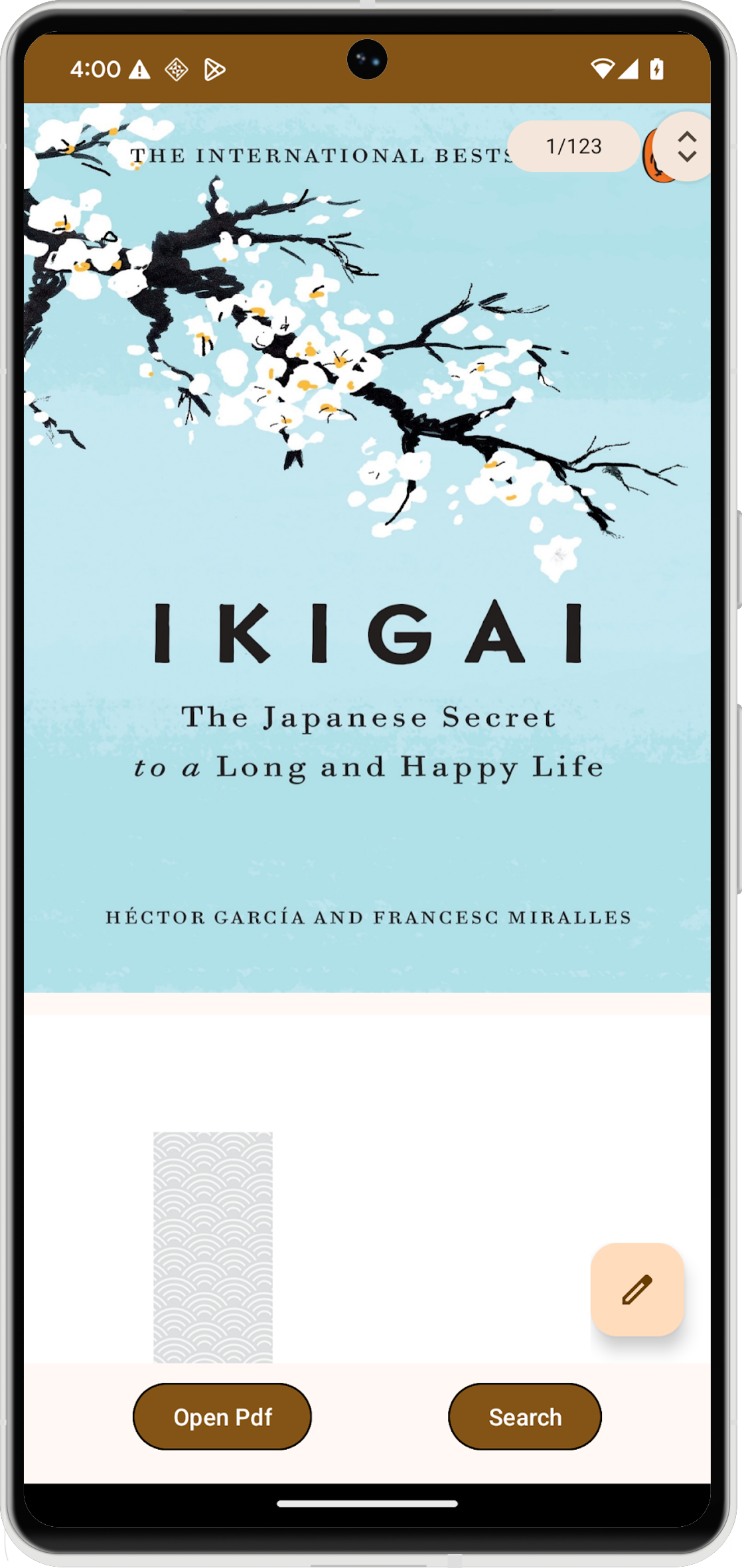 PDF document displayed in an app.
## Version compatibility
To use `PdfViewerFragment`, your application must target a minimum of Android S
(API level 31) and SDK extension level 13. If these compatibility requirements
are not satisfied, the library throws an
[`UnsupportedOperationException`](https://developer.android.com/reference/java/lang/UnsupportedOperationException).
> [!NOTE]
> **Note:** Edit mode is not currently supported in `PdfViewerFragment`.
You can check the SDK extension version at runtime using the `SdkExtensions`
module. This enables you to conditionally load the fragment and PDF document
only if the device meets the necessary requirements.
if (SdkExtensions.getExtensionVersion(Build.VERSION_CODES.S) >= 13) {
// Load the fragment and document.
}
## Dependencies
To incorporate the PDF viewer into your application, declare the
[androidx.pdf](https://developer.android.com/jetpack/androidx/releases/pdf) dependency in your app's module `build.gradle`
file. The PDF library is accessible from the Google Maven repository.
dependencies {
val pdfVersion = "1.0.0-alpha0X"
implementation("androidx.pdf:pdf:pdf-viewer-fragment:$pdfVersion")
}
## `PdfViewerFragment` features
`PdfViewerFragment` presents PDF documents in paginated format, making them easy
to navigate. For efficient loading, the fragment employs a two‑pass
rendering strategy that progressively loads page dimensions.
To optimize memory usage, `PdfViewerFragment` renders only the currently visible
pages and releases the bitmaps for pages that are off‑screen.
Additionally, `PdfViewerFragment` includes a floating action button (FAB) that
supports annotations by firing an implicit `android.intent.action.ANNOTATE`
intent containing the document URI.
## Implementation
Adding a PDF viewer to your Android application is a multistep process.
### Create the activity layout
Begin by defining the layout XML for the activity that hosts the PDF viewer. The
layout should include a `FrameLayout` to contain the `PdfViewerFragment` and
buttons for user interactions, such as searching within the document.
### Set up the activity
The activity that hosts `PdfViewerFragment` must extend
[`AppCompatActivity`](https://developer.android.com/reference/kotlin/androidx/appcompat/app/AppCompatActivity). In the `onCreate()` method of the
activity, set the content view to the layout you created, and initialize any
necessary UI elements.
class MainActivity : AppCompatActivity() {
override fun onCreate(savedInstanceState: Bundle?) {
super.onCreate(savedInstanceState)
setContentView(R.layout.activity_main)
val getContentButton: MaterialButton = findViewById(R.id.launch_button)
val searchButton: MaterialButton = findViewById(R.id.search_button)
}
}
### Initialize `PdfViewerFragment`
Create an instance of `PdfViewerFragment` using a fragment manager obtained from
[`getSupportFragmentManager()`](https://developer.android.com/reference/kotlin/androidx/fragment/app/FragmentActivity#getSupportFragmentManager()). Check whether an
instance of the fragment already exists before creating a new one, especially
during configuration changes.
In the following example, the `initializePdfViewerFragment()` function handles
the creation and commitment of the fragment transaction. The function replaces
an existing fragment in a container with an instance of your
`PdfViewerFragment`.
class MainActivity : AppCompatActivity() {
@RequiresExtension(extension = Build.VERSION_CODES.S, version = 13)
private var pdfViewerFragment: PdfViewerFragment? = null
override fun onCreate(savedInstanceState: Bundle?) {
// ...
if (pdfViewerFragment == null) {
pdfViewerFragment =
supportFragmentManager
.findFragmentByTag(PDF_VIEWER_FRAGMENT_TAG) as PdfViewerFragment?
}
}
// Used to instantiate and commit the fragment.
@RequiresExtension(extension = Build.VERSION_CODES.S, version = 13)
private fun initializePdfViewerFragment() {
// This condition can be skipped if you want to create a new fragment every time.
if (pdfViewerFragment == null) {
val fragmentManager: FragmentManager = supportFragmentManager
// Fragment initialization.
pdfViewerFragment = PdfViewerFragmentExtended()
val transaction: FragmentTransaction = fragmentManager.beginTransaction()
// Replace an existing fragment in a container with an instance of a new fragment.
transaction.replace(
R.id.fragment,4_container_view,
pdfViewerFragment!!,
PDF_VIEWER_FRAGMENT_TAG
)
transaction.commitAllowingStateLoss()
fragmentManager.executePendingTransactions()
}
}
companion object {
private const val MIME_TYPE_PDF = "application/pdf"
private const val PDF_VIEWER_FRAGMENT_TAG = "pdf_viewer_fragment_tag"
}
}
## Extend `PdfViewerFragment` functionality
`PdfViewerFragment` exposes public functions that you can override to extend its
capabilities. Create a new class that inherits from `PdfViewerFragment`. In your
subclass, override methods such as `onLoadDocumentSuccess()` and
`onLoadDocumentError()` to add custom logic, like logging metrics.
@RequiresExtension(extension = Build.VERSION_CODES.S, version = 13)
class PdfViewerFragmentExtended : PdfViewerFragment() {
private val someLogger : SomeLogger = // ... used to log metrics
override fun onLoadDocumentSuccess() {
someLogger.log(/** log document success */)
}
override fun onLoadDocumentError(error: Throwable) {
someLogger.log(/** log document error */, error)
}
}
## Enable document search
While `PdfViewerFragment` does not include a built-in search menu, it supports a
search bar. You control the visibility of the search bar using the
`isTextSearchActive` API. To enable document search, you set the
`isTextSearchActive` property of your `PdfViewerFragment` instance.
Use [`WindowCompat.setDecorFitsSystemWindows()`](https://developer.android.com/reference/kotlin/androidx/core/view/WindowCompat#setDecorFitsSystemWindows(android.view.Window,boolean)) to ensure `WindowInsetsCompat` is
correctly passed to content views, which is necessary for the proper positioning
of the search view.
class MainActivity : AppCompatActivity() {
@RequiresExtension(extension = Build.VERSION_CODES.S, version = 13)
override fun onCreate(savedInstanceState: Bundle?) {
// ...
searchButton.setOnClickListener {
pdfViewerFragment?.isTextSearchActive =
pdfViewerFragment?.isTextSearchActive == false
}
// Ensure WindowInsetsCompat are passed to content views without being
// consumed by the decor view. These insets are used to calculate the
// position of the search view.
WindowCompat.setDecorFitsSystemWindows(window, false)
}
}
## Integrate with the file picker
To allow users to select PDF files from their device, integrate
`PdfViewerFragment` with the Android file picker. First, update your activity's
layout XML to include a button that launches the file picker.
// Adding a button to open file picker.
Next, in your activity, launch the file picker using
[`registerForActivityResult(GetContent())`](https://developer.android.com/reference/kotlin/androidx/activity/result/ActivityResultCaller#(androidx.activity.result.ActivityResultCaller).registerForActivityResult(androidx.activity.result.contract.ActivityResultContract,kotlin.Any,kotlin.Function1)). When
the user selects a file, the callback provides a URI. You then set the
`documentUri` property of your `PdfViewerFragment` instance with this URI to
load and display the selected PDF.
class MainActivity : AppCompatActivity() {
// ...
private var filePicker: ActivityResultLauncher =
registerForActivityResult(GetContent()) { uri: Uri? ->
uri?.let {
initializePdfViewerFragment()
pdfViewerFragment?.documentUri = uri
}
}
override fun onCreate(savedInstanceState: Bundle?) {
// ...
getContentButton.setOnClickListener { filePicker.launch(MIME_TYPE_PDF) }
}
private fun initializePdfViewerFragment() {
// ...
}
companion object {
private const val MIME_TYPE_PDF = "application/pdf"
// ...
}
}
## Customize the UI
You can customize the user interface of `PdfViewerFragment` by overriding XML
attributes the library exposes. This enables you to tailor the appearance of
elements like the scrollbar and page indicator to match your app's design.
The customizable attributes include:
- `fastScrollVerticalThumbDrawable` --- Sets the drawable for the scrollbar thumb.
- `fastScrollPageIndicatorBackgroundDrawable` --- Sets the background drawable for the page indicator.
- `fastScrollPageIndicatorMarginEnd` --- Sets the right margin for the page indicator. Ensure margin values are positive.
- `fastScrollVerticalThumbMarginEnd` --- Sets the right margin for the vertical scrollbar thumb. Ensure margin values are positive.
To apply these customizations, define a custom style in your XML resources.
Then, provide the custom style resource to `PdfViewerFragment` using
`PdfStylingOptions` when you create an instance of the fragment with
`PdfViewerFragment.newInstance(stylingOptions)`.
private fun initializePdfViewerFragment() {
// This condition can be skipped if you want to create a new fragment every time.
if (pdfViewerFragment == null) {
val fragmentManager: FragmentManager = supportFragmentManager
// Create styling options.
val stylingOptions = PdfStylingOptions(R.style.pdfContainerStyle)
// Fragment initialization.
pdfViewerFragment = PdfViewerFragment.newInstance(stylingOptions)
// Execute fragment transaction.
}
}
If you've subclassed `PdfViewerFragment`, use the protected constructor to
provide the styling options. This ensures your custom styles are applied
correctly to your extended fragment.
class StyledPdfViewerFragment: PdfViewerFragment {
constructor() : super()
private constructor(pdfStylingOptions: PdfStylingOptions) : super(pdfStylingOptions)
companion object {
fun newInstance(): StyledPdfViewerFragment {
val stylingOptions = PdfStylingOptions(R.style.pdfContainerStyle)
return StyledPdfViewerFragment(stylingOptions)
}
}
}
## Complete implementation
The following code provides a complete example of how to implement
`PdfViewerFragment` in your activity, including initialization, file picker
integration, search functionality, and UI customization.
class MainActivity : AppCompatActivity() {
private var pdfViewerFragment: PdfViewerFragment? = null
private var filePicker: ActivityResultLauncher =
registerForActivityResult(GetContent()) { uri: Uri? ->
uri?.let {
initializePdfViewerFragment()
pdfViewerFragment?.documentUri = uri
}
}
override fun onCreate(savedInstanceState: Bundle?) {
super.onCreate(savedInstanceState)
setContentView(R.layout.activity_main)
if (pdfViewerFragment == null) {
pdfViewerFragment =
supportFragmentManager
.findFragmentByTag(PDF_VIEWER_FRAGMENT_TAG) as PdfViewerFragment?
}
val getContentButton: MaterialButton = findViewById(R.id.launch_button)
val searchButton: MaterialButton = findViewById(R.id.search_button)
getContentButton.setOnClickListener { filePicker.launch(MIME_TYPE_PDF) }
searchButton.setOnClickListener {
pdfViewerFragment?.isTextSearchActive = pdfViewerFragment?.isTextSearchActive == false
}
}
private fun initializePdfViewerFragment() {
// This condition can be skipped if you want to create a new fragment every time.
if (pdfViewerFragment == null) {
val fragmentManager: FragmentManager = supportFragmentManager
// Create styling options.
// val stylingOptions = PdfStylingOptions(R.style.pdfContainerStyle)
// Fragment initialization.
// For customization:
// pdfViewerFragment = PdfViewerFragment.newInstance(stylingOptions)
pdfViewerFragment = PdfViewerFragmentExtended()
val transaction: FragmentTransaction = fragmentManager.beginTransaction()
// Replace an existing fragment in a container with an instance of a new fragment.
transaction.replace(
R.id.fragment_container_view,
pdfViewerFragment!!,
PDF_VIEWER_FRAGMENT_TAG
)
transaction.commitAllowingStateLoss()
fragmentManager.executePendingTransactions()
}
}
companion object {
private const val MIME_TYPE_PDF = "application/pdf"
private const val PDF_VIEWER_FRAGMENT_TAG = "pdf_viewer_fragment_tag"
}
}
### Key points about the code
- Ensure your project meets the minimum API level and SDK extension requirements.
- The activity hosting `PdfViewerFragment` must extend `AppCompatActivity`.
- You can extend `PdfViewerFragment` to add custom behaviors.
- Customize the UI of `PdfViewerFragment` by overriding XML attributes.