Try the Compose way Jetpack Compose is the recommended UI toolkit for Android. Learn how to add components in Compose. [Checkbox →](https://developer.android.com/develop/ui/compose/components/checkbox) 
> [!NOTE]
> **Note:** For a better user experience, see the [Material Design Checkbox](https://m3.material.io/components/checkbox/overview) documentation.
Checkboxes let the user select one or more options from a set. Typically, you present checkbox
options in a vertical list.
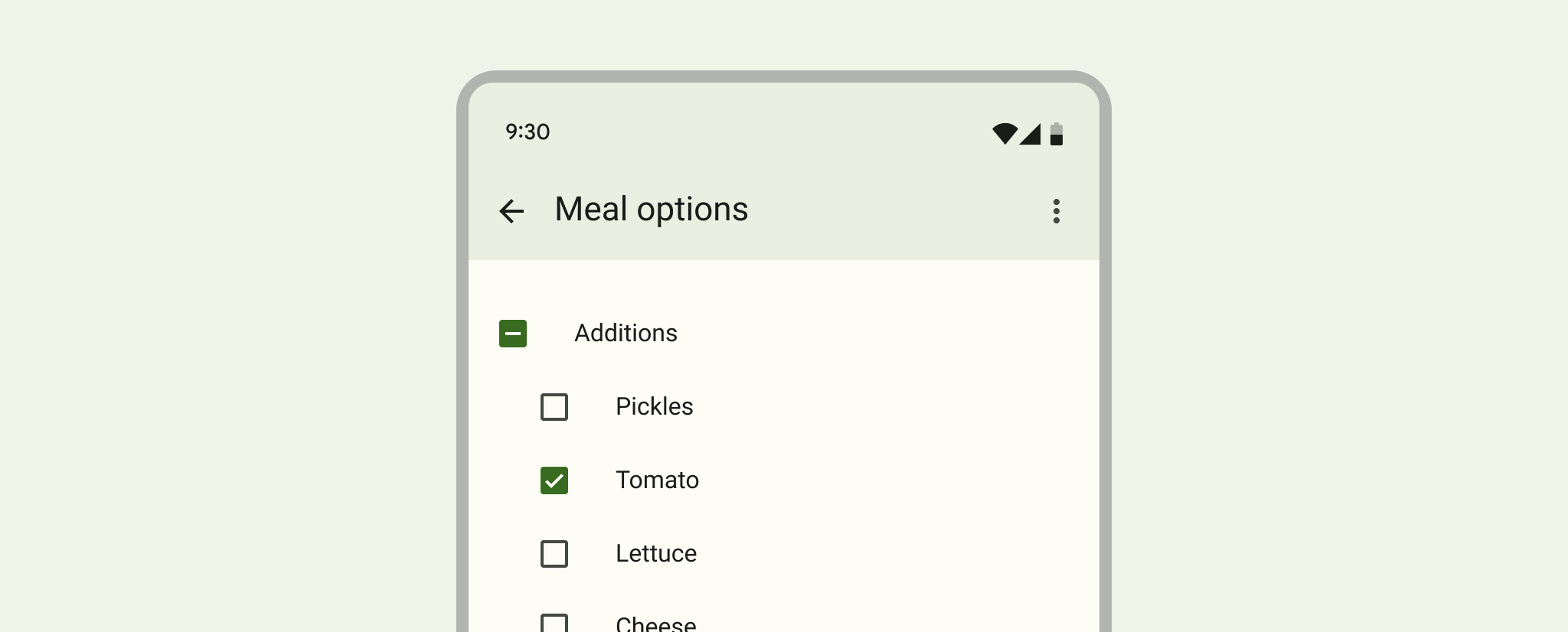 **Figure 1.** An example of checkboxes from [Material Design Checkbox](https://m3.material.io/components/checkbox/guidelines).
To create each checkbox option, create a
`https://developer.android.com/reference/android/widget/CheckBox` in your layout. Because
a set of checkbox options lets the user select multiple items, each checkbox is managed separately,
and you must register a click listener for each one.
## Respond to click events
Begin by creating a layout with `CheckBox` objects in a list:
```xml
```
Once your layout is ready, head to your `Activity` or `Fragment`, find your
`CheckBox` views, and set a change listener, as in the following example:
### Kotlin
```kotlin
findViewById(R.id.checkbox_meat)
.setOnCheckedChangeListener { buttonView, isChecked ->
Log.d("CHECKBOXES", "Meat is checked: $isChecked")
}
findViewById(R.id.checkbox_cheese)
.setOnCheckedChangeListener { buttonView, isChecked ->
Log.d("CHECKBOXES", "Cheese is checked: $isChecked")
}
```
### Java
```java
findViewById(R.id.checkbox_meat)
.setOnCheckedChangeListener { buttonView, isChecked ->
Log.d("CHECKBOXES", "Meat is checked: $isChecked");
}
findViewById(R.id.checkbox_cheese)
.setOnCheckedChangeListener { buttonView, isChecked ->
Log.d("CHECKBOXES", "Cheese is checked: $isChecked");
}
```
The previous code prints a message in Logcat every time the checkboxes change status.
> [!TIP]
> **Tip:** If you need to change the checkbox state yourself, use the `https://developer.android.com/reference/android/widget/CompoundButton#setChecked(boolean)` or `https://developer.android.com/reference/android/widget/CompoundButton#toggle()` method.