Try the Compose way Jetpack Compose is the recommended UI toolkit for Android. Learn how to build widgets using Compose-style APIs. [Jetpack Glance →](https://developer.android.com/develop/ui/compose/glance/create-app-widget.md.txt) 
App widgets are miniature app views that you can embed in other apps---such
as the home screen---and receive periodic updates. These views are referred
to as *widgets* in the user interface, and you can publish one with an app
widget provider (or *widget provider* ). An app component that holds other
widgets is called an app widget host (or *widget host*). Figure 1 shows a sample
music widget:
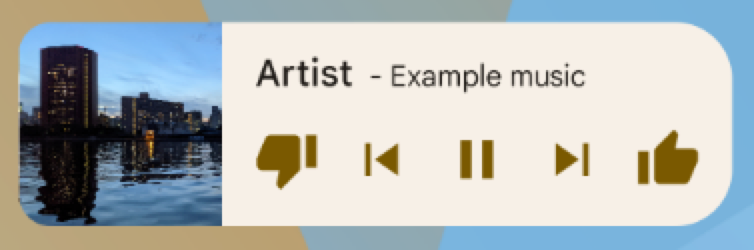 **Figure 1.** Example of a music widget.
This document describes how to publish a widget using a widget provider. For
details about creating your own [`AppWidgetHost`](https://developer.android.com/reference/android/appwidget/AppWidgetHost.md.txt) to host
app widgets, see [Build a widget host](https://developer.android.com/develop/ui/views/appwidgets/host.md.txt).
For information about how to design your widget, see [App widgets overview](https://developer.android.com/develop/ui/views/appwidgets/overview.md.txt).
## Android skills
[View on GitHub](https://github.com/android/skills/tree/main/system/glance-appwidget-updates-and-memory)
### Manage AppWidget updates and bitmap memory
Use the AppWidget Updates and Memory [Android skill](https://developer.android.com/tools/agents/android-skills.md.txt) to downsample widget bitmaps, deduplicate responsive images, and stay within Android 17 RemoteViews memory limits across Glance and classic AppWidgetProvider widgets. To install the skill from the [Android CLI](https://developer.android.com/tools/agents/android-cli.md.txt), run:
android skills add glance-appwidget-updates-and-memory
## Widget components
To create a widget, you need the following basic components:
[`AppWidgetProviderInfo`](https://developer.android.com/reference/android/appwidget/AppWidgetProviderInfo.md.txt) object
: Describes the metadata for a widget, such
as the widget's layout, update frequency, and [`AppWidgetProvider`](https://developer.android.com/reference/android/appwidget/AppWidgetProvider.md.txt)
class. `AppWidgetProviderInfo` is [defined in
XML](https://developer.android.com/develop/ui/views/appwidgets#AppWidgetProviderInfo), as described in this document.
[`AppWidgetProvider`](https://developer.android.com/reference/android/appwidget/AppWidgetProvider.md.txt) class
: Defines the basic methods
that let you programmatically interface with the widget. Through it, you
receive broadcasts when the widget is updated, enabled, disabled, or
deleted. You [declare `AppWidgetProvider` in the manifest](https://developer.android.com/develop/ui/views/appwidgets.md.txt#widget-broadcasts) and then
[implement](https://developer.android.com/develop/ui/views/appwidgets.md.txt#widget-broadcasts) it, as described in this document.
View layout
: Defines the initial layout for the widget. The layout is [defined
in XML](https://developer.android.com/develop/ui/views/appwidgets#layout), as described in this document.
Figure 2 shows how these components fit into the overall app widget processing
flow.
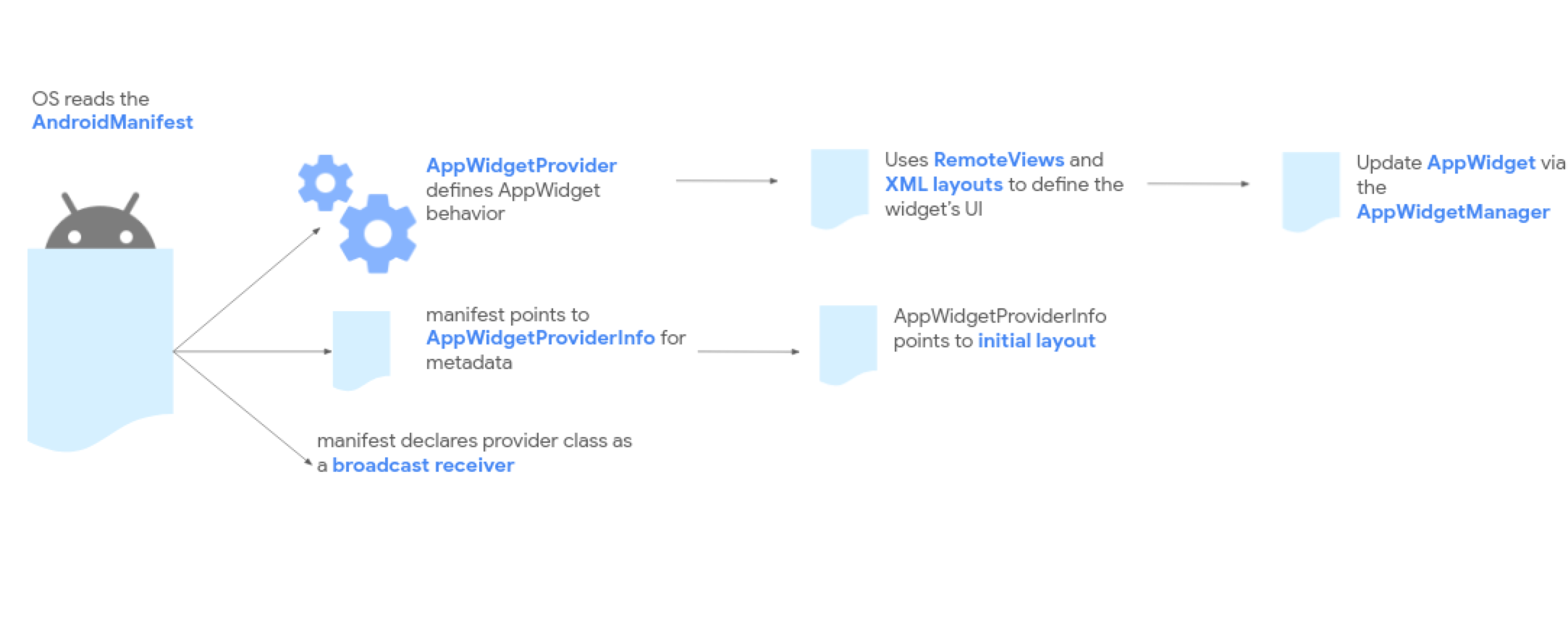 **Figure 2.** App widget processing flow.
> [!NOTE]
> **Note:** Android Studio can automatically create a set of `AppWidgetProviderInfo`, `AppWidgetProvider`, and view layout files. Choose **New \> Widget \> App Widget**.
If your widget needs user configuration, implement the app widget configuration
activity. This activity lets users modify widget settings---for example, the
time zone for a clock widget.
- Starting in Android 12 (API level 31), you can provide a default configuration and let users reconfigure the widget later. See [Use the
widget's default configuration](https://developer.android.com/develop/ui/views/appwidgets/configuration#use-default) and [Enable users to reconfigure placed
widgets](https://developer.android.com/develop/ui/views/appwidgets/configuration#reconfigure-widgets) for more details.
- In Android 11 (API level 30) or lower, this activity is launched every time the user adds the widget to their home screen.
We also recommend the following improvements: [flexible widget layouts](https://developer.android.com/develop/ui/views/appwidgets/layouts.md.txt),
[miscellaneous enhancements](https://developer.android.com/develop/ui/views/appwidgets/enhance.md.txt), [advanced widgets](https://developer.android.com/develop/ui/views/appwidgets/advanced.md.txt), [collection
widgets](https://developer.android.com/develop/ui/views/appwidgets/collections), and [building a widget host](https://developer.android.com/develop/ui/views/appwidgets/host.md.txt).
## Declare the AppWidgetProviderInfo XML
Defining the metadata settings (such as default cell sizes, resize constraints,
and update frequencies) is exactly identical across both traditional Views and
Glance-based widgets.
To learn how to define and configure your metadata XML file, see the
Compose-first [Declare the AppWidgetProviderInfo XML section](https://developer.android.com/develop/ui/compose/glance/create-app-widget.md.txt#AppWidgetProviderInfo) in the Glance
documentation.
## Use the AppWidgetProvider class to handle widget broadcasts
The platform's broadcast receiver mechanics, manifest declaration filters, and
lifecycle event loops are unified underneath the platform. In Compose-first
development, these broadcasts are orchestrated using the
`GlanceAppWidgetReceiver` wrapper.
To understand how to register your receiver in the manifest and implement
Hilt-compatible lifecycle overrides, see the Compose-first [Use the
AppWidgetProvider class to handle broadcasts section](https://developer.android.com/develop/ui/compose/glance/create-app-widget#widget-broadcasts) in the Glance
documentation.
## Create the widget layout
You must define an initial layout for your widget in XML and save it in the
project's `res/layout/` directory. Refer to [Design guidelines](https://developer.android.com/develop/ui/views/appwidgets/overview.md.txt#design) for details.
Creating the widget layout is straightforward if you're familiar with
[layouts](https://developer.android.com/guide/topics/ui/declaring-layout). However, be aware that widget layouts are based on
[`RemoteViews`](https://developer.android.com/reference/android/widget/RemoteViews.md.txt), which doesn't support every kind of layout or view widget.
You can't use custom views or subclasses of the views that are supported by
`RemoteViews`.
`RemoteViews` also supports [`ViewStub`](https://developer.android.com/reference/android/view/ViewStub.md.txt), which is an invisible, zero-sized
`View` you can use to lazily inflate layout resources at runtime.
### Support for stateful behavior
Android 12 adds support for stateful behavior using the following
existing components:
- [`CheckBox`](https://developer.android.com/reference/kotlin/android/widget/CheckBox.md.txt)
- [`Switch`](https://developer.android.com/reference/android/widget/Switch.md.txt)
- [`RadioButton`](https://developer.android.com/reference/android/widget/RadioButton.md.txt)
The widget is still stateless. Your app must store the state and register for
state change events.
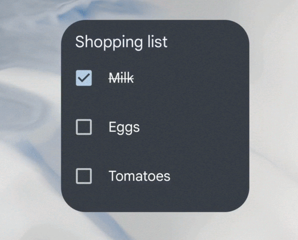 **Figure 3.** Example of stateful behavior.
> [!NOTE]
> **Note:** Always explicitly set the current checked state using `RemoteViews.setCompoundButtonChecked`, or you might encounter unexpected results when your widget is dragged or resized.
The following code example shows how to implement these components.
```kotlin
// Check the view.
remoteView.setCompoundButtonChecked(R.id.my_checkbox, true)
// Check a radio group.
remoteView.setRadioGroupChecked(R.id.my_radio_group, R.id.radio_button_2)
// Listen for check changes. The intent has an extra with the key
// EXTRA_CHECKED that specifies the current checked state of the view.
remoteView.setOnCheckedChangeResponse(
R.id.my_checkbox,
RemoteViews.RemoteResponse.fromPendingIntent(onCheckedChangePendingIntent)
)
```
Provide two layouts: one targeting devices running Android 12 or
higher in `res/layout-v31`, and the other targeting previous
Android 11 or lower in the default `res/layout` folder.
## Implement rounded corners
Calculating the outer background and inner proportional radii is standard and
shared. In Compose-first development, this can be set dynamically in Kotlin
alongside custom theme resources.
To implement corner radii or set up dynamic styles for older Android devices,
see the Compose-first [Implement rounded corners section](https://developer.android.com/develop/ui/compose/glance/create-app-widget.md.txt#rounded-corner) in the Glance
documentation.
## Keep RemoteViews images within system memory limits
Widgets run inside the home screen launcher process, and `system_server`
enforces a per-widget bitmap memory ceiling (`6 * width * height` bytes; see the
[Android 17 widget memory limit behavior change](https://developer.android.com/about/versions/17/behavior-changes-17.md.txt#memory-limit-widget)). When building classic
`AppWidgetProvider` widgets with `RemoteViews`, do the following:
- **Downsample bitmaps using `WindowMetrics`:** On API level 30 and higher, compute your maximum bitmap budget from `WindowManager.currentWindowMetrics.bounds` rather than `resources.displayMetrics`, and decode opaque images with `Bitmap.Config.RGB_565` and power-of-two `inSampleSize`.
- **Use full `updateAppWidget` calls when replacing images:** Avoid calling `partiallyUpdateAppWidget` to update `ImageView` bitmaps or `Icon` URIs, because partial updates append actions to the cached `RemoteViews` hierarchy in `system_server` without releasing prior image allocations.
- **Enqueue background work with `WorkManager`:** Don't call `Context.startForegroundService` from `AppWidgetProvider.onReceive` or `onUpdate`, which throws `ForegroundServiceStartNotAllowedException` when triggered in the background. Enqueue a `WorkManager` `CoroutineWorker` instead, and pass `context.applicationContext` when inflating or updating `RemoteViews` from background workers.