Try the Compose way Jetpack Compose is the recommended UI toolkit for Android. Learn how to add a carousel in Compose. [Carousel →](https://developer.android.com/develop/ui/compose/components/carousel.md.txt) 
[`Carousel`](https://developer.android.com/reference/androidx/constraintlayout/helper/widget/Carousel.md.txt) is a
motion helper object to build custom carousel views that show a list of elements
that the user can skim through. Compared to other ways to implement such
views, this helper lets you quickly create complex motion and dimension changes
for your `Carousel` by taking advantage of
[`MotionLayout`](https://developer.android.com/reference/androidx/constraintlayout/motion/widget/MotionLayout.md.txt).
**Figure 1.** Example of a `Carousel` showing landscape pictures.
The `Carousel` widget supports lists with a start and end as well as circular
wrap-around lists.
> [!NOTE]
> **Note:** For a more hands-on approach, see the [CarouselExperiments sample project](https://github.com/androidx/constraintlayout/tree/main/projects/CarouselExperiments) on GitHub.
## How Carousel with MotionLayout works
Suppose you want to build a horizontal `Carousel` view, with the center item
enlarged:
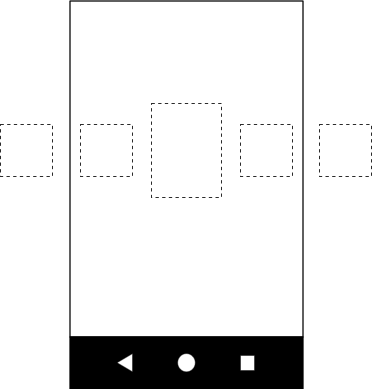 **Figure 2.** Example of an image `Carousel` showing a larger image in the center.
This basic layout contains several views representing the `Carousel` items:
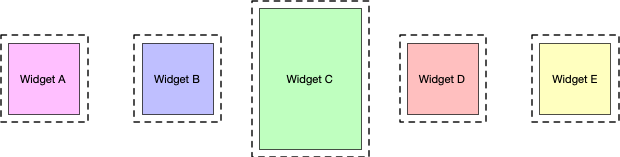 **Figure 3.** Widget details.
Create a `MotionLayout` with the following three states and give them IDs:
- **previous**
- **start**
- **next**
If the **start** state corresponds to the base layout, in the **previous** state
and the **next** state the `Carousel` items are shifted by one to the left and
to the right, respectively.
For example, take the five views in figure 3 and assume that in the **start**
state, views B, C, and D are visible, and A and E are outside of the screen. Set
up the **previous** state so that the positions of A, B, C, and D are where B,
C, D, and E were, with the views moving from left to right. In the **next**
state, the opposite needs to happen, with B, C, D, and E moving to where A, B,
C, and D were, and the views moving from right to left. This is shown in figure
4:
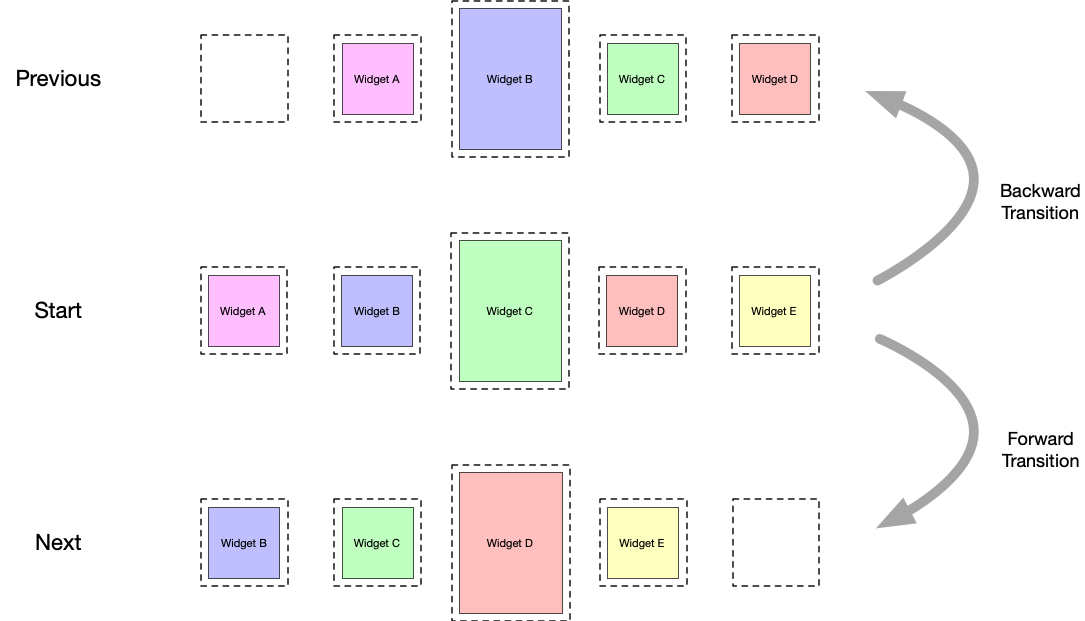 **Figure 4.** `Carousel` swiping transitions.
It's critical that the views end up exactly where the original views start.
`Carousel` gives the illusion of an infinite collection of elements by
moving the *actual* views back to where they were, but reinitializing them
with the new matching content. The following diagram shows this mechanism. Pay
attention to the "item #" values):
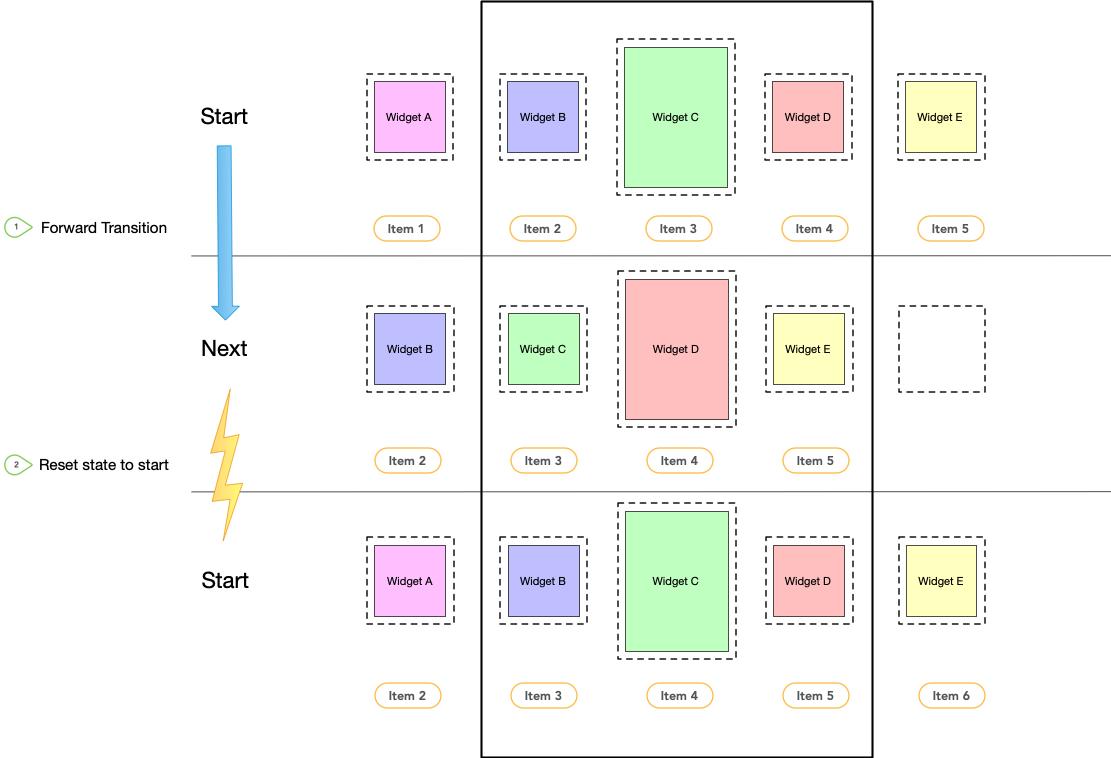 **Figure 5.** `Carousel` swiping transitions and state reset.
### Transitions
With these three constraint sets defined in your motion scene file, create two
transitions---forward and backward---between the **start** and **next**
states and the **start** and **previous** states. Add an
[`OnSwipe`](https://developer.android.com/training/constraint-layout/motionlayout/ref/onswipe.md.txt) handler to
trigger the transitions in response to a gesture, as shown in the following
example:
```xml
```
### Add the Carousel
After this basic motion scene is created, add a `Carousel` helper to the layout
and reference the views in the same order you implement your previous and next
animation.
Set the following attributes for the `Carousel` helper:
- `app:carousel_firstView`: the view that represents the first element of the `Carousel`---in this example, C.
- `app:carousel_previousState`: the `ConstraintSet` ID of the **previous** state.
- `app:carousel_nextState`: the `ConstraintSet` ID of the **next** state.
- `app:carousel_backwardTransition`: the [`Transition`](https://developer.android.com/reference/androidx/constraintlayout/motion/widget/MotionLayout.md.txt#transition) ID applied between the **start** and **previous** states.
- `app:carousel_forwardTransition`: the `Transition` ID applied between the **start** and **next** states.
For example, you have something like this in your layout XML file:
```xml
```
Set up a `Carousel` adapter in code:
### Kotlin
```kotlin
carousel.setAdapter(object : Carousel.Adapter {
override fun count(): Int {
// Return the number of items in the Carousel.
}
override fun populate(view: View, index: Int) {
// Implement this to populate the view at the given index.
}
override fun onNewItem(index: Int) {
// Called when an item is set.
}
})
```
### Java
```java
carousel.setAdapter(new Carousel.Adapter() {
@Override
public int count() {
// Return the number of items in the Carousel.
}
@Override
public void populate(View view, int index) {
// Populate the view at the given index.
}
@Override
public void onNewItem(int index) {
// Called when an item is set.
}
});
```
### Additional notes
Depending on the current item "selected" in the `Carousel`, the views
representing the items before or after might need to be hidden to correctly
account for the `Carousel` **start** and **end** . The `Carousel` helper handles
this automatically. By default, it marks those views as `View.INVISIBLE` in
these situations, so the overall layout doesn't change.
An alternative mode is available in which the `Carousel` helper instead marks
those views as `View.GONE`. You can set this mode using the following property:
app:carousel_emptyViewsBehavior="gone"
### Examples
For more examples using the Carousel helper, see the
[example projects](https://github.com/androidx/constraintlayout/tree/main/projects/CarouselExperiments)
on GitHub.