A basic notification usually includes a title, a line of text, and actions the
user can perform in response. To provide more information, you can create large,
expandable notifications by applying one of several notification templates as
described in this document.
To start, build a notification with all the basic content as described in
[Create a notification](https://developer.android.com/develop/ui/compose/notifications/create-notification.md.txt). Then, call [`setStyle()`](https://developer.android.com/reference/androidx/core/app/NotificationCompat.Builder.md.txt#setStyle(androidx.core.app.NotificationCompat.Style)) with a style object and
supply information corresponding to each template, as shown in the following
examples.
## Add a large image
To add an image in your notification, pass an instance of
[`NotificationCompat.BigPictureStyle`](https://developer.android.com/reference/androidx/core/app/NotificationCompat.BigPictureStyle.md.txt) to `setStyle()`.
```kotlin
var notification =
NotificationCompat.Builder(context, CHANNEL_ID)
.setSmallIcon(com.example.compose.snippets.R.drawable.ic_logo)
.setContentTitle("Title")
.setContentText("Content text")
.setStyle(
NotificationCompat.BigPictureStyle()
.bigPicture(bitmapImage)
)
.build()
```
To make the image appear as a thumbnail only while the notification is
collapsed, as shown in the following figure, call
[`setLargeIcon()`](https://developer.android.com/reference/androidx/core/app/NotificationCompat.Builder.md.txt#setLargeIcon(android.graphics.Bitmap))
and pass it the image. Then, call
[`BigPictureStyle.bigLargeIcon()`](https://developer.android.com/reference/androidx/core/app/NotificationCompat.BigPictureStyle.md.txt#bigLargeIcon(android.graphics.Bitmap))
and pass it `null` so the large icon goes away when the notification is
expanded:
```kotlin
notification = NotificationCompat.Builder(context, CHANNEL_ID)
.setSmallIcon(R.drawable.ic_logo)
.setContentTitle("Title")
.setContentText("Content text")
.setLargeIcon(Icon.createWithResource(context, R.drawable.dog))
.setStyle(
NotificationCompat.BigPictureStyle()
.bigPicture(bitmapImage)
.bigLargeIcon(null as Bitmap?)
)
.build()
```
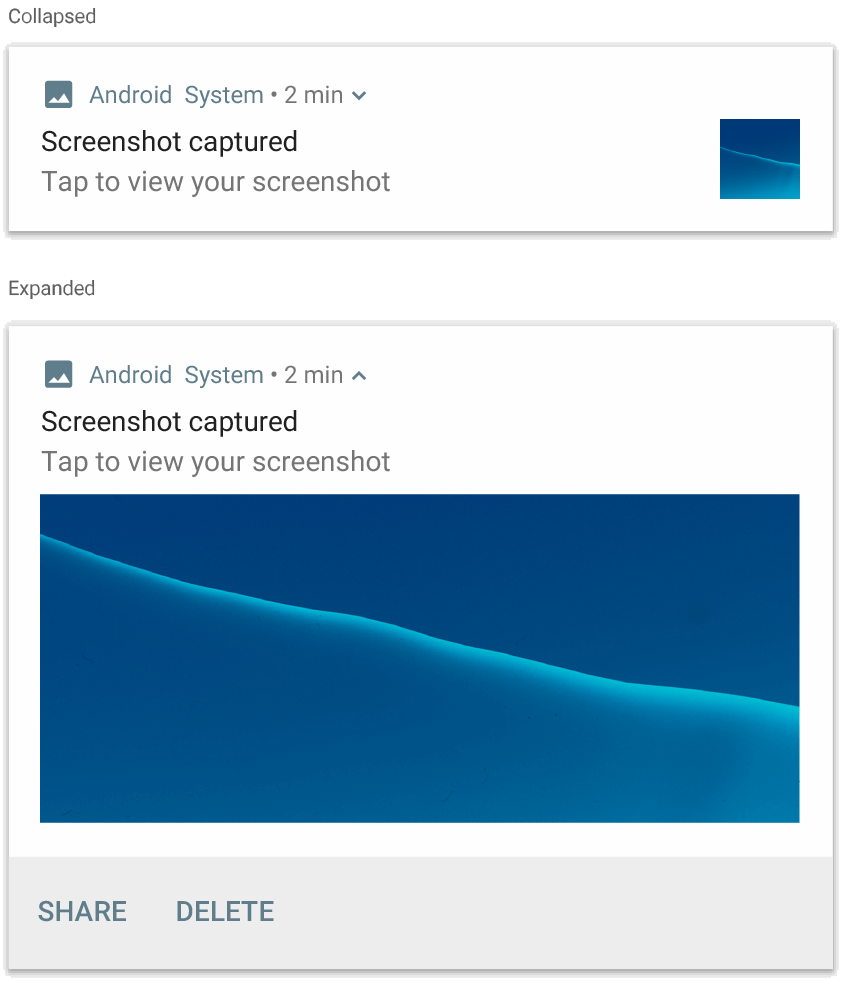 Figure 1. A notification using `NotificationCompat.BigPictureStyle`.
## Add a large block of text
Apply [`NotificationCompat.BigTextStyle`](https://developer.android.com/reference/androidx/core/app/NotificationCompat.BigTextStyle.md.txt) to display text in the expanded
content area of the notification:
```kotlin
notification = NotificationCompat.Builder(context, CHANNEL_ID)
.setSmallIcon(R.drawable.ic_logo)
.setContentTitle("Sender name")
.setContentText("Email subject")
.setLargeIcon(Icon.createWithResource(context, R.drawable.dog))
.setStyle(
NotificationCompat.BigTextStyle()
.bigText(someVeryLongMessage)
)
.build()
```
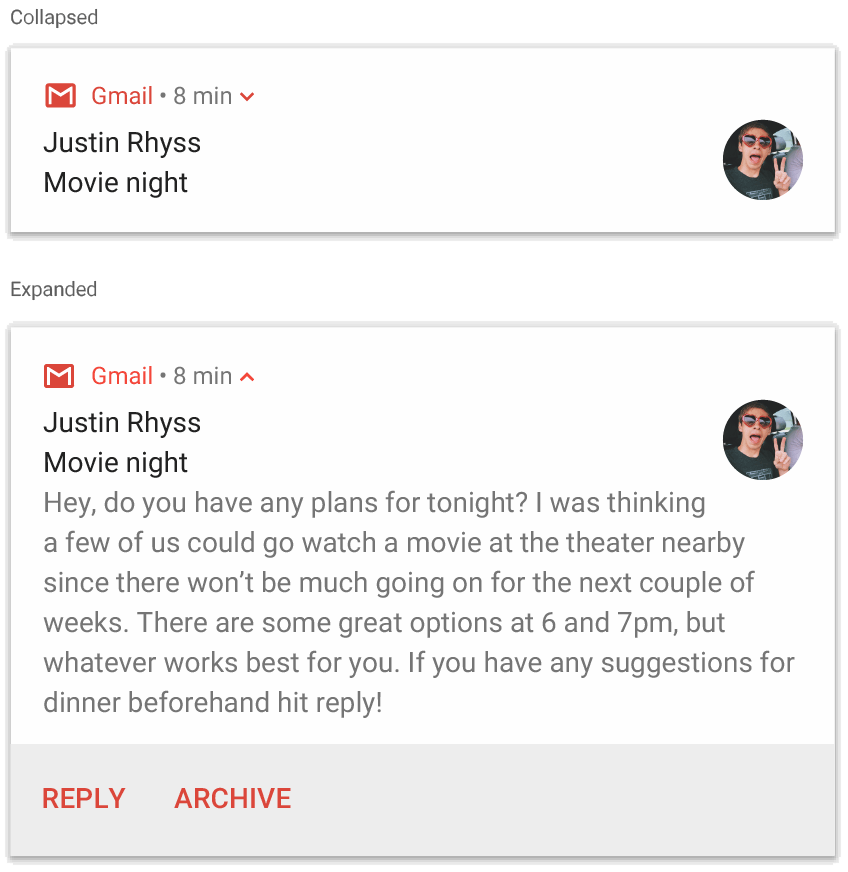 Figure 2. A notification using `NotificationCompat.BigTextStyle`.
> [!TIP]
> **Tip:** To add formatting in your text---such as bold, italic, line breaks, and so on---you can [add styling with HTML
> markup](https://developer.android.com/guide/topics/resources/string-resource#StylingWithHTML).
## Create an inbox-style notification
Apply [`NotificationCompat.InboxStyle`](https://developer.android.com/reference/androidx/core/app/NotificationCompat.InboxStyle.md.txt) to a notification if you want to add
multiple short summary lines, such as snippets from incoming emails. This lets
you add multiple pieces of content text that are each truncated to one line,
instead of the one continuous line of text provided by
`NotificationCompat.BigTextStyle`.
To add a new line, call [`addLine()`](https://developer.android.com/reference/androidx/core/app/NotificationCompat.InboxStyle.md.txt#addLine(java.lang.CharSequence)) up to six times, as shown in the
following example. If you add more than six lines, only the first six are
visible.
> [!TIP]
> **Tip:** You can distinguish the message's subject and message in each line by [adding styling with HTML markup](https://developer.android.com/guide/topics/resources/string-resource.md.txt#StylingWithHTML), such as bolding the subject.
```kotlin
notification = NotificationCompat.Builder(context, CHANNEL_ID)
.setSmallIcon(R.drawable.mail)
.setContentTitle("5 New mails from Frank")
.setContentText("Check them out")
.setLargeIcon(bitmapImage)
.setStyle(
NotificationCompat.InboxStyle()
.addLine("Re: Planning")
.addLine("Delivery on its way")
.addLine("Follow-up")
)
.build()
```
The result looks like the following figure:
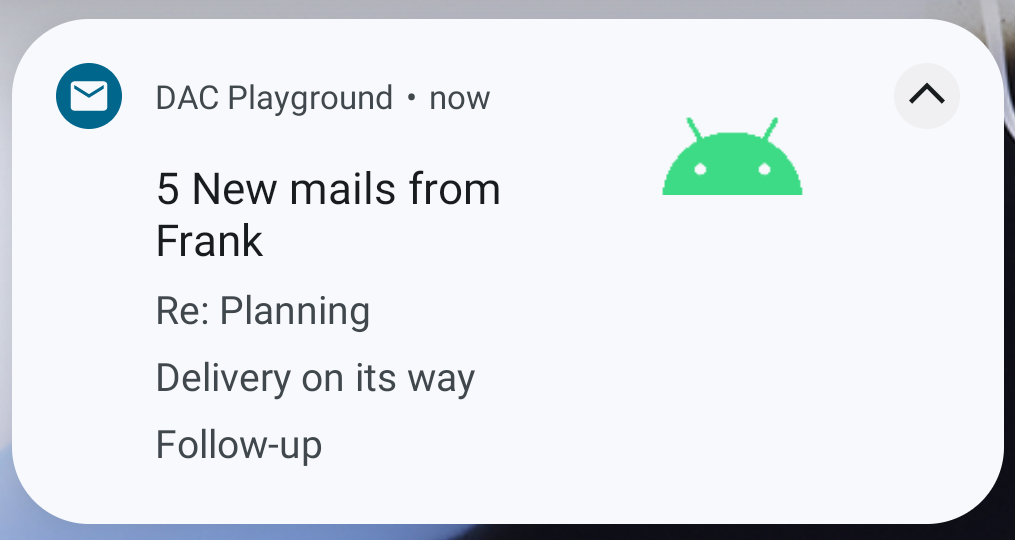 Figure 3. An expanded inbox-style notification.
> [!NOTE]
> **Note:** For more information about how to group multiple notifications, see [Group notifications](https://developer.android.com/develop/ui/compose/notifications.md.txt#bundle).
## Show a conversation in a notification
Apply [`NotificationCompat.MessagingStyle`](https://developer.android.com/reference/androidx/core/app/NotificationCompat.MessagingStyle.md.txt) to display sequential messages
between any number of people. This is ideal for messaging apps, because it
provides a consistent layout for each message by handling the sender name and
message text separately, and each message can be multiple lines long.
To add a new message, call [`addMessage()`](https://developer.android.com/reference/androidx/core/app/NotificationCompat.MessagingStyle.md.txt#addMessage(androidx.core.app.NotificationCompat.MessagingStyle.Message)), passing the message text, the
time received, and the sender's name. You can also pass this information as a
[`NotificationCompat.MessagingStyle.Message`](https://developer.android.com/reference/androidx/core/app/NotificationCompat.MessagingStyle.Message.md.txt) object, as shown in the
following example:
```kotlin
val message1 = NotificationCompat.MessagingStyle.Message(
messages[0].text,
messages[0].time,
messages[0].sender
)
val message2 = NotificationCompat.MessagingStyle.Message(
messages[1].text,
messages[1].time,
messages[1].sender
)
notification = NotificationCompat.Builder(context, CHANNEL_ID)
.setSmallIcon(R.drawable.ic_logo)
.setStyle(
NotificationCompat.MessagingStyle(Person.Builder().setName("Me").build())
.addMessage(message1)
.addMessage(message2)
)
.build()
```
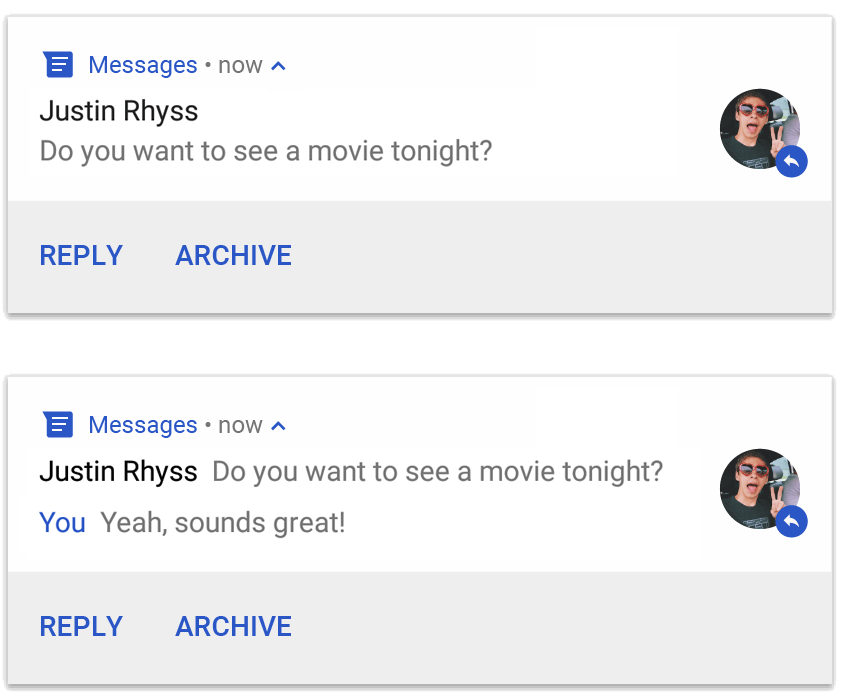 Figure 4. A notification using `NotificationCompat.MessagingStyle`.
When using `NotificationCompat.MessagingStyle`, any values given to
[`setContentTitle()`](https://developer.android.com/reference/androidx/core/app/NotificationCompat.Builder.md.txt#setContentTitle(java.lang.CharSequence)) and [`setContentText()`](https://developer.android.com/reference/androidx/core/app/NotificationCompat.Builder.md.txt#setContentText(java.lang.CharSequence)) are ignored.
You can call [`setConversationTitle()`](https://developer.android.com/reference/androidx/core/app/NotificationCompat.MessagingStyle.md.txt#setConversationTitle(java.lang.CharSequence)) to add a title that appears above
the conversation. This might be the user-created name of the group or, if it
doesn't have a specific name, a list of the participants in the conversation.
Don't set a conversation title for one-on-one chats, because the system uses the
existence of this field as a hint that the conversation is a group.
This style applies only on devices running Android 7.0 (API level 24) and later.
When using the compatibility library ([`NotificationCompat`](https://developer.android.com/reference/androidx/core/app/NotificationCompat.md.txt)), as
demonstrated earlier, notifications with `MessagingStyle` fall back
automatically to a supported expanded notification style.
When building a notification like this for a chat conversation, [add a direct
reply action](https://developer.android.com/develop/ui/compose/notifications/create-notification#reply-action).
## Create a notification with media controls
> [!NOTE]
> **Note:** When using AndroidX Media3, the [media notification is created automatically](https://developer.android.com/media/implement/playback-app.md.txt#publishing_a_notification).
Apply [`MediaStyleNotificationHelper.MediaStyle`](https://developer.android.com/reference/androidx/media3/session/MediaStyleNotificationHelper.MediaStyle.md.txt) to display media playback
controls and track information.
Specify your associated [`MediaSession`](https://developer.android.com/reference/androidx/media3/session/MediaSession.md.txt) in the constructor. This allows
Android to display the right information about your media.
Call [`addAction()`](https://developer.android.com/reference/androidx/core/app/NotificationCompat.Builder.md.txt#addAction(androidx.core.app.NotificationCompat.Action)) up to five times to display up to five icon buttons.
Call `setLargeIcon()` to set the album artwork.
Unlike the other notification styles, `MediaStyle` also lets you modify the
collapsed-size content view by specifying three action buttons that also appear
in the collapsed view. To do so, provide the action button indexes to
[`setShowActionsInCompactView()`](https://developer.android.com/reference/androidx/media3/session/MediaStyleNotificationHelper.MediaStyle.md.txt#setShowActionsInCompactView(int...)).
The following example shows how to create a notification with media controls:
```kotlin
notification = NotificationCompat.Builder(context, CHANNEL_ID)
// Show controls on lock screen even when user hides sensitive content.
.setVisibility(NotificationCompat.VISIBILITY_PUBLIC)
.setSmallIcon(com.example.compose.snippets.R.drawable.play)
// Add media control buttons that invoke intents in your media service
.addAction(R.drawable.previous, "Previous", null /* Add valid intent */) // #0
.addAction(R.drawable.pause, "Pause", null /* Add valid intent */) // #1
.addAction(R.drawable.next, "Next", null /* Add valid intent */) // #2
// Apply the media style template.
.setStyle(MediaStyleNotificationHelper.MediaStyle(mediaSession)
.setShowActionsInCompactView(1 /* #1: pause button */))
.setContentTitle("Wonderful music")
.setContentText("My Awesome Band")
.setLargeIcon(bitmapImage)
.build()
```
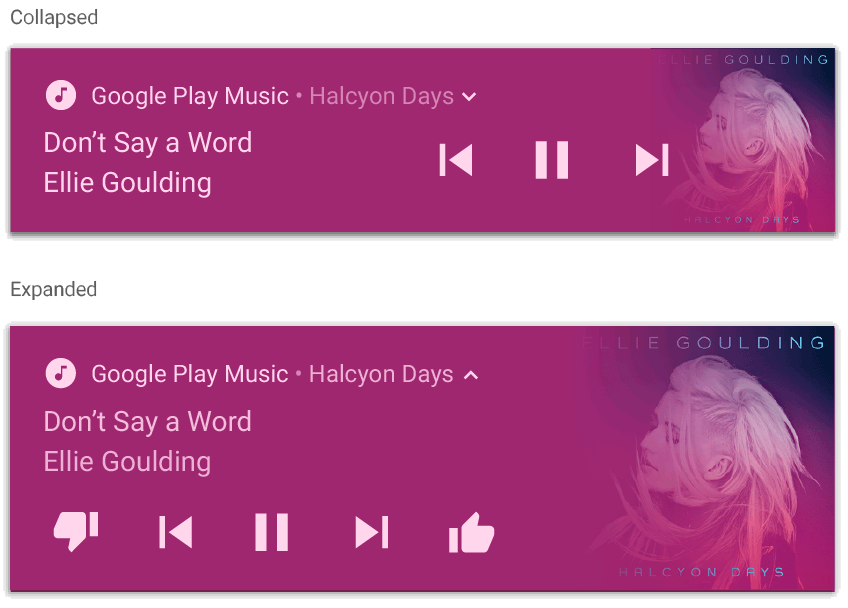 Figure 5. A notification using `MediaStyleNotificationHelper.MediaStyle`.
> [!NOTE]
> **Note:** Notifications created with `MediaStyleNotificationHelper.MediaStyle` have their category set to [`CATEGORY_TRANSPORT`](https://developer.android.com/reference/androidx/core/app/NotificationCompat.md.txt#CATEGORY_TRANSPORT()) unless you set a different category using [`setCategory()`](https://developer.android.com/reference/androidx/core/app/NotificationCompat.Builder.md.txt#setCategory(java.lang.String)).
## Additional resources
See the following references for more information about `MediaStyle` and
expandable notifications.
- [Using MediaStyle notifications with a foreground service](https://developer.android.com/media/implement/playback-app.md.txt#implementing_a_mediasessionservice)
- [SociaLite sample app](https://github.com/android/socialite)