Foldable devices offer unique viewing experiences. Rear display mode and
dual‑screen mode enable you to build special display features for foldable
devices such as rear‑camera selfie preview and simultaneous but different
displays on inner and outer screens.
## Rear display mode
Typically when a foldable device is unfolded, only the inner screen is active.
Rear display mode lets you move an activity to the outer screen of a foldable
device, which usually faces away from the user while the device is unfolded. The
inner display automatically turns off.
A novel application is to display the camera preview on the outer screen, so
users can take selfies with the rear camera, which usually provides much better
picture‑taking performance than the front camera.
To activate rear display mode, users respond to a dialog to allow the app to
switch screens, for example:
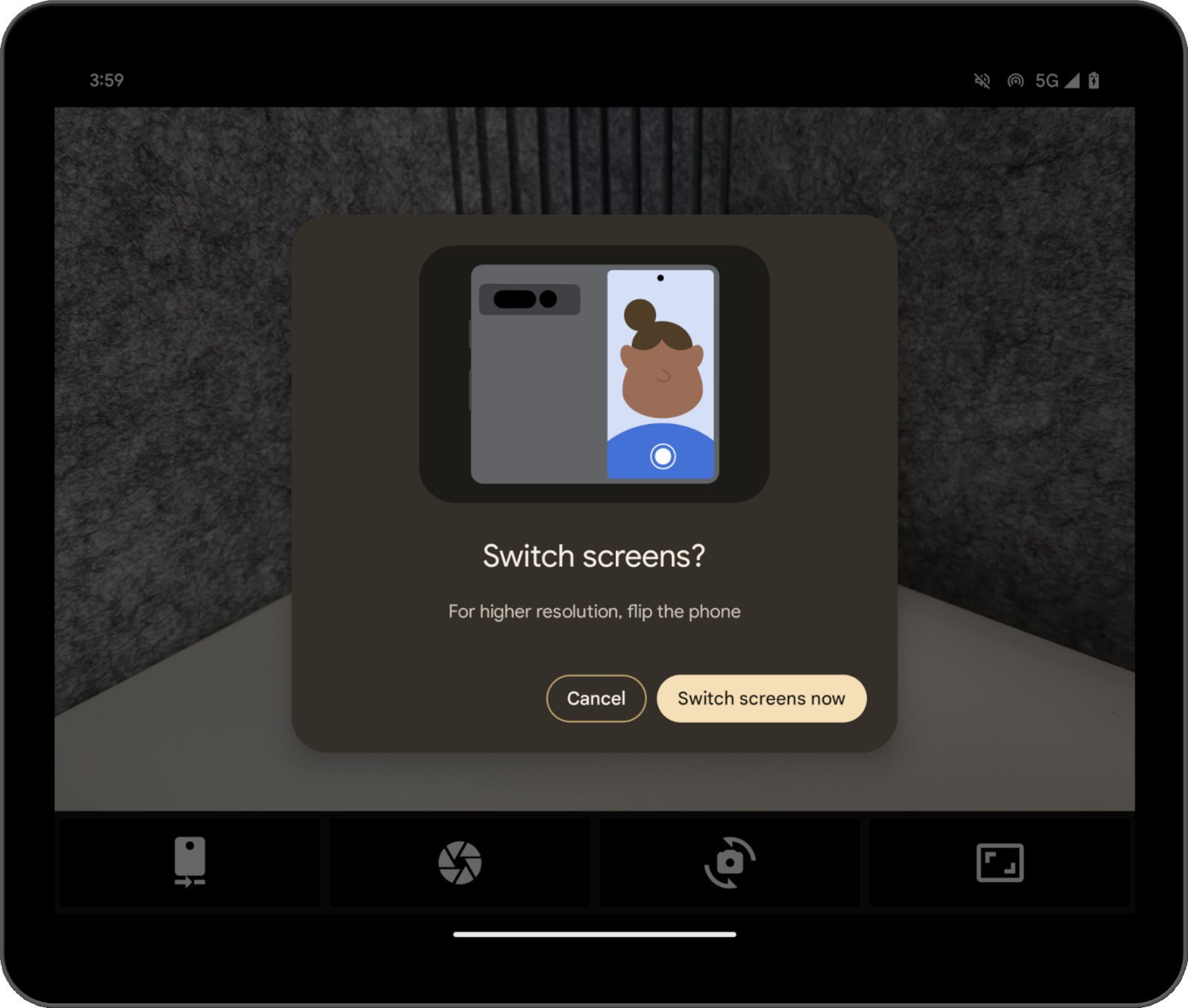 **Figure 1.** System dialog to allow starting rear display mode.
The system creates the dialog, so no development on your part is required.
Different dialogs appear depending on the device state; for example, the system
directs users to unfold the device if the device is closed. You can't customize
the dialog, and it can vary on devices from different OEMs.
You can try out rear display mode with the Pixel Fold camera app. See a sample
implementation in the codelab [Optimize your camera app on foldable devices with
Jetpack WindowManager](https://developer.android.com/codelabs/android-camera-foldables).
## Dual-screen mode
Dual-screen mode lets you show content on both displays of a foldable at the
same time. Dual‑screen mode is available on Pixel Fold running Android 14
(API level 34) or higher.
An example use case is the dual-screen interpreter.
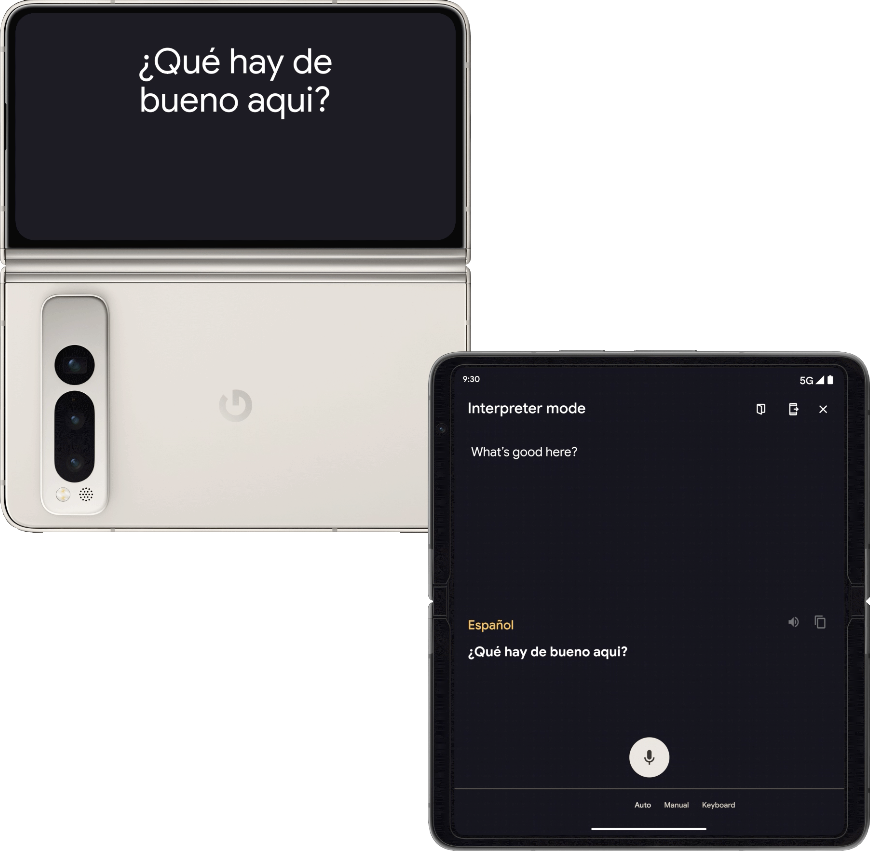 **Figure 2.** Dual-screen interpreter showing different content on front and rear displays.
## Enable the modes programmatically
You can access rear display mode and dual‑screen mode through the [Jetpack
WindowManager](https://developer.android.com/jetpack/androidx/releases/window) APIs, starting from library version 1.2.0-beta03.
Add the WindowManager dependency to your app's module `build.gradle` file:
### Kotlin
dependencies {
// Define window_version in your project's build configuration.
implementation("androidx.window:window:$window_version")
}
### Groovy
dependencies {
// TODO: Define window_version in your project's build configuration.
implementation "androidx.window:window:$window_version"
}
The entry point is the [`WindowAreaController`](https://developer.android.com/reference/kotlin/androidx/window/area/WindowAreaController), which provides the
information and behavior related to moving windows between displays or between
display areas on a device. `WindowAreaController` lets you query the list of
available [`WindowAreaInfo`](https://developer.android.com/reference/kotlin/androidx/window/area/WindowAreaInfo) objects.
Use `WindowAreaInfo` to access the [`WindowAreaSession`](https://developer.android.com/reference/kotlin/androidx/window/area/WindowAreaSession), an interface that
represents an active window area feature. Use `WindowAreaSession` to determine
the availability of a specific [`WindowAreaCapability`](https://developer.android.com/reference/kotlin/androidx/window/area/WindowAreaCapability).
Each capability is related to a particular [`WindowAreaCapability.Operation`](https://developer.android.com/reference/kotlin/androidx/window/area/WindowAreaCapability.Operation).
In version 1.2.0-beta03, Jetpack WindowManager supports two kinds of operations:
- [`WindowAreaCapability.Operation.OPERATION_PRESENT_ON_AREA`](https://developer.android.com/reference/kotlin/androidx/window/area/WindowAreaCapability.Operation#OPERATION_PRESENT_ON_AREA()), which is used to start dual‑screen mode
- [`WindowAreaCapability.Operation.OPERATION_TRANSFER_ACTIVITY_TO_AREA`](https://developer.android.com/reference/kotlin/androidx/window/area/WindowAreaCapability.Operation#OPERATION_TRANSFER_ACTIVITY_TO_AREA()), which is used to start rear display mode
Here's an example of how to declare variables for rear display mode and
dual‑screen mode in your app's main activity:
### Kotlin
```kotlin
private lateinit var windowAreaController: WindowAreaController
private lateinit var displayExecutor: Executor
private var windowAreaSession: WindowAreaSession? = null
private var windowAreaInfo: WindowAreaInfo? = null
private var capabilityStatus: WindowAreaCapability.Status =
WindowAreaCapability.Status.WINDOW_AREA_STATUS_UNSUPPORTED
private val dualScreenOperation = WindowAreaCapability.Operation.OPERATION_PRESENT_ON_AREA
private val rearDisplayOperation = WindowAreaCapability.Operation.OPERATION_TRANSFER_ACTIVITY_TO_AREA
```
### Java
private WindowAreaControllerCallbackAdapter windowAreaController = null;
private Executor displayExecutor = null;
private WindowAreaSessionPresenter windowAreaSession = null;
private WindowAreaInfo windowAreaInfo = null;
private WindowAreaCapability.Status capabilityStatus =
WindowAreaCapability.Status.WINDOW_AREA_STATUS_UNSUPPORTED;
private WindowAreaCapability.Operation dualScreenOperation =
WindowAreaCapability.Operation.OPERATION_PRESENT_ON_AREA;
private WindowAreaCapability.Operation rearDisplayOperation =
WindowAreaCapability.Operation.OPERATION_TRANSFER_ACTIVITY_TO_AREA;
Here's how to initialize the variables in the `onCreate()` method of your
activity:
> [!NOTE]
> **Note:** The Kotlin code uses the [`Flow`](https://kotlinlang.org/api/kotlinx.coroutines/kotlinx-coroutines-core/kotlinx.coroutines.flow/-flow/) approach of [`WindowAreaController.windowAreaInfos`](https://developer.android.com/reference/kotlin/androidx/window/area/WindowAreaController#windowAreaInfos()), while the Java code is based on [`WindowAreaControllerCallbackAdapter`](https://developer.android.com/reference/androidx/window/java/area/WindowAreaControllerCallbackAdapter).
### Kotlin
```kotlin
displayExecutor = ContextCompat.getMainExecutor(this)
windowAreaController = WindowAreaController.getOrCreate()
lifecycleScope.launch(Dispatchers.Main) {
lifecycle.repeatOnLifecycle(Lifecycle.State.STARTED) {
windowAreaController.windowAreaInfos
.map { info -> info.firstOrNull { it.type == WindowAreaInfo.Type.TYPE_REAR_FACING } }
.onEach { info -> windowAreaInfo = info }
.map { it?.getCapability(operation)?.status ?: WindowAreaCapability.Status.WINDOW_AREA_STATUS_UNSUPPORTED }
.distinctUntilChanged()
.collect {
capabilityStatus = it
}
}
}
```
### Java
displayExecutor = ContextCompat.getMainExecutor(this);
windowAreaController = new WindowAreaControllerCallbackAdapter(WindowAreaController.getOrCreate());
windowAreaController.addWindowAreaInfoListListener(displayExecutor, this);
windowAreaController.addWindowAreaInfoListListener(displayExecutor,
windowAreaInfos -> {
for(WindowAreaInfo newInfo : windowAreaInfos){
if(newInfo.getType().equals(WindowAreaInfo.Type.TYPE_REAR_FACING)){
windowAreaInfo = newInfo;
capabilityStatus = newInfo.getCapability(presentOperation).getStatus();
break;
}
}
});
Before starting an operation, check the availability of the particular
capability:
### Kotlin
```kotlin
when (capabilityStatus) {
WindowAreaCapability.Status.WINDOW_AREA_STATUS_UNSUPPORTED -> {
// The selected display mode is not supported on this device.
}
WindowAreaCapability.Status.WINDOW_AREA_STATUS_UNAVAILABLE -> {
// The selected display mode is not available.
}
WindowAreaCapability.Status.WINDOW_AREA_STATUS_AVAILABLE -> {
// The selected display mode is available and can be enabled.
}
WindowAreaCapability.Status.WINDOW_AREA_STATUS_ACTIVE -> {
// The selected display mode is already active.
}
else -> {
// The selected display mode status is unknown.
}
}
```
### Java
if (capabilityStatus.equals(WindowAreaCapability.Status.WINDOW_AREA_STATUS_UNSUPPORTED)) {
// The selected display mode is not supported on this device.
}
else if (capabilityStatus.equals(WindowAreaCapability.Status.WINDOW_AREA_STATUS_UNAVAILABLE)) {
// The selected display mode is not available.
}
else if (capabilityStatus.equals(WindowAreaCapability.Status.WINDOW_AREA_STATUS_AVAILABLE)) {
// The selected display mode is available and can be enabled.
}
else if (capabilityStatus.equals(WindowAreaCapability.Status.WINDOW_AREA_STATUS_ACTIVE)) {
// The selected display mode is already active.
}
else {
// The selected display mode status is unknown.
}
### Dual-screen mode
The following example closes the session if the capability is already active, or
otherwise calls the [`presentContentOnWindowArea()`](https://developer.android.com/reference/kotlin/androidx/window/area/WindowAreaController#presentContentOnWindowArea(android.os.Binder,android.app.Activity,java.util.concurrent.Executor,androidx.window.area.WindowAreaPresentationSessionCallback)) function:
### Kotlin
```kotlin
fun toggleDualScreenMode() {
if (windowAreaSession != null) {
windowAreaSession?.close()
}
else {
windowAreaInfo?.token?.let { token ->
windowAreaController.presentContentOnWindowArea(
token = token,
activity = this,
executor = displayExecutor,
windowAreaPresentationSessionCallback = this
)
}
}
}
```
### Java
private void toggleDualScreenMode() {
if(windowAreaSession != null) {
windowAreaSession.close();
}
else {
Binder token = windowAreaInfo.getToken();
windowAreaController.presentContentOnWindowArea( token, this, displayExecutor, this);
}
}
Notice the use of the app's main activity as the
[`WindowAreaPresentationSessionCallback`](https://developer.android.com/reference/kotlin/androidx/window/area/WindowAreaPresentationSessionCallback) argument.
The API uses a listener approach: when you make a request to present the content
to the other display of a foldable, you initiate a session that is returned
through the listener's [`onSessionStarted()`](https://developer.android.com/reference/kotlin/androidx/window/area/WindowAreaPresentationSessionCallback#onSessionStarted(androidx.window.area.WindowAreaSessionPresenter)) method. When you close the
session, you get a confirmation in the [`onSessionEnded()`](https://developer.android.com/reference/kotlin/androidx/window/area/WindowAreaPresentationSessionCallback#onSessionEnded(kotlin.Throwable)) method.
To create the listener, implement the [`WindowAreaPresentationSessionCallback`](https://developer.android.com/reference/kotlin/androidx/window/area/WindowAreaPresentationSessionCallback)
interface:
### Kotlin
```kotlin
class ExampleActivity : ComponentActivity(), WindowAreaPresentationSessionCallback {
```
### Java
public class MainActivity extends AppCompatActivity implements WindowAreaPresentationSessionCallback
> [!NOTE]
> **Note:** `WindowAreaPresentationSessionCallback` is a Java API located in the `androidx.window:window` package (rather than `androidx.window:window-java`) to enable Kotlin access.
The listener needs to implement the `onSessionStarted()`, `onSessionEnded(),`
and [`onContainerVisibilityChanged()`](https://developer.android.com/reference/kotlin/androidx/window/area/WindowAreaPresentationSessionCallback#onContainerVisibilityChanged(kotlin.Boolean)) methods. The callback methods notify
you of the session status and enable you to update the app accordingly.
The `onSessionStarted()` callback receives a [`WindowAreaSessionPresenter`](https://developer.android.com/reference/kotlin/androidx/window/area/WindowAreaSessionPresenter) as
an argument. The argument is the container that lets you access a window area
and show content. The presentation can be automatically dismissed by the system
when the user leaves the primary application window, or the presentation can be
closed by calling [`WindowAreaSessionPresenter#close()`](https://developer.android.com/reference/kotlin/androidx/window/area/WindowAreaSession#close()).
For the other callbacks, for simplicity, just check in the function body for any
errors, and log the state:
### Kotlin
```kotlin
override fun onSessionStarted(session: WindowAreaSessionPresenter) {
windowAreaSession = session
session.setContentView(ComposeView(session.context).apply {
setContent {
MyScreen()
}
})
}
override fun onSessionEnded(t: Throwable?) {
if (t != null) {
Log.e(logTag, "Something was broken: ${t.message}")
}
}
override fun onContainerVisibilityChanged(isVisible: Boolean) {
Log.d(logTag, "onContainerVisibilityChanged. isVisible = $isVisible")
}
```
### Java
@Override
public void onSessionStarted(@NonNull WindowAreaSessionPresenter session) {
windowAreaSession = session;
TextView view = new TextView(session.getContext());
view.setText("Hello world, from the other screen!");
session.setContentView(view);
}
@Override public void onSessionEnded(@Nullable Throwable t) {
if(t != null) {
Log.e(logTag, "Something was broken: ${t.message}");
}
}
@Override public void onContainerVisibilityChanged(boolean isVisible) {
Log.d(logTag, "onContainerVisibilityChanged. isVisible = " + isVisible);
}
To maintain consistency across the ecosystem, use the [*Dual Screen* official
icon](https://fonts.google.com/icons?query=dua&selected=Material+Symbols+Outlined:dual_screen:FILL@0;wght@400;GRAD@0;opsz@24&icon.query=dual+screen&icon.platform=android) to indicate to users how to enable or disable dual‑screen mode.
For a working sample, see [DualScreenActivity.kt](https://github.com/android/platform-samples/blob/main/samples/user-interface/windowmanager/src/main/java/com/example/platform/ui/windowmanager/DualScreenActivity.kt).
### Rear display mode
Similar to the dual‑screen mode example, the following example of a
`toggleRearDisplayMode()` function closes the session if the capability is
already active, or otherwise calls the [`transferActivityToWindowArea()`](https://developer.android.com/reference/kotlin/androidx/window/area/WindowAreaController#transferActivityToWindowArea(android.os.Binder,android.app.Activity,java.util.concurrent.Executor,androidx.window.area.WindowAreaSessionCallback))
function:
### Kotlin
```kotlin
fun toggleRearDisplayMode() {
if(capabilityStatus == WindowAreaCapability.Status.WINDOW_AREA_STATUS_ACTIVE) {
if(windowAreaSession == null) {
windowAreaSession = windowAreaInfo?.getActiveSession(
operation
)
}
windowAreaSession?.close()
} else {
windowAreaInfo?.token?.let { token ->
windowAreaController.transferActivityToWindowArea(
token = token,
activity = this,
executor = displayExecutor,
windowAreaSessionCallback = this
)
}
}
}
```
### Java
void toggleRearDisplayMode() {
if(capabilityStatus == WindowAreaCapability.Status.WINDOW_AREA_STATUS_ACTIVE) {
if(windowAreaSession == null) {
windowAreaSession = windowAreaInfo.getActiveSession(
operation
)
}
windowAreaSession.close();
}
else {
Binder token = windowAreaInfo.getToken();
windowAreaController.transferActivityToWindowArea(token, this, displayExecutor, this);
}
}
In this case, the activity displayed is used as a `WindowAreaSessionCallback`.
The Rear Display API works with a listener approach: when you request to move
the content to the other display, you initiate a session that is returned
through the listener's `onSessionStarted()` method. When you instead want to
return to the inner (and bigger) display, you close the session, and you get a
confirmation in the `onSessionEnded()` method.
### Kotlin
```kotlin
override fun onSessionStarted(session: WindowAreaSession) {
Log.d(logTag, "onSessionStarted")
}
override fun onSessionEnded(t: Throwable?) {
if (t != null) {
Log.e(logTag, "Something was broken: ${t.message}")
}
}
```
### Java
@Override public void onSessionStarted(){
Log.d(logTag, "onSessionStarted");
}
@Override public void onSessionEnded(@Nullable Throwable t) {
if(t != null) {
Log.e(logTag, "Something was broken: ${t.message}");
}
}
To maintain consistency across the ecosystem, use the [*Rear Camera* official
icon](https://fonts.google.com/icons?query=dua&selected=Material+Symbols+Outlined:rear_camera:FILL@0;wght@400;GRAD@0;opsz@24&icon.query=rear&icon.platform=android) to indicate to users how to enable or disable rear display mode.
## Additional resources
- [Optimize your camera app on foldable devices with Jetpack WindowManager](https://developer.android.com/codelabs/android-camera-foldables) codelab
- [`androidx.window.area`](https://developer.android.com/reference/androidx/window/area/package-summary) package summary
- Jetpack WindowManager sample code:
- [DualScreenActivity.kt](https://github.com/android/platform-samples/blob/main/samples/user-interface/windowmanager/src/main/java/com/example/platform/ui/windowmanager/DualScreenActivity.kt)
- [RearDisplayModeActivity.kt](https://github.com/android/platform-samples/blob/main/samples/user-interface/windowmanager/src/main/java/com/example/platform/ui/windowmanager/RearDisplayModeActivity.kt)