Mesh gradients create complex, multi-directional color transitions using a 2D
grid of patches. Unlike linear or radial gradients, mesh gradients smoothly
interpolate colors across a 2D grid. Use mesh gradients instead of stacking
multiple `radialGradient` or `linearGradient` brushes when creating fluid,
organic, or multi-point backgrounds in your user interface.
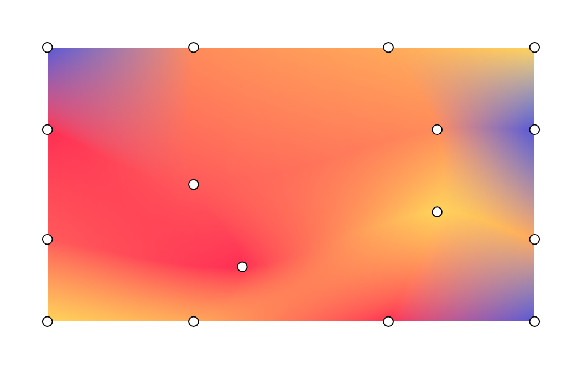 **Figure 1**. A mesh gradient example with a display of its current mesh gradient points.
## Key concepts
To construct a mesh gradient, define the grid dimensions, the vertices, and the
color transitions between points:
- **Grid dimensions:** The mesh is split into patches along the vertical and horizontal axes. A grid of `rows` and `columns` contains (rows+1)×(columns+1) vertices. For example, a 1×1 mesh consists of 4 vertices forming one patch.
- **Normalized coordinates:** All vertex positions use a normalized coordinate system where `(0f, 0f)` represents the top-left and `(1f, 1f)` represents the bottom-right of the drawing bounds.
- **Bezier control points (tangents):** Each vertex contains up to four optional bezier control points. These tangents specify the edge curvature between neighboring vertices. If you use `Offset.Unspecified`, Compose infers the tangents to ensure smooth transitions across patches. Each grid cell formed by 4 vertices along with their control points generates a bezier patch.
- **Color interpolation:** The framework calculates colors between the main vertices. Set `hasBicubicColor` to `true` for [Catmull-Rom
interpolation](https://en.wikipedia.org/wiki/Catmull%E2%80%93Rom_spline) for smoother color shifts, or `false` for bilinear interpolation.
## Draw with `MeshGradientPainter`
In Jetpack Compose, use
[`MeshGradientPainter`](https://developer.android.com/reference/kotlin/androidx/compose/ui/graphics/MeshGradientPainter.md.txt)
to render a mesh gradient. `MeshGradientPainter` draws on the canvas.
### **Create a simple mesh gradient**
To create a basic static mesh gradient, initialize a `MeshGradientPainter` by
specifying its dimensions and using the `setVertex` function inside the
configuration block to position your corner points and assign them colors.
```kotlin
val rows = 1
val columns = 1
val gradientPainter = remember {
MeshGradientPainter(rows, columns) {
// Parameters: row, column, position, color
setVertex(0, 0, Offset(0f, 0f), Color.Red) // Top-Left
setVertex(0, 1, Offset(1f, 0f), Color.Blue) // Top-Right
setVertex(1, 0, Offset(0f, 1f), Color.Green) // Bottom-Left
setVertex(1, 1, Offset(1f, 1f), Color.Yellow) // Bottom-Right
}
}
Box(
modifier = modifier
.aspectRatio(16/9f)
.fillMaxWidth()
.paint(gradientPainter)
)
```
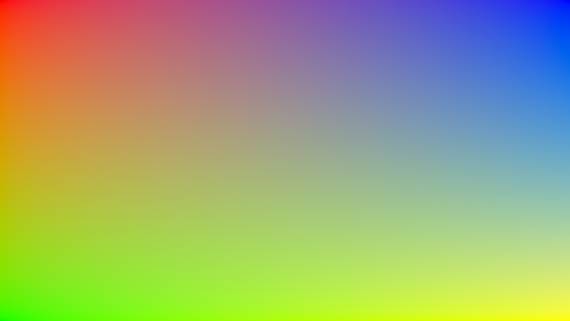 **Figure 2**. A basic mesh gradient with four colors, with each corner set to one of the four.
## Use specific Bezier control points
By default, the mesh generator handles complex calculations to keep the grid
transitions smooth. However, you can explicitly customize tangents on any single
vertex if you want to selectively push, pull, or sharply pinch certain color
sections.
Control offsets are measured relative to the host vertex's position.
```kotlin
val customTangentPainter = remember {
MeshGradientPainter(rows = 1, columns = 1) {
// Tweak the top-left vertex to curve outwards to the right and bottom
setVertex(
row = 0,
column = 0,
position = Offset(0f, 0f),
color = Color.Magenta,
rightControlPoint = Offset(0.4f, 0.1f),
bottomControlPoint = Offset(0.1f, 0.4f)
)
// Other points can remain unspecified to use default inferred fallback tangents
setVertex(0, 1, Offset(1f, 0f), Color.Cyan)
setVertex(1, 0, Offset(0f, 1f), Color.Blue)
setVertex(1, 1, Offset(1f, 1f), Color.Black)
}
}
Box(
modifier = modifier
.aspectRatio(16/9f)
.fillMaxWidth()
.paint(customTangentPainter)
)
```
> [!NOTE]
> **Note:** To completely disable tangent inference and use sharp, completely straight linear boundaries instead, assign an offset of `Offset.Zero` to your vertex control points.
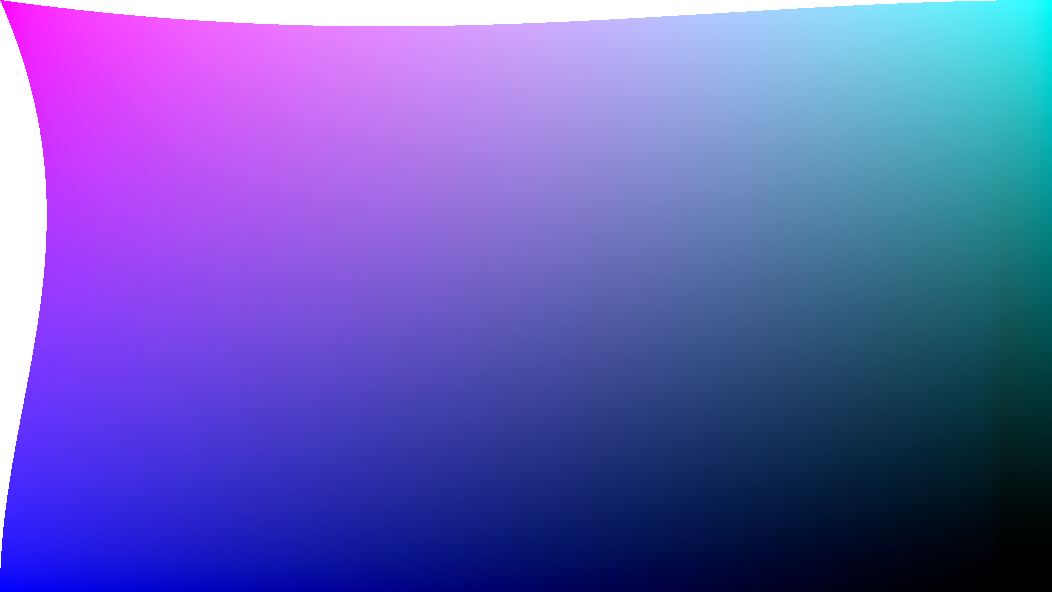 **Figure 3**. Curve the top-left vertex with a bezier control point.
## Create advanced grids
This example shows a 3 by 3 grid, meaning there are 16 points that need to
be specified, with the middle points set with different offsets:
```kotlin
val points = remember {
listOf(
Offset(0.0f, 0.0f), Offset(0.3f, 0.0f), Offset(0.7f, 0.0f), Offset(1.0f, 0.0f),
Offset(0.0f, 0.3f), Offset(0.2f, 0.4f), Offset(0.7f, 0.2f), Offset(1.0f, 0.3f),
Offset(0.0f, 0.7f), Offset(0.3f, 0.8f), Offset(0.7f, 0.6f), Offset(1.0f, 0.7f),
Offset(0.0f, 1.0f), Offset(0.3f, 1.0f), Offset(0.7f, 1.0f), Offset(1.0f, 1.0f)
)
}
val gradientPainter = remember {
MeshGradientPainter(rows = 3, columns = 3) {
// Row 0
setVertex(0, 0, points[0], yellow)
setVertex(0, 1, points[1], orange)
setVertex(0, 2, points[2], yellow)
setVertex(0, 3, points[3], purple)
// Row 1
setVertex(1, 0, points[4], pink)
setVertex(1, 1, points[5], yellow)
setVertex(1, 2, points[6], pink)
setVertex(1, 3, points[7], purple)
// Row 2
setVertex(2, 0, points[8], indigo)
setVertex(2, 1, points[9], pink)
setVertex(2, 2, points[10], purple)
setVertex(2, 3, points[11], indigo)
// Row 3
setVertex(3, 0, points[12], purple)
setVertex(3, 1, points[13], indigo)
setVertex(3, 2, points[14], pink)
setVertex(3, 3, points[15], yellow)
}
}
Box(
modifier = modifier.padding(32.dp)
.aspectRatio(16 / 9f)
.fillMaxWidth()
.paint(gradientPainter)
// ...
)
```
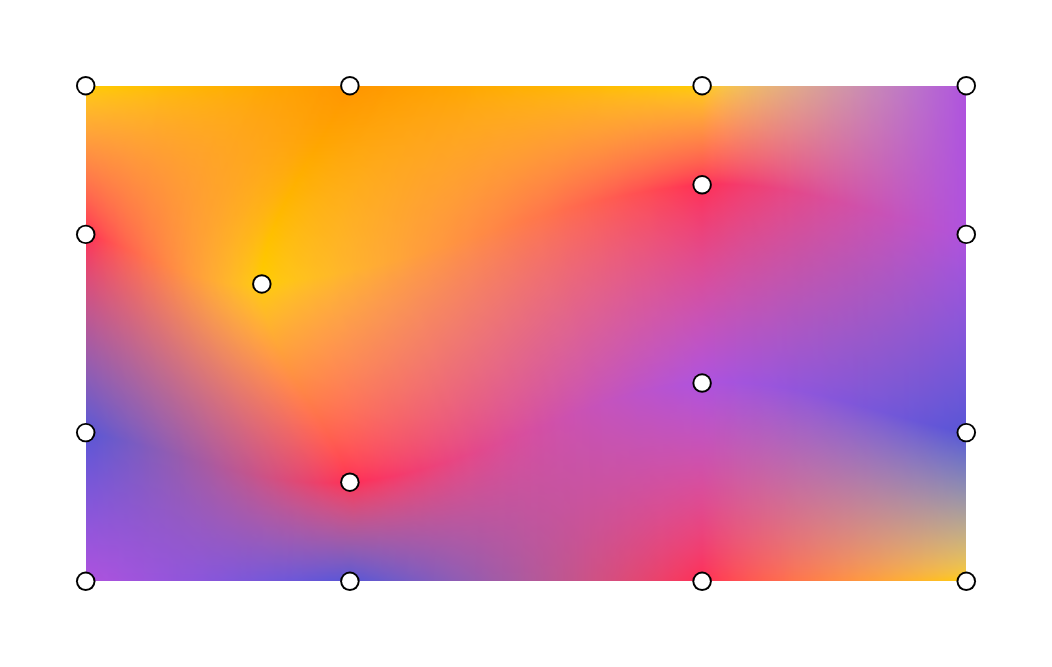 **Figure 4**. Mesh gradient with bezier control points and wave colors, and the mesh points illustrated on top of it.
## Animate a mesh gradient
Because the `block` lambda parameter of `MeshGradientPainter` is executed within
a `DrawScope`, it can read and observe mutable state. You can animate positions
or colors over time without re-allocating shaders or bitmaps.
```kotlin
val infiniteTransition = rememberInfiniteTransition(label = "meshMovement")
val animatedOffset by infiniteTransition.animateFloat(
initialValue = -0.1f,
targetValue = 0.1f,
animationSpec = infiniteRepeatable(
animation = tween(2500, easing = LinearEasing),
repeatMode = RepeatMode.Reverse
),
label = "offset"
)
val coral = Color(255, 90, 90)
val peach = Color(255, 139, 90)
val amber = Color(255, 169, 90)
val sunshine = Color(255, 212, 90)
val indigo = Color(0xFF5856D6)
val pink = Color(0xFFFF2D55)
val gradientPainter = remember {
MeshGradientPainter(rows = 3, columns = 3) {
// Row 0
setVertex(0, 0, Offset(0.0f, 0.0f), indigo)
setVertex(0, 1, Offset(0.3f, 0.0f), peach)
setVertex(0, 2, Offset(0.7f, 0.0f), amber)
setVertex(0, 3, Offset(1.0f, 0.0f), sunshine)
// Row 1
setVertex(1, 0, Offset(0.0f, 0.3f), pink)
setVertex(1, 1, Offset(0.2f, 0.4f) + Offset(animatedOffset, animatedOffset), coral)
setVertex(1, 2, Offset(0.7f, 0.2f) + Offset(animatedOffset, animatedOffset), peach)
setVertex(1, 3, Offset(1.0f, 0.3f), indigo)
// Row 2
setVertex(2, 0, Offset(0.0f, 0.7f), coral)
setVertex(2, 1, Offset(0.3f, 0.8f) + Offset(animatedOffset, 0f), pink)
setVertex(2, 2, Offset(0.7f, 0.6f) + Offset(animatedOffset, 0f), sunshine)
setVertex(2, 3, Offset(1.0f, 0.7f), amber)
// Row 3
setVertex(3, 0, Offset(0.0f, 1.0f), sunshine)
setVertex(3, 1, Offset(0.3f, 1.0f), amber)
setVertex(3, 2, Offset(0.7f, 1.0f), pink)
setVertex(3, 3, Offset(1.0f, 1.0f), indigo)
}
}
Box(
modifier = modifier.padding(32.dp)
.safeContentPadding()
.aspectRatio(16 / 9f)
.fillMaxWidth()
.paint(gradientPainter)
)
```
**Figure 5.** Animated mesh gradient with points to show the animation.