Blur effects soften visual details, create photographic depth of field, and
draw focus to foreground UI elements. In Jetpack Compose, use
[`Modifier.blur`](https://developer.android.com/reference/kotlin/androidx/compose/ui/draw/blur.modifier.md.txt) to blur the content drawn inside a composable, including
images, shapes, text, and layout containers. Applying `Modifier.blur` renders
the composable into a separate [graphics layer](https://developer.android.com/develop/ui/compose/graphics/draw/modifiers.md.txt#graphicsLayer).
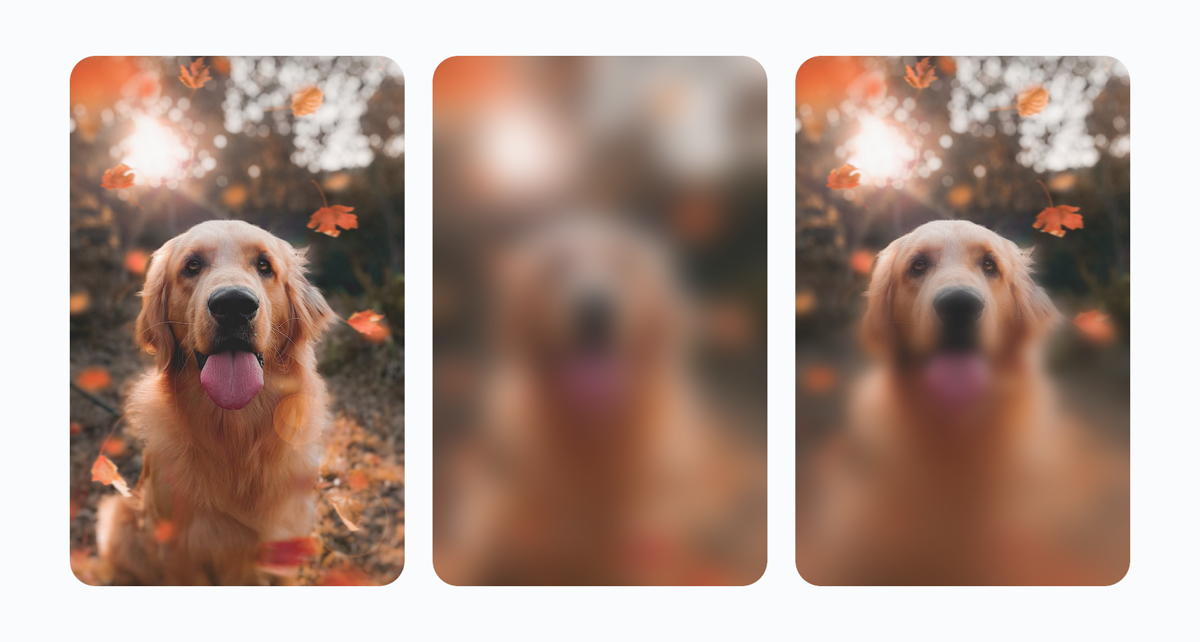 **Figure 1.** Left: the original image. Center: the image with a uniform blur applied across the whole surface. Right: the image with a progressive blur that is sharp at the top and increases toward the bottom.
Depending on your design goals, you can vary the blur in two ways:
- **Uniform blur** : Applies a constant blur radius across the entire composable, either equally on both axes or with independent horizontal and vertical radii (`radiusX`, `radiusY`).
- **Progressive blur** : Varies the blur radius spatially across the composable using [`BlurRadiusSpec`](https://developer.android.com/reference/kotlin/androidx/compose/ui/graphics/blur/BlurRadiusSpec.md.txt) gradients or a custom [`Shader`](https://developer.android.com/reference/kotlin/androidx/compose/ui/graphics/Shader.md.txt).
> [!NOTE]
> **Note:** `Modifier.blur` blurs the content that a composable draws itself: its images, text, shapes, and child composables. This is sometimes called a surface or layer blur, as distinct from a backdrop blur, which blurs whatever is drawn behind a composable. This page covers surface blurs.
## Apply a uniform blur
> [!NOTE]
> **Note:** The examples in this section also pass an `edgeTreatment` that clips the blurred result to rounded corners. For more information, see [Control edge clipping with `BlurredEdgeTreatment`](https://developer.android.com/develop/ui/compose/graphics/blur/overview.md.txt#edge-treatment).
To apply a constant blur across an entire composable, pass a `Dp` radius to
`Modifier.blur`. Pass a single `radius` value to blur content equally along
both the horizontal (X) and vertical (Y) axes:
```kotlin
@Composable
fun UniformBlurExample() {
Image(
painter = painterResource(id = R.drawable.dog),
contentDescription = stringResource(id = R.string.dog_content_description),
contentScale = ContentScale.Crop,
modifier = Modifier
.size(150.dp)
.blur(
radius = 8.dp,
edgeTreatment = BlurredEdgeTreatment(RoundedCornerShape(8.dp)),
),
)
}
```
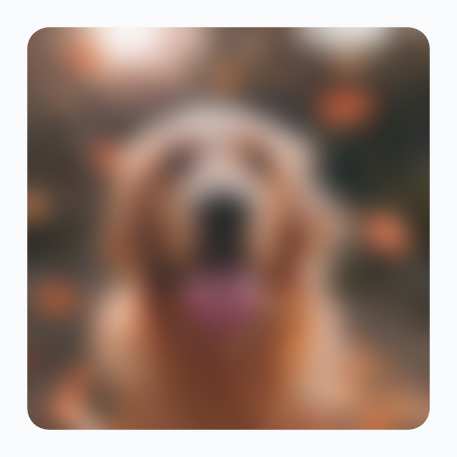 **Figure 2.** A dog uniformly blurred on both horizontal and vertical axes.
To create a directional motion-blur effect, pass separate `radiusX` and
`radiusY` values to `Modifier.blur`. Both `radiusX` and `radiusY` must be
greater than `0.dp` for the blur effect to apply, as shown in the following
example:
```kotlin
@Composable
fun DirectionalBlurExample() {
Image(
painter = painterResource(id = R.drawable.dog),
contentDescription = stringResource(id = R.string.dog_content_description),
contentScale = ContentScale.Crop,
modifier = Modifier
.size(150.dp)
.blur(
radiusX = 10.dp,
radiusY = 2.dp,
edgeTreatment = BlurredEdgeTreatment(RoundedCornerShape(8.dp)),
),
)
}
```
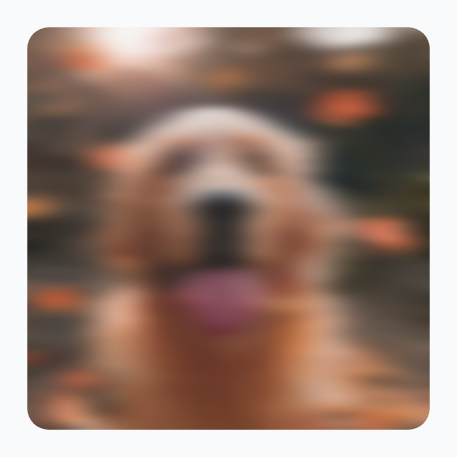 **Figure 3.** A square image of a dog with a strong horizontal motion blur effect.
## Apply a progressive blur
> [!NOTE]
> **Note:** Progressive blur APIs ([`BlurRadiusSpec`](https://developer.android.com/reference/kotlin/androidx/compose/ui/graphics/blur/BlurRadiusSpec.md.txt), [`BlurStop`](https://developer.android.com/reference/kotlin/androidx/compose/ui/graphics/blur/BlurStop.md.txt), and the `Modifier.blur { }` configuration block) are available in `androidx.compose.ui:ui` 1.13.0-beta01 and higher.
A progressive blur varies the blur radius across a composable, creating a
smooth transition between sharp and blurred regions.
Pass a [`BlurRadiusSpec`](https://developer.android.com/reference/kotlin/androidx/compose/ui/graphics/blur/BlurRadiusSpec.md.txt) to `Modifier.blur`. For example, use
`BlurRadiusSpec.verticalGradient` with `startRadius = 0.dp` and
`endRadius = 6.dp` to keep the top of an image sharp while progressively
blurring it toward the bottom, as shown in the following example:
```kotlin
@Composable
fun ProgressiveBlurExample() {
Image(
painter = painterResource(id = R.drawable.dog),
contentDescription = stringResource(id = R.string.dog_content_description),
contentScale = ContentScale.Crop,
modifier = Modifier
.size(150.dp)
.blur(
// Sharp at the top (0.dp), progressively blurred toward the bottom (6.dp)
blurRadiusSpec = BlurRadiusSpec.verticalGradient(
startRadius = 0.dp,
endRadius = 6.dp,
),
edgeTreatment = BlurredEdgeTreatment(RoundedCornerShape(8.dp)),
),
)
}
```
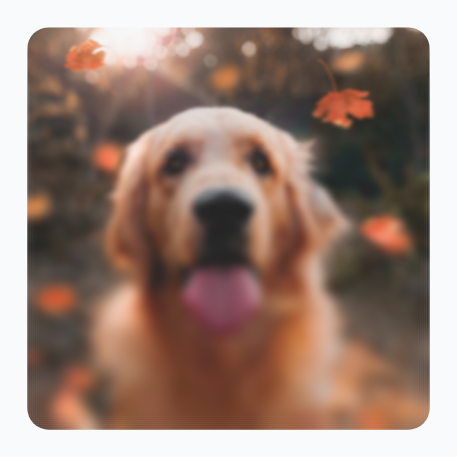 **Figure 4.** An image of a dog that is sharp at the top and gradually becomes blurred toward the bottom.
### Specify blur gradients with `BlurRadiusSpec`
In `BlurRadiusSpec`, measurements are set in `Dp` and automatically adjust to
the layer's size and display density when drawn. Spatially varying blurs cap at
150 pixels once converted, whereas `BlurRadiusSpec.uniform` has no cap.
The following table lists the factory functions available on `BlurRadiusSpec`:
| `BlurRadiusSpec` factory | Description |
|---|---|
| `BlurRadiusSpec.verticalGradient` | Smoothly changes the blur radius vertically from top (`0f`) to bottom (`1f`) across the layer. |
| `BlurRadiusSpec.horizontalGradient` | Smoothly changes the blur radius horizontally from the left edge (`0f`) to the right edge (`1f`). |
| `BlurRadiusSpec.linearGradient` | Applies a directional blur transition along a straight line connecting specific `DpOffset` coordinates. |
| `BlurRadiusSpec.radialGradient` | Spreads the blur outward from a focal point toward the `fallOffRadius` boundary. |
| `BlurRadiusSpec.uniform` | Applies an even blur radius across the entire layer. |
| `BlurRadiusSpec.shader` | Uses a custom `Shader`'s alpha channel to control and scale the `maxRadius` at each pixel. |
### Customize blur distribution with `BlurStop`
Standard gradient blurs interpolate linearly between `0f` and `1f`. To
customize the blur distribution across a surface, such as blurring multiple
edges or keeping a middle section completely sharp, pass a `List`
containing 2 to 16 [`BlurStop`](https://developer.android.com/reference/kotlin/androidx/compose/ui/graphics/blur/BlurStop.md.txt) entries to `verticalGradient`,
`horizontalGradient`, `linearGradient`, or `radialGradient`. Define the
following for each `BlurStop` entry:
- **`fraction`** : The relative position along the gradient from `0.0f` to `1.0f`. Stops are sorted automatically by fraction.
- **`radius`** : The blur radius in `Dp` applied at that fraction position.
For example, four stops blur the top and bottom edges of an image while keeping
the middle completely sharp, as shown in the following example:
```kotlin
@Composable
fun MultiStopBlurExample() {
Image(
painter = painterResource(id = R.drawable.dog),
contentDescription = stringResource(id = R.string.dog_content_description),
contentScale = ContentScale.Crop,
modifier = Modifier
.size(150.dp)
.blur(
// Blurred at the top and bottom edges, sharp in the middle (0.3f..0.7f)
blurRadiusSpec = BlurRadiusSpec.verticalGradient(
stops = listOf(
BlurStop(fraction = 0.0f, radius = 20.dp),
BlurStop(fraction = 0.3f, radius = 0.dp),
BlurStop(fraction = 0.7f, radius = 0.dp),
BlurStop(fraction = 1.0f, radius = 20.dp),
),
),
edgeTreatment = BlurredEdgeTreatment.Unbounded,
),
)
}
```
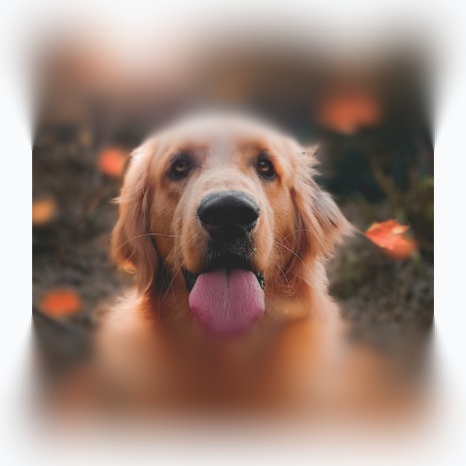 **Figure 5.** An image of a dog with blurred top and bottom edges while keeping the middle horizontal strip in sharp focus.
### Configure layer properties with `BlurScope`
Instead of passing `blurRadiusSpec` directly, you can pass a configuration
block to `Modifier.blur { ... }`. This block runs inside [`BlurScope`](https://developer.android.com/reference/kotlin/androidx/compose/ui/draw/BlurScope.md.txt),
which gives you direct access to layout density and the following properties:
- **`size: DpSize`** : The measured width and height of the blurred layer in `Dp`, which defines the coordinate space for gradient geometry.
- **`blurRadiusSpec: BlurRadiusSpec`** : The blur radius configuration across the surface. Defaults to `BlurRadiusSpec.uniform(0.dp)` (no blur).
- **`edgeTreatment: BlurredEdgeTreatment`** : Strategy used to sample and clip pixels outside content bounds. Defaults to `BlurredEdgeTreatment.Rectangle`.
- **`alpha: Float`** : Opacity of the blurred layer in the `0f..1f` range. Defaults to `1f`.
Because the `BlurScope` block runs during the graphics layer phase, after
measurement and layout, you can compute gradient geometry from `size` without
triggering recomposition.
> [!NOTE]
> **Note:** Uniform blurs require Android 12 (API level 31) and higher, and progressive blurs require Android 13 (API level 33) and higher. On lower versions, Compose renders the content unblurred, though `BlurredEdgeTreatment` shape clipping and alpha settings still apply.
## Control edge clipping with `BlurredEdgeTreatment`
Because blurring samples neighboring pixels within the blur radius, the blurred
output extends beyond the original content bounds by the blur radius.
[`BlurredEdgeTreatment`](https://developer.android.com/reference/kotlin/androidx/compose/ui/draw/BlurredEdgeTreatment.md.txt) determines how pixels outside the original bounds
are sampled and whether the result is clipped to a shape.
`BlurredEdgeTreatment` works with both uniform and progressive blurs:
| `BlurredEdgeTreatment` | Behavior | Output |
|---|---|---|
| `BlurredEdgeTreatment.Rectangle` (default) | Clips the blur result to the rectangular bounds of the original content and samples the closest edge pixels (`TileMode.Clamp`). | 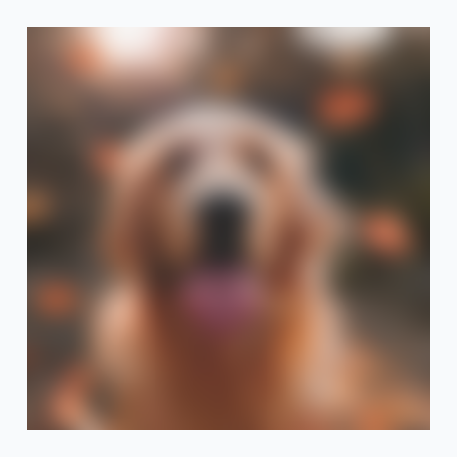 |
| `BlurredEdgeTreatment(shape)` | Clips the blur result to the specified `Shape` (such as `RoundedCornerShape(8.dp)`) and samples the closest edge pixels (`TileMode.Clamp`). Keeps the blurred result sharp at the shape boundary without bleeding outside the original bounds. |  |
| `BlurredEdgeTreatment.Unbounded` | Doesn't clip the blur result (`TileMode.Decal`). Pixels outside the content bounds sample transparent black, making the outer edges of the image appear fuzzy and blurred beyond the original bounds. | 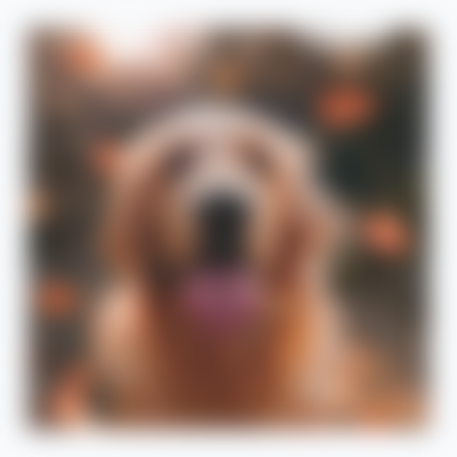 |
To see how these APIs combine in complete UI patterns, such as fading the edges
of scrolling content, spotlighting a focal point, or masking a blur with a
custom shader, see [Common blur use cases](https://developer.android.com/develop/ui/compose/graphics/blur/examples.md.txt).