**Caution:** Since August 2021, all new
apps must be published as App Bundles. If you publish your app to Google Play,
build and upload an [Android App Bundle](https://developer.android.com/guide/app-bundle). When
you do so, Google Play automatically generates and serves optimized APKs for
each user's device configuration, so they download only the code and resources
they need to run your app. Publishing multiple APKs is useful if you are
publishing to a store that doesn't support the AAB format. In that case, you
must build, sign, and manage each APK yourself.
Although it is better to build a single APK to support all your target devices
whenever possible, that might result in a very large APK due to files
supporting multiple [Application Binary
Interfaces](https://developer.android.com/ndk/guides/abis) (ABIs). One way to reduce the size of your APK is to create
[multiple APKs](https://developer.android.com/google/play/publishing/multiple-apks) that
contain files for specific ABIs.
Gradle can create separate APKs that contain only code and resources specific
to each ABI. This page describes how to configure your build to
generate multiple APKs. If you need to create different versions of your app
that are not based on ABI, use [build variants](https://developer.android.com/studio/build/build-variants) instead.
## Configure your build for multiple APKs
To configure your build for multiple APKs, add a
[`splits`](https://developer.android.com/reference/tools/gradle-api/7.2/com/android/build/api/dsl/Splits) block to your module-level
`build.gradle` file. Within the
`splits` block, provide an
`abi` block that specifies how you want Gradle
to generate per-ABI APKs.
### Configure multiple APKs for ABIs
To create separate APKs for different ABIs, add an `abi` block
inside your
`splits` block. In your `abi` block, provide a list of
desired ABIs.
The following Gradle DSL options are used to configure multiple APKs per
ABI:
`enable` for Groovy, or `isEnable` for Kotlin script
: If you set this element to `true`, Gradle generates multiple
APKs based on the ABIs you define. The default value is `false`.
`exclude`
:
Specifies a comma-separated list of ABIs that you don't want Gradle to
generate separate APKs for. Use `exclude` if you want to generate
APKs for most ABIs but need to exclude a few ABIs that your app doesn't
support.
`reset()`
: Clears the default list of ABIs. Only use when combined with the
`include` element to specify the ABIs you want to add.
The following snippet sets the list of ABIs to just `x86` and
`x86_64` by calling `reset()` to clear the list, and
then using `include`:
```
reset() // Clears the default list from all ABIs to no ABIs.
include "x86", "x86_64" // Specifies the two ABIs we want to generate APKs for.
```
`include`
:
Specifies a comma-separated list of ABIs that you want Gradle to generate APKs
for. Only use in combination with `reset()` to specify an exact
list of ABIs.
`universalApk` for Groovy, or `isUniversalApk` for
Kotlin script
: If `true`, Gradle generates a universal APK in addition to
per-ABI APKs. A universal APK contains code and resources for all ABIs in a
single APK. The default value is `false`.
The following example generates a separate APK for each ABI: `x86`
and `x86_64`. This is done by using `reset()`
to start with an empty list of ABIs, followed by `include` with a
list of ABIs that each get an APK.
### Groovy
```groovy
android {
...
splits {
// Configures multiple APKs based on ABI.
abi {
// Enables building multiple APKs per ABI.
enable true
// By default all ABIs are included, so use reset() and include to specify that you only
// want APKs for x86 and x86_64.
// Resets the list of ABIs for Gradle to create APKs for to none.
reset()
// Specifies a list of ABIs for Gradle to create APKs for.
include "x86", "x86_64"
// Specifies that you don't want to also generate a universal APK that includes all ABIs.
universalApk false
}
}
}
```
### Kotlin
```kotlin
android {
...
splits {
// Configures multiple APKs based on ABI.
abi {
// Enables building multiple APKs per ABI.
isEnable = true
// By default all ABIs are included, so use reset() and include to specify that you only
// want APKs for x86 and x86_64.
// Resets the list of ABIs for Gradle to create APKs for to none.
reset()
// Specifies a list of ABIs for Gradle to create APKs for.
include("x86", "x86_64")
// Specifies that you don't want to also generate a universal APK that includes all ABIs.
isUniversalApk = false
}
}
}
```
For a list of supported ABIs, see
[Supported
ABIs](https://developer.android.com/ndk/guides/abis.html#sa).
#### Projects without native/C++ code
For projects without native/C++ code, the **Build Variants** panel has two
columns: **Module** and **Active Build
Variant**, as shown in figure 1.

**Figure 1.** The **Build Variants** panel has two columns for projects without
native/C++ code.
The **Active Build Variant** value for the
module determines the build variant that is deployed and visible in the editor.
To switch between variants, click the **Active Build Variant** cell for a module
and choose the desired variant from the list field.
#### Projects with native/C++ code
For projects with native/C++ code, the **Build Variants** panel has three
columns: **Module** , **Active Build
Variant** , and **Active ABI**, as shown in figure 2.
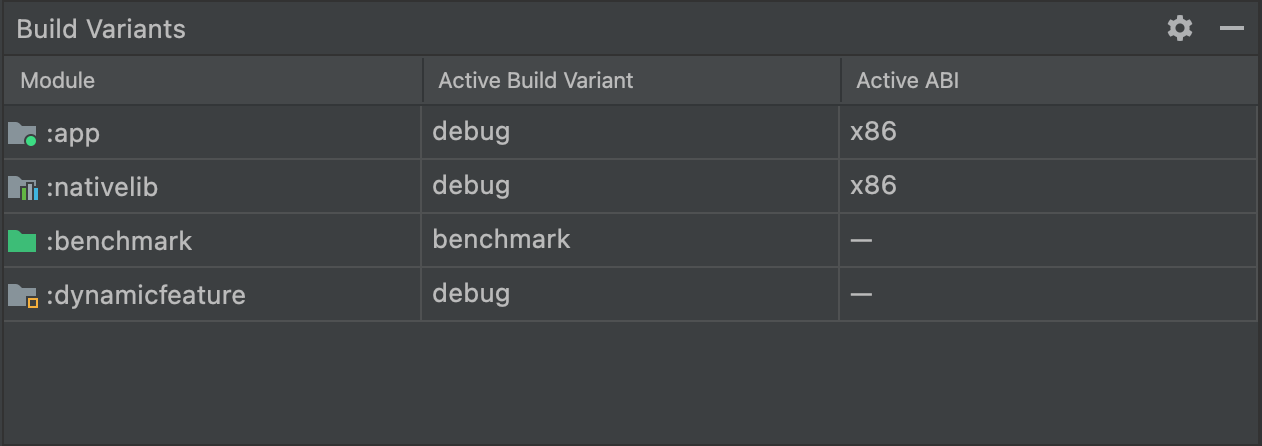
**Figure 2.** The **Build Variants** panel adds the **Active ABI** column for
projects with native/C++ code.
The **Active Build Variant** value for the module
determines the build variant that is deployed and is visible in the editor.
For native modules, the **Active ABI** value determines the ABI that the editor
uses, but doesn't impact what is deployed.
To change the build type or ABI:
1. Click the cell for the **Active Build Variant** or **Active ABI** column.
2. Choose the desired variant or ABI from the list field. A new sync automatically runs.
Changing either column for an app or library module applies the change to all
dependent rows.
### Configure versioning
By default, when Gradle generates multiple APKs, each APK has the same
version information, as specified in the module-level
`build.gradle` or `build.gradle.kts` file. Because the
Google Play Store doesn't allow multiple APKs for the same app that all have
the same version information, you need to ensure that each APK has a unique
[`versionCode`](https://developer.android.com/studio/publish/versioning#versioningsettings) before you upload to the Play Store.
You can configure your module-level `build.gradle` file to
override the `versionCode` for each APK. By creating a mapping
that assigns a unique numeric value for each ABI that you configure
multiple APKs for, you can override the output version code with a value that
combines the version code defined within the `defaultConfig` or
`productFlavors` block with the numeric value assigned to the
ABI.
In the following example, the APK for the `x86` ABI
gets a `versionCode` of 2004 and the `x86_64` ABI
gets a `versionCode` of 3004.
Assigning version codes in large increments, such as 1000, allows
you to later assign unique version codes if you need to update your app. For
example, if `defaultConfig.versionCode` iterates to 5 in a
subsequent update, Gradle assigns a `versionCode` of 2005 to
the `x86` APK and 3005 to the `x86_64` APK.
**Tip:** If your build includes a universal APK, assign it a
`versionCode` that's lower than that of any of your other APKs.
Because Google Play Store installs the version of your app that is both
compatible with the target device and has the highest
`versionCode`, assigning a lower `versionCode` to the
universal APK ensures that Google Play Store tries to install one of your
APKs before falling back to the universal APK. The following sample code
handles this by not overriding a universal APK's
default `versionCode`.
### Groovy
```groovy
android {
...
defaultConfig {
...
versionCode 4
}
splits {
...
}
}
// Map for the version code that gives each ABI a value.
ext.abiCodes = ['armeabi-v7a':1, x86:2, x86_64:3]
import com.android.build.OutputFile
// For each APK output variant, override versionCode with a combination of
// ext.abiCodes * 1000 + variant.versionCode. In this example, variant.versionCode
// is equal to defaultConfig.versionCode. If you configure product flavors that
// define their own versionCode, variant.versionCode uses that value instead.
android.applicationVariants.all { variant ->
// Assigns a different version code for each output APK
// other than the universal APK.
variant.outputs.each { output ->
// Stores the value of ext.abiCodes that is associated with the ABI for this variant.
def baseAbiVersionCode =
// Determines the ABI for this variant and returns the mapped value.
project.ext.abiCodes.get(output.getFilter(OutputFile.ABI))
// Because abiCodes.get() returns null for ABIs that are not mapped by ext.abiCodes,
// the following code doesn't override the version code for universal APKs.
// However, because you want universal APKs to have the lowest version code,
// this outcome is desirable.
if (baseAbiVersionCode != null) {
// Assigns the new version code to versionCodeOverride, which changes the
// version code for only the output APK, not for the variant itself. Skipping
// this step causes Gradle to use the value of variant.versionCode for the APK.
output.versionCodeOverride =
baseAbiVersionCode * 1000 + variant.versionCode
}
}
}
```
### Kotlin
```kotlin
android {
...
defaultConfig {
...
versionCode = 4
}
splits {
...
}
}
// Map for the version code that gives each ABI a value.
val abiCodes = mapOf("armeabi-v7a" to 1, "x86" to 2, "x86_64" to 3)
import com.android.build.api.variant.FilterConfiguration.FilterType.*
// For each APK output variant, override versionCode with a combination of
// abiCodes * 1000 + variant.versionCode. In this example, variant.versionCode
// is equal to defaultConfig.versionCode. If you configure product flavors that
// define their own versionCode, variant.versionCode uses that value instead.
androidComponents {
onVariants { variant ->
// Assigns a different version code for each output APK
// other than the universal APK.
variant.outputs.forEach { output ->
val name = output.filters.find { it.filterType == ABI }?.identifier
// Stores the value of abiCodes that is associated with the ABI for this variant.
val baseAbiCode = abiCodes[name]
// Because abiCodes.get() returns null for ABIs that are not mapped by ext.abiCodes,
// the following code doesn't override the version code for universal APKs.
// However, because you want universal APKs to have the lowest version code,
// this outcome is desirable.
if (baseAbiCode != null) {
// Assigns the new version code to output.versionCode, which changes the version code
// for only the output APK, not for the variant itself.
output.versionCode.set(baseAbiCode * 1000 + (output.versionCode.get() ?: 0))
}
}
}
}
```
For more examples of alternate version code schemes, see
[Assigning version codes](https://developer.android.com/google/play/publishing/multiple-apks#VersionCodes).
## Build multiple APKs
Once you configure your module-level `build.gradle` or
`build.gradle.kts` file to build multiple APKs, click
**Build \> Build APK** to build all APKs for the currently
selected module in the **Project** pane. Gradle creates the APKs
for each ABI in the project's `build/outputs/apk/`
directory.
Gradle builds an APK for each ABI you configure multiple APKs for.
For example, the following
`build.gradle` snippet enables building multiple APKs for
`x86` and `x86_64` ABIs:
### Groovy
```groovy
...
splits {
abi {
enable true
reset()
include "x86", "x86_64"
}
}
```
### Kotlin
```kotlin
...
splits {
abi {
isEnable = true
reset()
include("x86", "x86_64")
}
}
```
The output from the example configuration includes the following 4 APKs:
- `app-X86-release.apk`: Contains code and resources for `x86` ABI.
- `app-X86_64-release.apk`: Contains code and resources for `x86_64` ABI.
When building multiple APKs based on
ABI, Gradle only generates an APK that includes code and resources for all
ABIs if you specify `universalApk true` in the
`splits.abi` block in your `build.gradle` file
(for Groovy) or `isUniversalApk = true` in the
`splits.abi` block in your `build.gradle.kts` file
(for Kotlin script).
### APK file name format
When building multiple APKs, Gradle generates APK filenames using the following
scheme:
`modulename-ABI-buildvariant.apk`
The scheme components are:
`modulename`
:
Specifies the module name being built.
`ABI`
: If multiple APKs for ABI are enabled, specifies the ABI for the APK, such
as `x86`.
`buildvariant`
:
Specifies the build variant being built, such as `debug`.