For applications that require real-time and low latency voice support, such as
chatbots or agentic interactions, the **Gemini Live API** provides an optimized
way to stream both input and output for a Gemini model. By using Firebase AI
Logic, you can call the Gemini Live API directly from your Android app without
the need for a backend integration. This guide shows you how to use the Gemini
Live API in your Android app with Firebase AI Logic.
> [!NOTE]
> **Note:** Using the Gemini Live API with Firebase AI Logic is in developer preview. Non-backward compatible changes are possible, and it has the following [limitations](https://firebase.google.com/docs/ai-logic/live-api/limits-and-specs).
## Get started
Before you begin, make sure your app targets **API level 23 or higher**.
If you haven't already, set up a Firebase project and connect your app to
Firebase. For details, see the [Firebase AI Logic documentation](https://firebase.google.com/docs/ai-logic/get-started?api=dev#set-up-firebase).
## Set up your Android project
Add the Firebase AI Logic library and App Check dependencies to your app-level
`build.gradle.kts` or `build.gradle` file. Use the
[Firebase Android BoM](https://firebase.google.com/docs/android/learn-more#bom) to manage library versions.
```groovy
dependencies {
// Import the Firebase BoM
implementation(platform("com.google.firebase:firebase-bom:35.1.0"))
// Add the dependencies for the Firebase AI Logic and App Check libraries
// When using the BoM, you don't specify versions in Firebase library dependencies
implementation("com.google.firebase:firebase-ai")
implementation("com.google.firebase:firebase-appcheck-debug")
}
```
After adding the dependencies, sync your Android project with Gradle.
### Configure the App Check debug provider for local development
Starting early July 2026, as part of the guided setup workflow for AI Logic
in the Firebase console, Firebase App Check is automatically enforced to protect
the Gemini API. For local development, you need to configure the
App Check *debug provider* to bypass attestation while still maintaining the
enforcement of App Check.
1. In your debug build, configure App Check to use the debug provider
factory:
### Kotlin
```kotlin
Firebase.initialize(context = this)
Firebase.appCheck.installAppCheckProviderFactory(
DebugAppCheckProviderFactory.getInstance(),
)
```
### Java
```java
FirebaseApp.initializeApp(/*context=*/ this);
FirebaseAppCheck firebaseAppCheck = FirebaseAppCheck.getInstance();
firebaseAppCheck.installAppCheckProviderFactory(
DebugAppCheckProviderFactory.getInstance());
```
2. Obtain your debug token:
1. Run your app in the emulator or on your test device.
2. Look for the App Check debug token in your logs. For example:
D DebugAppCheckProvider: Enter this debug secret into the allow list
in the Firebase Console for your project: 123a4567-b89c-12d3-e456-789012345678
3. Copy the token (for example, `123a4567-b89c-12d3-e456-789012345678`).
3. Register your debug token with App Check:
1. In the Firebase console, go to the
**Security** \> **App Check** \> [**Apps** tab](https://console.firebase.google.com/project/_/appcheck/apps/?useAutoProject=true).
2. Find your app, click the overflow menu
(), and then select
**Manage debug tokens**.
3. Follow the on-screen instructions to register your debug token.
For details about the debug provider (including how to get a new debug token),
check out the [official App Check docs](https://firebase.google.com/docs/app-check/android/debug-provider).
> [!CAUTION]
> **Here are some critical points about the
> App Check debug provider:**
>
> - **Keep your debug token and debug build private.** Don't commit your debug token to a public repository, and don't ship your debug token or debug build in production builds of your app.
> - **Register your app with a production attestation provider before
> releasing to end users.** You'll need to [register your app with a production App Check attestation provider](https://firebase.google.com/docs/ai-logic/app-check) (for example, Play Integrity) so that your end-users can use your feature with App Check enforced.
## Integrate Firebase AI Logic and initialize a generative model
Add the `RECORD_AUDIO` permission to the `AndroidManifest.xml` file of your
application:
```xml
```
Initialize the Gemini Developer API backend service and access the `LiveModel`.
Use a model that supports the Live API, like
`gemini-2.5-flash-native-audio-preview-12-2025`.
See the Firebase documentation for [available Live API models](https://firebase.google.com/docs/ai-logic/live-api?api=dev#supported-models).
To specify a voice, set the [voice name](https://firebase.google.com/docs/ai-logic/live-api/configuration?api=dev#specify-response-voice) within the
`speechConfig` object as part of the [model configuration](https://firebase.google.com/docs/ai-logic/model-parameters?api=dev#config-gemini-live-api). If
you don't specify a voice, the default is `Puck`.
### Kotlin
```kotlin
// Initialize the `LiveModel`
val model = Firebase.ai(backend = GenerativeBackend.googleAI()).liveModel(
modelName = "gemini-2.5-flash-native-audio-preview-12-2025",
generationConfig = liveGenerationConfig {
responseModality = ResponseModality.AUDIO
speechConfig = SpeechConfig(voice = Voice("FENRIR"))
}
)
```
### Java
```java
// Initialize the `LiveModel`
LiveGenerativeModel model = FirebaseAI
.getInstance(GenerativeBackend.googleAI())
.liveModel(
"gemini-2.5-flash-native-audio-preview-12-2025",
new LiveGenerationConfig.Builder()
.setResponseModality(ResponseModality.AUDIO)
.setSpeechConfig(new SpeechConfig(new Voice("FENRIR"))
).build(),
null,
null
);
```
You can optionally define a persona or role the model plays by setting a system
instruction:
### Kotlin
```kotlin
val systemInstruction = content {
text("You are a helpful assistant, you main role is [...]")
}
val model = Firebase.ai(backend = GenerativeBackend.googleAI()).liveModel(
modelName = "gemini-2.5-flash-native-audio-preview-12-2025",
generationConfig = liveGenerationConfig {
responseModality = ResponseModality.AUDIO
speechConfig = SpeechConfig(voice = Voice("FENRIR"))
},
systemInstruction = systemInstruction,
)
```
### Java
```java
Content systemInstruction = new Content.Builder()
.addText("You are a helpful assistant, you main role is [...]")
.build();
LiveGenerativeModel model = FirebaseAI
.getInstance(GenerativeBackend.googleAI())
.liveModel(
"gemini-2.5-flash-native-audio-preview-12-2025",
new LiveGenerationConfig.Builder()
.setResponseModality(ResponseModality.AUDIO)
.setSpeechConfig(new SpeechConfig(new Voice("FENRIR"))
).build(),
tools, // null if you don't want to use function calling
systemInstruction
);
```
You can further specialize the conversation with the model by using system
instructions to provide context specific to your app (for example, user in-app
activity history).
## Initialize a Live API session
Once you create the `LiveModel` instance, call `model.connect()` to create a
`LiveSession` object and establish a persistent connection with the model with
low-latency streaming. `LiveSession` lets you to interact with the model by
starting and stopping the voice session and also sending and receiving text.
You can then call `startAudioConversation()` to start the conversation with the
model:
### Kotlin
```kotlin
val session = model.connect()
session.startAudioConversation()
```
### Java
```java
LiveModelFutures model = LiveModelFutures.from(liveModel);
ListenableFuture sessionFuture = model.connect();
Futures.addCallback(sessionFuture, new FutureCallback() {
@Override
public void onSuccess(LiveSession ses) {
LiveSessionFutures session = LiveSessionFutures.from(ses);
session.startAudioConversation();
}
@Override
public void onFailure(Throwable t) {
// Handle exceptions
}
}, executor);
```
In your conversations with the model, note that it doesn't handle interruptions.
Also, the Live API is *bidirectional* so you use the same connection to send
and receive content.
You can also use the Gemini Live API to generate audio from different input
modalities:
- [Send text and audio input.](https://firebase.google.com/docs/ai-logic/live-api/capabilities?api=dev#text-in-audio-out)
- Send video input (check out the [Firebase quickstart app](https://github.com/firebase/quickstart-android/tree/master/firebase-ai/app/src/main/java/com/google/firebase/quickstart/ai/feature/live)).
## Function calling: connect the Gemini Live API to your app
To go one step further, you can also enable the model to interact directly with
the logic of your app using function calling.
Function calling (or tool calling) is a feature of generative AI implementations
that allows the model to call functions at its own initiative to perform
actions. If the function has an output, the model adds it to its context and
uses it for subsequent generations.
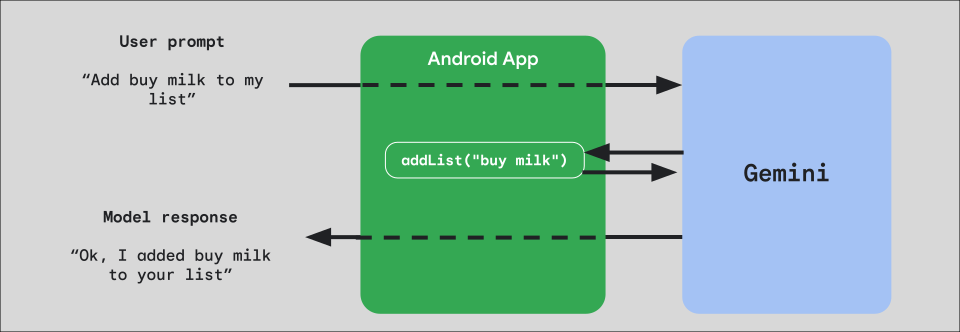 **Figure 1:** Diagram illustrating how the Gemini Live API allows a user prompt to be interpreted by a model, triggering a predefined function with relevant arguments in an Android app, which then receives a confirmation response from the model.
To implement function calling in your app, start by creating a
`FunctionDeclaration` object for each function you want to expose to the model.
For example, to expose an `addList` function that appends a string to a list of
strings to Gemini, start by creating a `FunctionDeclaration` variable with a
name and a short description in plain English of the function and its parameter:
### Kotlin
```kotlin
val itemList = mutableListOf()
fun addList(item: String) {
itemList.add(item)
}
val addListFunctionDeclaration = FunctionDeclaration(
name = "addList",
description = "Function adding an item the list",
parameters = mapOf(
"item" to Schema.string("A short string describing the item to add to the list")
)
)
```
### Java
```java
HashMap addListParams = new HashMap(1);
addListParams.put("item", Schema.str("A short string describing the item to add to the list"));
FunctionDeclaration addListFunctionDeclaration = new FunctionDeclaration(
"addList",
"Function adding an item the list",
addListParams,
Collections.emptyList()
);
```
Then, pass this `FunctionDeclaration` as a `Tool` to the model when you
instantiate it:
### Kotlin
```kotlin
val addListTool = Tool.functionDeclarations(listOf(addListFunctionDeclaration))
val model = Firebase.ai(backend = GenerativeBackend.googleAI()).liveModel(
modelName = "gemini-2.5-flash-native-audio-preview-12-2025",
generationConfig = liveGenerationConfig {
responseModality = ResponseModality.AUDIO
speechConfig = SpeechConfig(voice = Voice("FENRIR"))
},
systemInstruction = systemInstruction,
tools = listOf(addListTool)
)
```
### Java
```java
LiveGenerativeModel model = FirebaseAI.getInstance(
GenerativeBackend.googleAI()).liveModel(
"gemini-2.5-flash-native-audio-preview-12-2025",
new LiveGenerationConfig.Builder()
.setResponseModality(ResponseModality.AUDIO)
.setSpeechConfig(new SpeechConfig(new Voice("FENRIR")))
.build(),
List.of(Tool.functionDeclarations(List.of(addListFunctionDeclaration))),
null,
systemInstruction
);
```
Finally, implement a handler function to handle the tool call the model makes
and pass it back the response. This handler function provided to the
`LiveSession` when you call `startAudioConversation`, takes a `FunctionCallPart`
parameter and returns `FunctionResponsePart`:
### Kotlin
```kotlin
session.startAudioConversation(::functionCallHandler)
// ...
fun functionCallHandler(functionCall: FunctionCallPart): FunctionResponsePart {
return when (functionCall.name) {
"addList" -> {
// Extract function parameter from functionCallPart
val itemName = functionCall.args["item"]!!.jsonPrimitive.content
// Call function with parameter
addList(itemName)
// Confirm the function call to the model
val response = JsonObject(
mapOf(
"success" to JsonPrimitive(true),
"message" to JsonPrimitive("Item $itemName added to the todo list")
)
)
FunctionResponsePart(functionCall.name, response)
}
else -> {
val response = JsonObject(
mapOf(
"error" to JsonPrimitive("Unknown function: ${functionCall.name}")
)
)
FunctionResponsePart(functionCall.name, response)
}
}
}
```
### Java
```java
Futures.addCallback(sessionFuture, new FutureCallback() {
@RequiresPermission(Manifest.permission.RECORD_AUDIO)
@Override
@OptIn(markerClass = PublicPreviewAPI.class)
public void onSuccess(LiveSessionFutures ses) {
ses.startAudioConversation(::handleFunctionCallFuture);
}
@Override
public void onFailure(Throwable t) {
// Handle exceptions
}
}, executor);
// ...
ListenableFuture handleFunctionCallFuture = Futures.transform(response, result -> {
for (FunctionCallPart functionCall : result.getFunctionCalls()) {
if (functionCall.getName().equals("addList")) {
Map args = functionCall.getArgs();
String item =
JsonElementKt.getContentOrNull(
JsonElementKt.getJsonPrimitive(
locationJsonObject.get("item")));
return addList(item);
}
}
return null;
}, Executors.newSingleThreadExecutor());
```
## Next steps
- Play with the Gemini Live API in the [Android AI catalog sample app](https://github.com/android/ai-samples/tree/main/samples/gemini-live-todo).
- Read more about the Gemini Live API in the [Firebase AI Logic documentation](https://firebase.google.com/docs/ai-logic/live-api?api=dev).
- Learn more about the available [Gemini models](https://firebase.google.com/docs/ai-logic/models?api=dev).
- Learn more about [function calling](https://firebase.google.com/docs/ai-logic/function-calling?api=dev).
- Explore [prompt design strategies](https://firebase.google.com/docs/ai-logic/prompt-design?api=dev).